Preparing the package for your accountant
Updated
This walkthrough takes a finished period to the folder you hand your accountant, across the Month-end checklist, Period close and CPA package. Each step links to the page that explains that screen in full.
Before you start
- The period has ended, and its statements are imported; see From a bank statement to a signed-off month.
- Only the company's owner can close a period.
- You can export the package at any time, closed or not. Closing first keeps the figures you send as they were when you closed.
1. See what is still open (Month-end checklist)
- Open Month-end checklist in the rail, under Month end. It opens on the earliest open month that has ended.
- Read each line: bank and card lines with no match, expenses without a receipt, records without an exchange rate, drafts, overdue items, and statements not signed off. Each says how many are left, Done or Needs attention.
- Choose Fix on a line to go where you resolve it, then come back.
What you should see: the answer at the top says everything is ready, or how many items still need attention. Only the items marked Stops the close keep the period from closing.
2. Close the period (Period close)
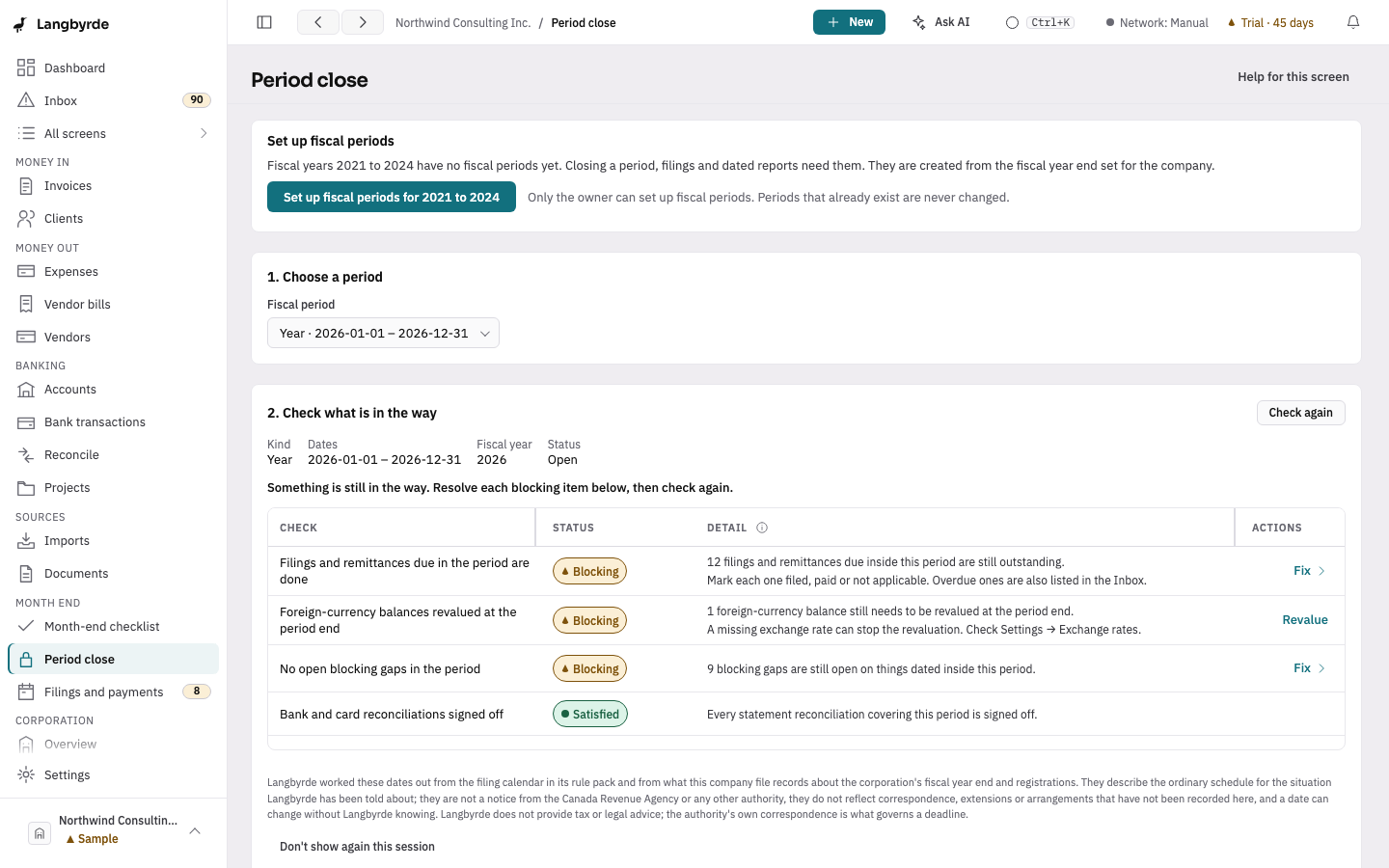
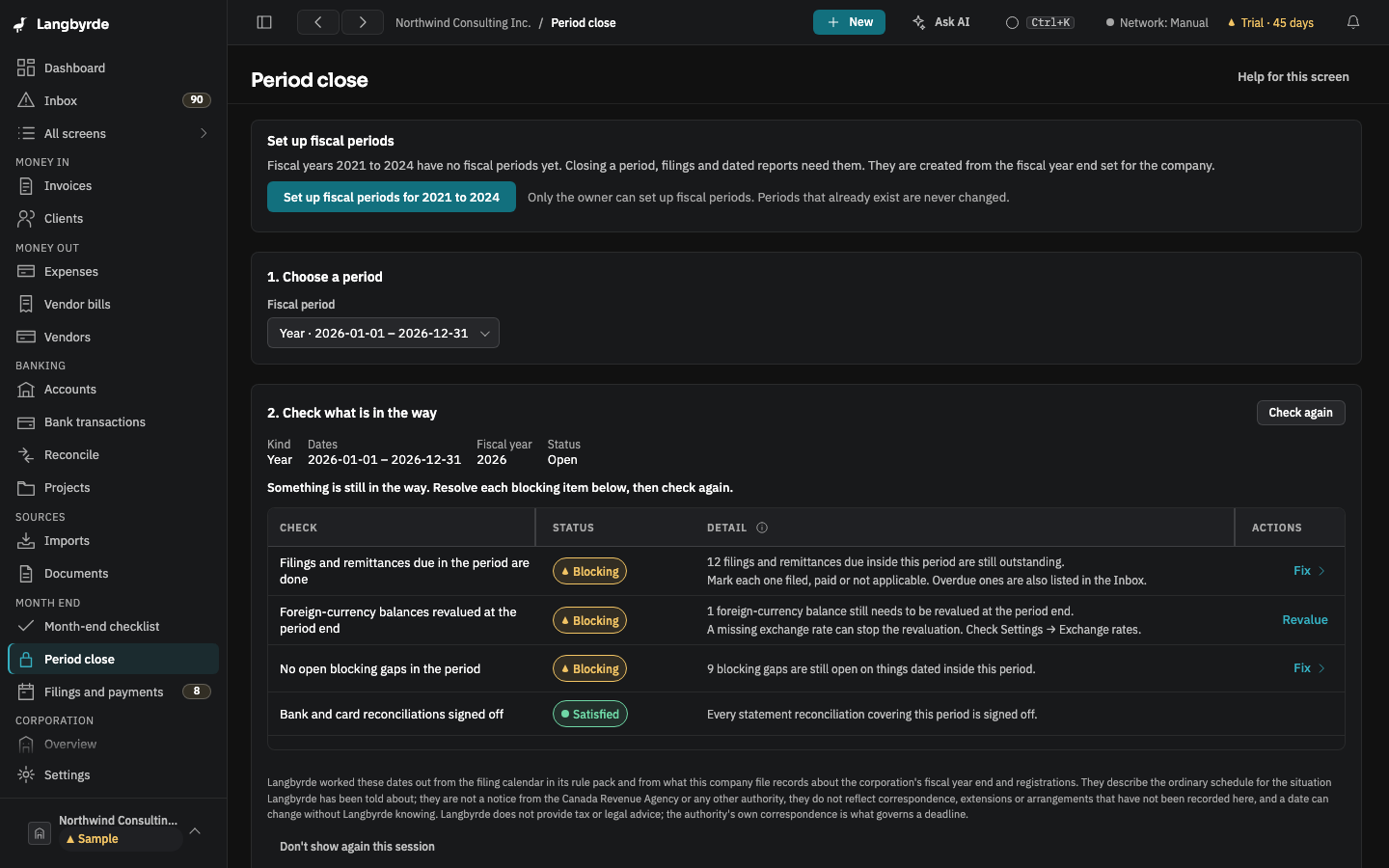
- Open Period close in the rail, under Month end. Under 1. Choose a period, the period due to close is already chosen.
- Each item shows Satisfied or Blocking, with a link to where you deal with it. Deal with each blocking item, then choose Check again.
- When nothing is in the way, choose Close the period…, read the confirmation and choose Close the period.
What you should see: the period is closed, and its records can no longer be changed. Notes, links, comments and documents can still be added.
If it does not match: if something changed while you read the confirmation, nothing is closed and the checklist is refreshed. See Closing a period.
3. Build the package (CPA package)
- Open CPA package in the rail, under Books.
- On Step 1 of 4: Fiscal year, check the year. The most recent closed year is picked for you. Before you send it lists what is still unfinished in that year; it only informs.
- Choose Export with these defaults (everything except bank and card statements, and no sensitive fields), or Next to choose the contents yourself.
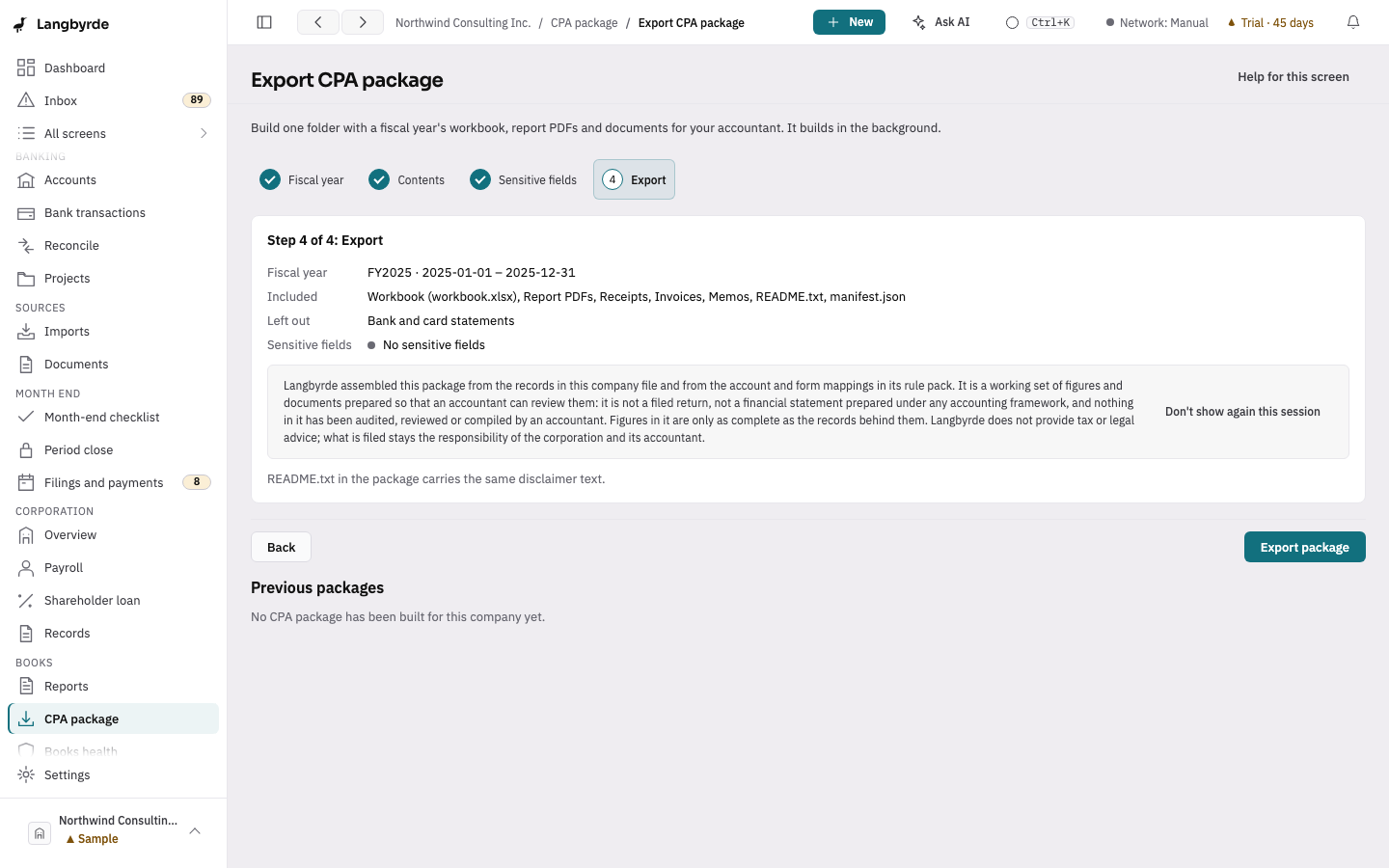
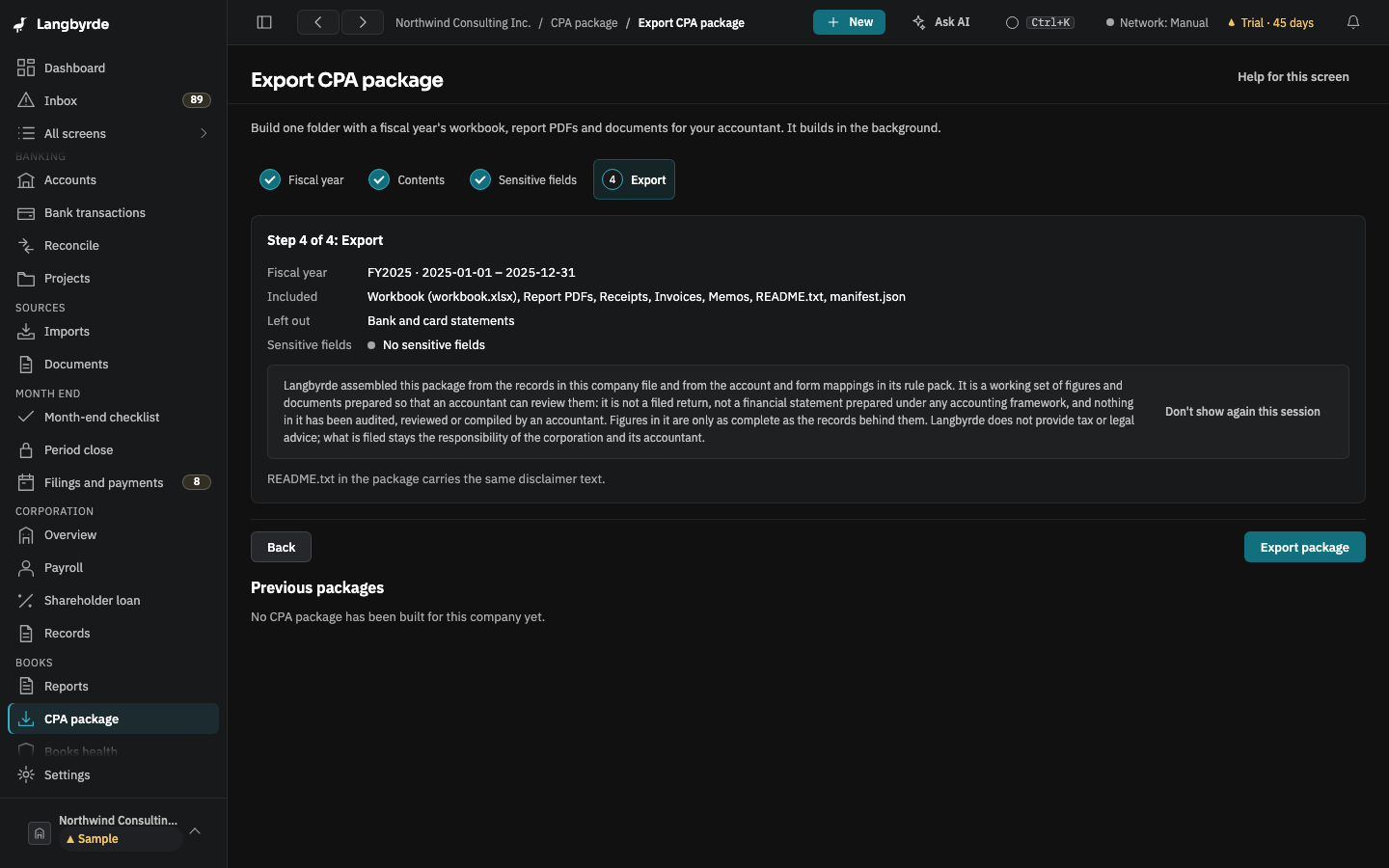
- Check the summary: the Fiscal year, what is Included, what is Left out, and Sensitive fields. Choose Export package.
What you should see: the package builds in the background while you keep working; when it is done, the screen says Package ready, and it is listed under Previous packages.
If it does not match: sensitive fields are left out by default; see Exporting a CPA package. The package's figures come from your records; see What the disclaimers mean.
4. Hand it over
Find the package where Langbyrde saved it (see Where the package goes) and send it to your accountant the way you usually share files. Langbyrde does not send it for you.