The dashboard
The dashboard is the first screen of an open company. It starts with what needs you, then shows the company's position as at today: money in the bank, money owed, the sales-tax position and what is due soon.
See what needs your attention
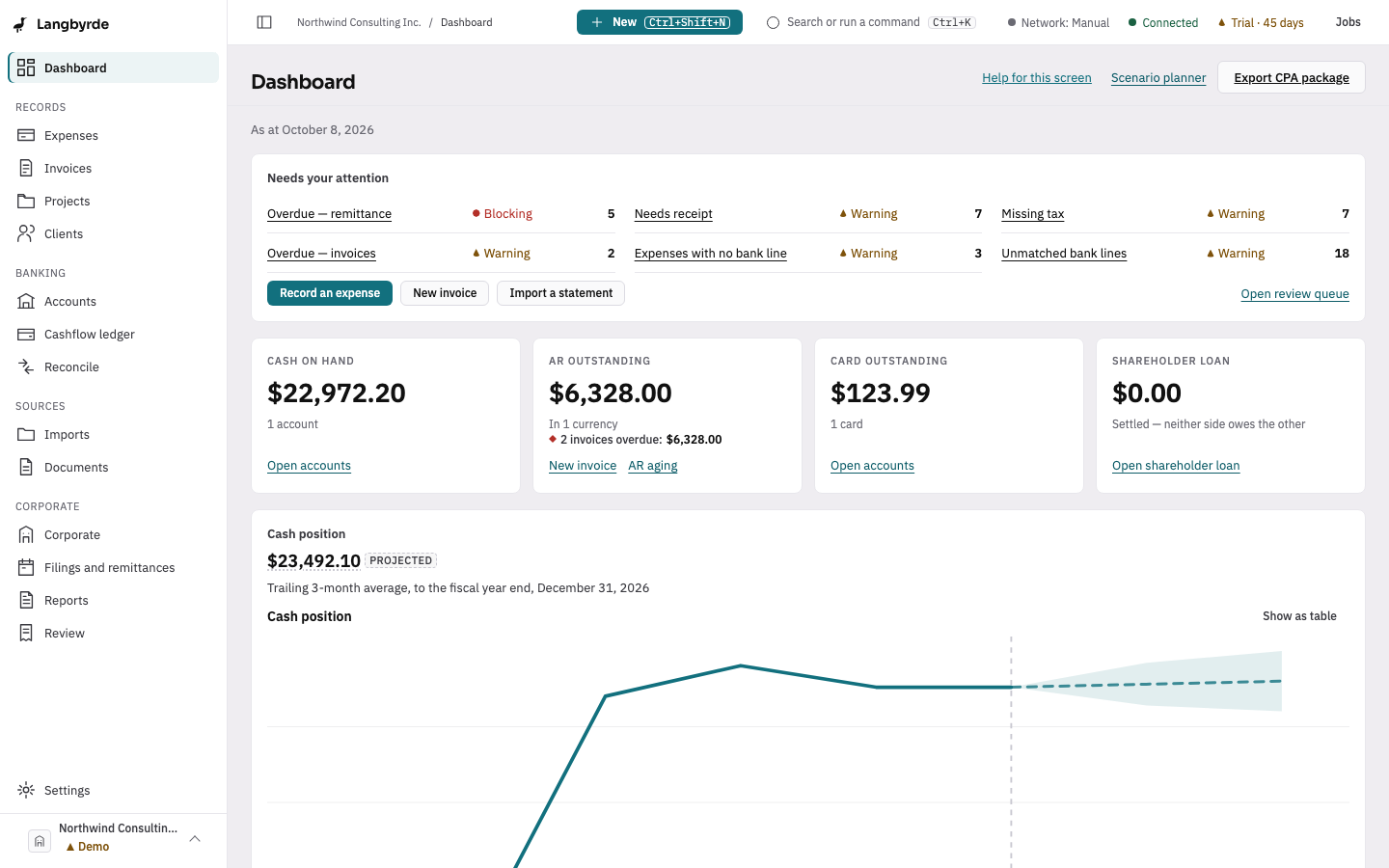
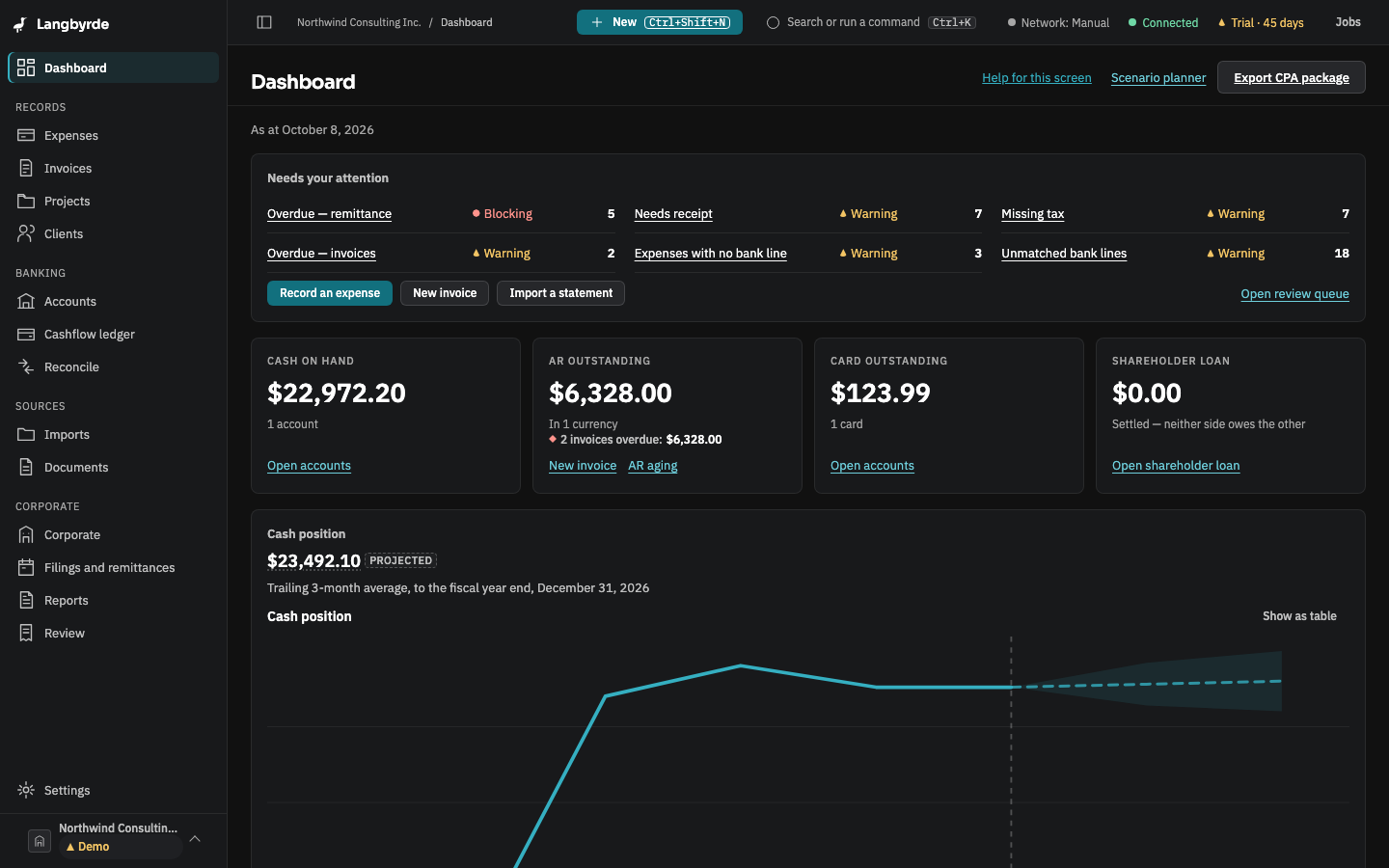
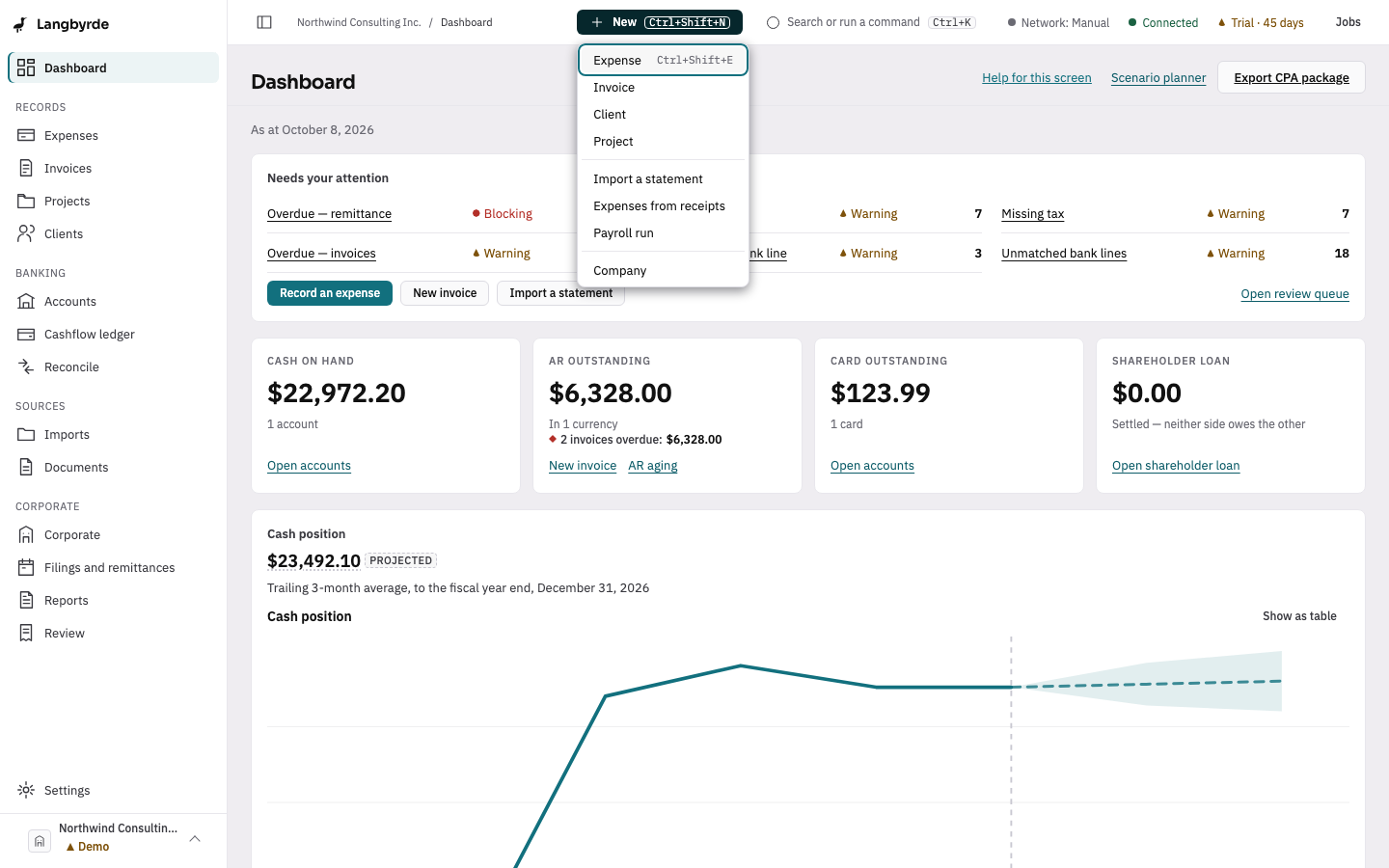
Needs your attention is the first panel. It lists what is waiting for a decision, worst first: Blocking, then Warning, then Info, each with a count. Choose a line to open the screen that deals with it:
- Unmatched bank lines opens Reconcile.
- Expenses with no bank line opens the review queue at those expenses.
- Overdue — invoices opens AR aging, where you can open each invoice and record its payment.
- Overdue — remittance and Overdue — filings open Filings and remittances.
- Anything else, such as Needs receipt or Missing tax, opens the review queue at that kind of item.
Under the list, Record an expense, New invoice and Import a statement start the three most common jobs, and Open review queue shows everything at once. When nothing is waiting, the panel says Nothing needs you right now.
Finish setting up a new company
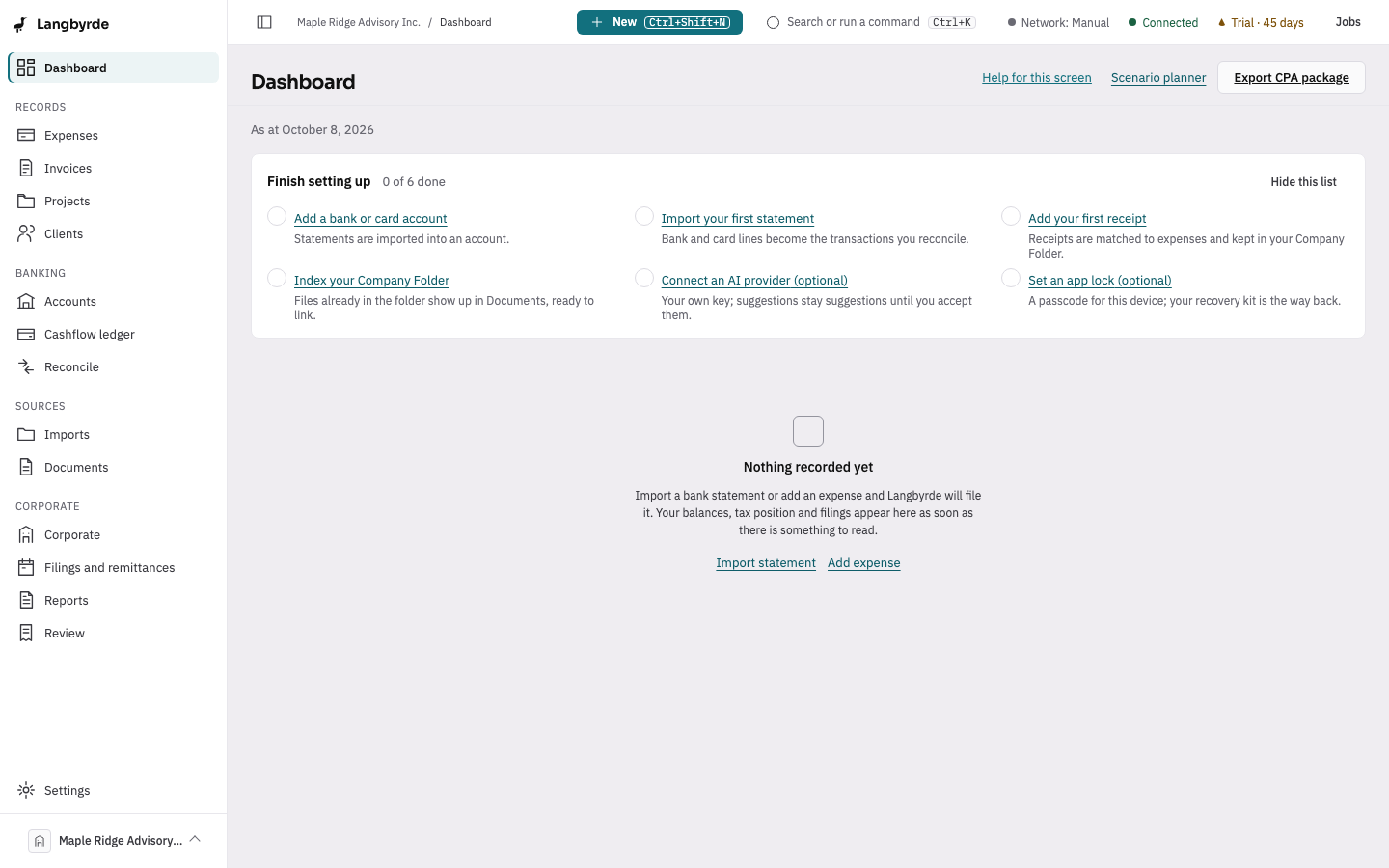
A new company's dashboard starts with a Finish setting up list: add a bank or card account, import your first statement, add your first receipt, index your Company Folder, and optionally connect an AI provider and set an app lock. Each item is one click into the screen that does it, and ticks itself once the work is done. See Setting up a new company.
Start something new
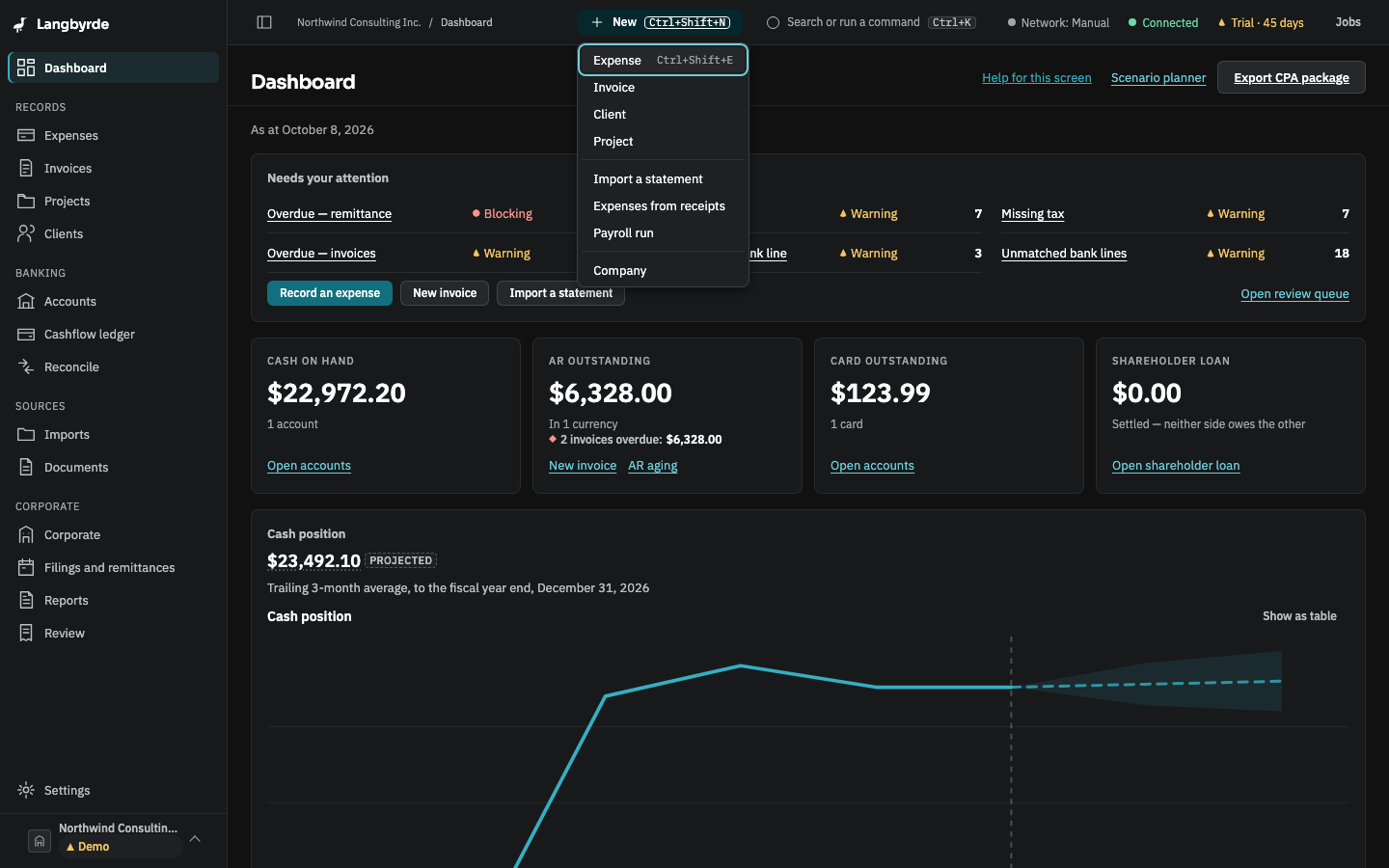
Choose New in the top bar, or press Ctrl+Shift+N (⌘⇧N on a Mac), from any screen. The menu lists:
- Expense — the new-expense form.
Ctrl+Shift+E(⌘⇧E) opens it directly. - Invoice, Client, Project — the form for each.
- Import a statement, Expenses from receipts — the Imports screen and Receipt intake.
- Payroll run — the Payroll screen.
- Company — sets up another company.
With no company open, the menu offers only Company. In read-only mode the items are shown but cannot be chosen.
Where each figure comes from
Every figure on the dashboard is worked out by Langbyrde from the records in this company file. The screen only shows them; it never adds anything up itself. The line at the top says the date the figures are for.
- Cash on hand adds up the balances of your chequing, savings, wallet and cash accounts. Credit cards and loans are not included.
- AR outstanding is what your clients still owe on issued invoices, including sent and partly paid ones, after any credit notes. Below it, the card says how many invoices are overdue and how much they come to. The invoice list uses the same figures, so the two always agree. The card's AR aging link opens the AR aging report.
- Card outstanding is what is owed on your credit cards.
- Shareholder loan says whether the company owes the owner, the owner owes the company, or neither. See Corporate.
- Cash position carries cash on hand forward to the fiscal year end from the recent trend. It is a projection, not a forecast you can rely on; see What the disclaimers mean.
- HST this period shows the HST collected, the input tax credits and the net figure for the sales-tax period that is open.
- Corporate tax estimate (fiscal year to date) is a rough estimate of the corporate income tax on this fiscal year's income so far. See The corporate tax estimate below.
- Upcoming filings lists the next five filings and remittances, each marked Late when its due date has passed. All filings and remittances opens the full list and says how many more there are.
Below them, Revenue and expenses, last twelve months and Closing cash, last twelve months show the trend month by month, and Expense mix lists the expense accounts with the most posted to them since the fiscal year began. Show as table shows a chart's figures as a table.
The corporate tax estimate
The estimate is worked out from the company's income before income taxes, from the first day of the fiscal year to today, using the tax rates the app ships with. It is a simplified figure, not your tax return; see What the disclaimers mean for what it does and does not account for.
Planning ahead
Scenario planner, near the top of the dashboard, lets you try out planned invoices, expenses and owner pay and see how they would move these figures; see The scenario planner. Export CPA package starts the CPA package.
The Projected marker
Some amounts carry a small Projected badge: a figure Langbyrde estimated rather than one you recorded, such as an amount converted from another currency, the HST net figure, the cash position or the corporate tax estimate.
The disclaimers
The disclaimers for the figures on this screen are grouped at the bottom, under About these figures. Don't show again this session hides one until the app next starts. See What the disclaimers mean.
When nothing is recorded yet
A company with nothing in it shows Nothing recorded yet, with Import statement and Add expense to bring in the first records.