What's new in this version
This version makes the everyday jobs shorter: fewer clicks, fewer forms, and the app remembers more for you. Nothing about where your data lives or what Langbyrde sends has changed.
Start anything from anywhere
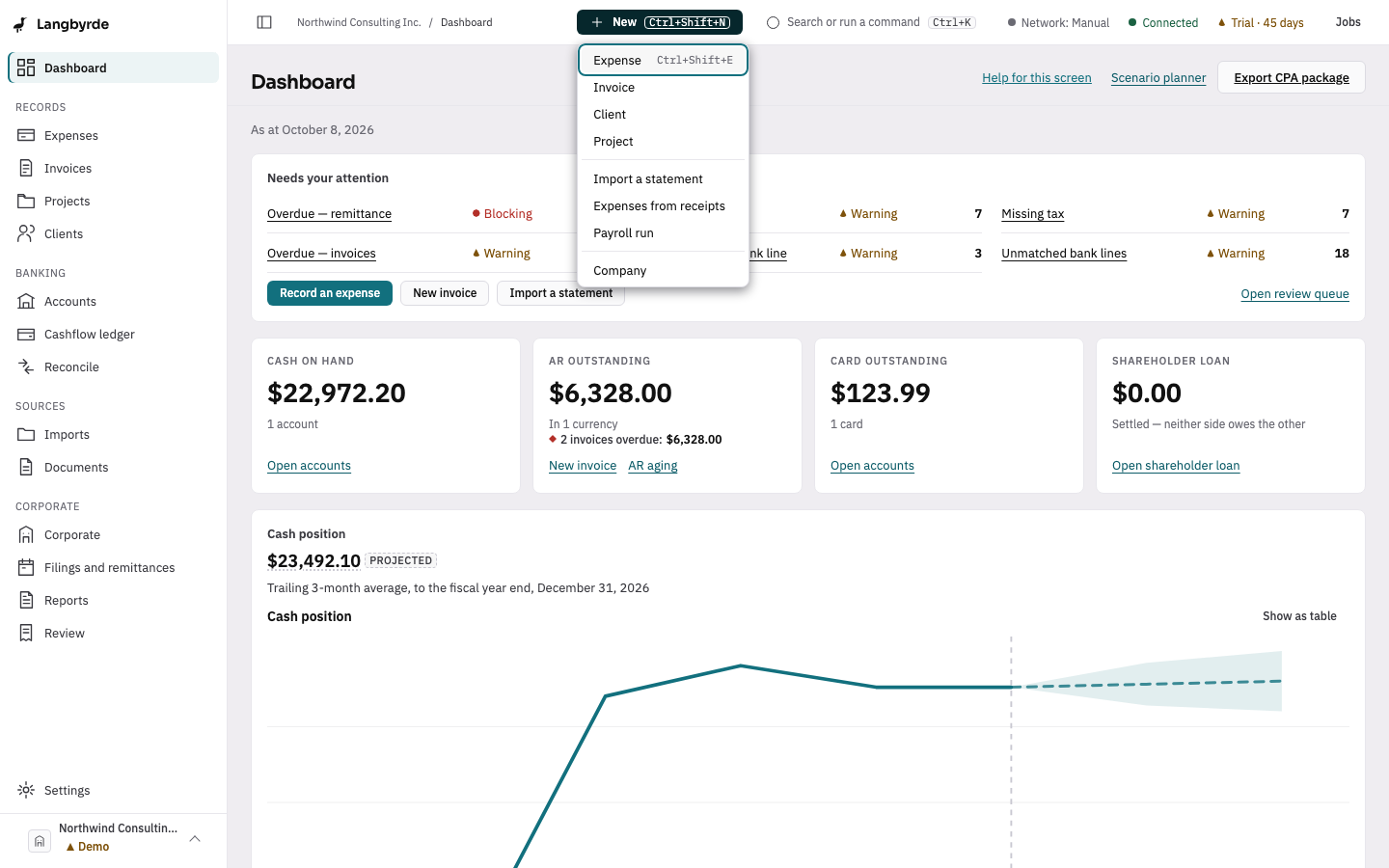
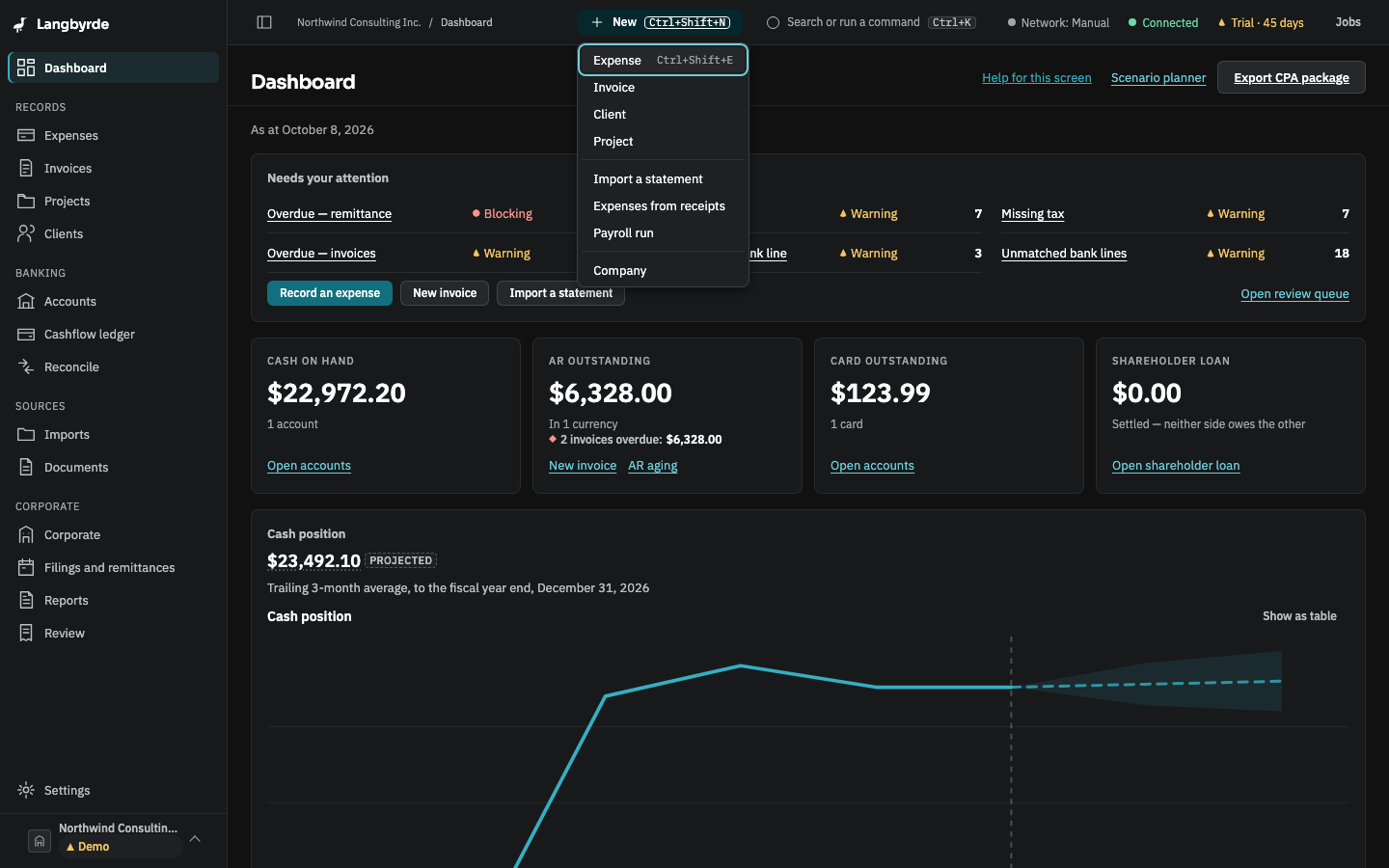
- A New button in the top bar starts an expense, an invoice, a client, a project, a statement import, receipts, a payroll run or another company, from any screen.
Ctrl+Shift+E(⌘⇧Eon a Mac) opens a new expense;Ctrl+Shift+N(⌘⇧N) opens the New menu. See Keyboard shortcuts.- The command palette (
Ctrl+K) has New expense, New client and New project.
The dashboard starts with what needs you
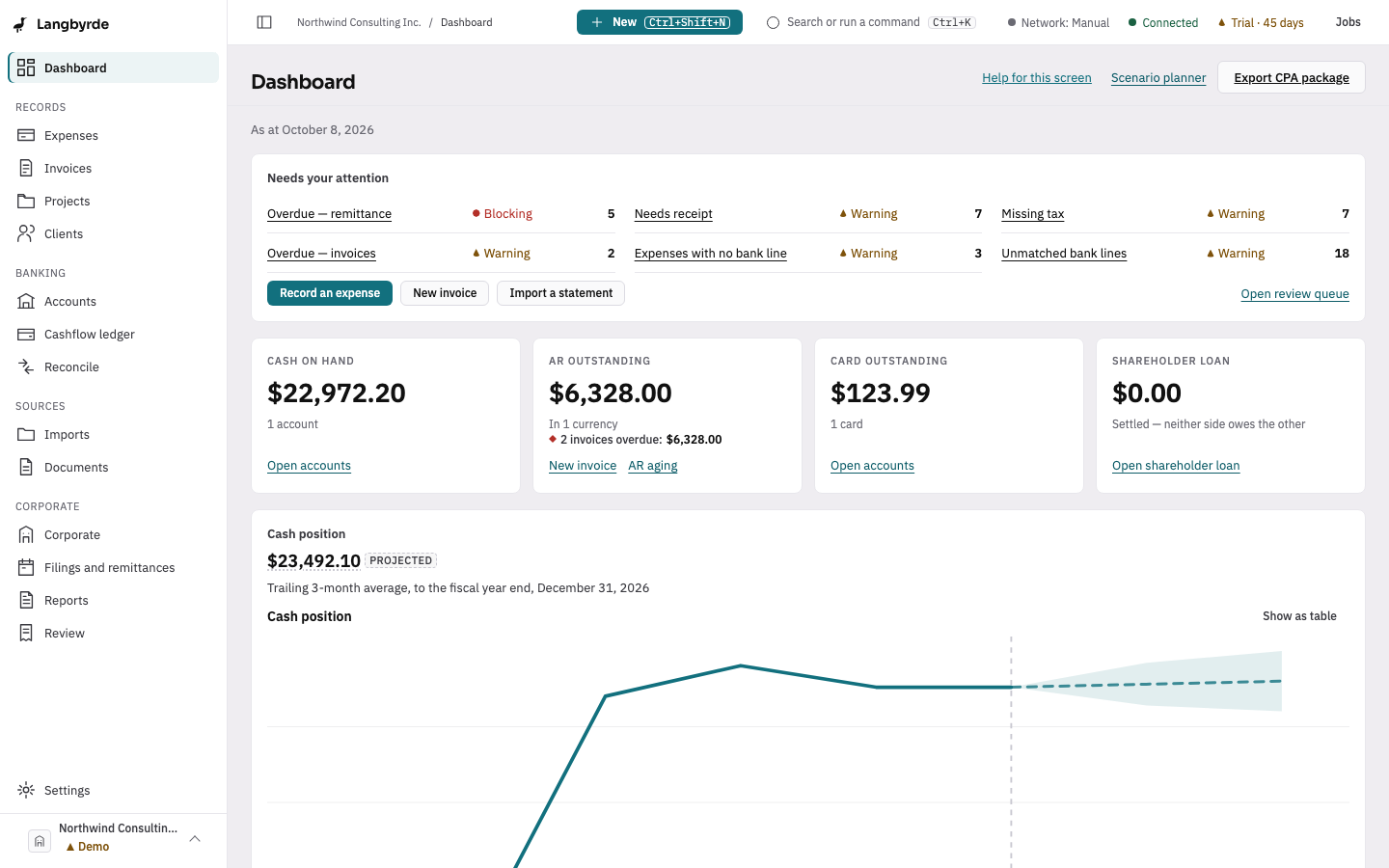
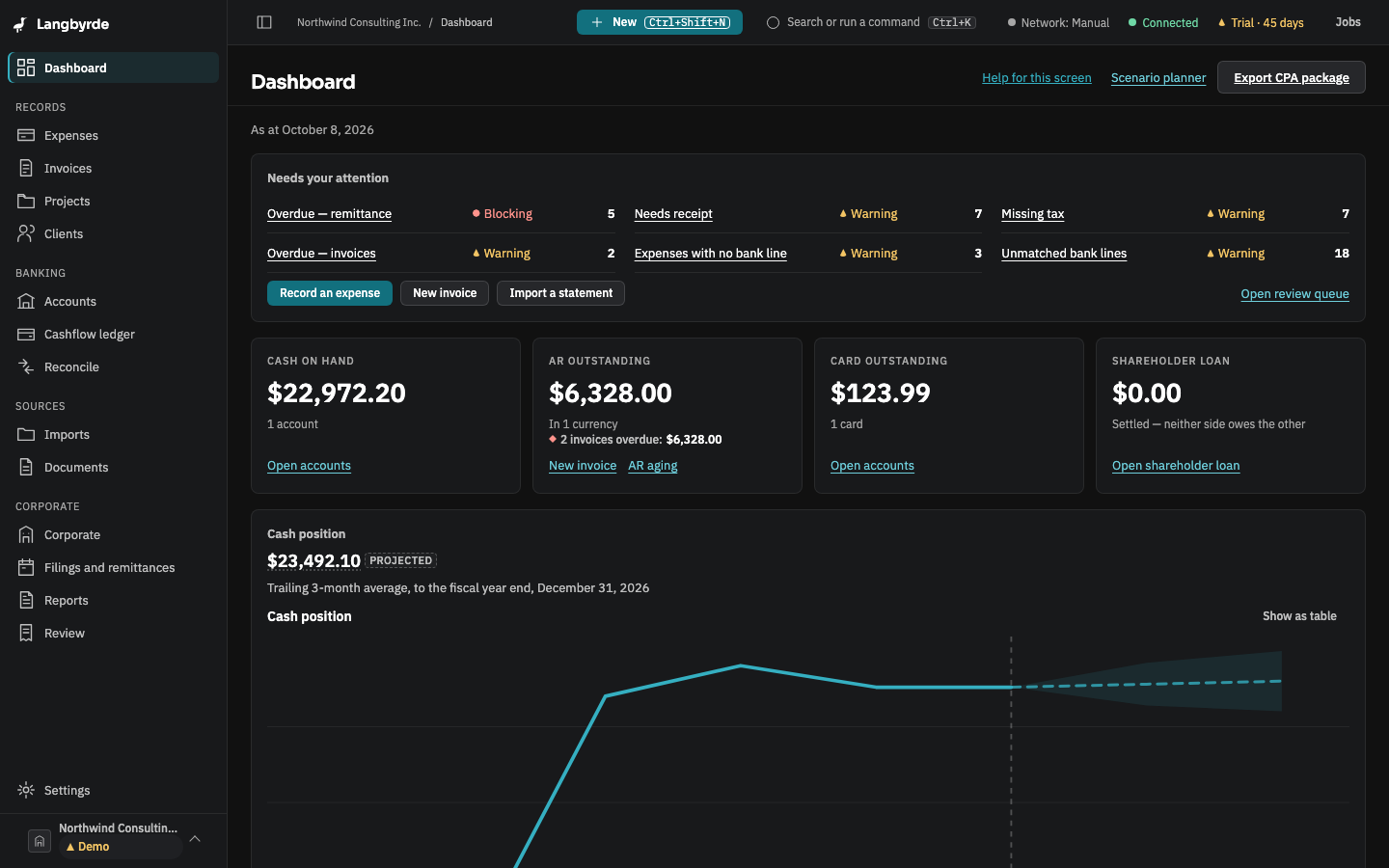
Needs your attention is now the first panel, worst first, and each line opens the screen that deals with it: unmatched bank lines go to Reconcile, overdue invoices to AR aging, late filings to Filings and remittances. Upcoming filings shows the next five and links to the rest. See The dashboard.
Setting up a company takes three steps
Name and folder, jurisdiction and fiscal year, recovery kit, and you are on the dashboard. Bank accounts, the first statement, receipts, folder indexing, an AI provider and an app lock moved to a Finish setting up list on the dashboard that ticks itself as you go. See Setting up a new company.
Banking and Filings in the rail
The rail has a Banking group with Accounts, Cashflow ledger and Reconcile, and a Filings and remittances row under Corporate. In a narrow window the rail shrinks to icons on its own until you choose otherwise.
Invoices in one screen
Choosing the client opens the draft straight away; lines are typed in and added with Enter. Tax is applied as each line is added, using what you supplied to that client last time, so the issue step is one confirmation. Record payment starts with the amount still owed. See Issuing an invoice.
Faster expenses and reconciling
- A vendor you have paid before fills in its usual category and payment source, and the vendor is found as you type its name.
- A new expense starts with the payment source and account you used last on this computer.
- On the Cashflow ledger, select several lines and choose Accept N suggestions… to accept their suggested matches at once.
- Reconcile opens on the first tab that has lines in it.
- A new statement says what to do next (Review N lines, Continue import) once Langbyrde has read it.
- Statement and receipt files dragged onto the window from any screen are imported.
See Recording an expense and Reconciling.
Corporate
- Remittances show the amount the books give for them, instead of $0.00.
- The dashboard and the Filings screen now agree on which filings are late, and overdue invoices show Overdue in the invoice list.
- Shareholder loan has a Record entry button. Payroll shows one Record a run.
- Period close lists closed periods newest first.
CPA package, backups and updates
- Export with these defaults on the CPA package's first step takes you straight to the summary. See Exporting a CPA package.
- Backups is listed in Settings. Updates › Roll back lists the previous installer and the snapshot taken before the update; the guide says when to use which. See Backups and restore.
- Settings › Data location can erase a company from this computer, with an export step first and your documents left alone. See Data location.
Easier to read
- Settings › Appearance sets the text size: Small, Default, Large or Extra large, with zoom in steps up to 200 %. See Appearance.
- Amounts are no longer cut short in narrow windows or at large text sizes; tiles and tables reflow instead.
- The trial chip in the top bar opens the licence screen, and the open company stays open after a reload.