Vendor bills
Updated
A vendor's invoice comes in one of two kinds, and Langbyrde records each one differently:
- Already paid, such as a hotel folio paid by card or a software invoice charged to the company card. It is an expense, matched later to the bank or card line that paid it.
- Still to pay, such as a contractor's invoice with a due date and bank details. It is a vendor bill: an expense counted on its bill date that stays on the Vendor bills list until it is paid.
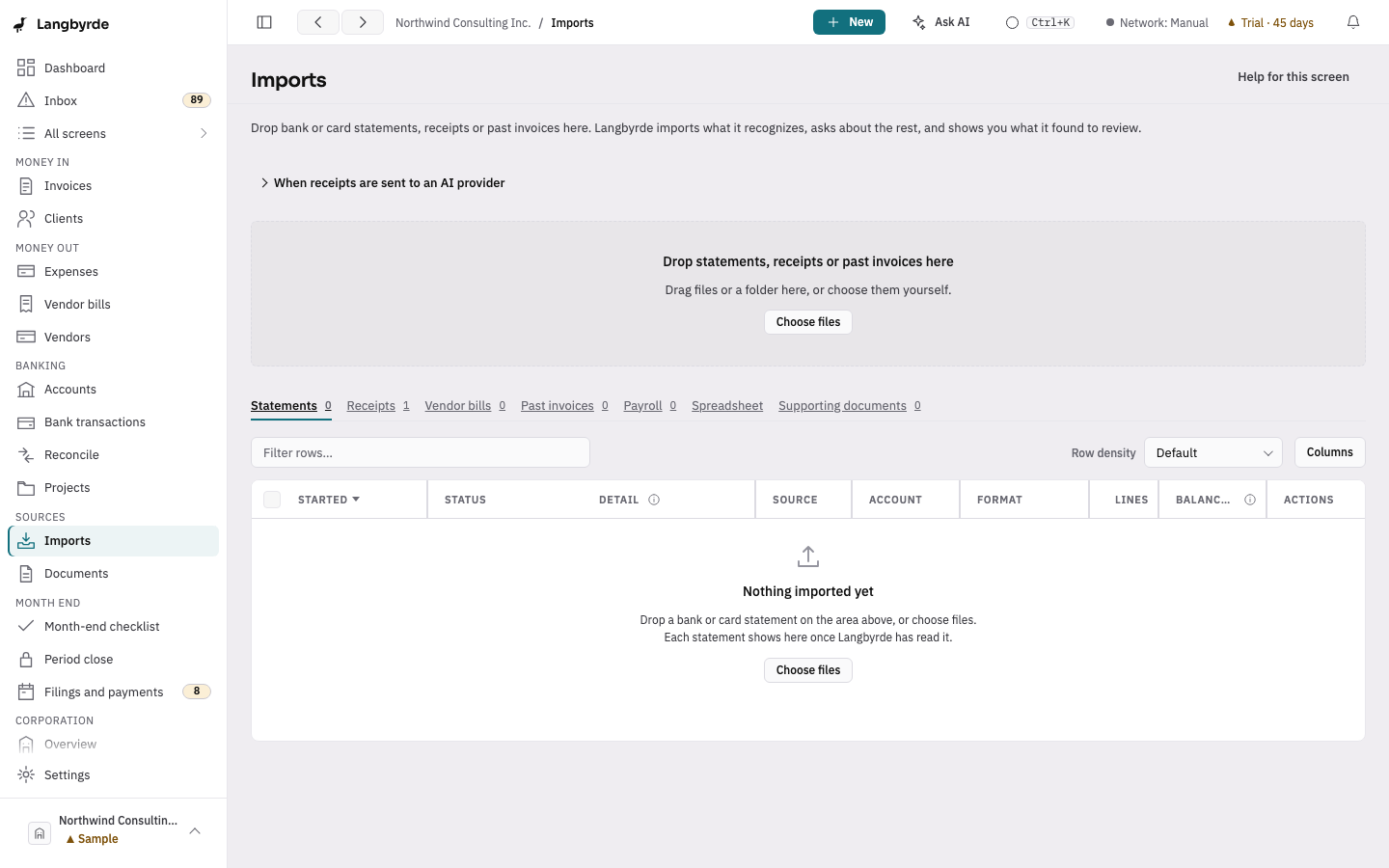
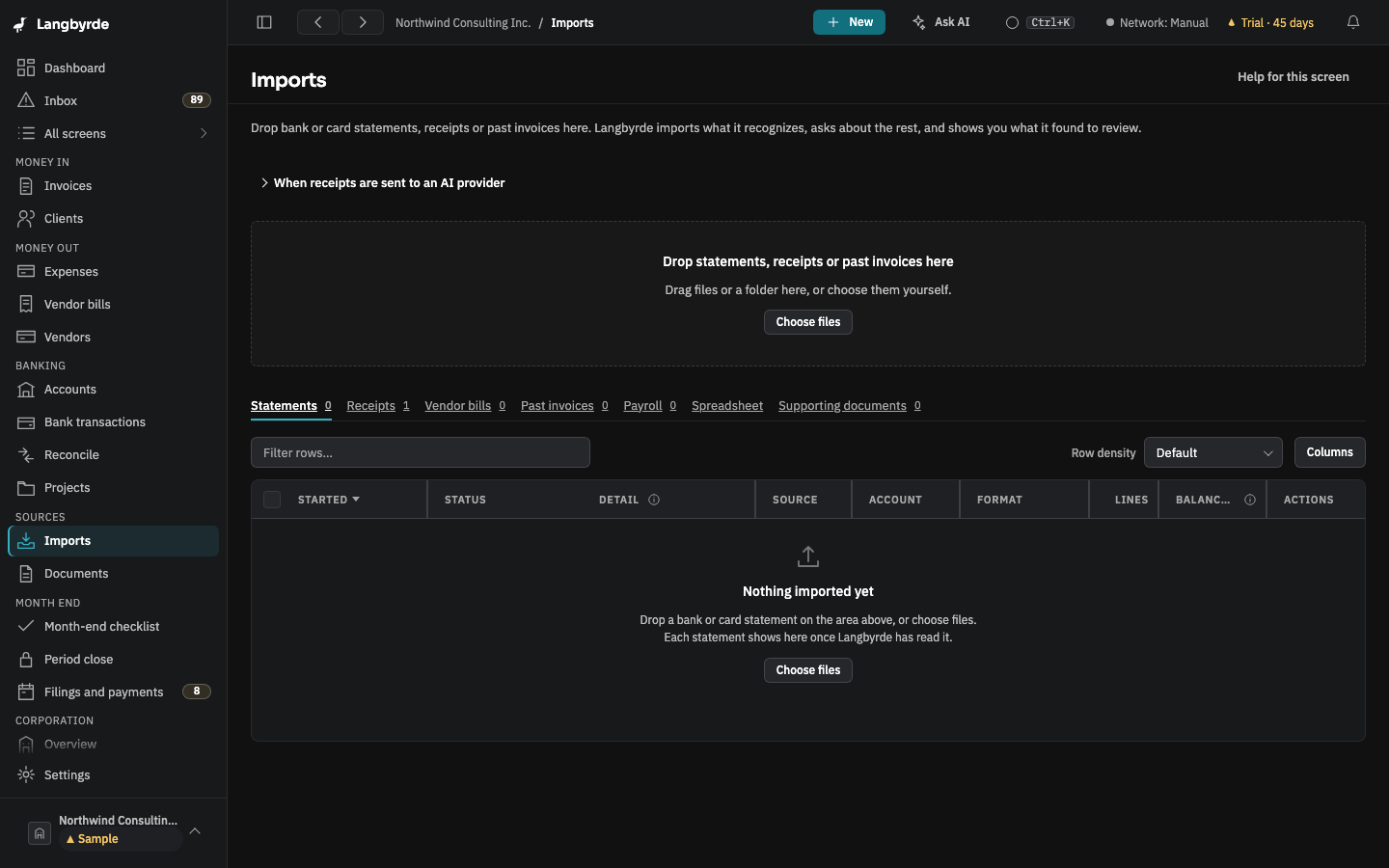
Bring a vendor bill in
- Drop the invoice on Imports (a PDF or a picture).
- On its row, open More actions and choose Mark as a vendor bill, or tick several files and choose Mark selected as…. A file is only ever a vendor bill because you said so; Langbyrde never decides that by itself.
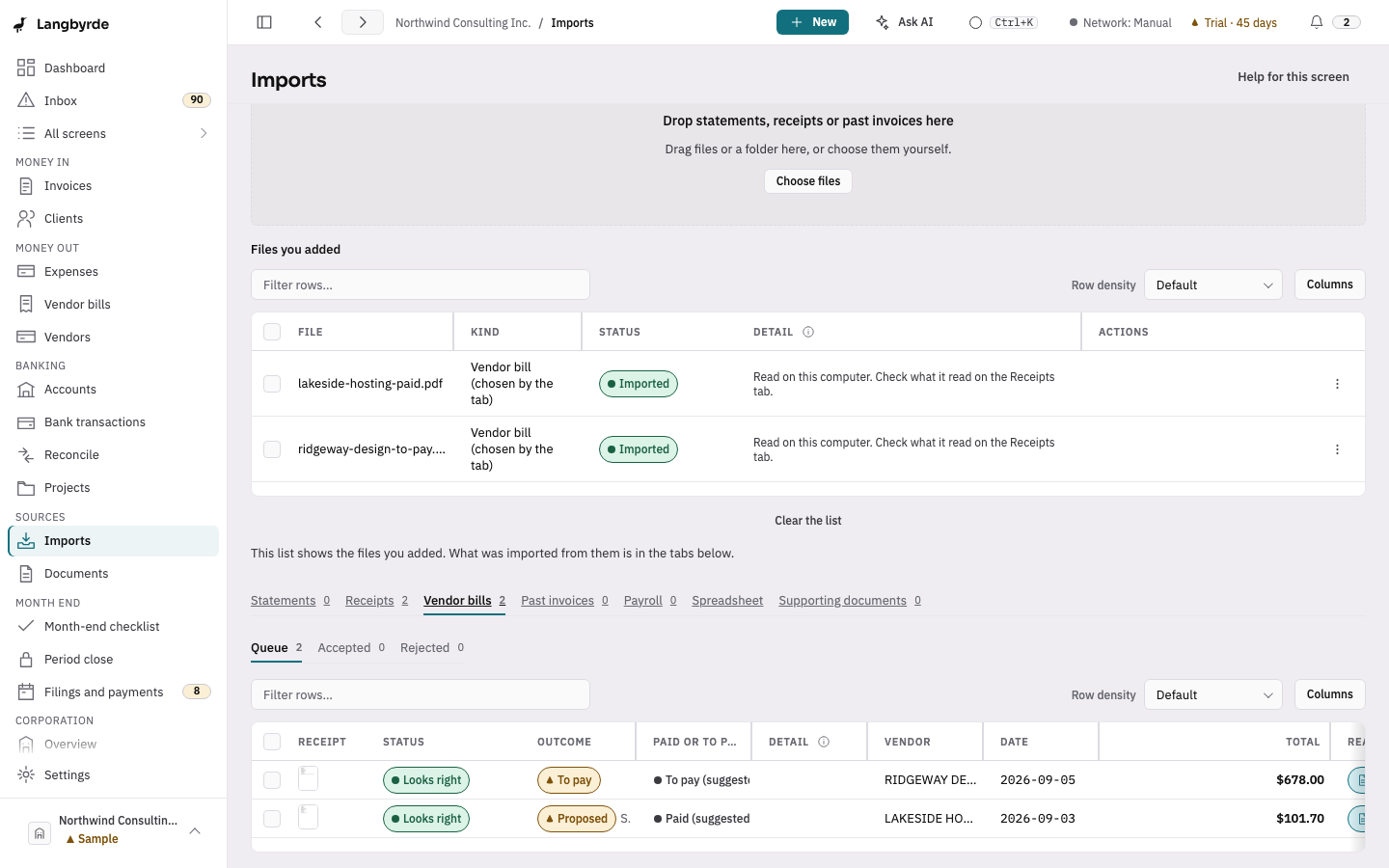
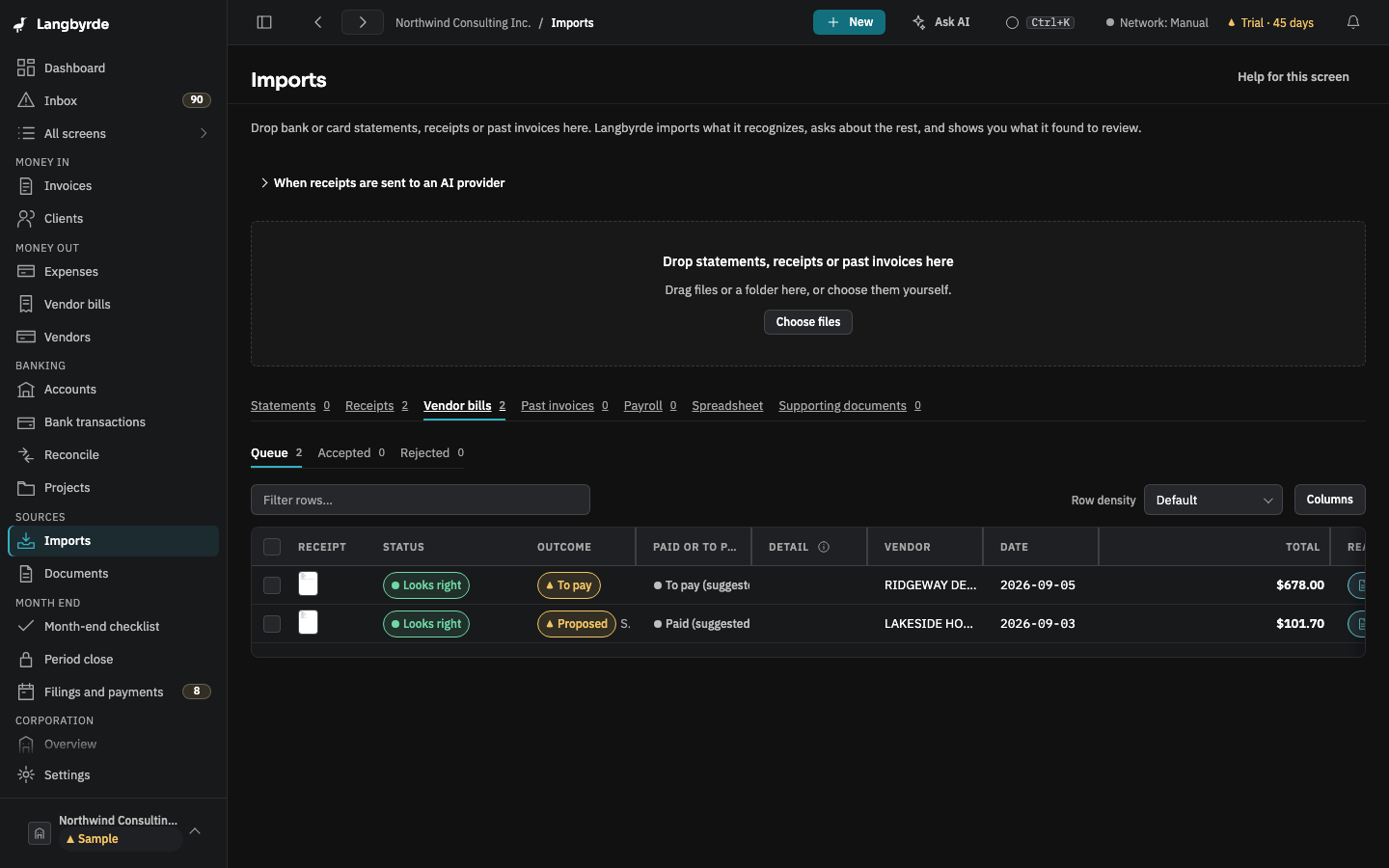
- The invoice is filed in your Company Folder and read on this computer, like a receipt. It is listed on the Vendor bills tab.
A receipt already filed can be turned into a vendor bill from its row's More actions: It is a vendor bill. A vendor bill can go back with It is a receipt, not a vendor bill.
Paid or to pay: the suggestion, and your choice
The reading looks for the invoice's own words and suggests which kind it is. The Paid or to pay column shows the suggestion with (suggested) after it:
- Paid: the invoice shows a payment, such as a paid stamp, a paid-on date, the card that was charged, or nothing left due.
- To pay: the invoice asks for payment, such as a due date, an amount due or payment instructions.
- Needs a look: the invoice says both, or neither. Invoices in a language other than English always read as Needs a look.
The suggestion is never applied for you. In the row's More actions, choose It is already paid or It is to be paid. Use the reading's suggestion puts the suggestion back.
An invoice that is already paid
It is filled in for you as a Proposed expense, exactly like a receipt: vendor, date, amounts and tax, a suggested category and the invoice number, with the file attached. When exactly one bank or card line matches it, that line is shown as its suggested line. Nothing is recorded until you press Accept or Accept with this line. See Reading receipts on this computer.
An invoice still to pay
- Choose New vendor bill… on its row.
- Check the vendor, bill date and total: they are what Langbyrde read; open the reading to correct them. Choose the Category. The Due date is the one the invoice printed, when one was read, otherwise the vendor's payment terms, otherwise 30 days. Add the Vendor's invoice number and, if you want them kept, the vendor's payment details.
- Choose Record vendor bill. The row then says Vendor bill.
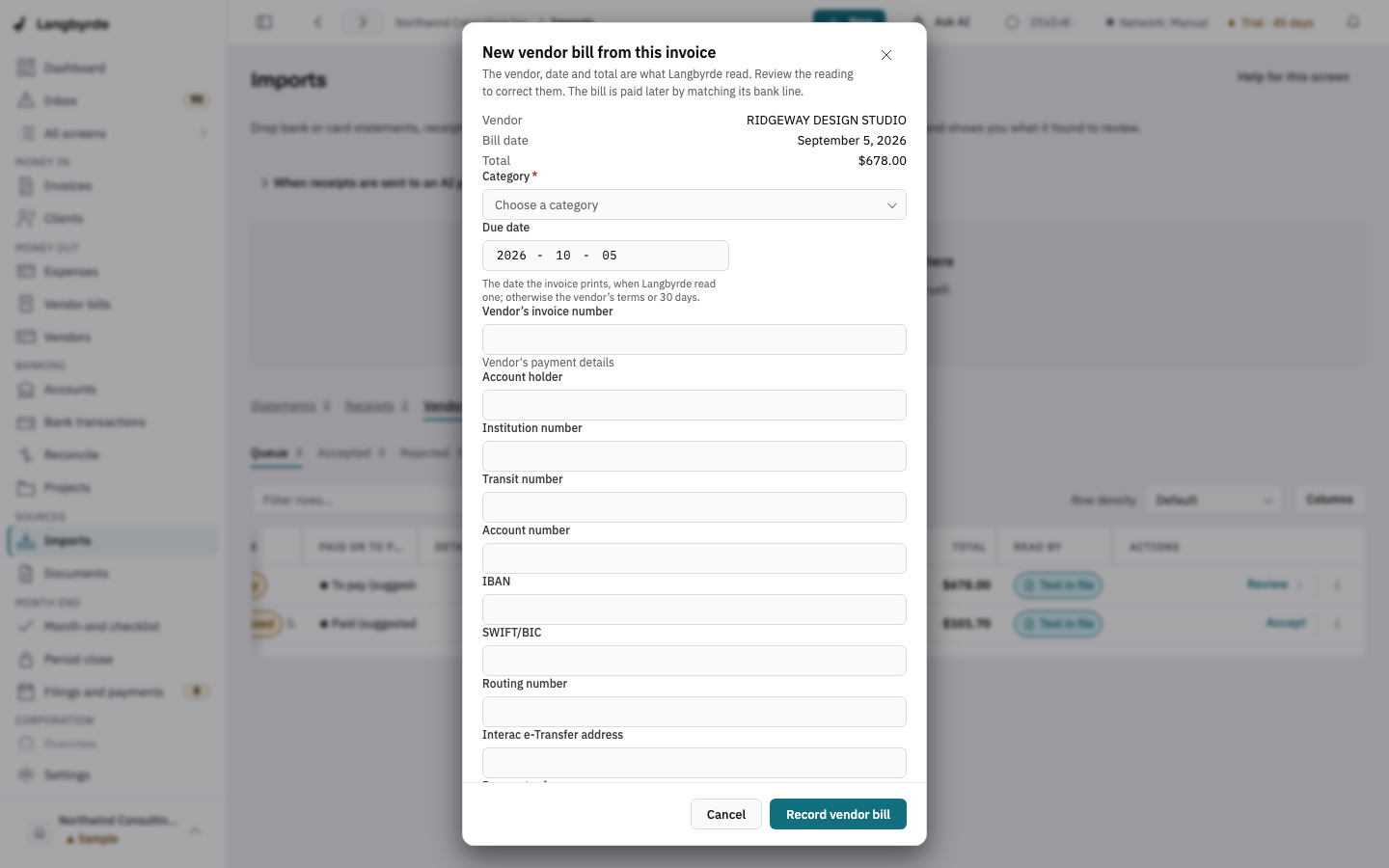
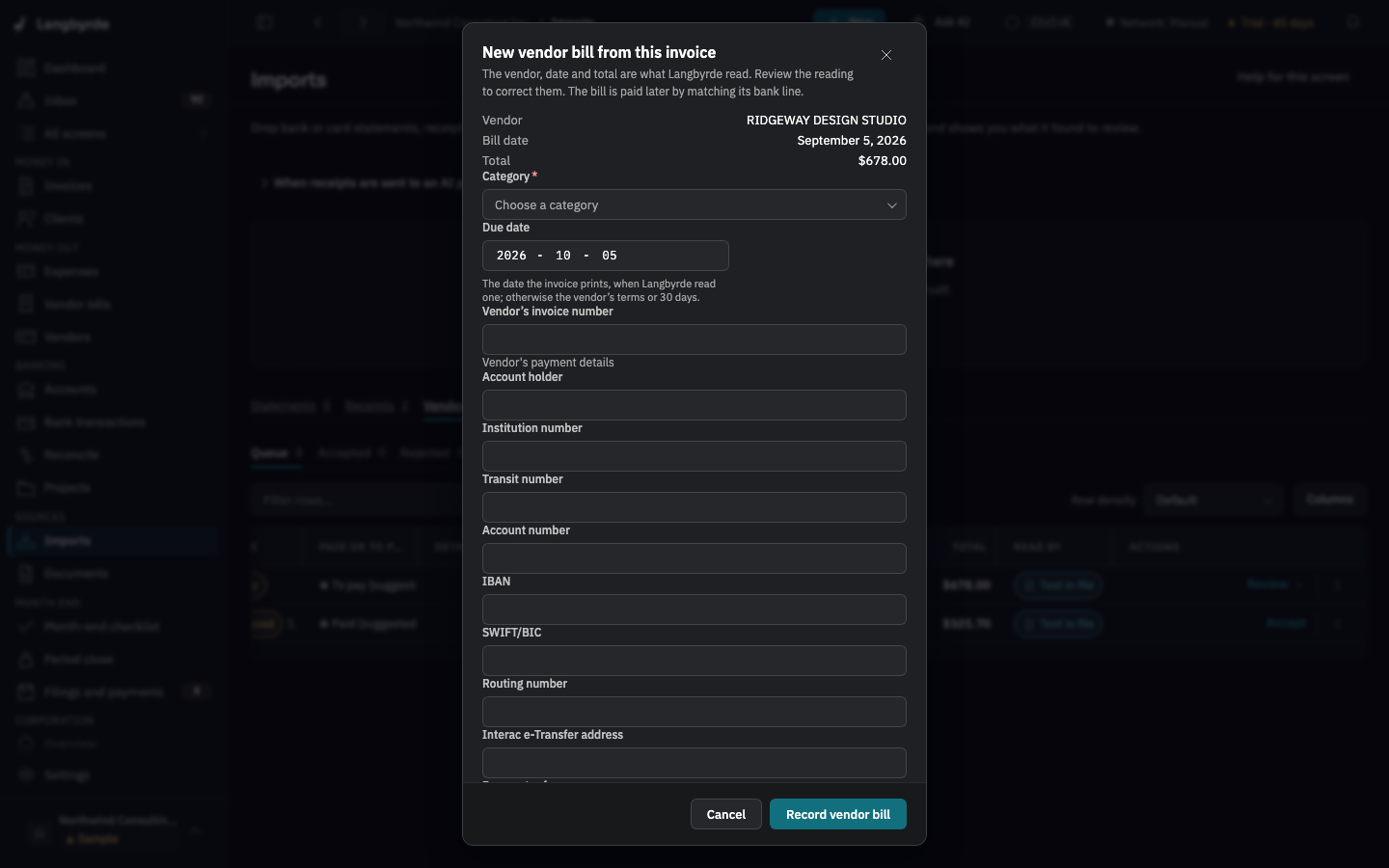
The vendor is found by name, or created if it is new. The bill is paid later, when its bank line is matched (see Pay a bill). The same file never makes a second bill, and a file already held by an expense cannot become a bill.
Attach to an existing vendor bill… files the invoice on a bill you already recorded by hand, as long as that bill has no invoice file yet.
One charge, one expense
A vendor often charges your card and also sends an invoice for the same charge. When you record a bill with the same vendor, amount and currency as an expense already in your books, dated within five days of it, the bill form says This looks like EXP-0001 and shows why (the dates, and whether a bank transaction already pays it). You choose:
- Link to EXP-0001 instead: no second expense is made. The invoice becomes the second document of EXP-0001, next to its receipt, and the bill is marked paid at once when that expense was already paid by a card, an account or you. It is never one of the bills to pay.
- Different charge: record a second bill: two charges of the same amount a few days apart are real; the bill is recorded as usual.
The same offer appears in the New expense form and when you make a bill from a read vendor's invoice. In the expense form, Add to EXP-0001 puts the receipt and the invoice on that expense instead of recording a second one.
Langbyrde never merges two records by itself. If a second expense was made by mistake, open it and choose Remove expense… (see the register).
When the second record was a bill's own expense, removing it as a duplicate voids the bill with it: the charge is recorded once, on the expense you kept. The bill stays in All and reads Paid by EXP-0001 once that expense is paid (by a card, an account or you, or its own bill), or Merged into EXP-0001 while it is not paid yet. Its panel says where the charge is recorded, when it was paid, and links there. It owes nothing, takes no payment, and is never in To pay, Overdue, bills due or the payables, so the payment is counted once, on the expense you kept.
The receipt and the invoice in one expense form
The New expense form takes the payment receipt and, under Add the vendor's invoice, the invoice the vendor sent. Both become documents of the one expense:
- Paid already (a card, an account, cash): the invoice becomes a bill recorded against the expense and marked paid at once. Nothing shows as due.
- Not paid yet: put it in Vendor bills: the expense is recorded through the bill, so it shows in Vendor bills with its due date until a bank transaction pays it. Pick the vendor from the list for this. When you used the due date read off the invoice (below), that date is the bill's; otherwise the vendor's terms set it.
An invoice and a receipt on one expense
An expense keeps every document of its charge, each with what it is: the vendor's invoice and the card receipt sit side by side, and neither replaces the other. In the expense drawer, Documents of this expense lists them:
- Receipt or Vendor invoice says what each file is. A file you dropped as a vendor bill, or into a bill's Invoice file box, is the vendor's invoice. Otherwise its name is read for a suggestion, marked (suggested): choose Confirm: Receipt (or Confirm: Vendor invoice), or Mark as … with the other kind, to say what it is.
- Add another document of this charge adds the invoice, or a second receipt, beside the receipt the expense already has.
- Take off removes a document you added beside the receipt from the expense. The file stays in your documents folder.
When the files are filed, each gets a name of its own: the invoice's name ends in _invoice, and a second file of the same kind ends in _1, _2 and so on. Both wait on Rename proposals, and one Accept selected moves them together. Nothing is overwritten or deleted.
A file dropped anywhere on the drawer goes to the box that is still empty: the Receipt box while the expense has no receipt, and Add another document of this charge once it has one. A drop never replaces the receipt; to replace it, use Remove on the receipt first.
The vendor's invoice also reads as Vendor invoice, not Receipt, in the expense register's detail column, in Documents (the list and the document's details) and in the Kind column of Rename proposals.
Files you filed before invoices had a name of their own
Files filed before this change keep their old names; nothing moves by itself. To give an expense's invoice and receipt their own names:
- Open the expense and look at Documents of this expense.
- For each file marked (suggested), choose Confirm: Receipt or Confirm: Vendor invoice (or Mark as … with the other kind if the suggestion is wrong). Each choice proposes that file's new name.
- Once every file's kind is said, Propose names for these documents asks for all of them again in one step.
- Open Rename proposals, select the files and choose Accept selected. Only then are they moved and renamed, and each move is written to
RENAME_LOG.md.
What is read off the documents you add
A receipt or an invoice you add to New expense, to a new vendor bill in Vendor bills, to Create from this line… on a bank transaction, or to an expense you already saved (its drawer's Receipt) is read the same way Imports reads it: the PDF's text or text recognition on this computer first, the reading rules, Smart receipt reading when it is installed, and your AI provider only if you turned it on for this company (only the redacted text is sent, and Network activity lists the call).
Read from the documents lists what was found, never typed in for you:
- each value, how sure the reader was, who read it and where (the file, and the line of an invoice's number or due date). Show where opens the page the value was read from with its line highlighted, so you can check it against the paper before you use it;
- whether each file is a receipt (the payment) or the vendor's invoice (a request to be paid), and whether a receipt and an invoice added together show the same vendor and total;
- the vendor it matches (by name or one of its other names), or that no vendor has that name yet;
- the category, project and tax code you chose for that vendor last time.
Press Use on a value, or Use all. Nothing is saved until you record the expense or the bill. If nothing can be read, the form says so and you fill it in yourself.
On an expense you already saved, a file you drop on its Receipt is read and its values are offered the same way; a file picked from your documents that was never read offers Read it. The values you use are saved when you press Save, and the expense then records that you took them from that reading (and which AI call, if one read them).
Paid by
A bill's panel and an expense's drawer list, under Paid by, the bank transactions that could be its payment: Langbyrde's own suggestions first, then transactions with the same amount or that name the vendor, within seven days of its dates. Each one says why it is listed (Suggested, Same amount, Names the vendor, how many days apart). Nothing is chosen for you: Paid by this matches that transaction, which marks the bill paid. A transaction already fully matched or excluded is never listed.
A new expense or bill shows the same list while you fill it in, once it has a date and a total. Choose Paid by this on one, and Record expense (or Record vendor bill) saves the record and matches that transaction in one step. Nothing is chosen for you, and an expense paid out of pocket is never matched to a company bank transaction.
If the reading names a vendor you do not have yet, Create vendor adds it with that name (and, from a bank transaction, with the transaction's own words as an alias) and chooses it in the form.
The Vendor bills screen
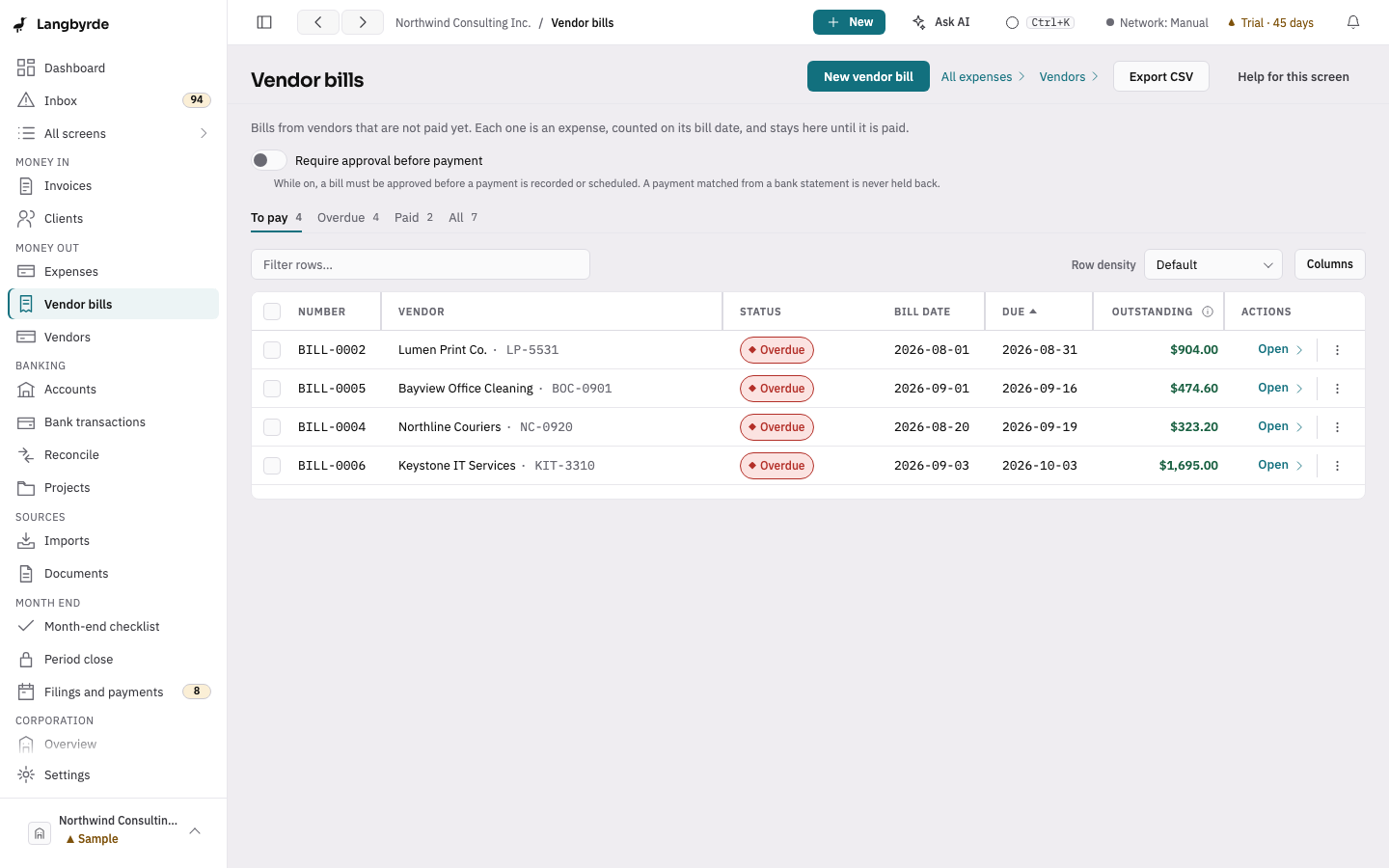
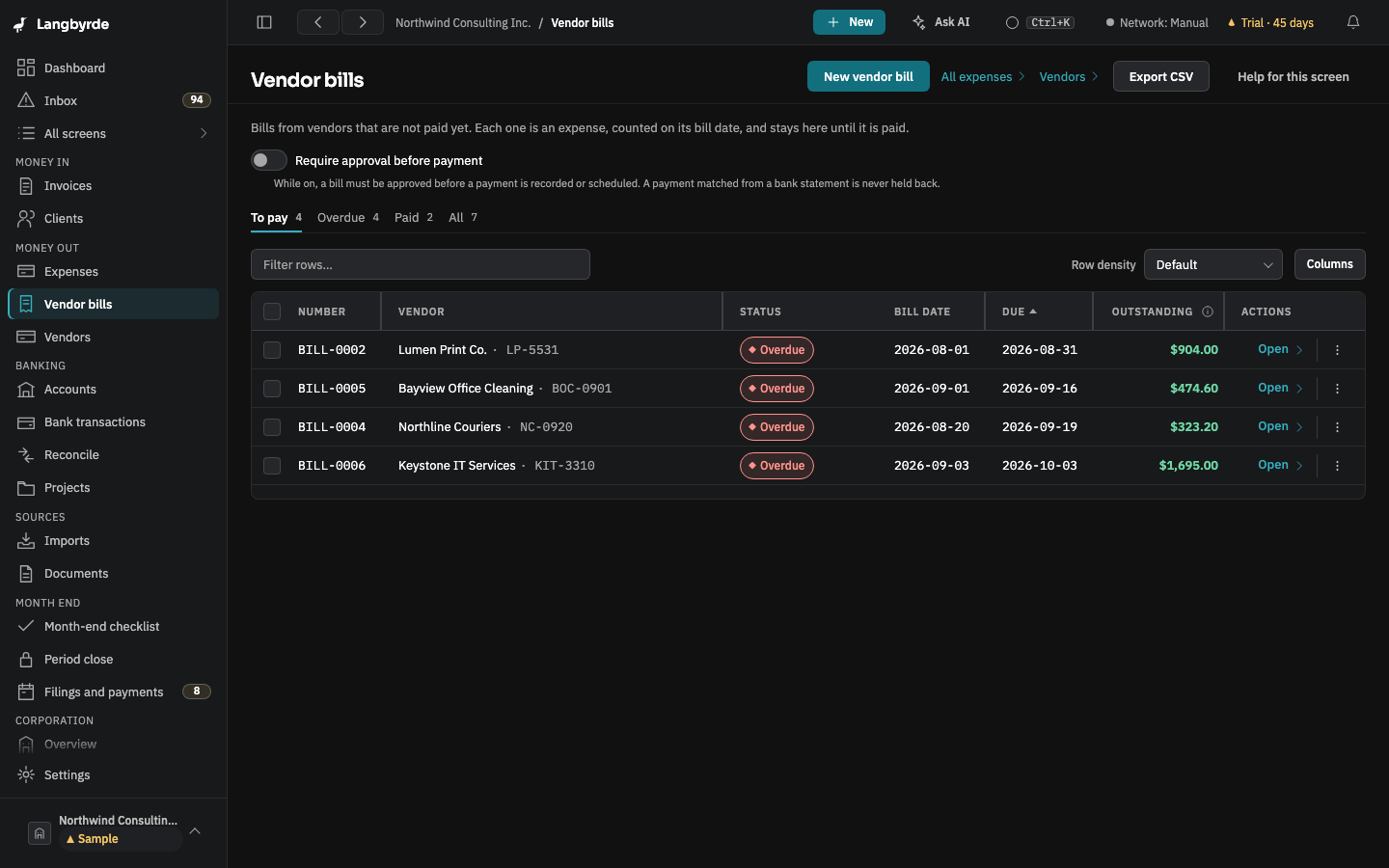
Open Vendor bills from the rail, under Money out, or from the Vendor bills link on the expense register, or press Ctrl+K (⌘K on a Mac) and choose Vendor bills. Show bills narrows the list to To pay, Overdue, Paid or All. Each row shows the bill's number, vendor, bill date, due date, Outstanding amount and status: Open, Scheduled, Partly paid, Paid, Void or Overdue; a bill voided as a duplicate reads Paid by or Merged into the expense it belongs to (see One charge, one expense). The line under the title says what the open tab lists.
New vendor bill records a bill by hand: the vendor, the vendor's invoice number, the bill date, the due date (empty uses the vendor's payment terms, 30 days when none are set), the category, the currency, the subtotal and taxes, and the total owed, which Langbyrde checks against the subtotal and taxes. You can attach the vendor's invoice and add the vendor's payment details.
Payment details are kept private
The vendor's payment details (account holder, institution, transit and account numbers, IBAN, SWIFT/BIC, routing number, Interac e-Transfer address and payment reference) are stored encrypted. After you save them, only the last four digits are shown: On file, ending 1234. Reveal shows them for 30 seconds and records that you looked. Remember these details for this vendor keeps them for the vendor's next bill.
Pay a bill
- Record payment… records money that left one of your accounts: the date, the account, the amount (in the bill's currency) and, when the account's currency differs, what left the account. A bank fee and a method are optional.
- Schedule… plans a payment date and account. The bill reads Scheduled until the payment is recorded.
- Matching the bank line pays it. When the statement line that paid the bill is matched to it in Reconcile, the payment is recorded on the bill and it reads Paid. From the Bank transactions, New vendor bill… on a payment that has no match does the same in one step; see Explain a bank line that has no match.
A payment that came from a matched statement line can only be removed by undoing the match of the line in Reconcile. Void bill…, in the More menu at the foot of the bill's details, cancels a bill after a dialog asks: it no longer counts as owed.
Approval before payment
Require approval before payment is off unless you turn it on. While it is on, a bill must be Approved before a payment is recorded or scheduled, and Withdraw approval takes it back. The bill records who approved it and when. A payment matched from a bank statement is never held back.
The bill's invoice file
A bill's Invoice file field attaches the vendor's invoice from your documents, or a new file. Removing it unlinks the file from the bill. The file is never deleted: it is moved into the bcp folder beside where it was, and the message says where it is kept.
Where bills show up
- The dashboard's To pay card counts bills not yet paid, how many are overdue and the next due date.
- Filings and payments lists the bills still to pay by due date.
- A year with a bill neither paid nor voided cannot be archived.
The taxes on a bill, the amounts converted from another currency and the read values are worked out or suggested by Langbyrde; see What the disclaimers mean.
Export the list
Choose Export CSV at the top of the screen to save every vendor bill, with its dates, status, total and what is still outstanding, as a spreadsheet file. You choose where the file is saved; it cannot go inside the company data or the Company Folder. Exporting works in read-only mode too.
Void several bills at once
Tick the bills and choose Void… in the bar above the table. Langbyrde asks first: each bill and its expense are voided and the payable is reversed, and a void cannot be undone. A bill with a payment recorded, or dated in a closed period, is left as it is and stays ticked. The History tab of a bill lists every change to it and to its expense.