How it works

From a pile of statements to a package for your CPA

Langbyrde does the importing, sorting and adding up. You check what it proposes and make every decision. Here is the whole cycle, from the first day to the year end.

Free during the beta · $149 CAD once at release (planned), after a 45-day trial · macOS and Windows

Once

Set up your company

A three-step setup the first time you open the app, then a Finish setting up list on the dashboard.

  1. Look around first, if you like

    A demo company opens with sample data for this session, so you can try every screen before entering your own.

  2. Name the company and choose its folder

    A local folder, OneDrive or iCloud Drive. Statements, receipts, invoices and backups are filed there with consistent names. Langbyrde does not delete files there: a file it replaces is moved to a folder beside it.

  3. Choose the rules and the fiscal year end

    Langbyrde sets up the categories and HST rules for an Ontario corporation.

  4. Write down the recovery kit

    A set of words, shown at the end of setup and printable again on this computer. In this version it resets a forgotten app-lock passcode; opening your books on a new computer from it is not built yet. Nobody else holds a copy.

  5. Then, from the Finish setting up list

    Add your bank and card accounts so each statement lands in the right place, import your first statement and add your first receipt.

Getting started, in the guide

Step 1

Import your statements and receipts

Drop in your bank and card statements and a folder of receipts. Langbyrde reads the statements, flags duplicates and any statement whose opening and closing balances don’t add up, and files each receipt in your document folder.

  • Statements: CSV, OFX or QIF from most banks (you match a CSV file’s columns the first time), and PDF statements from RBC, Scotiabank and Wise.
  • Receipts: PDF, JPG, PNG, HEIC and e-mail (EML) files, dropped in one at a time or as a folder, and filed in your document folder. You enter a receipt’s amounts when you attach it to its expense.
  • Checks: a statement whose opening balance plus its lines does not equal its closing balance is flagged, and lines already imported are refused as duplicates.
  • No bank login: there is no live bank feed. You download the statement from your bank, so nobody else holds your banking password.

Importing a statement, in the guide

Adding receipts and expenses, in the guide

Step 2

Review what Langbyrde proposes

It suggests a category for each line, with the HST that category carries. You accept, correct or skip, and attach each receipt to its expense. No category or match is final until you accept it, and gaps such as a missing receipt are flagged.
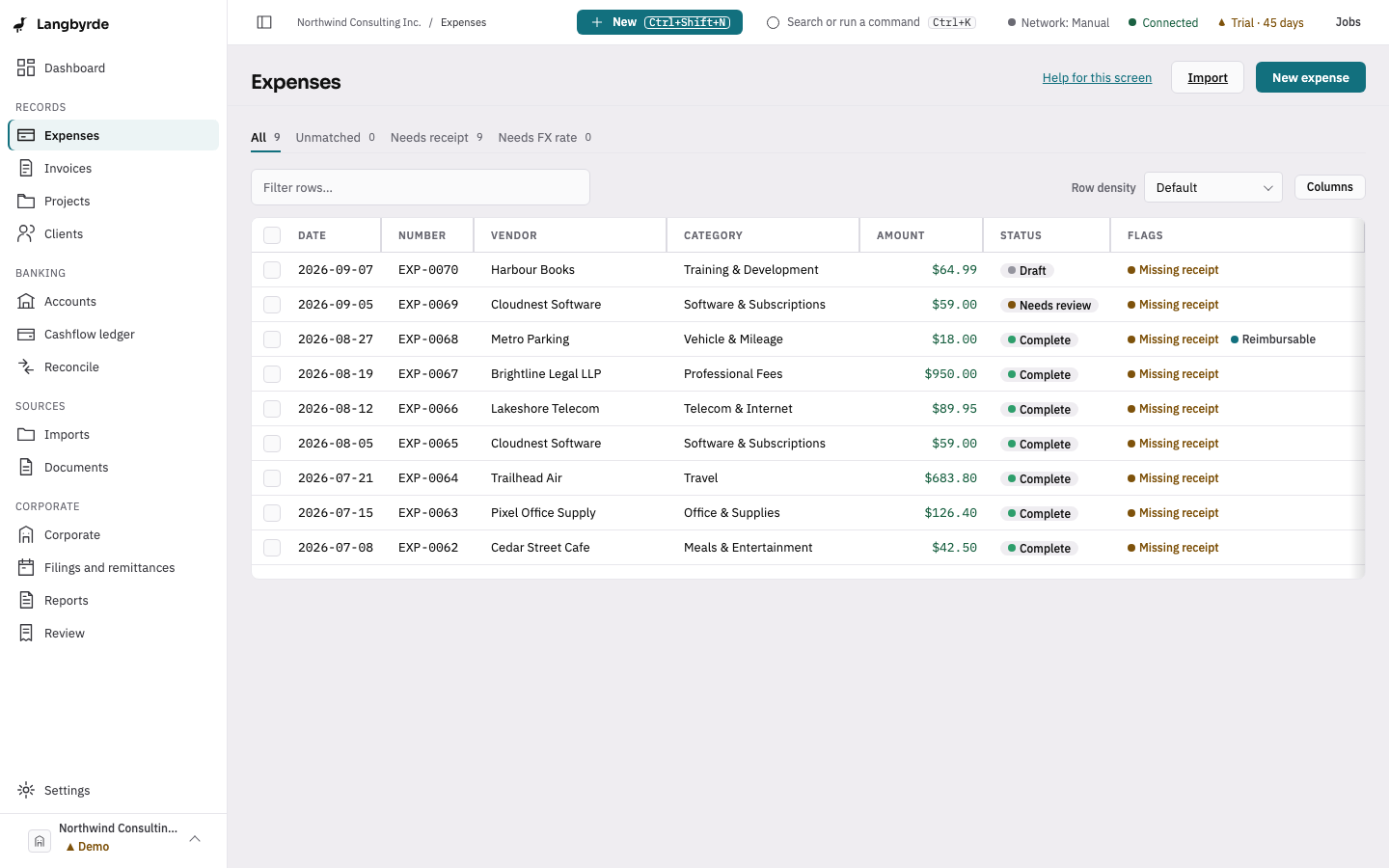
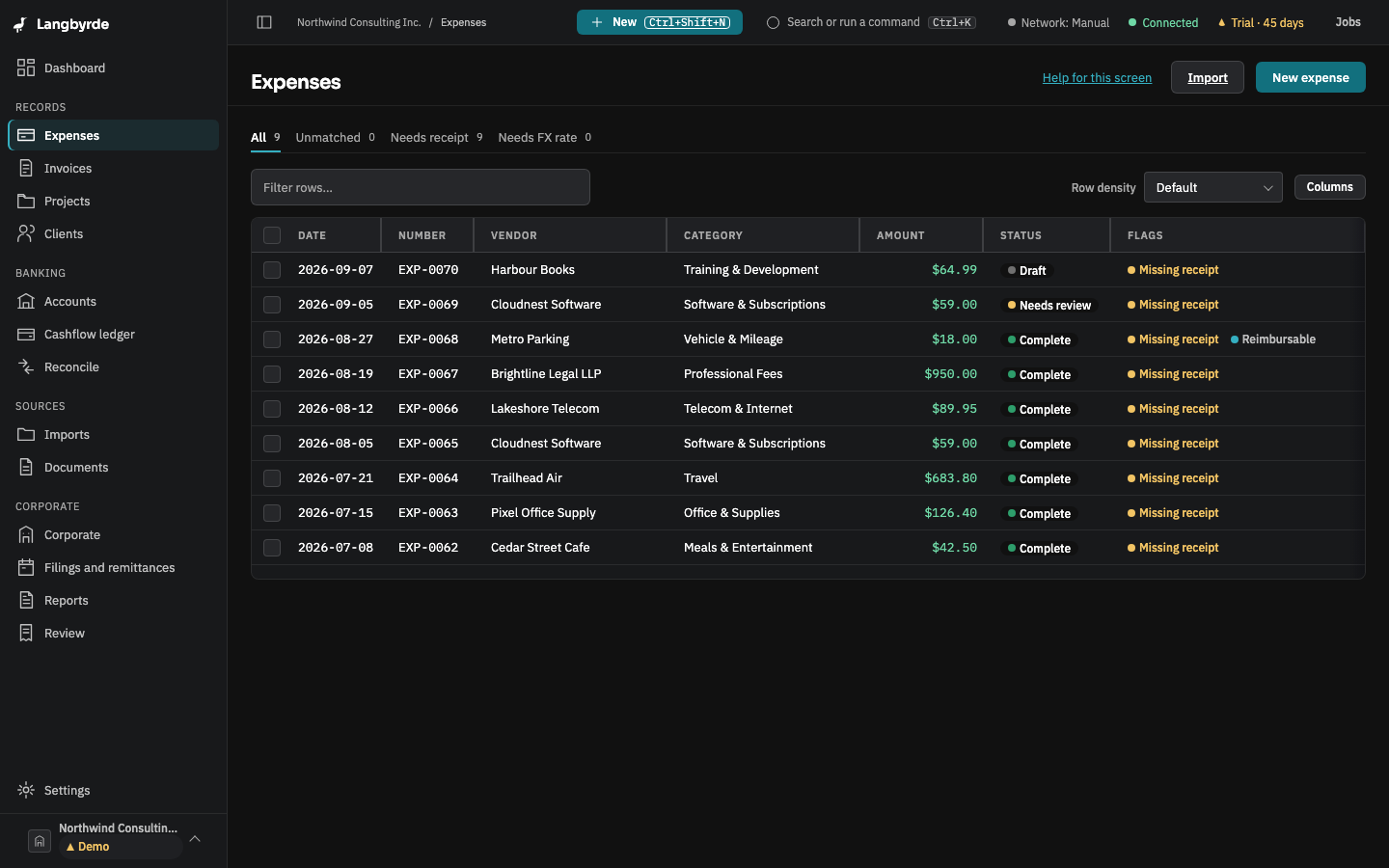
The Expenses register: nine expenses with their date, number, vendor, category and amount, and a status for each, such as draft, needs review or complete. Tabs above filter by unmatched, needs receipt and needs FX rate.The Expenses register: nine expenses with their date, number, vendor, category and amount, and a status for each, such as draft, needs review or complete. Tabs above filter by unmatched, needs receipt and needs FX rate.
The expense register on a demo company, with filters for what still needs a receipt or an exchange rate.

Categories and HST

A category and its HST for each line, proposed from your past choices and the rules for Ontario, including the 50% rule for meals and entertainment.

Receipts attached

You attach each receipt to its expense. Expenses with no receipt, and lines with no exchange rate or no HST, are listed, so you can fix them while you remember.

Reconciled

Every statement line is paired with an expense, an invoice payment, a payroll run or a transfer. The sign-off shows any difference that is left.

Reconciling, in the guide

Through the month

Invoices and the corporate side

The things that used to live in other spreadsheets.
  • Invoices: line items typed in or re-billed from expenses, in CAD or another currency, issued as a PDF.
  • Payroll and remittances: the pay runs your payroll provider makes, recorded here, and the remittances and returns they create, listed by due date.
  • Shareholder loan: money between you and the corporation, with a running balance.
  • Also: the mileage log, health spending account claims, the minute book checklist and memos to file.
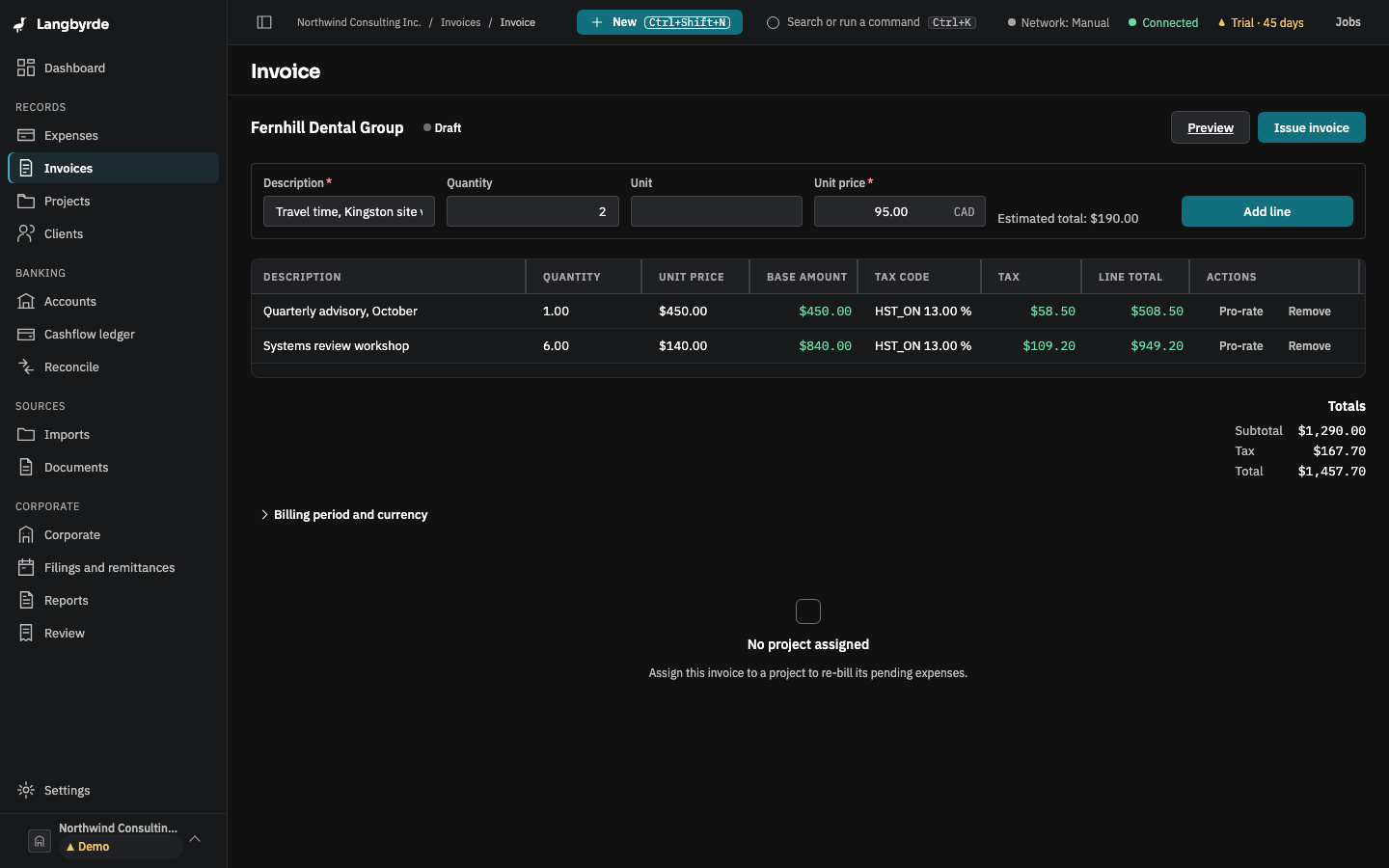
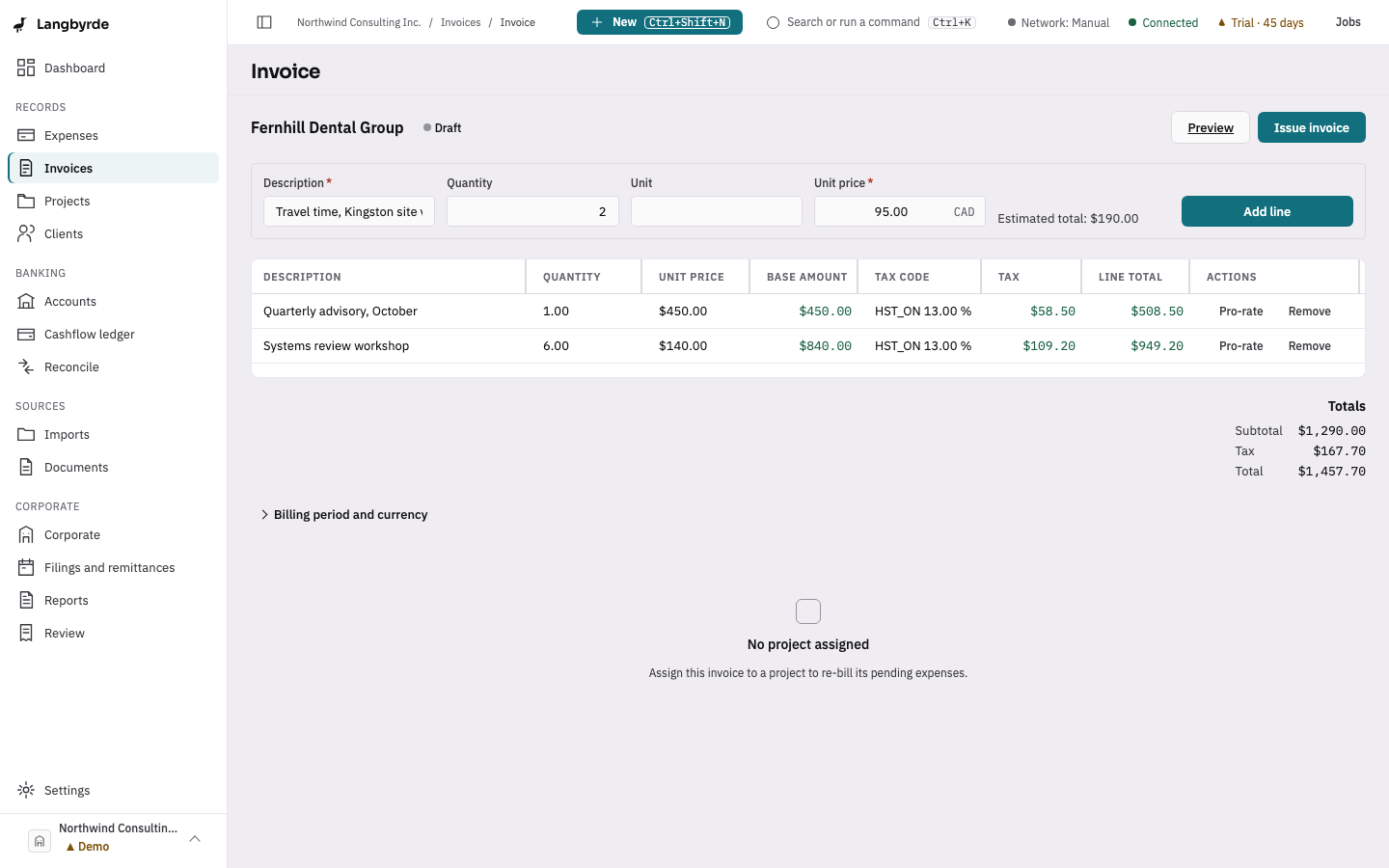
Building an invoice on one screen: two lines for a sample client, each with its HST code, rate and tax worked out as the line was entered, the totals below, and the next line typed and ready to add.Building an invoice on one screen: two lines for a sample client, each with its HST code, rate and tax worked out as the line was entered, the totals below, and the next line typed and ready to add.
An invoice on a demo company: the tax is worked out as each line is entered.

Step 3

Hand your CPA a package

Close the year so its figures stop changing, then export. The package builds in the background while you keep working.
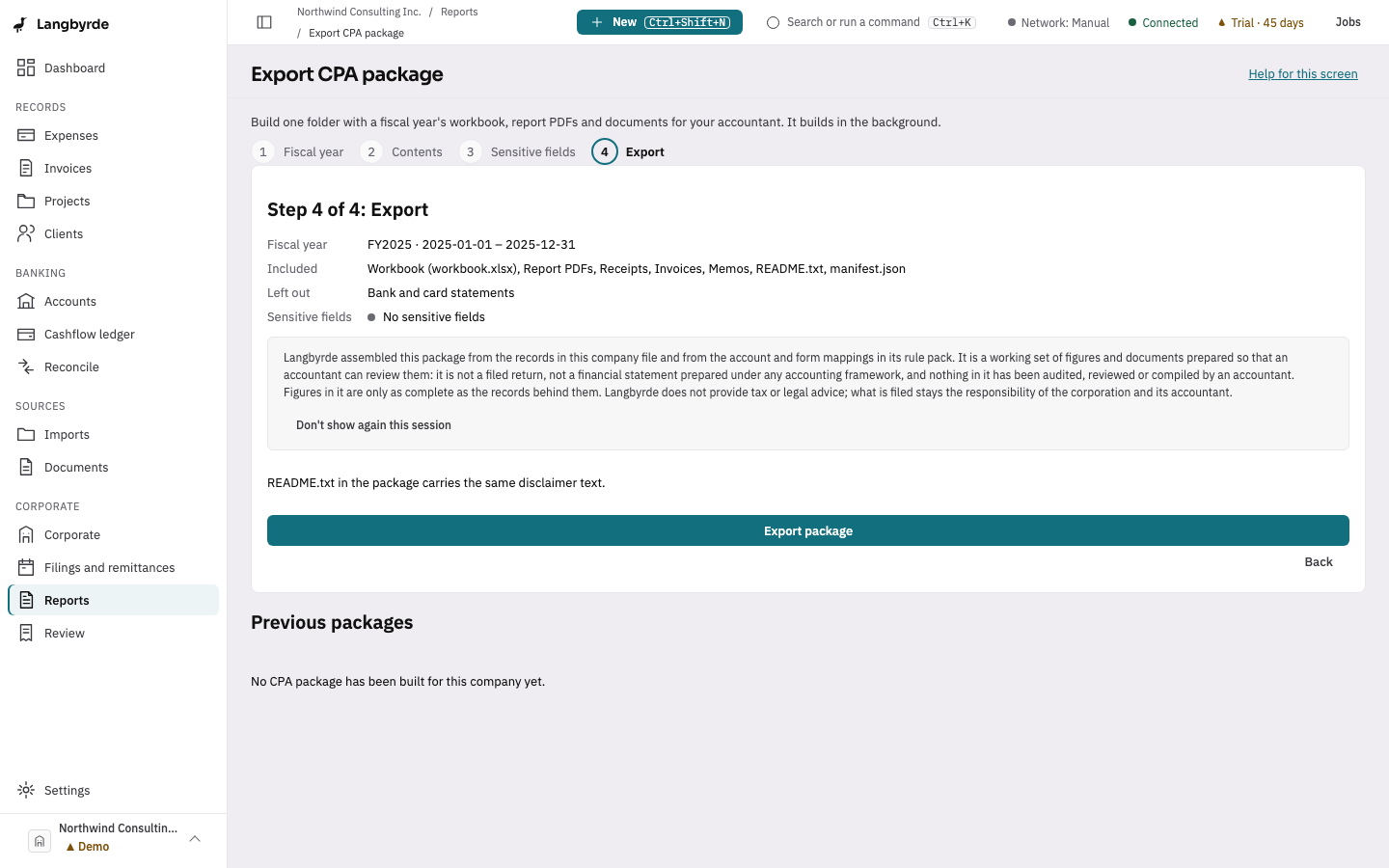
The Export CPA package screen at its last step, after Export with these defaults: the 2025 fiscal year, the workbook, report PDFs, receipts, invoices, memos, README and manifest included, bank and card statements left out, no sensitive fields.The Export CPA package screen at its last step, after Export with these defaults: the 2025 fiscal year, the workbook, report PDFs, receipts, invoices, memos, README and manifest included, bank and card statements left out, no sensitive fields.
Exporting a CPA package with its defaults: check what goes in and what stays out, then export.

What is inside the package

Exporting a CPA package, in the guide

Optional

Where AI helps, and where it doesn’t

Everything above works without AI. If you add your own AI provider, in this version it can suggest reconciliation matches, explain a transaction and draft memos. It records nothing by itself: each suggestion waits for you.

Setting up an AI provider, in the guide

Your books, in your files.

Try every feature for 45 days. No account, no card, and your books stay on your computer unless you choose to send them.

macOS 13 or later, on Apple silicon or Intel · Windows 10 or 11