From a bank statement to a signed-off month
Updated
This walkthrough takes one month's bank or card statement from the file your bank gives you to a month you have reconciled and signed off, across Imports, Reconcile and its Statement sign-off tab. Each step links to the page that explains that screen in full.
Before you start
- The bank or card account exists in Langbyrde (see Accounts).
- You have the month's statement as a file from your bank: a CSV, OFX, QFX or QBO export, or one of the formats in Supported formats.
- The expenses and invoices of the month are recorded, or you are ready to record the ones the statement shows you are missing.
1. Import the statement (Imports)
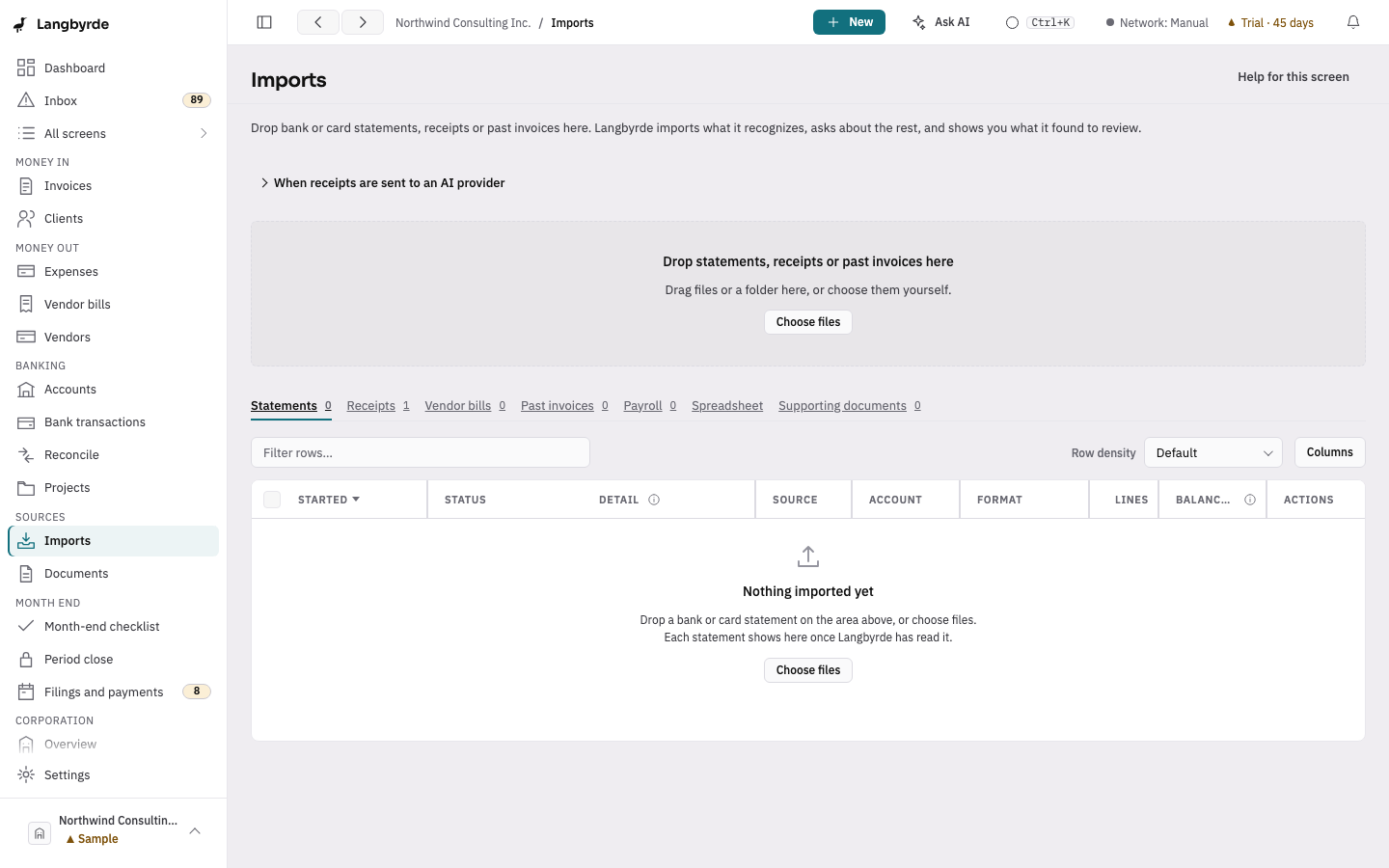
- Open Imports in the rail, under Sources.
- Drop the statement on the window, or choose Choose files. If the company has more than one account and Langbyrde cannot tell which one it belongs to, choose it under Account for these statements and choose Import 1 statement.
- When its row offers Review, choose it. Review import opens as a step of its own.
If it does not match: if Langbyrde does not recognize the file, its Format cell offers Choose format…. Choose it, pick the Statement format, and choose Choose format. See Importing a statement.
2. Review the lines (Imports)
- Check the balance banner at the top. Balances means the statement's opening balance plus its lines equals its closing balance.
- Choose Exclude on any line you do not want.
- Choose Import N lines. Nothing is kept until you do.
What you should see: the imported lines in Bank transactions, and the dashboard counting them as bank lines with no match until you reconcile them.
If it does not match: when the balances do not agree, read If the balances do not agree before you import. If an earlier import already covers some of the same days, Review import says so and waits for your choice; a line already in your books is left out, so nothing is counted twice. See The same days imported twice.
3. Match each line (Reconcile)
- Open Reconcile in the rail, under Banking.
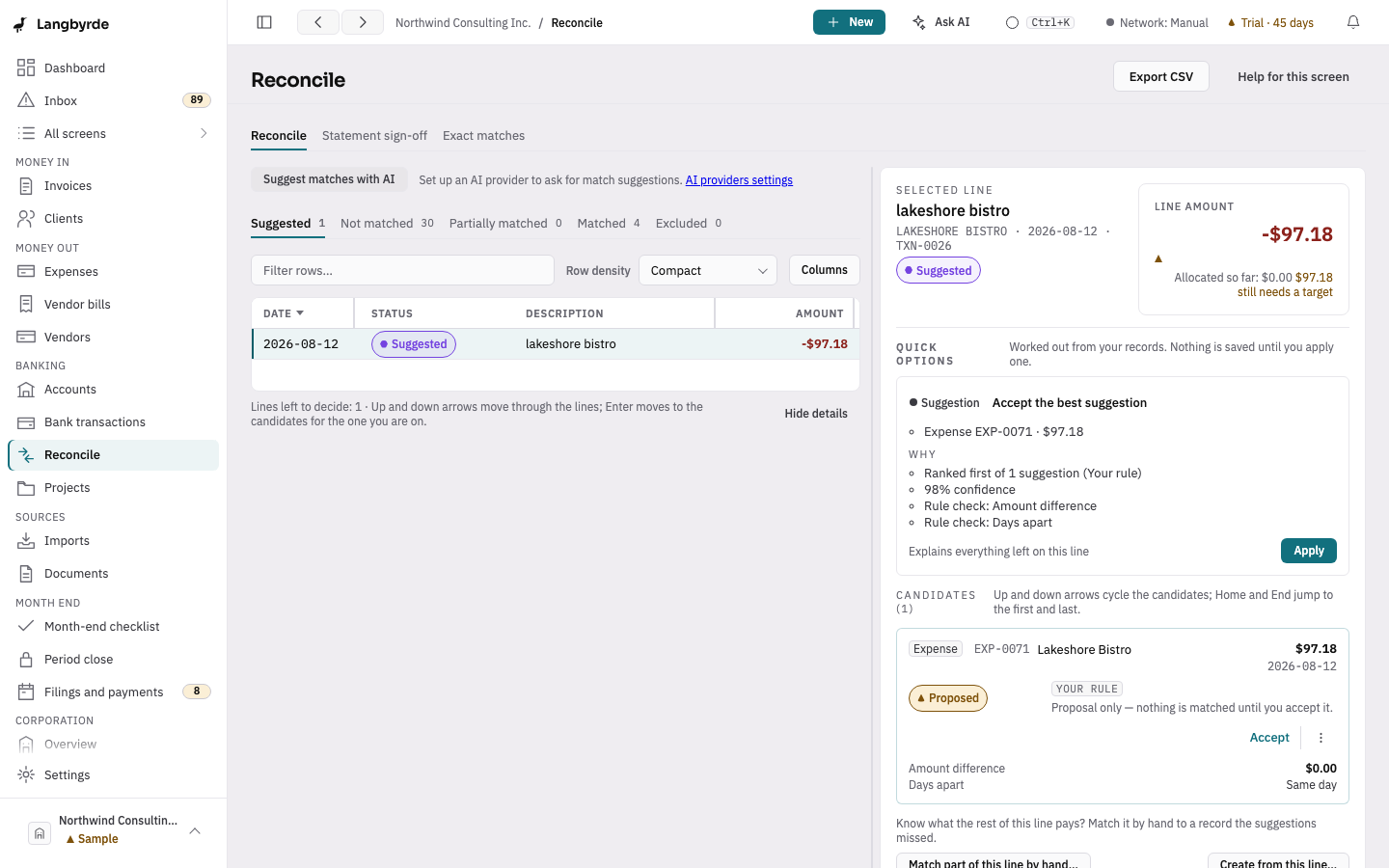
- Select a line under Statement lines. Candidates for the selected line shows what it could be matched to, each saying what it is and, for a suggestion, how confident it is.
- Choose Accept on the one that fits (
Ctrl+Enter,⌘↵on a Mac, accepts it and moves to the next line), or Reject to turn a suggestion down.
What you should see: the line counts on the Matched tab. A candidate is only a proposal: nothing is matched until you accept it. Undo match… undoes an accepted match.
If it does not match: when no candidate fits, record the missing expense or invoice first and come back, or split the line if it pays for more than one thing. See Reconciling.
4. Sign off the month (Reconcile, Statement sign-off)
- On Reconcile, choose the Statement sign-off tab.
- Find the account and the month in the table, which compares the statement's closing balance with the balance in your books, and choose Review on that row.
- Choose Sign off…. If the difference is not zero, type an Explanation in the dialog. Then choose Sign off.
What you should see: the month's status is Signed off. A signed-off statement keeps its matches; to change one, reopen the statement first. See Reconciling.
Next
Once each account's month is signed off, the month is ready to close; see Closing a period.