AR aging
The AR aging report shows who owes the company money and for how long. Each client who still owes something on an issued invoice gets one line, with what they owe split by how far past the due date it is.
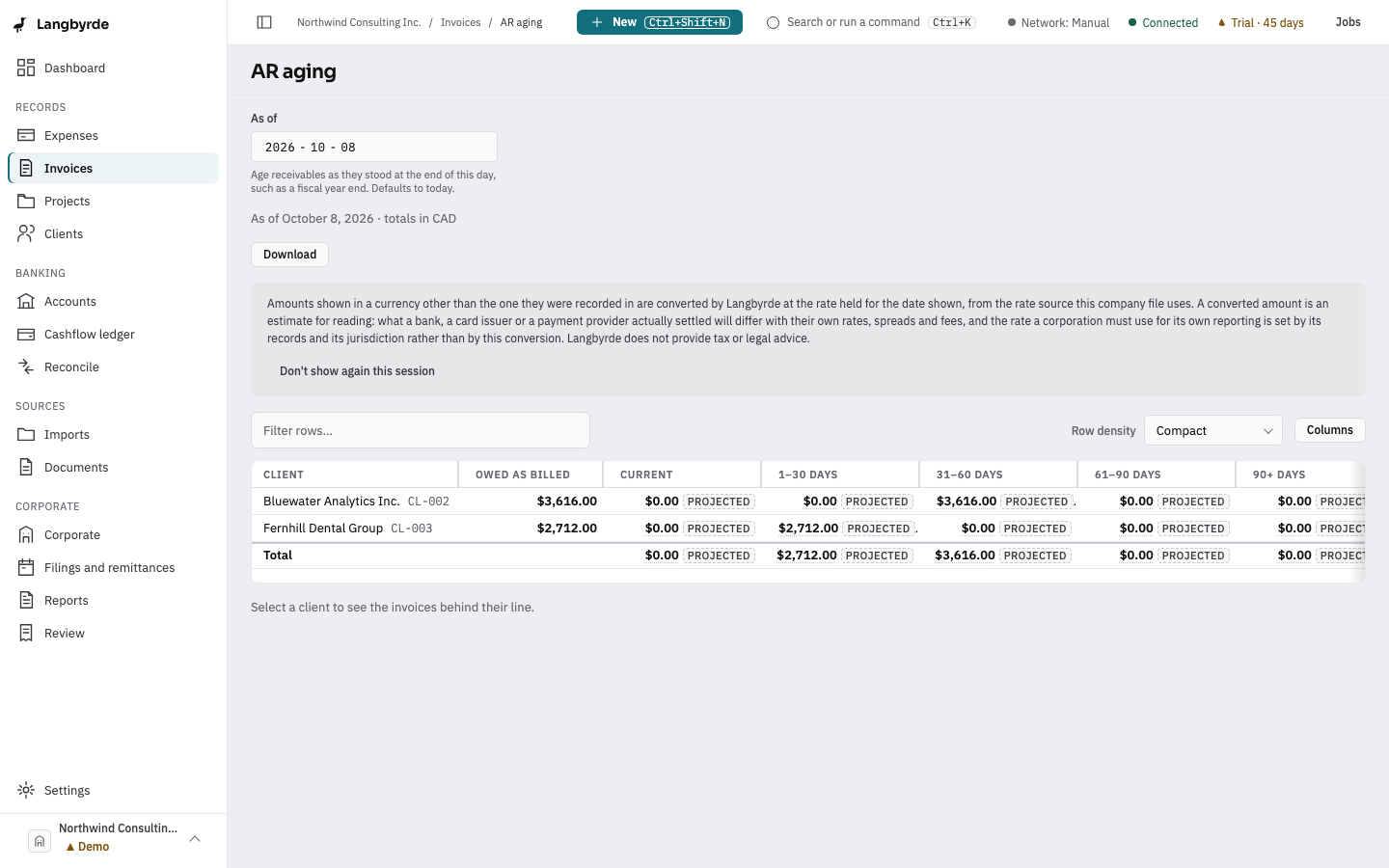
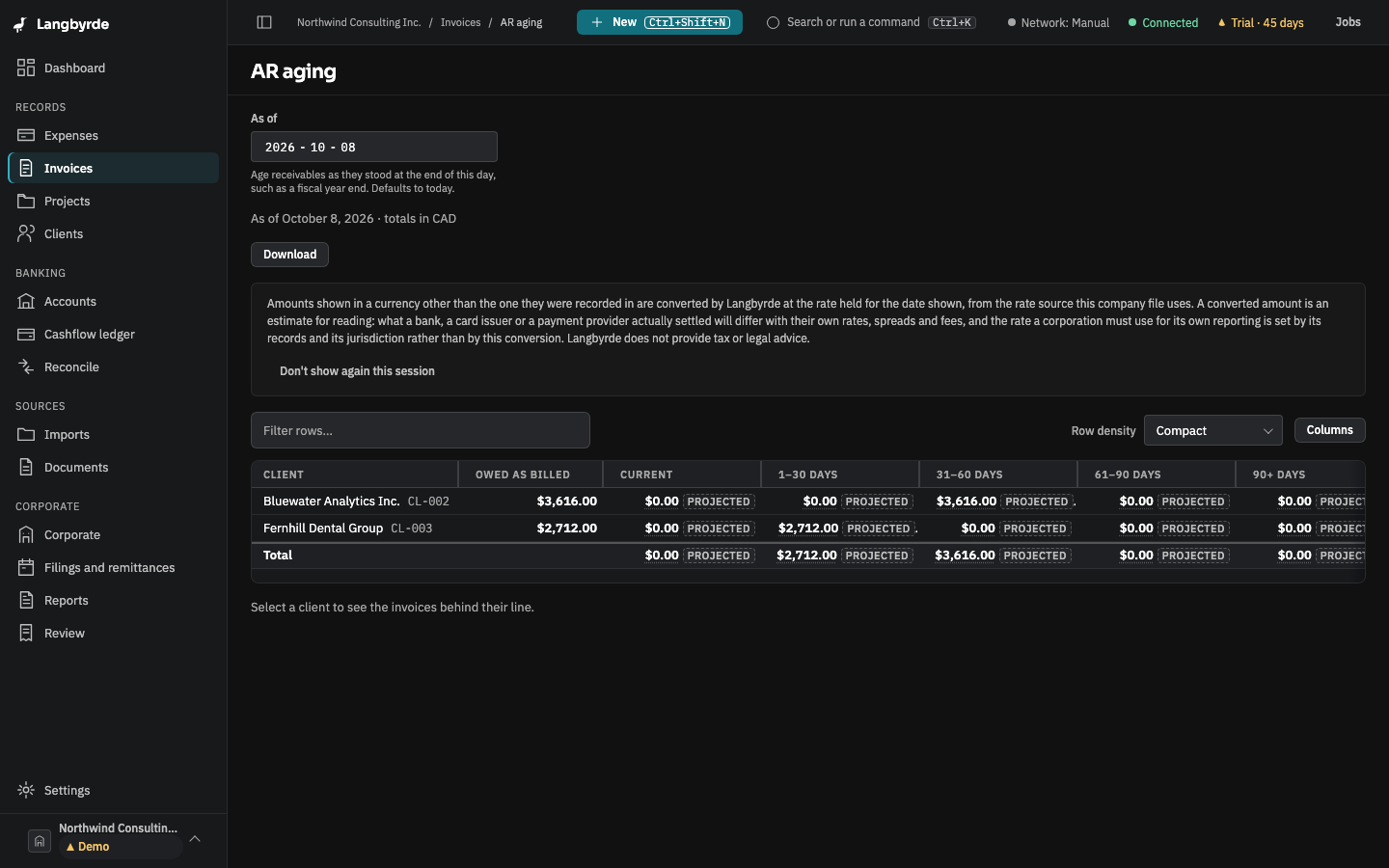
Open the AR aging report
On the dashboard, choose AR aging on the AR outstanding card. You can also press Ctrl+K (⌘K on a Mac) and choose AR aging in the command palette.
Choose the date
The report ages what was owed at the end of the day in As of. It starts at today; pick another day, such as a fiscal year end, to see the receivables as they stood then. The line above the table repeats the date and names the currency the totals are in.
Read the report
Each client's line shows:
- Owed as billed — what the client owes, in each currency their invoices were issued in.
- Current, 1–30 days, 31–60 days, 61–90 days and 90+ days — what is owed, grouped by how many days have passed since each invoice's due date. An invoice that is not due yet, or is due today, counts as Current.
- Total outstanding — everything the client owes.
- Oldest overdue — the client's oldest overdue invoice, which you can open, or Nothing overdue.
The Total line at the bottom adds up every client. All of these figures are worked out by Langbyrde from the company's records; the screen only shows them.
To see the invoices behind a line, select the client. Invoices owed by that client lists each invoice with its due date, its bucket and what is outstanding. Choose an invoice number to open it, and Close to put the list away.
Invoices in another currency
The bucket and total columns are in the company's reporting currency. An invoice issued in another currency is converted at the exchange rate for the report date, so those figures carry the Projected marker — see What the disclaimers mean. If no rate is found for an invoice, it is left out of every total and the report says how many invoices that affects.
Download the report
Download saves the report for the same As of date as a PDF or an Excel workbook. Downloading works in read-only mode too.
When nothing is owed
If no issued invoice is waiting on a payment, the report says Nothing outstanding.