Updates
Langbyrde never updates itself. It looks for a newer version only when you press Check now, and installs one only when you press Install. The app keeps working on the version you have for as long as you like.
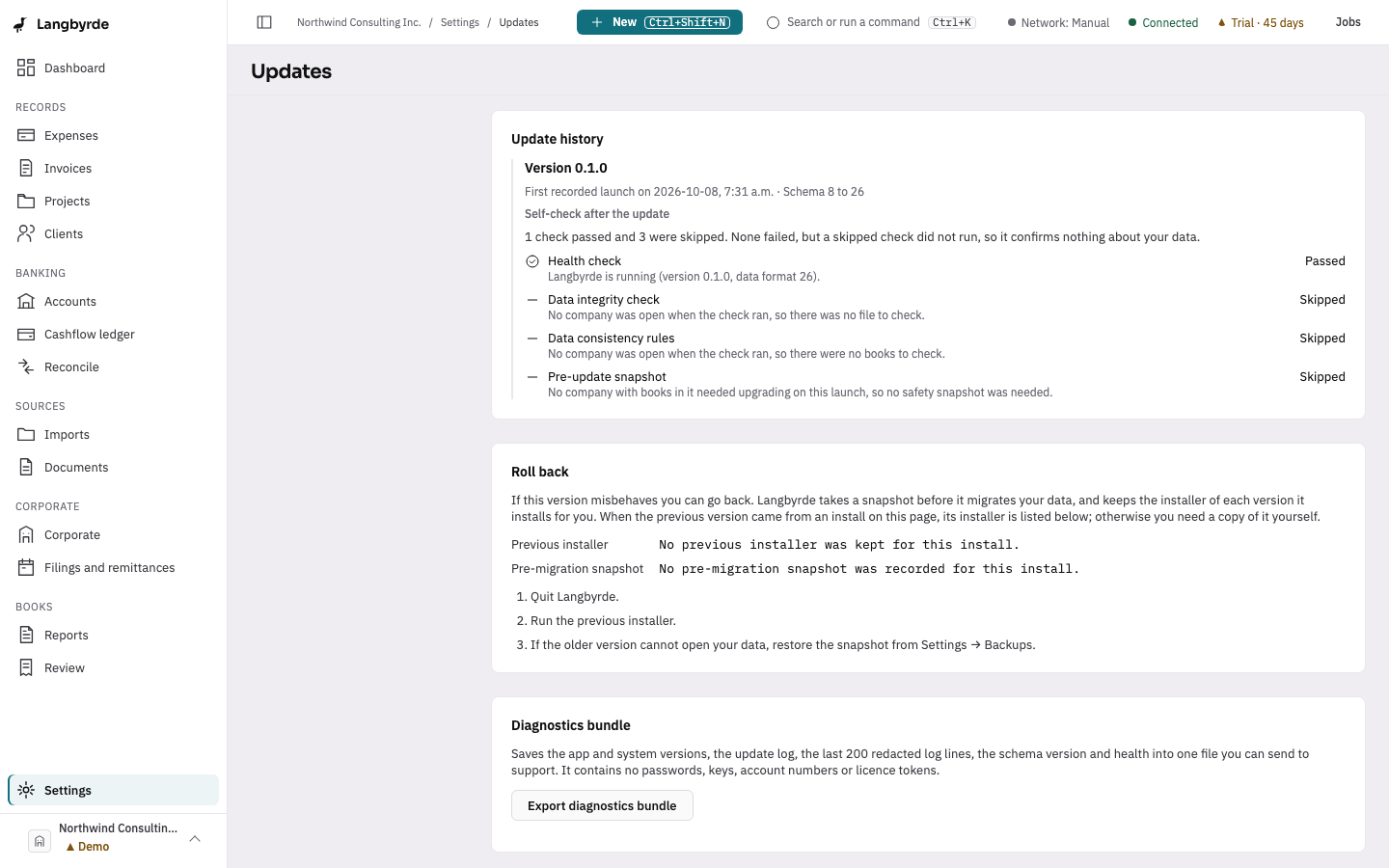
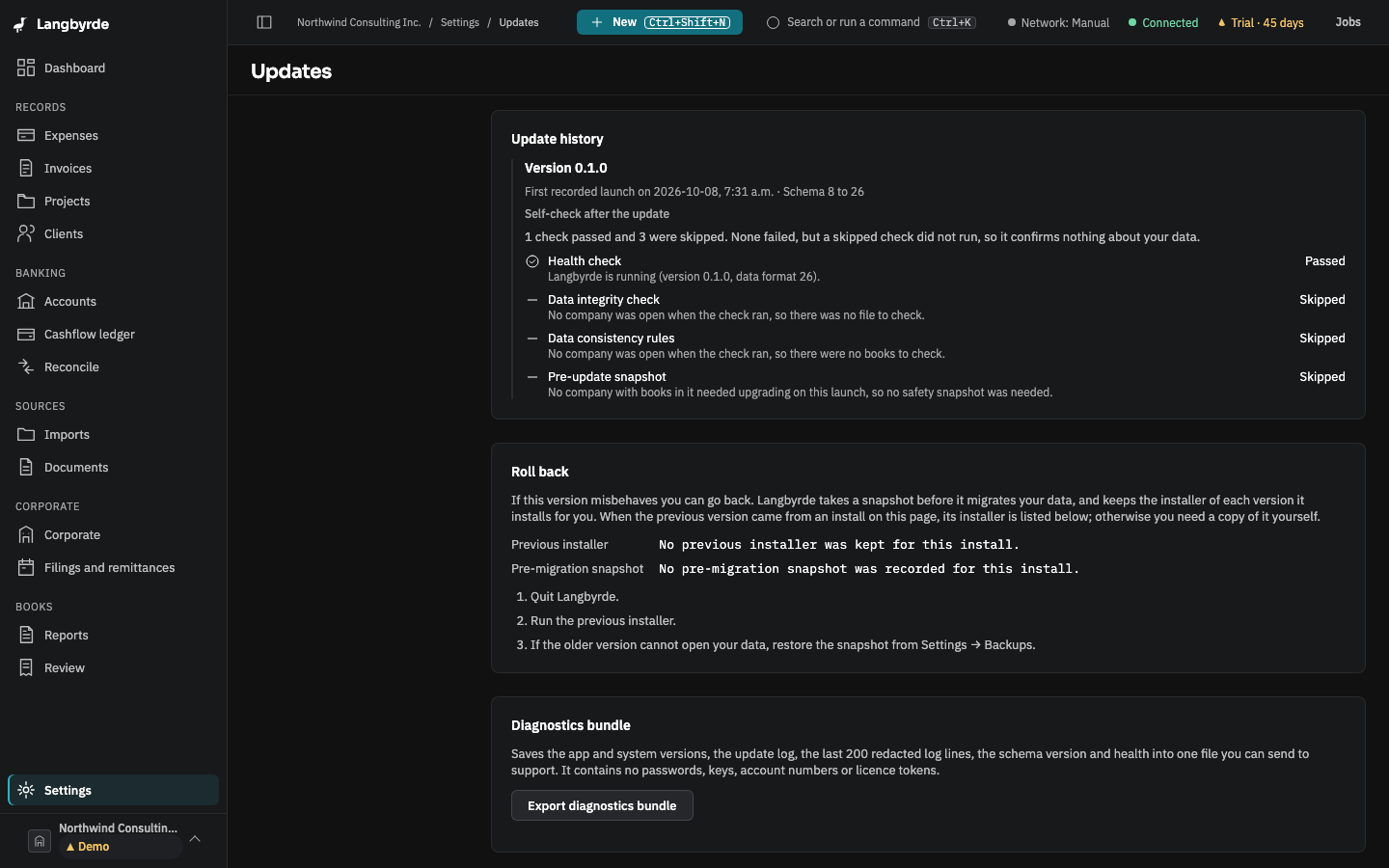
Open Updates
Choose Settings at the bottom of the rail, then Updates under System.
Check for a newer version
- Choose Check now. Langbyrde contacts the releases address once, only because you pressed the button, and asks for a small file naming the newest version on your channel. It sends none of your books. It works in every network profile, including Offline, and the call is listed on Network activity.
- If a newer version exists, the page shows its release notes and three choices:
- Install version… runs the installer, and Langbyrde restarts into the new version when it finishes. If another device that shares these books would no longer be able to read them, Langbyrde says so first and offers Install anyway or Not now. The first time the new version opens a company whose data it has to change, it takes a Before an update snapshot first.
- Skip this version — that version is not offered again. A newer one will be.
- Remind me in 30 days — hides the offer for that version for 30 days.
- If there is nothing newer, or the releases address cannot be reached, the page says so and nothing changes.
Check for updates weekly on Privacy & network is saved, but no weekly check runs yet; Check now is the only way to look.
Release channel
Stable (tested releases, the default) or Beta (earlier releases with more rough edges) can be chosen here; the choice is saved at once. Internal needs a channel token you were given.
Update history and the self-check
The first time Langbyrde starts on a new version, it records the version and runs a self-check: a health check, a data integrity check, the data consistency rules, and a check that a snapshot was taken before any change to how your data is stored. Checks that need a company run when you next open one; until then they show Skipped, which means they did not run.
After an update, a pass appears once as a short banner. A problem appears as a dialog that stays until you dismiss it, with a link to the update log and the rollback steps. The self-check only reports; it never changes your data, and you can keep reading and exporting whatever it finds.
Roll back to the previous version
The Roll back panel lists what this computer kept from the latest update:
- Previous installer — the installer of the version you had before, when that version was installed from this page. Otherwise it says No previous installer was kept for this install, and you need your own copy of that version.
- Pre-migration snapshot — the copy of the company Langbyrde took just before the new version changed how its data is stored. If the update changed nothing, it says No pre-migration snapshot was recorded for this install.
The panel's steps are: quit Langbyrde, run the previous installer, and if the older version cannot open your data, restore the snapshot from Settings › Backups.
What that means in practice:
- No pre-migration snapshot was recorded. The update did not change your data, so the previous version opens it as it is. Quit and run the previous installer; nothing needs restoring.
- A pre-migration snapshot is listed. The update changed how your data is stored, and the previous version will say the company needs a newer Langbyrde. It then cannot open the company at all, its Backups screen included. Stay on this version and restore the snapshot here instead: Settings › Backups, the row Before an update, then Restore…. That puts your data back as it was before the update, read by this version. Everything entered since the update is replaced, and a Before a restore snapshot keeps it first. Your documents are not touched.
Diagnostics bundle
Export diagnostics bundle saves one file where you choose, to send to support. It holds the app and system versions, the update history, the last 200 lines of the app's log, the data layout versions and the app's health. The log lines are redacted, and it contains no passwords, keys, account numbers or licence tokens. Nothing is sent anywhere; you choose whether to share the file. The export needs the desktop app.