Setting up a new company
Setting up a company takes three steps. Everything else (bank accounts, statements, receipts) waits on the dashboard's Finish setting up list, so you can start using the company straight away.
Start onboarding
On the Welcome screen, choose Set up a company. If a company is already open, choose New in the top bar, then Company, or choose New company… in the company switcher at the bottom of the rail.
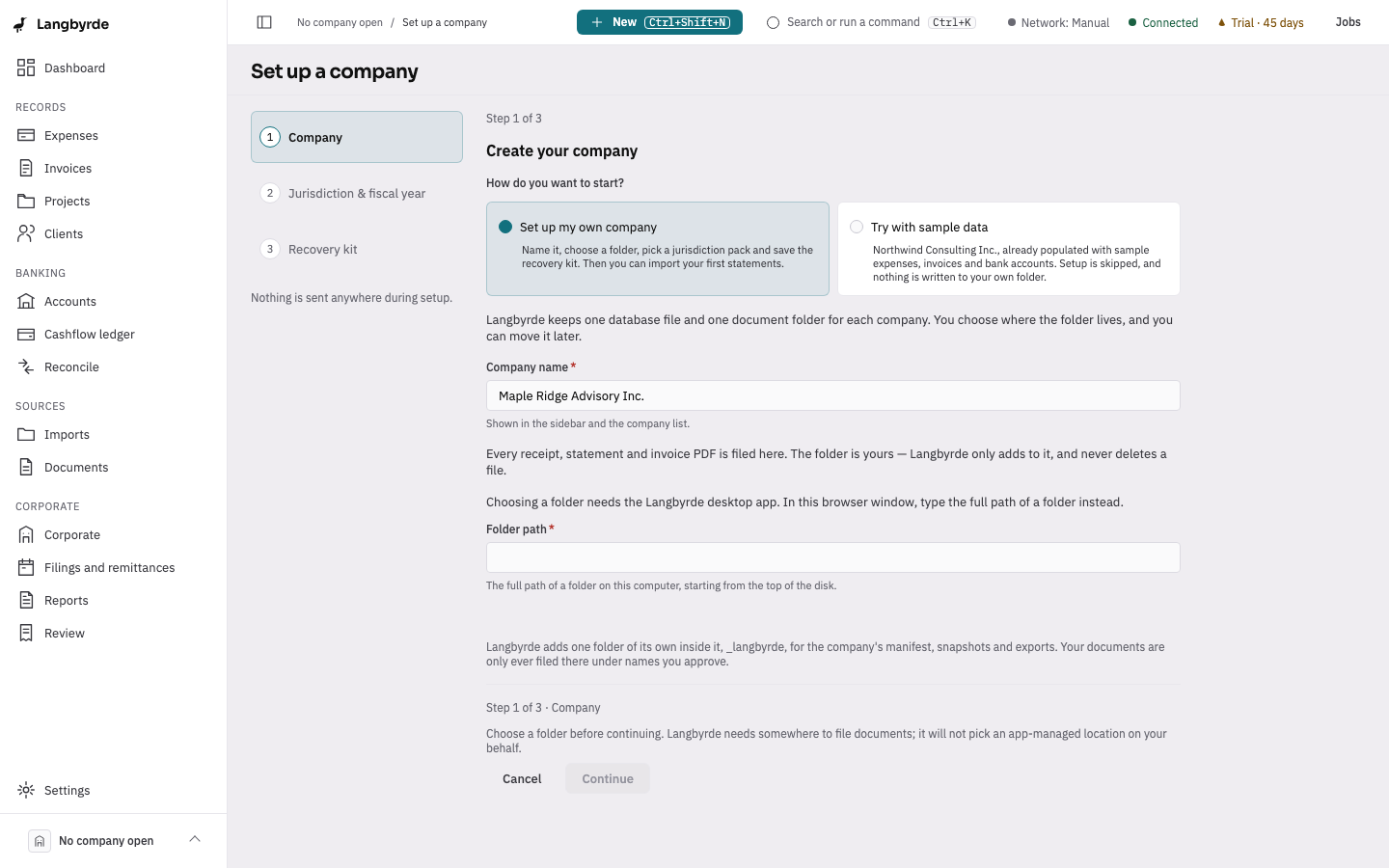
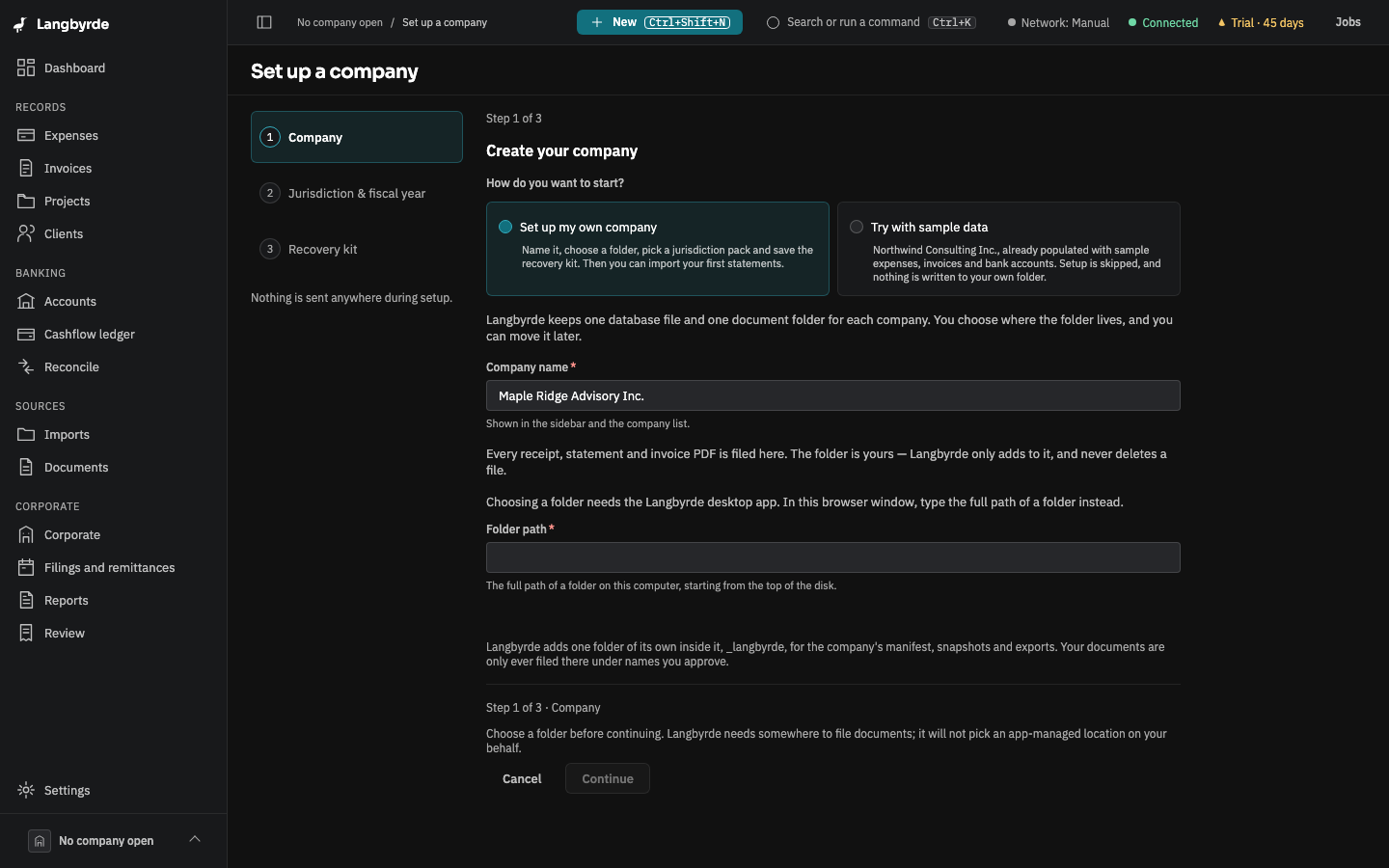
The setup screen lists the three steps on the left and says Step 1 of 3 at the bottom. Cancel goes back without creating anything, as long as you have not yet chosen Create company.
Step 1: name the company and choose its folder
- Type the Company name.
- On a computer where Langbyrde has never been set up, also type Your name.
- Choose Choose folder… and pick the folder for the company's documents: receipts, statements, invoice PDFs. It can be a local folder or one that OneDrive or iCloud keeps in sync. This is your Company Folder; Langbyrde also keeps its snapshots and exports in it.
- Choose Continue.
If Continue is greyed out, the text beside it says what is missing.
Step 2: jurisdiction and fiscal year
- Under Jurisdiction pack, choose Canada — Ontario. The list also offers the other provinces, but today only Ontario is complete: for a company based elsewhere Langbyrde uses that province's sales-tax rates, while its filing dates are federal and Ontario ones only and there is no corporate tax estimate.
- Choose Create company. The company now exists on this computer.
- Check the Fiscal year end: pick the Month and Day the company's year ends.
- Choose Set up fiscal periods. Choose Continue without periods only if you plan to set them later in Jurisdiction & fiscal.
Once the company is created, Back no longer returns to step 1.
Save your recovery kit
The third step shows three blocks of words. They are this company's keys, and Langbyrde shows them on screen only this once; later you can print the kit from Security on this computer.
- Write the words down, in order, or choose Print recovery kit.
- Keep the kit away from this computer and away from the Company Folder.
- Tick I have written these words down, in order, and stored them away from this computer.
- Choose Finish setup. The company's dashboard opens.
Without the kit, nobody, Langbyrde included, can recover the company's protected details or its encrypted backups if this computer is lost, replaced or reset. If you try to leave this step before finishing, Langbyrde asks whether you really mean to leave without the kit.
Finish setting up
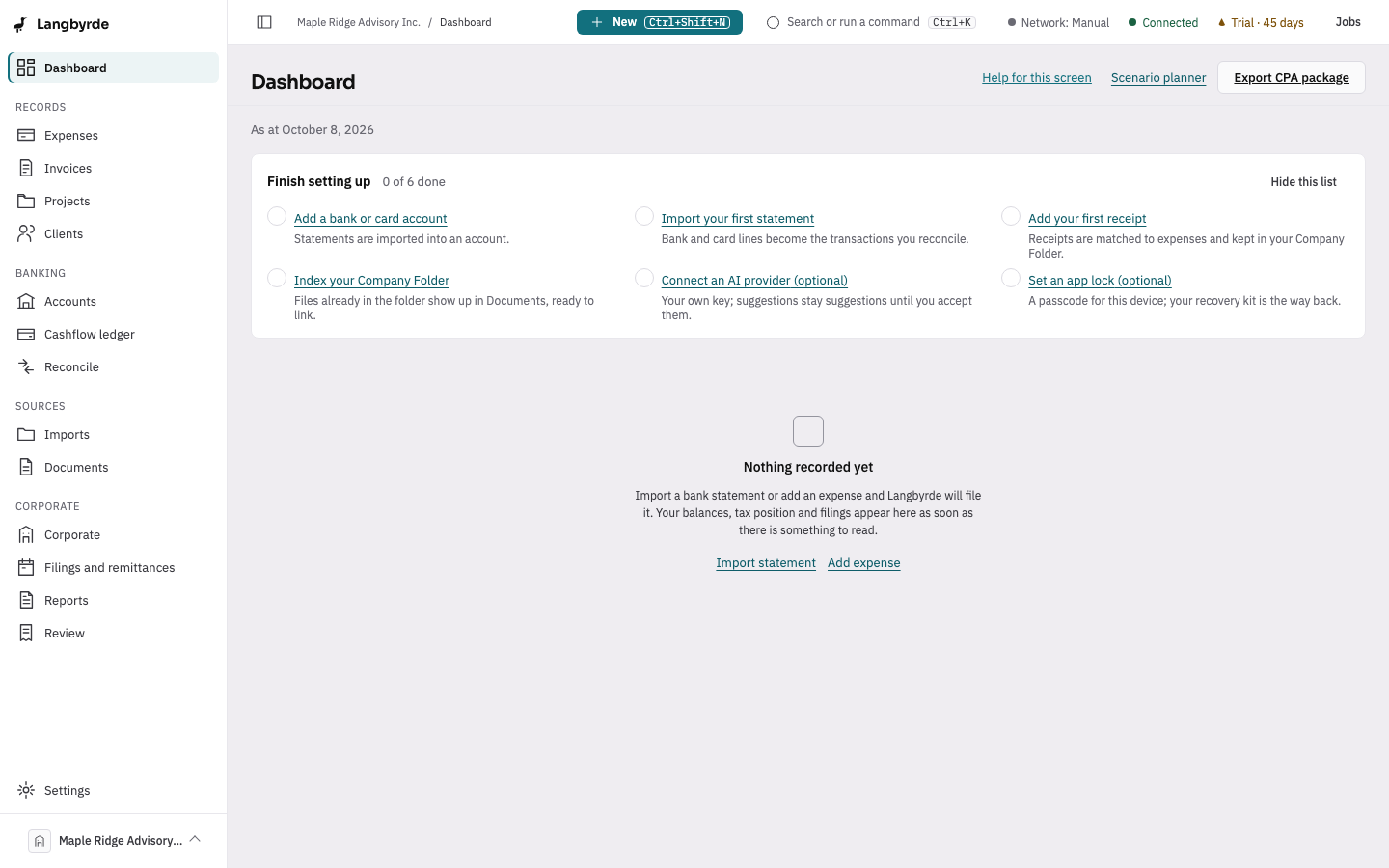
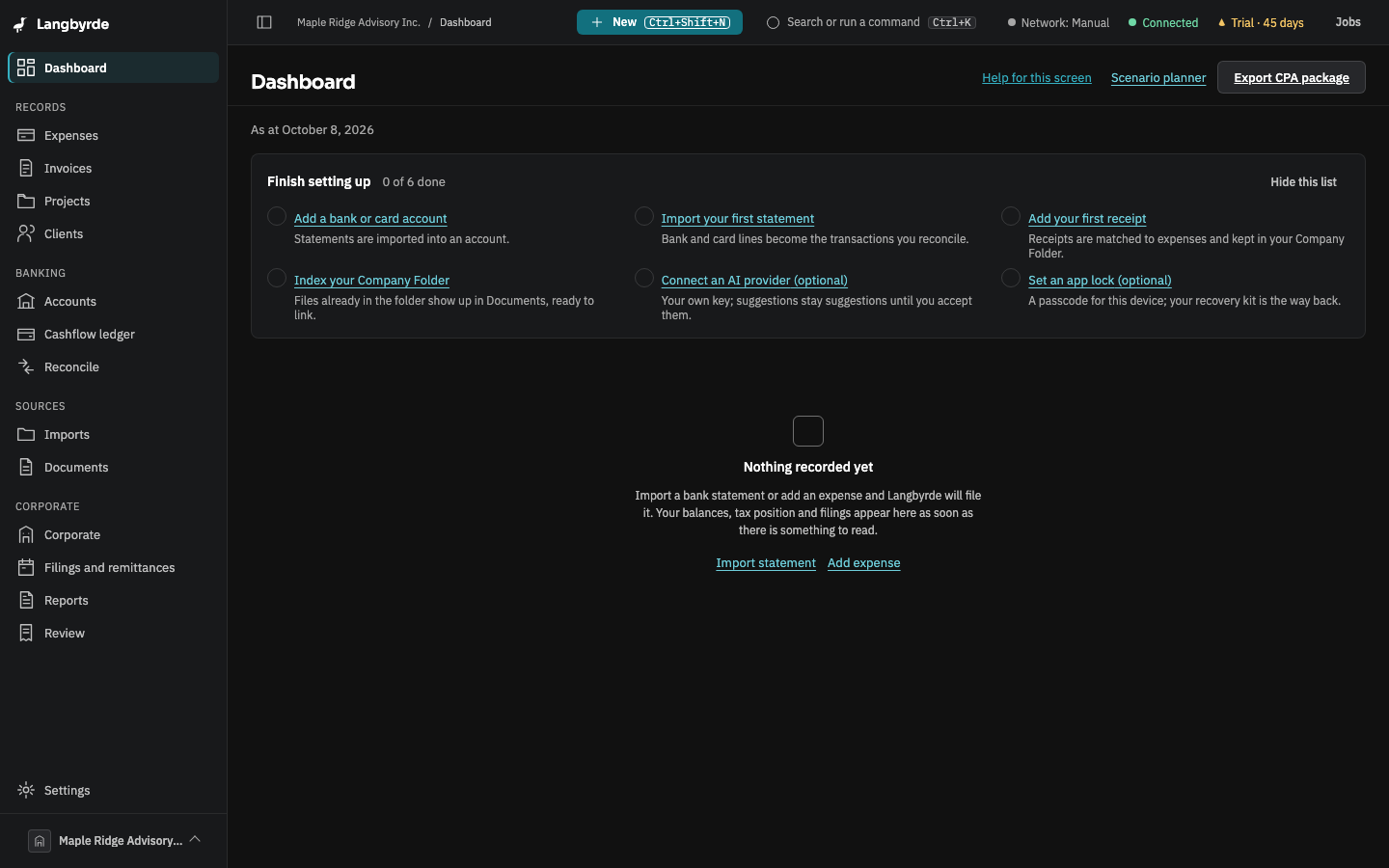
The dashboard opens with a Finish setting up list. Each item is one click into the screen that does it:
- Add a bank or card account — see Accounts.
- Import your first statement — see Importing a statement.
- Add your first receipt — see Recording an expense.
- Index your Company Folder — see Documents.
- Connect an AI provider (optional) — see AI providers.
- Set an app lock (optional) — see Security.
An item ticks itself when the work is done, wherever you did it. The list stays until the four required items are done; Hide this list hides it sooner, on this computer only.
Things you can change later
- The network profile starts on Manual: nothing connects to the internet unless you ask. See Privacy & network.
- An app lock is optional and can be set at any time in Security.
- The jurisdiction pack, filing frequency and fiscal year end are in Jurisdiction & fiscal.