Books health
Updated
Books health answers one question: can the records in this company file be trusted? It runs a set of checks on the company file on this computer and shows, for each one, whether it is fine, needs your attention, or found a problem, and what to do about it.
Open Books health
Choose Books health in the rail, under Books, or press Ctrl+K (⌘K on a Mac) and choose Books health. The checks run when the page opens; Check again runs them once more.
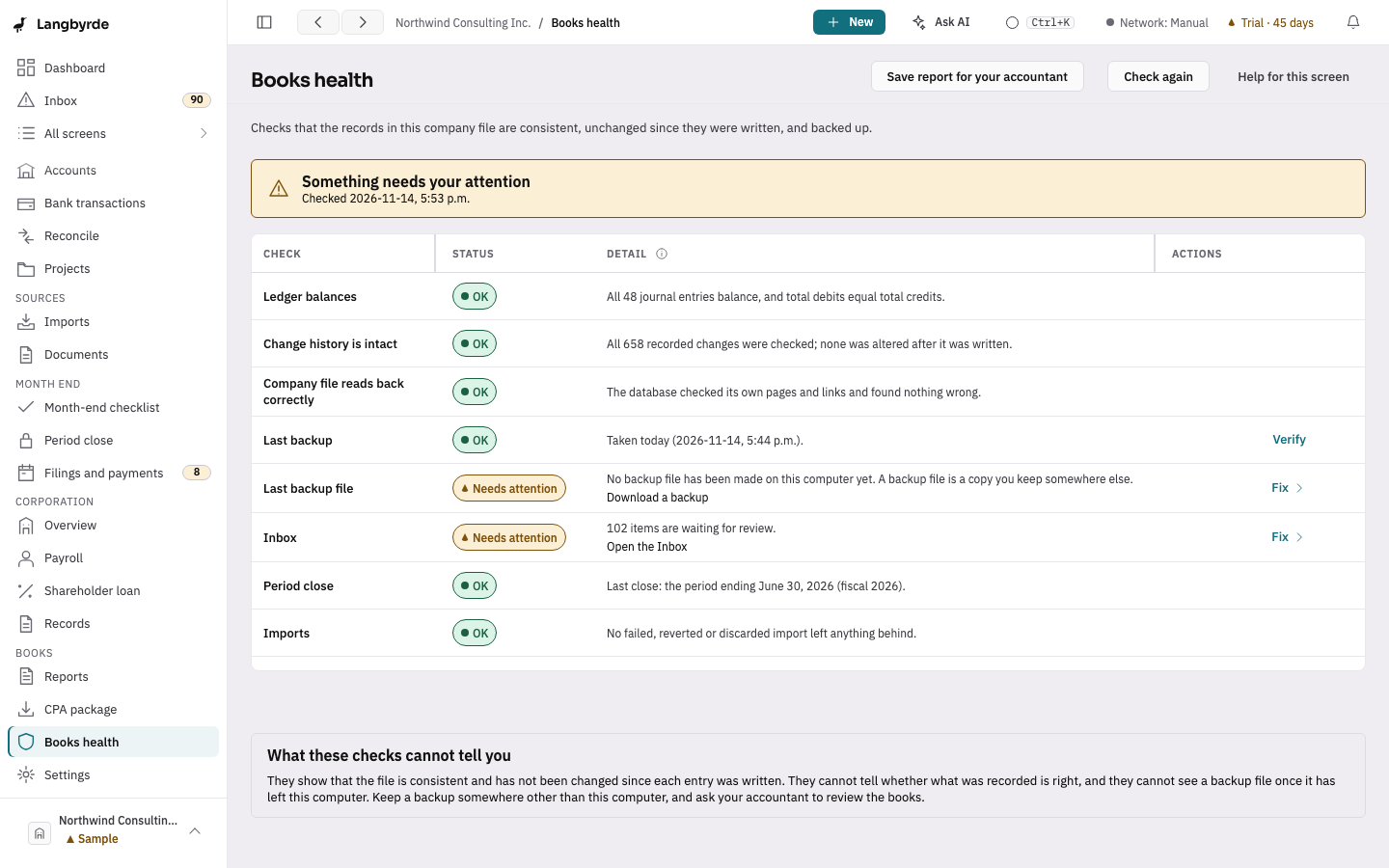
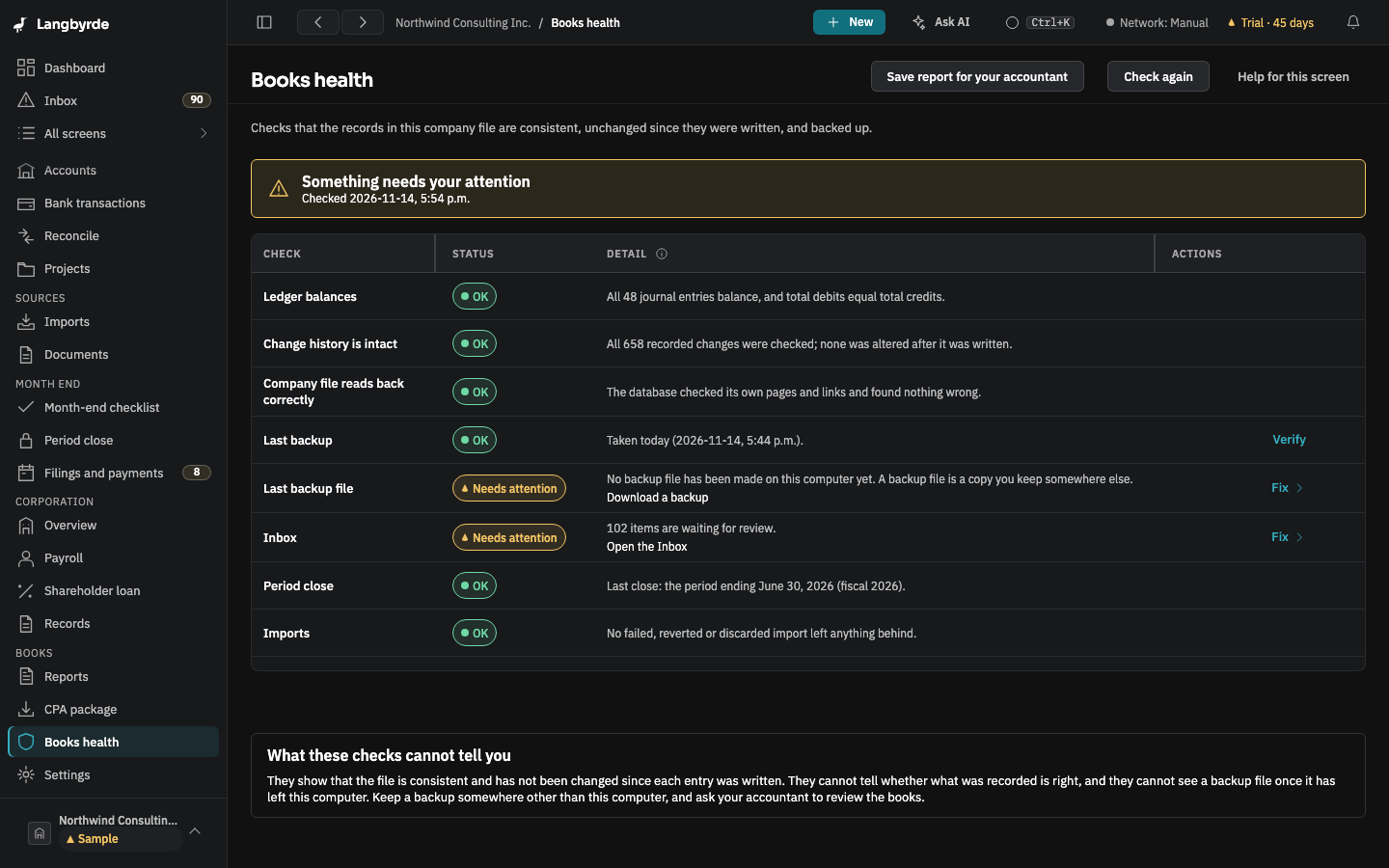
At the top, one line sums up the result: Everything checks out, Something needs your attention, Something is wrong with the records, or Some checks could not run. Below it, each check has a symbol and a word (OK, Needs attention, Problem or Could not check), what it found in plain words, and a button or link when there is something to do.
The checks
- Ledger balances. Every journal entry has equal debits and credits, and total debits equal total credits. An entry that does not balance is a Problem; Open the trial balance shows where.
- Change history is intact. Every change Langbyrde records carries a fingerprint that links it to the change before it. This check recomputes every fingerprint. A change that no longer matches means the history was altered outside Langbyrde, and is a Problem; restoring a backup from before that point is the fix.
- Company file reads back correctly. The database checks its own pages and links. If it reports a problem, the file is damaged; you can still open it and export from it, and Restore a backup is the fix.
- Last backup. When the newest backup was taken, and whether its file is still in the backups folder. Verify re-checks that backup against the checksum written when it was taken, the same check as on the Backups page. A newest backup more than 7 days old needs attention; one whose file is missing is a problem.
- Last backup file. When you last made a backup file of this company on this computer with Download a backup. More than 30 days ago, or never, needs attention. Langbyrde records that the file was made; it cannot see where you keep it afterwards.
- Inbox. How many items are waiting in the Inbox.
- Period close. The last period you closed. A fiscal year that ended more than a year ago and is still open needs attention.
- Imports. Whether a failed, reverted or discarded import left anything behind: a transaction of an import that was reverted, a reconciliation period with no imported statement behind it, or a suggested match on a transaction that was removed. Left behind, these can make a later import of the same account stop or mark its lines as duplicates. It needs attention, and Repair imports… is the fix. It first asks you to confirm, and says exactly what it will remove (for example "12 transactions of reverted imports, 1 reconciliation period and 3 suggested matches") and how many items it leaves alone; Cancel is where it starts. When you choose Repair imports, it takes a backup first, then removes what was left behind, recorded in the change history like any other change. It changes nothing in a closed period, nothing an accepted match relies on and nothing inside a signed-off reconciliation, and it tells you how many of those it left for you to look at.
A check that could not run says Could not check with the reason. It is never shown as OK.
The reminder when you start Langbyrde
Once each time you start Langbyrde, when a company opens, it runs the same checks. If anything needs attention or found a problem, a banner says so, with Open Books health. If your last backup file is old, or you have none, the banner says that. The banner sits at the foot of the window and does not stop you working. Choose Dismiss and it stays gone until the next start; it is not shown on the Books health page itself. The check reads only the company file on this computer: nothing is sent anywhere.
A report for your accountant
Save report for your accountant saves the same checks as one text file (Markdown) that you can send. It lists each check with its result and what to do, and contains no amounts, account numbers or tax numbers.
What these checks cannot tell you
They show that the company file is consistent and has not been changed since each entry was written. They cannot tell whether what was recorded is right: a receipt filed under the wrong category passes every check. They cannot see a backup file once it has left this computer. Keep a backup somewhere other than this computer, and ask your accountant to review the books.