Billing a client from start to paid
Updated
This walkthrough bills one client from the first record to the money in the bank, across Clients, Invoices and Reconcile. Each step links to the page that explains that screen in full.
Before you start
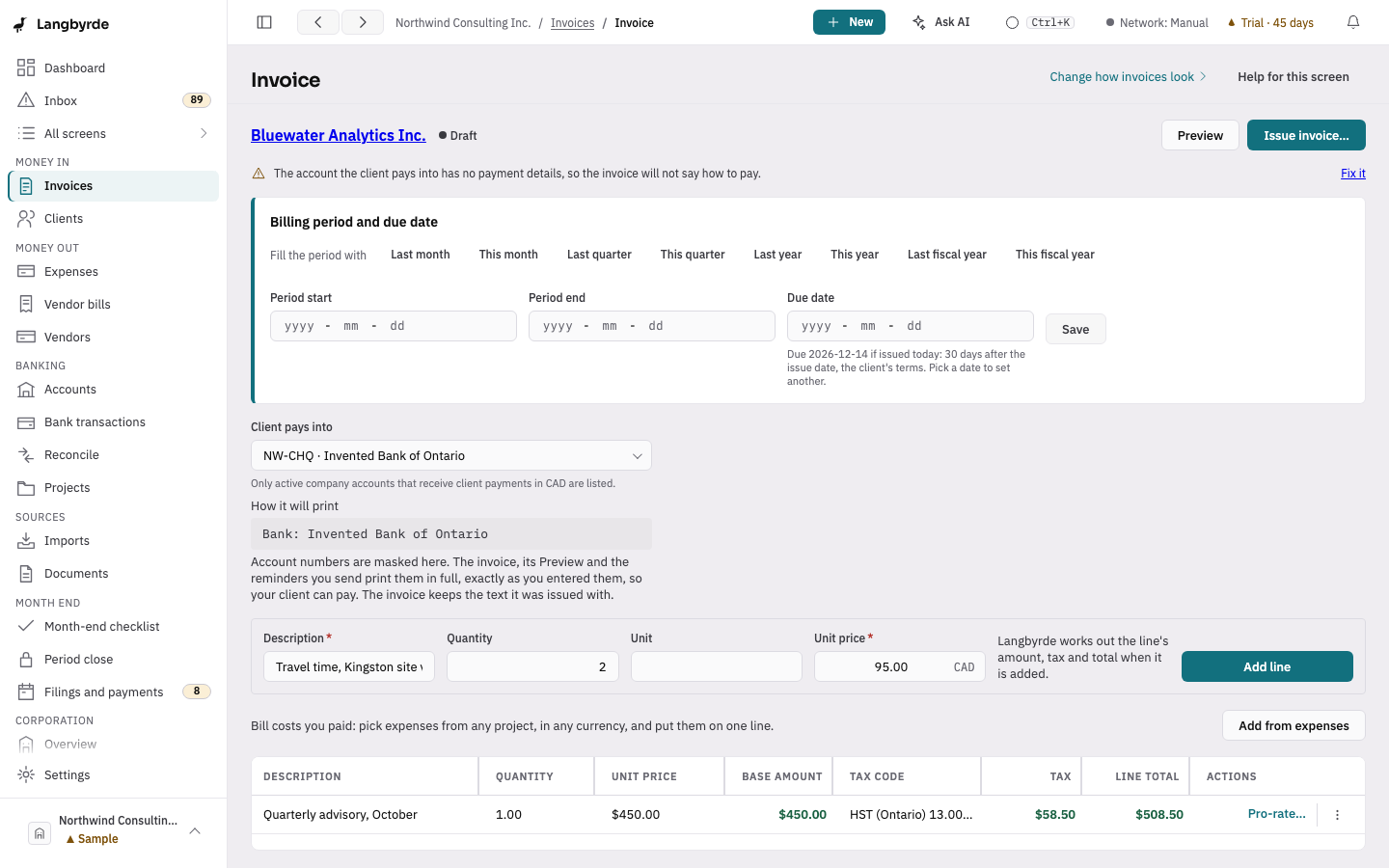
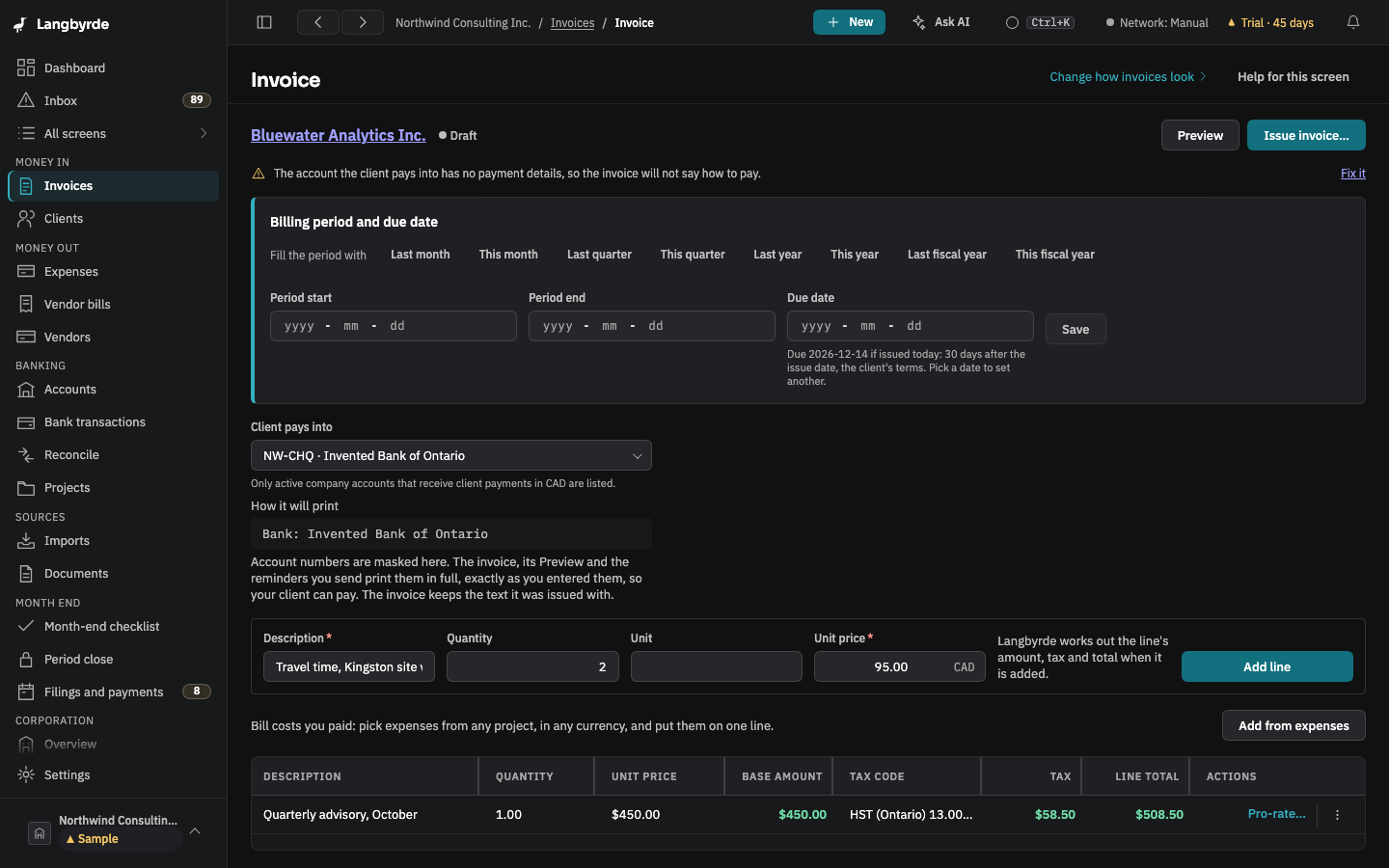
- The company profile has its legal name and address, and the account the client pays into has its payment details. The invoice tells you if either is missing, with a Fix it link, so you can also fill them in as you go.
- The company's sales-tax registration is set, so the first invoice charges the right tax; see Taxes and filing.
1. Add the client (Clients)
- Open Clients in the rail, under Money in, and choose New client.
- Enter the company name and address, a primary contact, the client's default currency and its payment terms.
- Choose Save.
What you should see: the form says Saved, and the client is in the list.
If it does not match: Save stays unavailable until you change something. See Clients.
2. Build the invoice (Invoices)
- Choose New in the top bar, then Invoice, or New invoice on the Invoices screen.
- Choose the Client. The draft is created and opens.
- Under Billing period and due date, set the period the invoice covers and check the Due date, then choose Save.
- For each line, type the Description, the Quantity and the Unit price, and press
Enteror choose Add line. Each line shows its tax as it is added.
What you should see: the lines in the table and Totals with the subtotal, the tax and the total. You never type the tax; it comes from the company's tax rules. See What the disclaimers mean.
If it does not match: the Before you issue alerts at the top of the draft say what the invoice is missing, each with a Fix it link. See Issuing an invoice.
3. Check it before it goes (Invoices)
- Choose Preview. It shows the invoice as the client will receive it, marked PREVIEW - DRAFT. Nothing is numbered or saved while you look.
- To change anything, choose Edit draft to go back to the draft's form.
If it does not match: when something the invoice has to print is missing, such as the client's address, the preview says so instead of drawing, with a Fix it link.
4. Issue it and send it (Invoices)
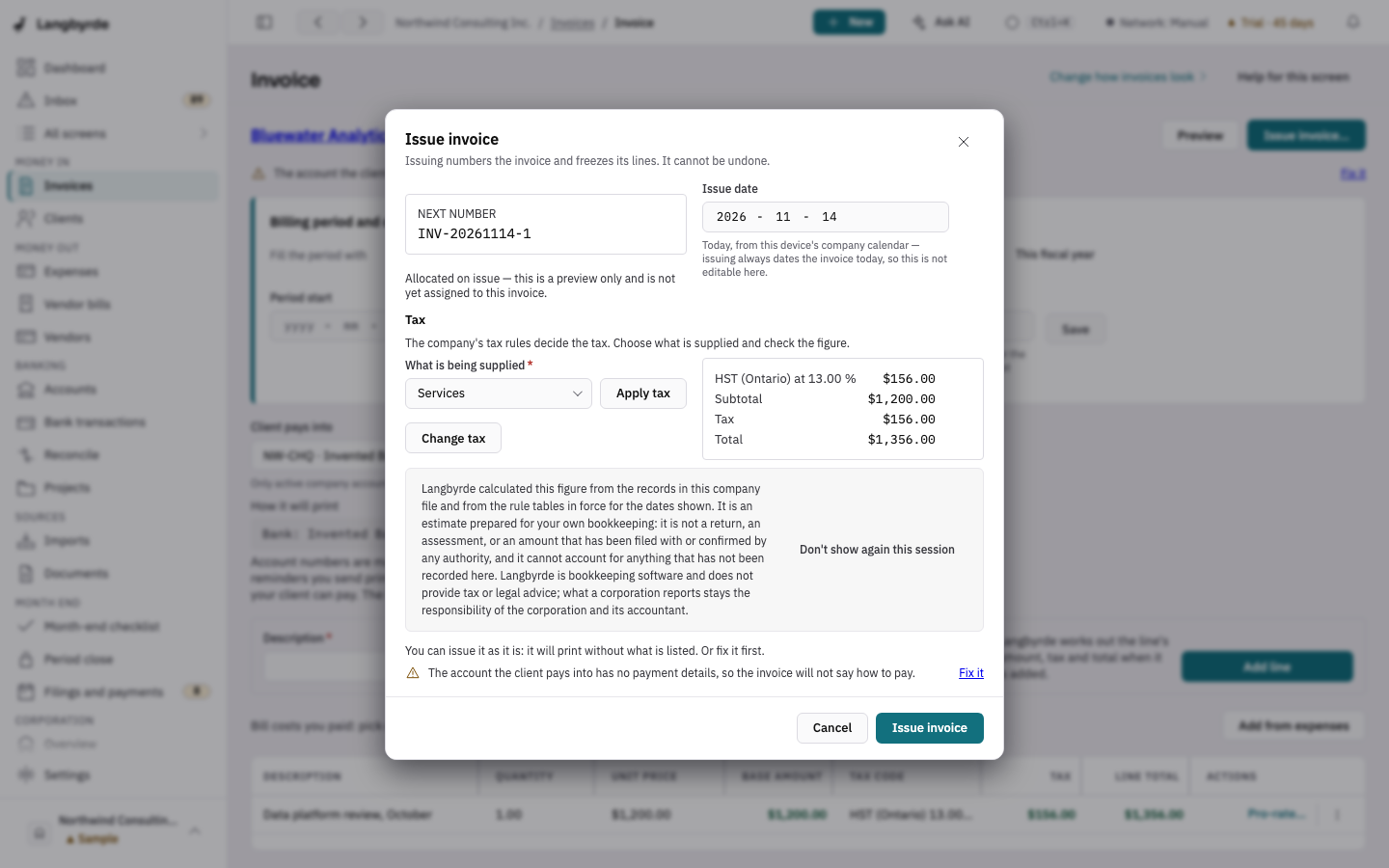
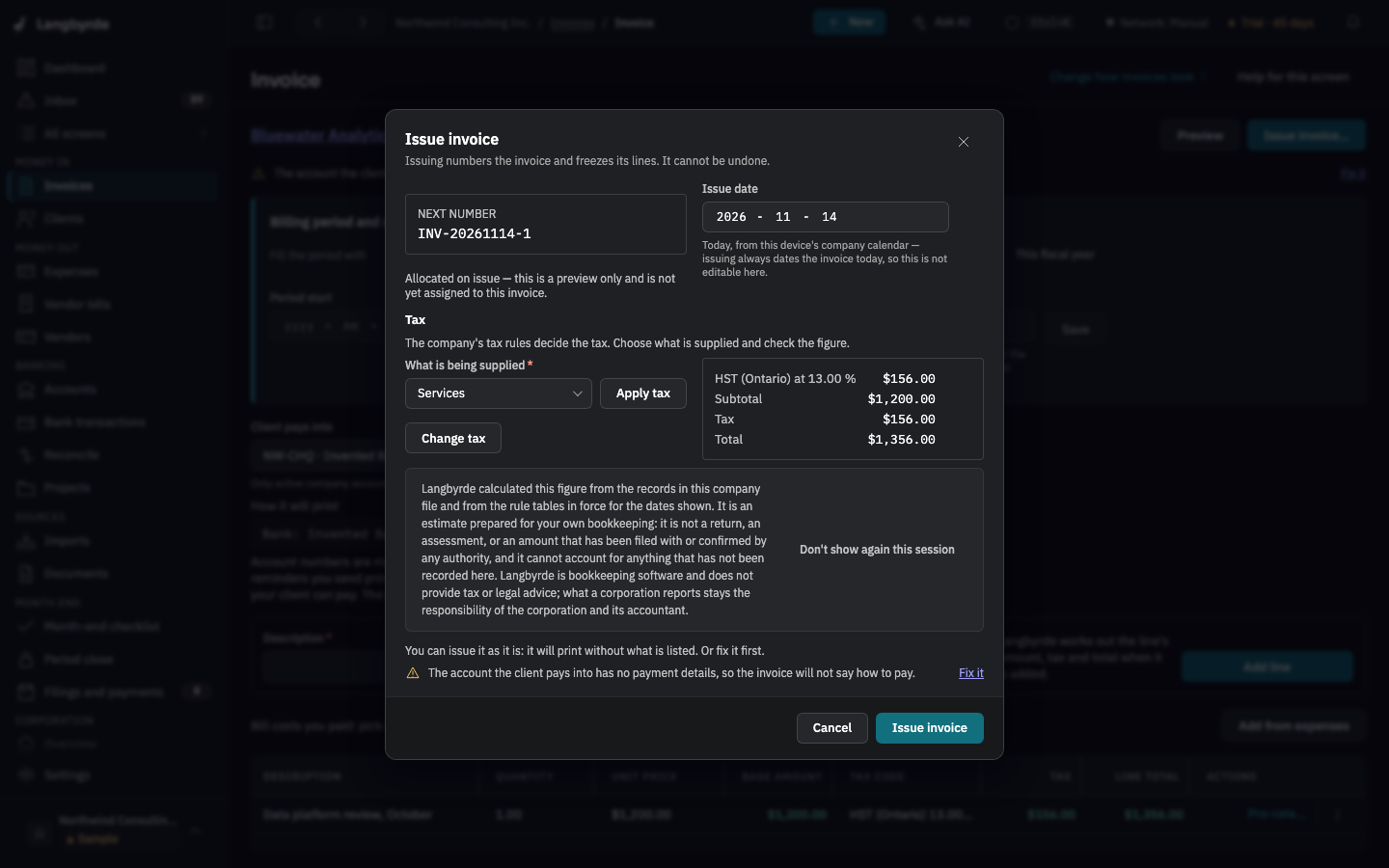
- Choose Issue invoice… at the top of the draft, check the Next number, the Issue date and the tax, and choose Issue invoice in the dialog.
- On the preview, under Invoice PDF, choose Save as… or Print, and send it the way you usually do. Langbyrde does not send invoices for you.
- Choose Mark sent.
What you should see: the invoice has its number and its PDF is filed in your Company Folder, in the Invoices folder. Once issued, its number and billed details are fixed; see Reopen an issued invoice to edit.
5. Remind the client if it is late (Invoices)
- Open the invoice and choose Remind…. Langbyrde prepares the text for where the invoice stands, in a Polite or Firm tone.
- Choose Copy text, or Open in my mail program. Langbyrde sends nothing itself.
What you should see: the reminder listed under Reminders so far the next time you open Remind….
6. Record the payment (Invoices, then Reconcile)
- Open the invoice and choose Record payment…. Amount received is filled in with what is still owed; change it for a partial payment, and check the Payment date (it starts on today).
- Choose Record payment.
- When the bank statement with the payment is imported, open Reconcile and accept the payment as the match for its bank line; see From a bank statement to a signed-off month.
What you should see: the invoice shows nothing still owed, and AR aging no longer counts it for the client.
If it does not match: if the client paid less, the invoice stays partly paid and shows what is still owed. See Record a payment.