Explain a bank line that has no match
Updated
A bank or card line with no match is money that the books cannot explain yet. The Bank transactions offers the likely next step on the line itself, so you do not have to leave it, record the missing expense somewhere else and come back to match it.
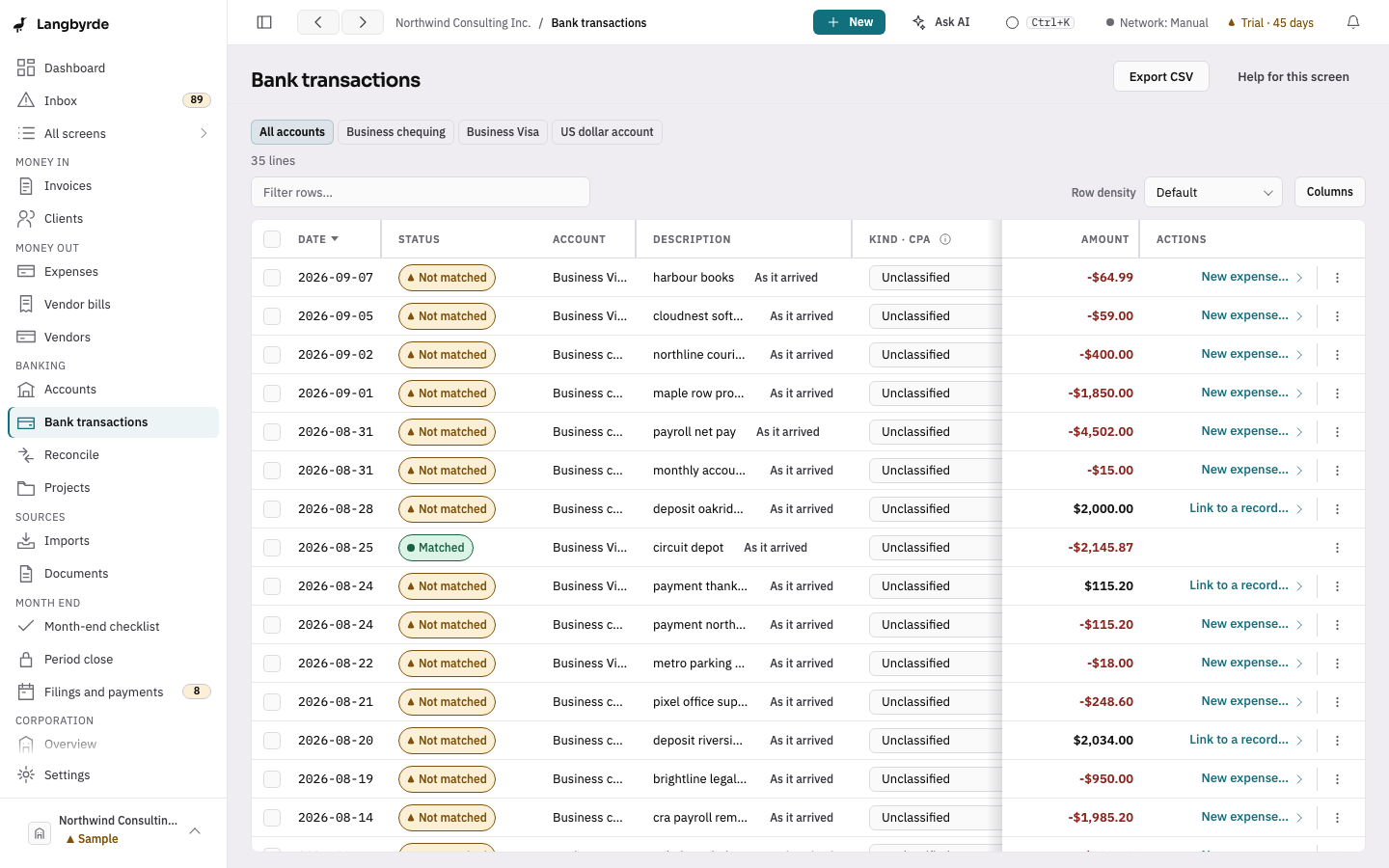
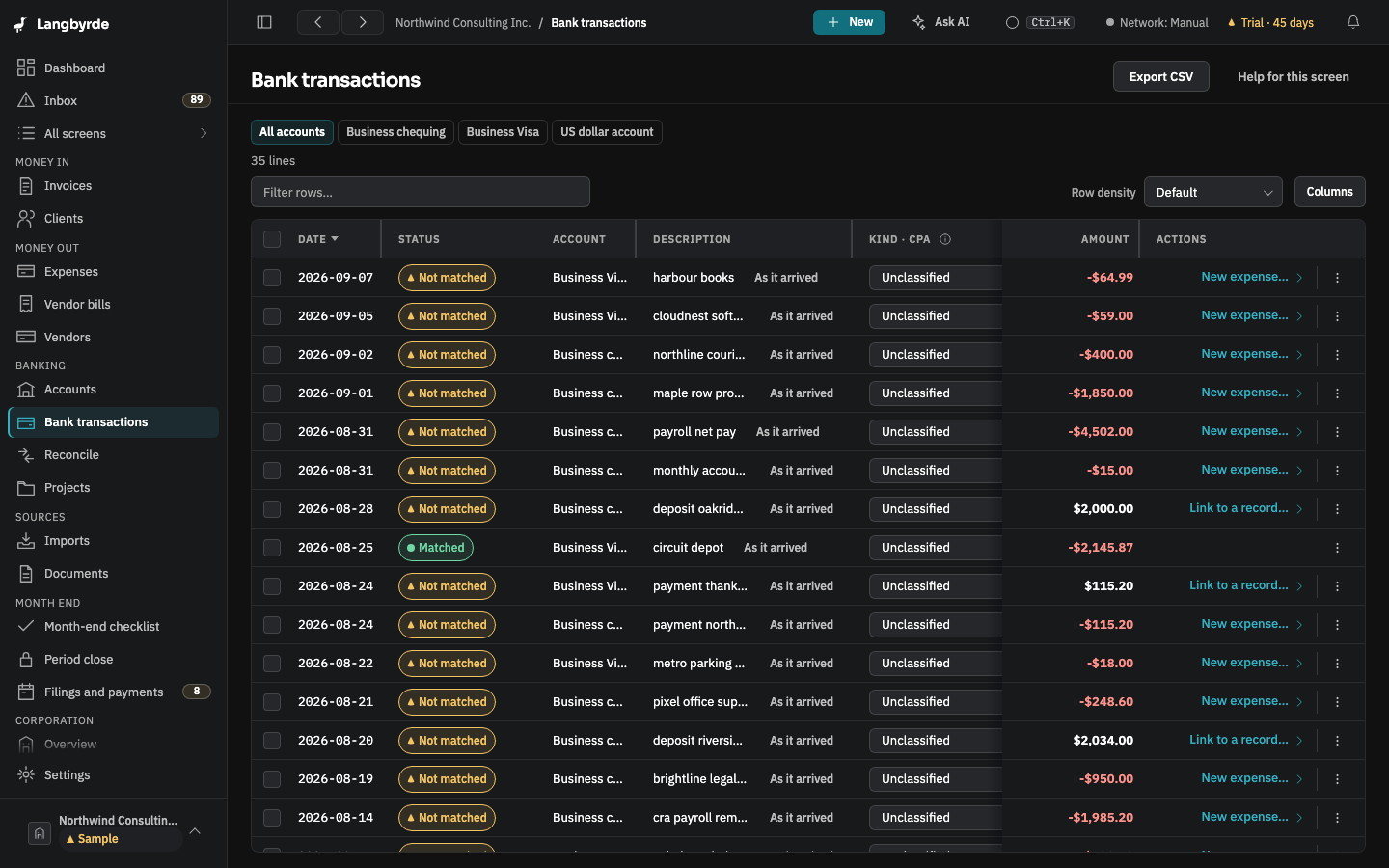
Find the actions
Open Bank transactions from the rail, under Banking. On a line that is Not matched or Partially matched, the row's main button is:
- New expense… for money going out;
- Link to a record… for money coming in.
On a payment out, the row's More actions menu also has New vendor bill…, Link to a record… and Create from this line…. Each dialog first reads the line again, so it always works on what is still unexplained on it (Amount still to explain), not on the line's full amount.
New expense from the line
- Choose New expense….
- The dialog is filled in from the line: its Date, its Vendor wording and the amount still to explain.
- Choose the Category. When the vendor has earlier expenses, a category is suggested, with the reason, for example "Software: used for 3 earlier expenses from Adobe Systems Canada". A vendor with no history gets no suggestion. Pick another one if it is wrong.
- Choose Record expense.
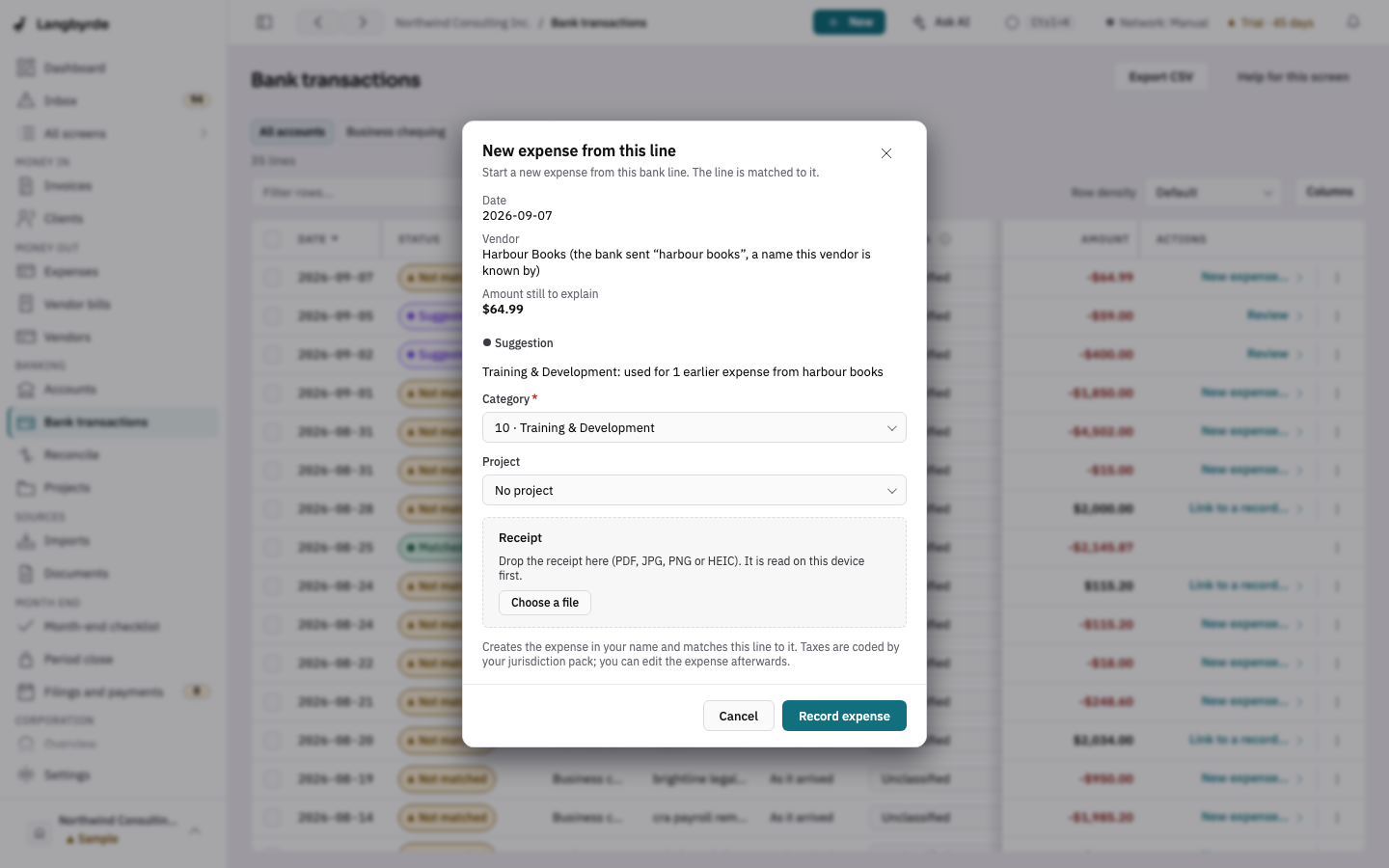
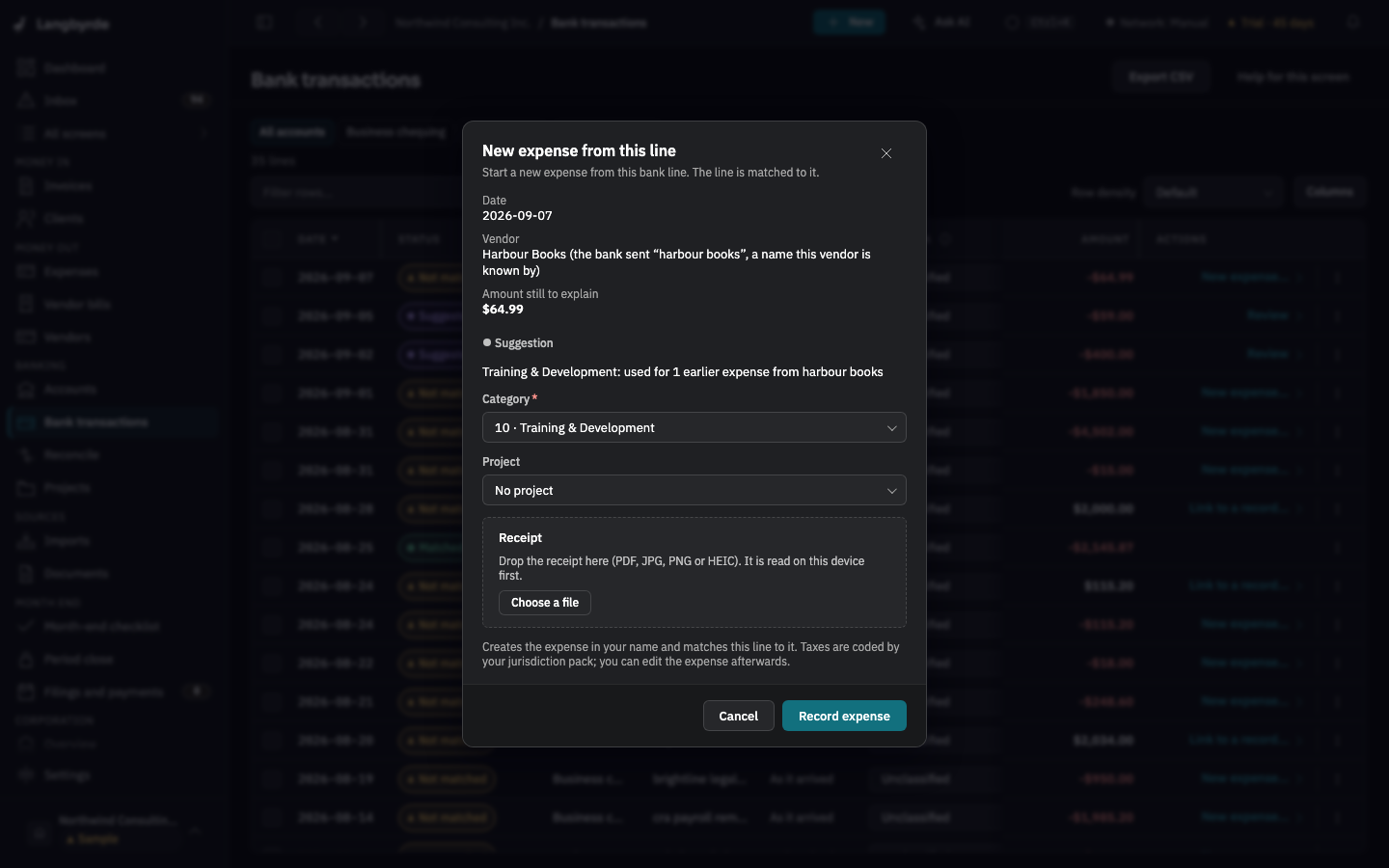
The expense is recorded in your name and the line is matched to it, in one step: if either part is refused (for example, the date is in a closed period), nothing is saved. The taxes are coded by your company's tax rules; open the expense afterwards to add the receipt or change anything. A suggested category is only a suggestion; see What the disclaimers mean.
Link the line to a record you already have
- Choose Link to a record…. The Match part of this line by hand… dialog from Reconcile opens on this line.
- Choose the Kind of record: an expense, an invoice still owed money, a vendor bill still to pay, or a transfer waiting to be confirmed. Payroll runs, remittances and reimbursements cannot be picked here yet; use Reconcile for those.
- Pick the record, then the Amount to allocate (Use the remaining … fills in what is left on the line) and an optional Reason, and choose Review to check it before it is recorded.
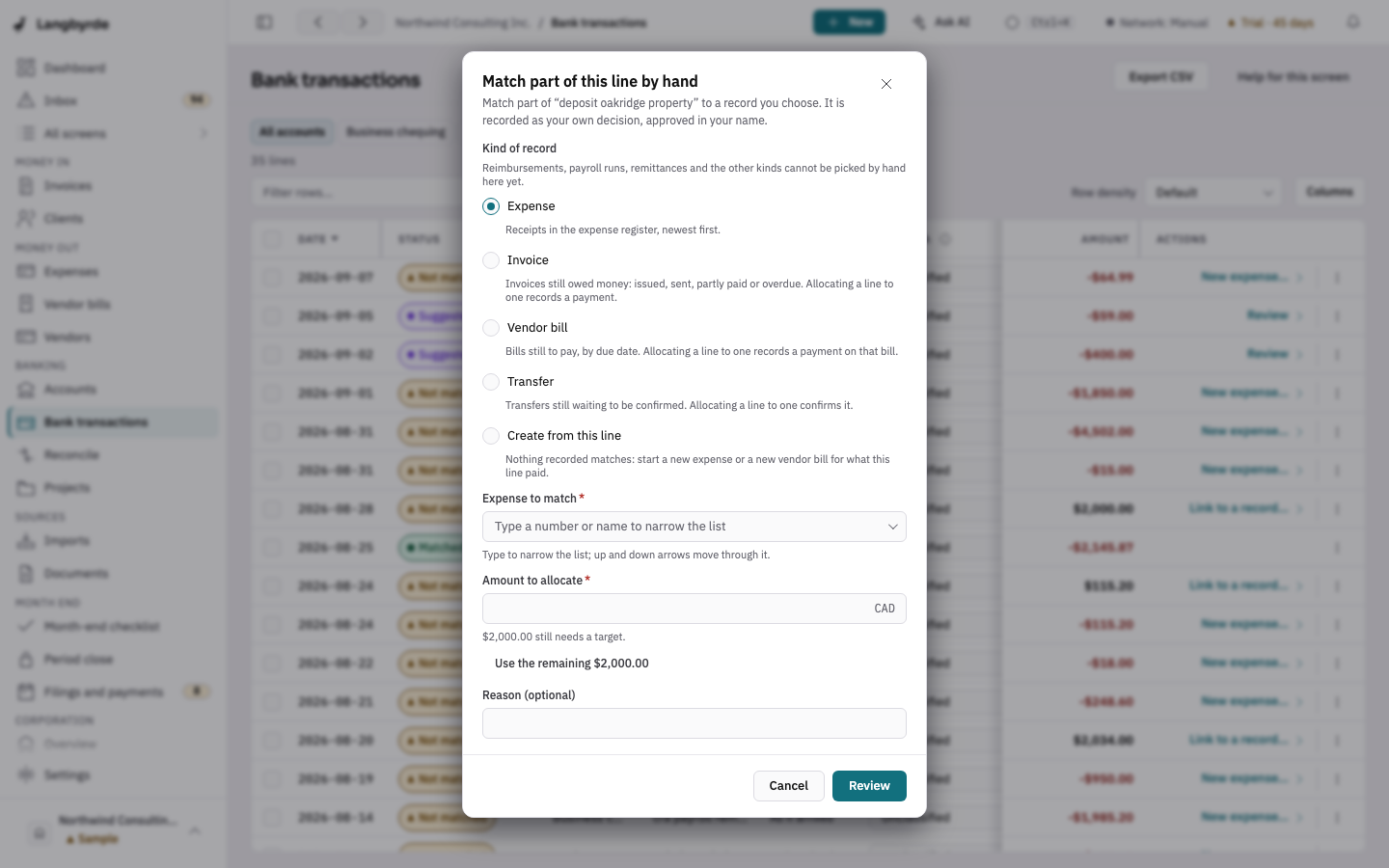
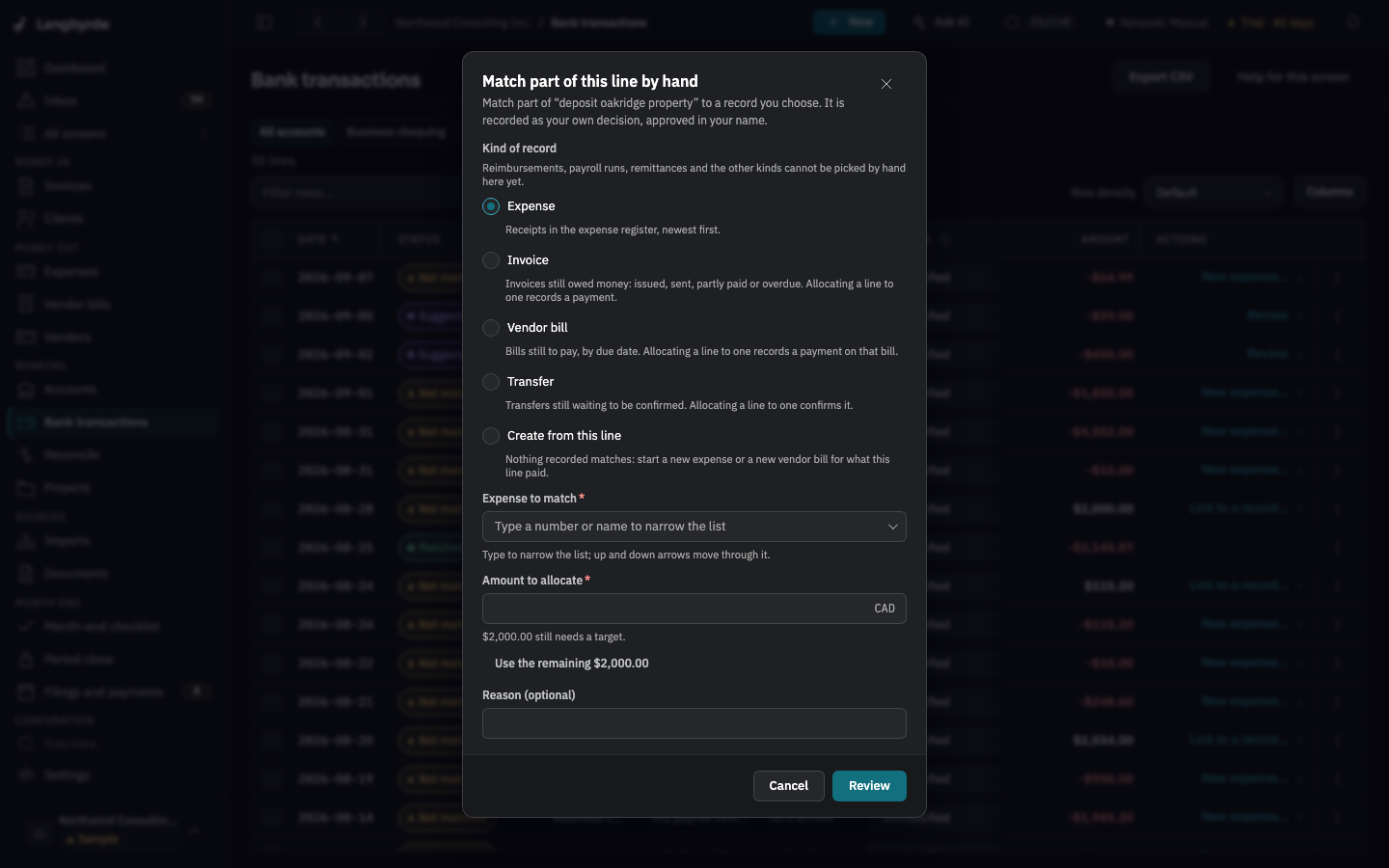
Allocating to an invoice records a payment on it; allocating to a vendor bill records a payment on that bill; allocating to a transfer confirms the transfer.
New vendor bill from the line
Use this for a payment out that settled a vendor's invoice you have not recorded yet.
- Choose New vendor bill…. The dialog restates the Bill amount: what is still to explain on the line.
- Under A receipt already in your documents, Langbyrde lists receipts that agree with the line, each labelled as a suggestion with why it was offered: its total equals what is left on the line, its vendor is named in the line's description, and how many days apart they are dated. Choose one, or under Or upload the bill drop the bill's PDF or photo; it is filed into your documents like any receipt.
- Choose the Vendor and the Category.
- Choose Record vendor bill.
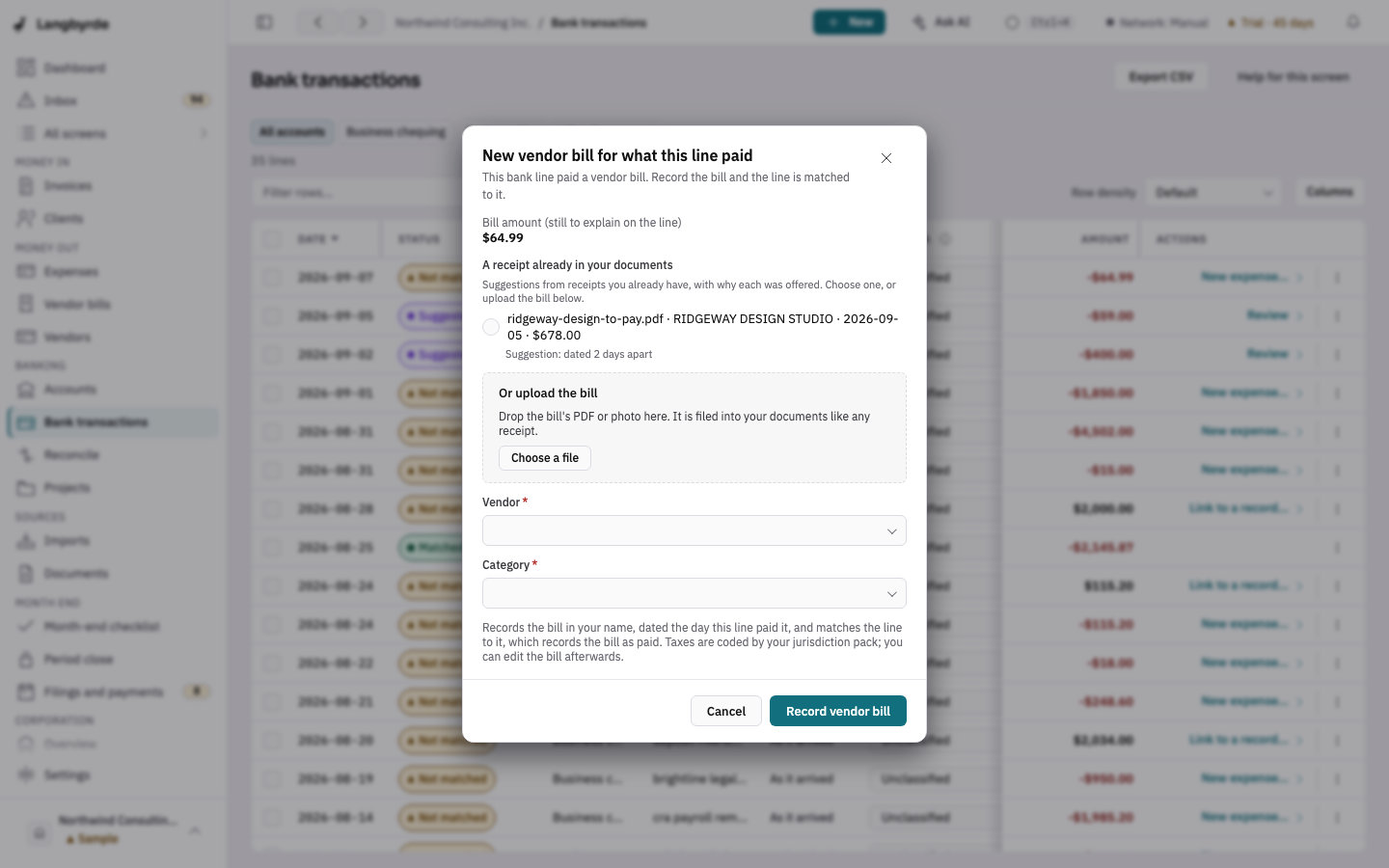
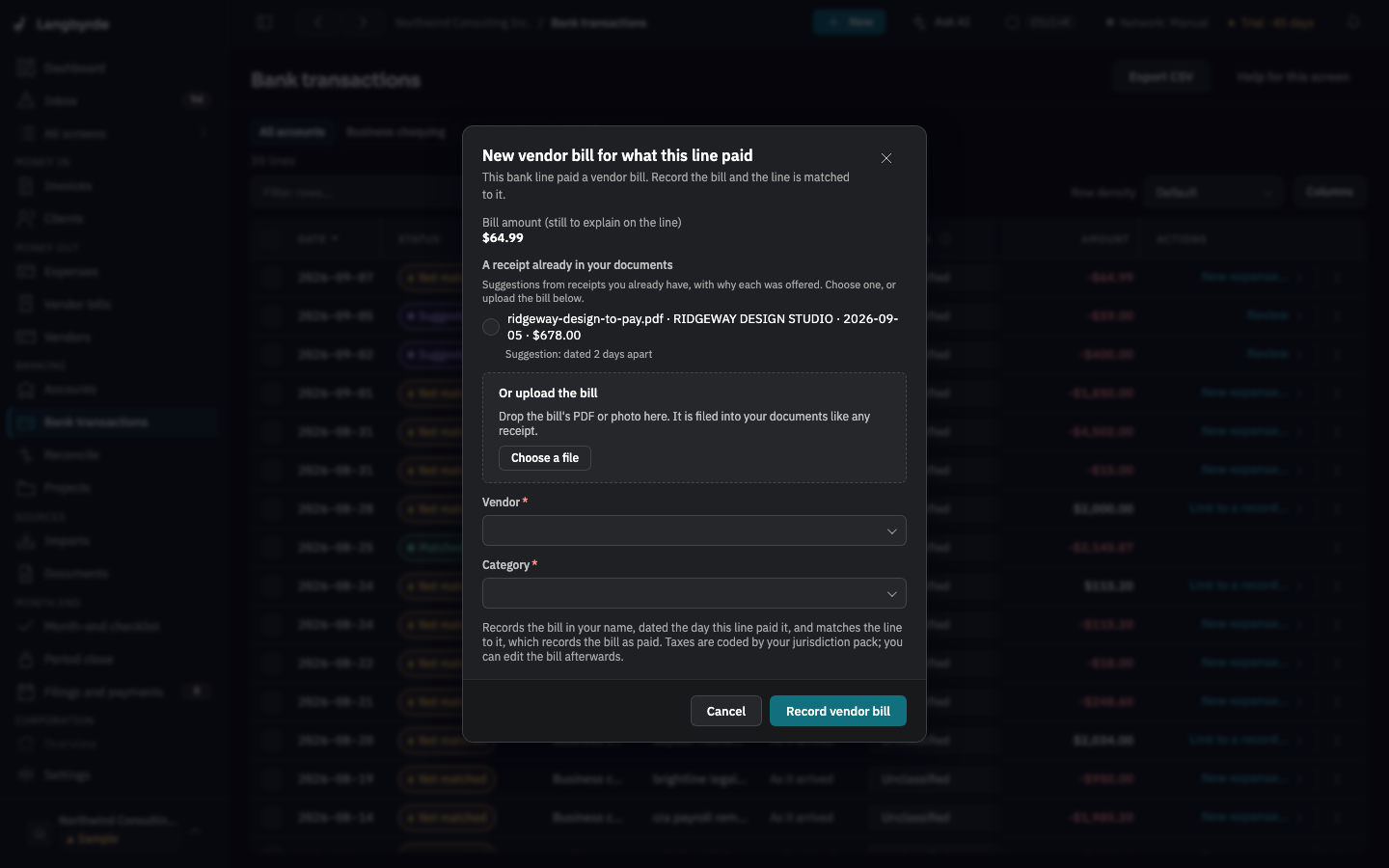
The bill is recorded in your name, dated the day the line paid it, and the line is matched to it, which records the bill as paid. See Vendor bills.
Create from this line
Create from this line… is in the line's More actions menu, in its side panel, beside Match part of this line by hand… in Reconcile, and as the last choice of the Match part of this line by hand… dialog. Choose what the payment was:
- An expense (I have the receipt): the expense is made from the line, and the receipt you drop in is read and attached to it.
- A vendor bill (I have the invoice): the bill is recorded from the line with the invoice you drop in, and is paid by the line at once.
Either way the line is matched to the new record in the same step, so it leaves the unexplained lines. The documents are read as described in What is read off the documents you add: each value is a suggestion you use or ignore.
Match part of this line by hand… lists, at the top, the records Langbyrde ranks as this line's match, best first, with how likely each is. Nothing is chosen for you: Use this fills the choice, and the next step accepts that suggestion.
When to use which
- A purchase with a receipt you have not added yet: drop the receipt on Imports instead. It is read and filled in for you, and the line is suggested; see Reading receipts on this computer.
- A purchase you will never have a receipt for, such as a bank fee: New expense….
- A client's payment: Link to a record… and pick the invoice.
- A vendor's invoice paid straight from the bank: New vendor bill….
- A move between two of your own accounts: see Transfers.
Nothing on this page needs an AI provider, and nothing is sent anywhere. Each action records something, so it needs a licence that allows editing and a role that may edit transactions and accept matches.