Backups and restore
A snapshot is a full copy of one company's books at a moment in time. Snapshots are kept in the Company Folder, in its _langbyrde/snapshots folder, so they travel with the rest of the company's files. Langbyrde takes them on its own, and you can take one whenever you like.
Open Backups
With a company open, choose Settings at the bottom of the rail, then Backups under Data. Or press Ctrl+K (⌘K on a Mac) and choose Backups. The table lists this company's snapshots, newest first: when each was Taken, the Reason, its Size, its State and a Restore column.
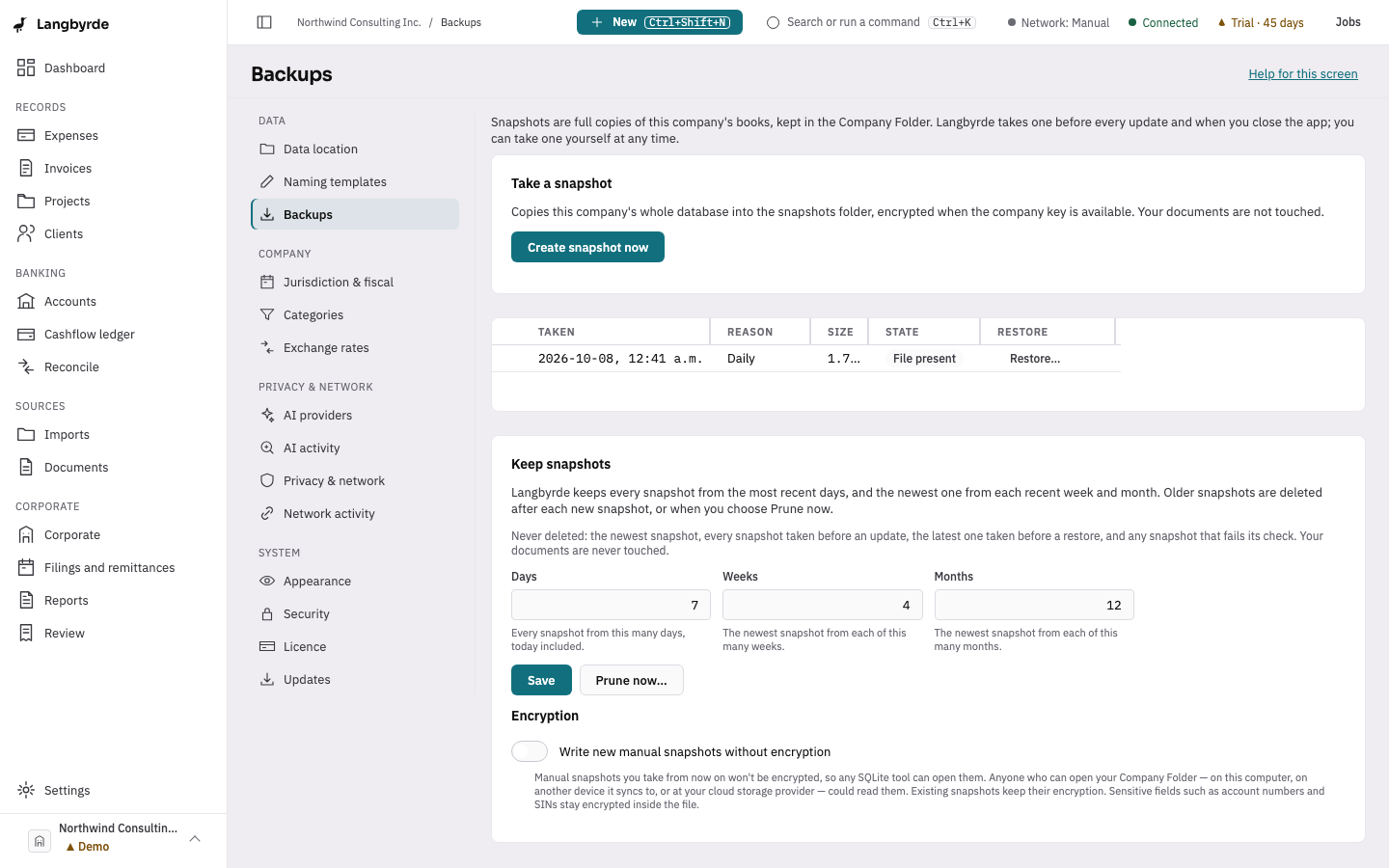
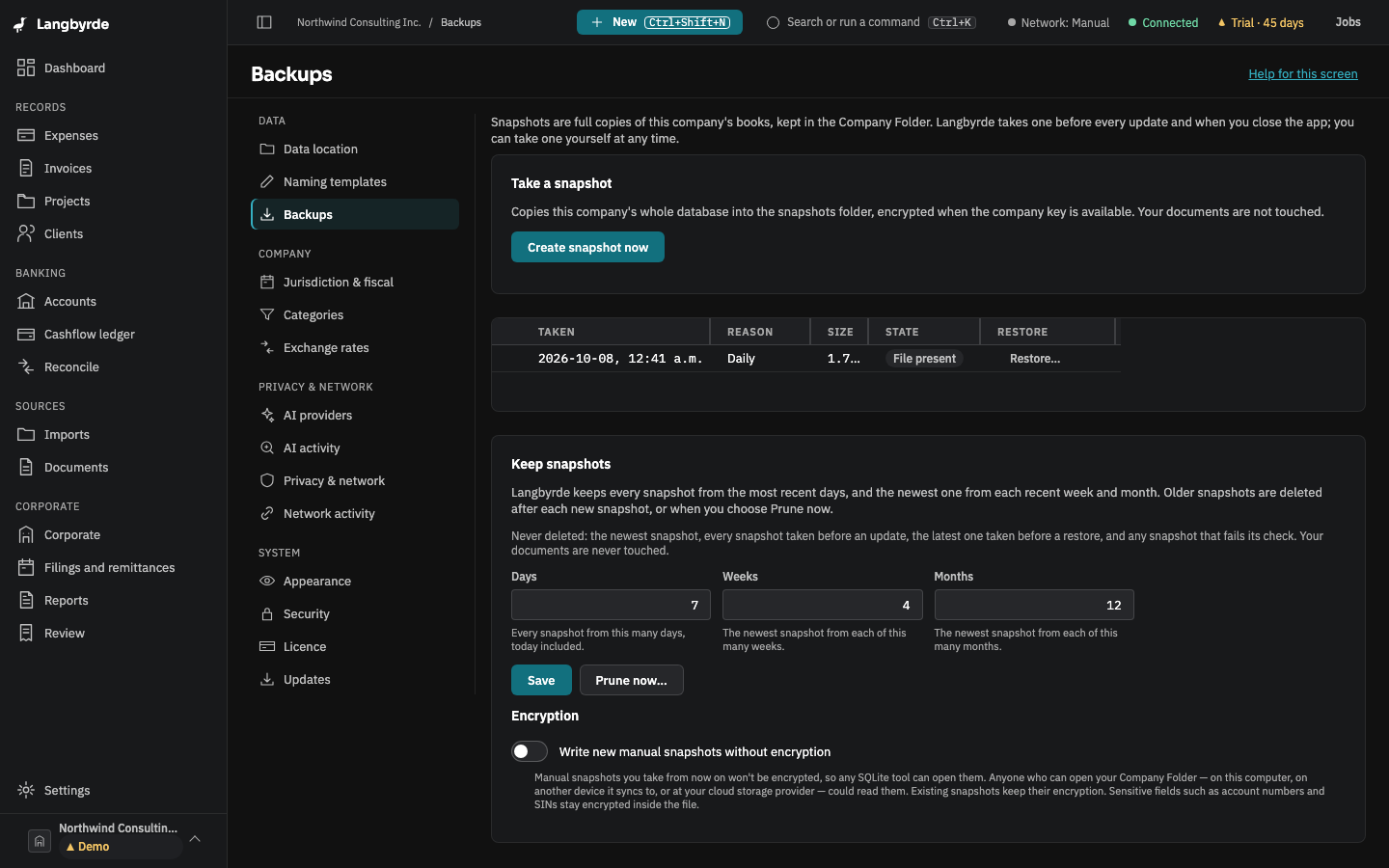
Take a snapshot
Choose Create snapshot now. Langbyrde copies the company's whole database into the snapshots folder, encrypted. Your documents are not touched. Taking a snapshot always works, in read-only mode too.
The snapshots Langbyrde takes for you
The Reason column says why each snapshot exists:
- Daily — the first time you open the company each day.
- Automatic — on Langbyrde's own schedule, including when it shuts down.
- Before an update — just before a new version changes how the company's data is stored. These are never deleted.
- Before a restore — just before a restore replaces the data, so the restore can be undone.
- Manual — the ones you took. Full export — the copy a full export writes.
Older daily, weekly and monthly snapshots are thinned out under Keep snapshots; the newest one and every Before an update snapshot are always kept.
Verify a snapshot
Select a snapshot, then choose Verify. Langbyrde checks the file against the checksum it wrote when it took the snapshot: Verified, File missing, Checksum file missing, or Damaged — not a restore point. Verifying only reads the file.
Restore from a snapshot
Only the company's owner can restore.
- Choose Restore… on the snapshot you want.
- Read the confirmation. It says the current data will be replaced by the data as it stood when the snapshot was taken.
- Choose Restore this snapshot. The company closes for a few seconds and reopens with the restored data.
Before it replaces anything, Langbyrde saves a Before a restore snapshot of the current data, so restoring that one puts everything back. Your documents folder is never touched by a restore, and restoring works in read-only mode too.
Go back after an update
If a new version misbehaves, open Settings, then Updates, and read Roll back. It lists the Previous installer (when this computer kept one) and the Pre-migration snapshot taken just before the update changed your data.
- No pre-migration snapshot was recorded: the update did not change your data. Quit Langbyrde and run the previous installer; nothing needs restoring.
- A pre-migration snapshot is listed: the previous version cannot open the changed data, not even to restore it. Stay on this version and restore that snapshot here: Settings › Backups, the row Before an update, then Restore…. Your data goes back to how it was before the update. Everything entered since is replaced, and a Before a restore snapshot keeps it first. Your documents are not touched.
See Updates.
When a snapshot cannot be restored
A row can show Failed its check, No file to restore, or Needs a newer Langbyrde in place of the Restore… button. Choose another snapshot, or install the version the row names.