AI providers: what they do and what is sent
Langbyrde works fully without AI. You can connect your own AI provider, with your own key, for two extra helps. This page lists everything that can reach a provider, when it happens, what goes, what is taken out and what is not, and what is kept.
In short
- Off until you add a provider. With no provider in Settings, AI providers, nothing is ever sent to an AI service.
- Three things can reach a provider in this version: help with a weak receipt reading, which runs by itself while your receipts are read; Draft with AI on a memo, when you choose it; and the Test button in the provider's settings. Nothing else calls a provider.
- Only in the Connected setting. In Offline and Manual, no request reaches a provider, even one that runs on this computer.
- Text only. The picture of a receipt is never sent in this version.
- Some details are replaced first, when Langbyrde recognises them: account and card numbers, tax and social insurance numbers, e-mail addresses, phone numbers, street addresses and your company's name as saved. Names of people and businesses, amounts, dates, notes and descriptions are sent as written.
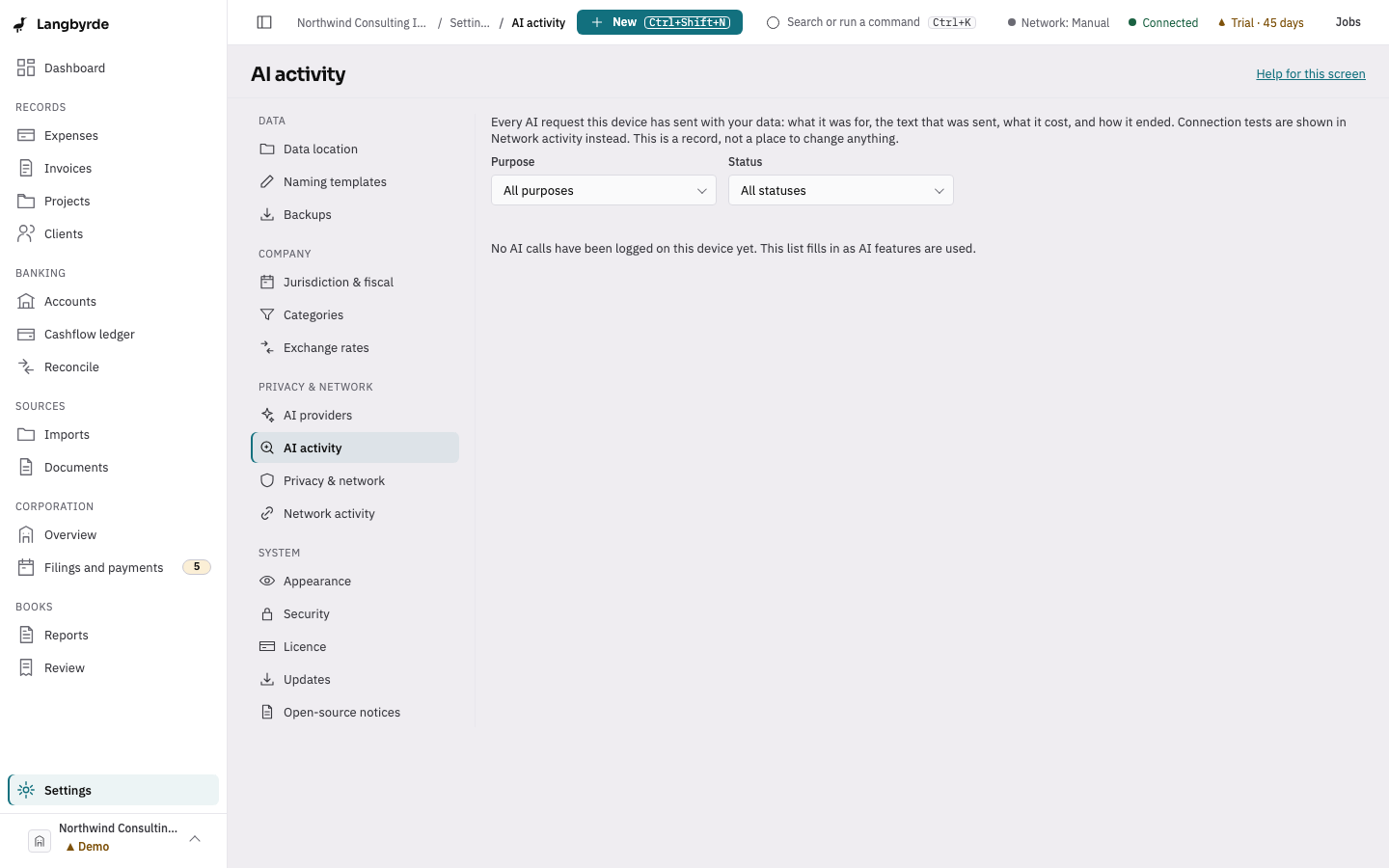
- Nothing shows you a request before it goes. Afterwards, Settings, AI activity shows the text of each request and the answer.
- Answers are suggestions. Nothing is recorded until you accept it.
- Your key stays in your computer's secure key store, never in the company file.
What reaches a provider, one by one
Help with a weak receipt reading
- When it happens: by itself, while Langbyrde reads receipts you added, without a separate click for each receipt. It happens only when the reading made on this computer is weak (the vendor, date or total is not sure), only when some text was read, only when a provider is enabled, and only in the Connected setting. A confident reading is never sent. A receipt with no text read is never sent.
- What is sent: the text that was read from the receipt, after the replacements described below, and a word saying how it was read. Never the picture, the file or its name (see What a receipt reading sends).
- What comes back: a reading of the receipt's vendor, date, subtotal, taxes, total, currency, registration number and line items. It only fills fields the local reading missed or was unsure of; it never replaces a confident local value.
- What is kept: one entry in AI activity, linked to the receipt. The queue shows AI under Method, and the review says Read with the model's name (text only).
If the network setting is not Connected, nothing is sent and the receipt keeps the reading made on this computer. If the provider fails to answer, for example because of a refused key, a limit or an outage, the receipt also keeps the reading made on this computer, the review says AI help was unavailable, and the failed call is listed in AI activity. If you would rather this help never runs, keep the network setting on Manual or Offline, or leave no provider enabled.
Draft with AI (memos)
- When it happens: only when you choose Draft with AI on a memo that has at least one linked record. One click sends the request; there is no preview first.
- What is sent: the memo's subject and date and, for each linked record, its number or file name, its date, its amount, the vendor or client name and its note or description (see What a memo draft sends). The text you already wrote in the memo is not sent.
- What comes back: a draft memo text. It shows as AI draft — not saved, with Accept draft and Discard draft. Your memo is unchanged until you accept it.
- What is kept: one entry in AI activity. See this AI call in AI activity opens it.
The Test button
Test, on a provider in Settings, AI providers, asks the provider for its list of models. It sends your key and no company data. For an OpenAI-compatible address it also asks at the addresses local model runners use, with the same key. A test is not listed in AI activity; it shows in Network activity.
What is replaced before anything is sent
Before a request is built, Langbyrde looks through every piece of text that will go and replaces what it recognises with a stand-in such as <<ACCOUNT_1>>. The same value gets the same stand-in throughout one request. The stand-ins are never turned back.
What it looks for:
- bank account, transit, institution and routing numbers, and international bank account numbers;
- social insurance numbers, business and GST/HST numbers, and other tax numbers;
- keys, passwords and access tokens written in a note;
- e-mail addresses and phone numbers;
- street addresses, Canadian postal codes and US ZIP+4 codes;
- your company's name, when it appears exactly as saved in your company profile (capital letters do not matter).
A card number it recognises is cut to its last four digits, such as ****1111.
It recognises the usual ways these are written. A number written in an unusual way (for example with dots, misread by the scanner, or split over two lines), a postal code in lower case, an address written in French or as a post office box, or your company's name written differently from your company profile can still be sent. If the check cannot finish, nothing is sent.
What is sent as written:
- names of people: a cashier or customer printed on a receipt, a client or vendor who is a person, and a name in a memo's subject or note, such as your own;
- shop, supplier and client names;
- amounts, currencies, dates, descriptions, item names, notes, file names, and invoice and expense numbers.
What a receipt reading sends
The request holds fixed instructions, the same for every receipt, then the text that was read. For example, a receipt read on this computer as:
- MAPLE LEAF HARDWARE
- 412 Elgin Street, Ottawa K2P 1M4
- Tel 613-555-0142
- GST/HST 812345678 RT0001
- Sold to Northwind Consulting Inc.
- Cashier: Sam Lee
- Toner cartridge 50.00
- HST 13% 6.50
- Total 56.50 CAD
- VISA 4111 1111 1111 1111
goes to the provider as:
- MAPLE LEAF HARDWARE
<<ADDRESS_1>>, Ottawa<<ADDRESS_2>>- Tel
<<PHONE_1>> - GST/HST
<<TAX_ID_1>> - Sold to
<<COMPANY_1>> - Cashier: Sam Lee
- Toner cartridge 50.00
- HST 13% 6.50
- Total 56.50 CAD
- VISA
****1111
(The shop, the people and the figures are invented, and the company name is written exactly as in its company profile.) The cashier's name is sent as written. Because the registration number is replaced, a provider cannot read it back; the local reading keeps it when it found it.
What a memo draft sends
The request holds fixed instructions, the memo's subject and date, and one line for each linked record: its kind, its number, its date, its amount and currency, the vendor or client name, and its note or description. A linked document is sent as its file name, date and kind; a record with no number is sent as its kind and a short code. A detail Langbyrde does not have is sent as a marker, the words NEEDS INPUT in square brackets, and the draft is asked to keep that marker where the detail belongs. For example:
- subject: Why the March printer purchase is a company cost
- date: 2026-03-20
- type: expense | ref: EXP-0042 | date: 2026-03-14 | amount: 56.50 CAD | party: Maple Leaf Hardware | description: Toner for the front office printer
- type: document | ref: 2026-03-14 Maple Leaf Hardware.pdf | date: 2026-03-14 | amount: (the marker) | party: (the marker) | description: Receipt
(The memo and figures are invented.) The same replacements run over every line, so a phone number or an address it recognises in a note is replaced before it goes. Choose memo subjects, notes and file names knowing they are sent as written.
What is never sent
- The picture of a receipt, or any other file's contents.
- File paths, folder names and your Company Folder's location. (A linked document's file name is sent with a memo draft.)
- Your API key, except to the provider itself, as its own sign-in with each request and test.
- Anything from a feature you did not use: a memo draft sends nothing about receipts, and a receipt reading sends nothing about other receipts, expenses or memos.
- Anything about how you use Langbyrde, or about your computer: no app version, device or company identifier is added. There is no tracking.
Besides the text, a request names the model you chose and the shape the answer must take, and, for some providers, a limit on its length.
What your provider and your network can see
- Your provider, like any web service, sees your internet address and which key was used.
- If your computer uses a proxy or a VPN, the request passes through it.
- A hub passes your request on to other providers and may keep its own records; its terms apply as well as the provider's.
What comes back, and how it is used
The provider's answer is checked against the shape Langbyrde asked for. An answer that does not fit is not used, and nothing changes. An answer that fits is shown as a suggestion, marked as coming from AI, with the AI suggestions disclaimer. You accept it, change it or discard it. When you accept it, the record notes who accepted it and links to the AI call. See What the disclaimers mean.
What is kept on this computer
Each receipt reading and memo draft adds one entry to AI activity, kept in your company file: when it was made, by whom, what it was for, which provider and model, the text of the request (after the replacements), the answer as received, the token counts, an estimated cost, how long it took and how it ended. The entry never holds your key, and never a picture. Like the rest of the company file, it is included in your backups.
See what was sent
- Open Settings, then AI activity.
- Find the call. Filter by Purpose or Status if you need to.
- Choose View request. Call detail shows Request sent (redacted): the instructions and your data, word for word, after the replacements. Response received shows the answer.
Call detail does not show the technical wrapping each kind of provider needs: the answer shape and length limit. If an OpenAI-compatible provider refuses the answer shape, Langbyrde sends the same text once more with one extra instruction describing the answer shape; that second send is not listed separately.
On a receipt read with AI help, What was sent? in the queue, and Inspect what was sent in the review, describe in general terms what that kind of request carries. AI activity shows the request itself.
Where your key is kept
When you add a provider with a key, the key goes into your computer's own secure key store (the Keychain on a Mac). It is never written to the company file, to a backup or to a log, and it is not shown again after you save it. Removing a provider deletes its key from this computer. Providers are set up per computer.
Kinds of provider
- Anthropic reaches that company's hosted service, or a hub you name that speaks the same interface.
- OpenAI-compatible reaches any service that speaks that widely used interface: a hosted service, a hub, or a model runner on this computer.
- A model on this computer: when the address is a model runner on this computer, the text never leaves the computer. Tick This runs on this machine (not a network call) for it. The network setting must still be Connected for Langbyrde to reach it.
Langbyrde uses the first enabled provider in the list and does not try the next one. If the memo draft cannot be made, it says so and the memo is unchanged.
The estimated cost in AI activity comes from a built-in price list, which covers some models only; for others the cost shows —. The monthly budget on the AI providers screen is saved, but in this version it does not stop a call. Use your provider's own spending limits as well.
Turn it off
Any one of these stops every AI call:
- remove the provider, or untick Enabled in its settings;
- choose Manual or Offline in Settings, Privacy & network.
Everything else in Langbyrde keeps working. See How suggestions work without an AI provider.
Your provider's own terms
What you send to your provider is between you and that provider. Langbyrde does not receive it, and cannot control how long the provider keeps it or what it does with it. Read the provider's own privacy policy and terms before you connect it, and check whether it keeps or learns from what it is sent. A model that runs on your own computer keeps everything on it.
Pictures of receipts
The picture of a receipt is never sent in this version. The Allow receipt images to be sent to this provider choice in a provider's settings does nothing yet. If a later version adds sending a picture, it will ask you each time, show you the copy first, and this page and the privacy policy will change with it.
Not active in this version
Explaining a bank line, suggesting reconciliation matches, suggesting a category, and chat exist in the app's code, but nothing in this version uses them, so they never send anything. Matches in Reconcile are suggested by rules on this computer; see How suggestions work without an AI provider.