Security
Langbyrde keeps your books on your own device. This page explains what protects them there, and how you could get them back if the device were lost.
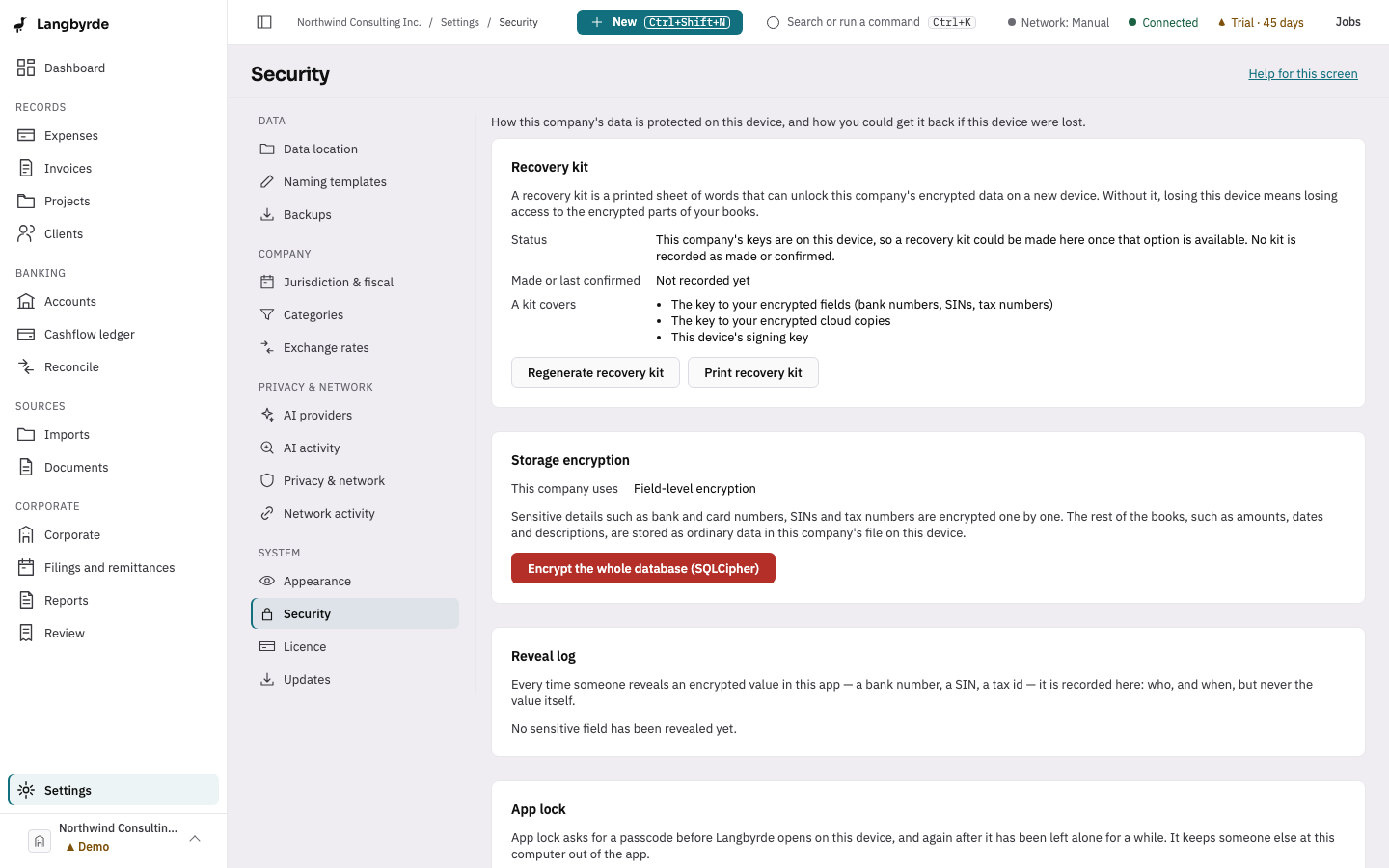
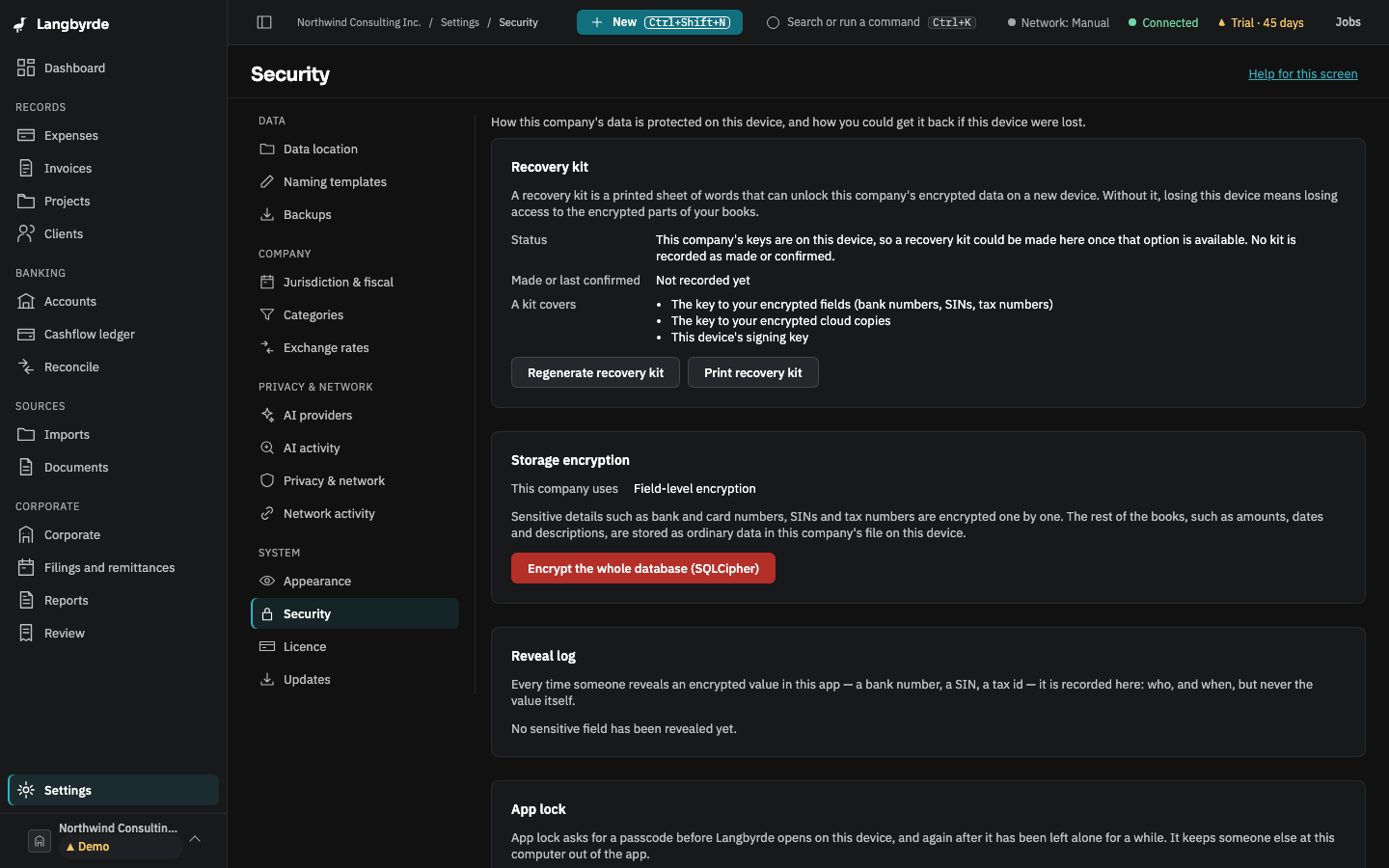
The Security page
Open Settings with a company open, then choose Security under System, or choose Set an app lock (optional) on a new company's Finish setting up list. The page shows how this company's data is protected on this device, and it has the buttons for changing that. Looking at the page changes nothing; each action starts only when you press its button.
- Recovery kit — a printed sheet of words holding the company's keys. In this version it resets a forgotten app-lock passcode; opening the company on a new computer from it is not built yet, so keep it for when it is. It is shown on screen once, during onboarding — see Setting up a new company. Later, Print recovery kit makes a PDF of the company's current kit, and Regenerate recovery kit makes a new key for the company's encrypted backups and archives and shows a fresh kit for it. Keep the old kit too: backups made before the change still need it. Both are available on a device that holds the company's keys. The page does not record yet when a kit was made or confirmed, so it says Not recorded yet.
- Storage encryption — field-level encryption for sensitive details, or whole-database encryption. A company on field-level encryption has an Encrypt the whole database button: you choose a passphrase, type the company's name to confirm, and Langbyrde rewrites the file in the background. On this computer the company then opens as before, without asking for the passphrase, because this computer keeps the key under its keychain. What the encryption adds is that a copy of the file, a disk image or a snapshot cannot be read without this computer's keychain. Opening it on another computer with your passphrase or recovery kit is not in this version yet, so if this computer's keys are lost, nobody can open that copy. Someone who can use this computer's keychain can still open the company.
- Reveal log — each time someone shows an encrypted value in the app (a bank number, a SIN, a tax id) it is listed here: which field, who and when, never the value itself.
- App lock — a passcode for this device, asked for before Langbyrde opens and after it has been left alone for a while. You can turn it on, change the passcode, turn it off or lock the app now. It is not encryption on its own; it hides the app, but your company files stay as readable as before to anyone who can open them.
- Crash reports — Offer to send crash reports decides whether Langbyrde may offer to send a report when it crashes. You always see the report first, and nothing is sent unless you choose to.
The page itself never shows a key or a recovery word. The words appear only in the dialog that Regenerate recovery kit opens and on the sheet you print.
The lock screen
Once app lock is on, Langbyrde shows Langbyrde is locked in place of everything else:
- when Langbyrde starts;
- after it has been left alone for the time set in Lock after inactivity;
- when you lock your computer or it goes to sleep;
- when you lock it yourself, with Lock now on the Security page, Lock Langbyrde now in the command palette, or Lock Langbyrde in the menu of Langbyrde's icon in the system tray or menu bar.
Unlocking your computer, or waking it up, does not unlock Langbyrde.
Unlock with your passcode
Type this device's passcode in Passcode and press Enter or choose Unlock. After five wrong passcodes, Langbyrde makes you wait before the next try, a little longer each time, up to five minutes. The screen counts down the wait. Wrong passcodes never delete anything.
While the app is locked, screens behind it wait, and they pick up again once you unlock.
If you forgot your passcode
Choose I forgot my passcode, then type the words from your recovery kit in Recovery phrase and choose Unlock with recovery kit. Your recovery kit has three blocks of 24 words; only the third block unlocks Langbyrde, so enter just those 24 words. A wrong phrase does not count against the passcode. Cancel, or Escape, goes back to the passcode.
Once the phrase is accepted, Langbyrde stays locked until you either set a new passcode under Recovery accepted, or choose Remove the app lock instead. Removing the lock changes nothing else: your books and documents are untouched.