Closing a period
Closing a fiscal period locks it against edits, so the figures for that period stay as they were when you closed it. Closing files nothing and tells no one; it is a bookkeeping state in your own company file.
Open period close
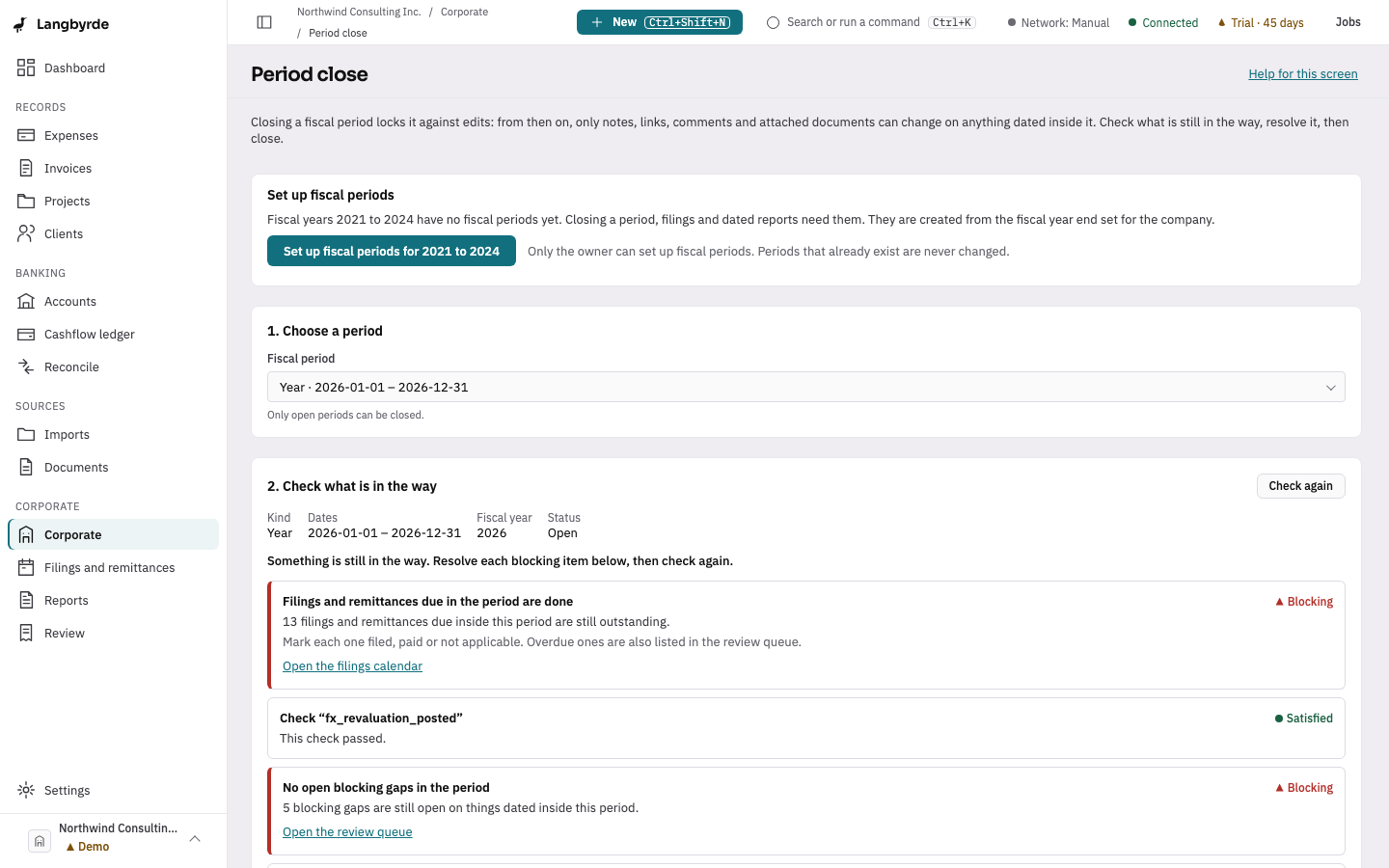
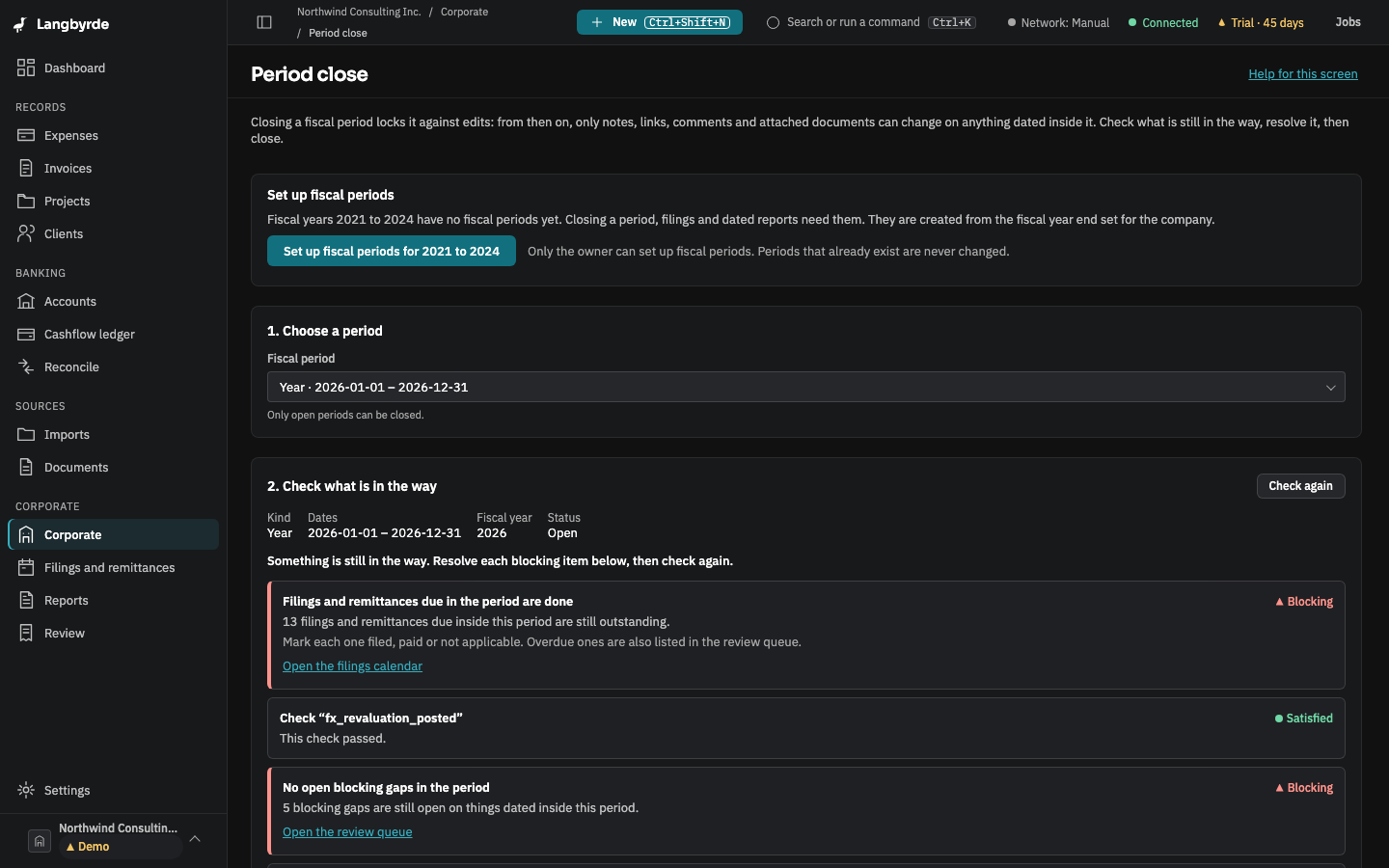
Open Corporate from the rail, then Period close, or press Ctrl+K (⌘K on a Mac) and choose Period close. The screen works in three steps: choose a period, check what is in the way, then close it.
The checklist
- Under 1. Choose a period, pick the open Fiscal period to close.
- Langbyrde checks what is still in the way straight away. Each item shows Satisfied or Blocking, with a link to where you deal with it:
- Bank and card reconciliations signed off — see Reconciling.
- No open blocking gaps in the period — see the review queue.
- Filings and remittances due in the period are done — see Filings and remittances.
- Deal with each blocking item, then choose Check again.
Close the period
- When nothing is in the way, choose Close the period….
- Read the confirmation and choose Close the period.
Langbyrde checks every item again before it writes anything; if something changed in the meantime, nothing is closed and the checklist is refreshed. Only the company's owner can close a period. Close another period starts again with the next one.
What a close locks
Once a period is closed, nothing dated inside it can change except notes, links, comments and attached documents. Amounts, dates, currencies, categories, tax treatment, exchange rates, invoice and expense lines, payroll runs and ledger postings are all locked. Every read, export and print still works.
Closed periods and reopening
Closed periods lists the periods already closed, newest first; the oldest are folded under N earlier closed periods. The owner can choose Reopen… on a closed period and type the reason, which is kept as a comment.
After closing
Check the reports for the period before you close it. A fully closed year can later be moved into the archive, and exported for your accountant as a CPA package.