Recording an expense
The expense register lists every expense in the company file. Expenses come in from receipts and from imported statements, and you can record one by hand in a few seconds from any screen.
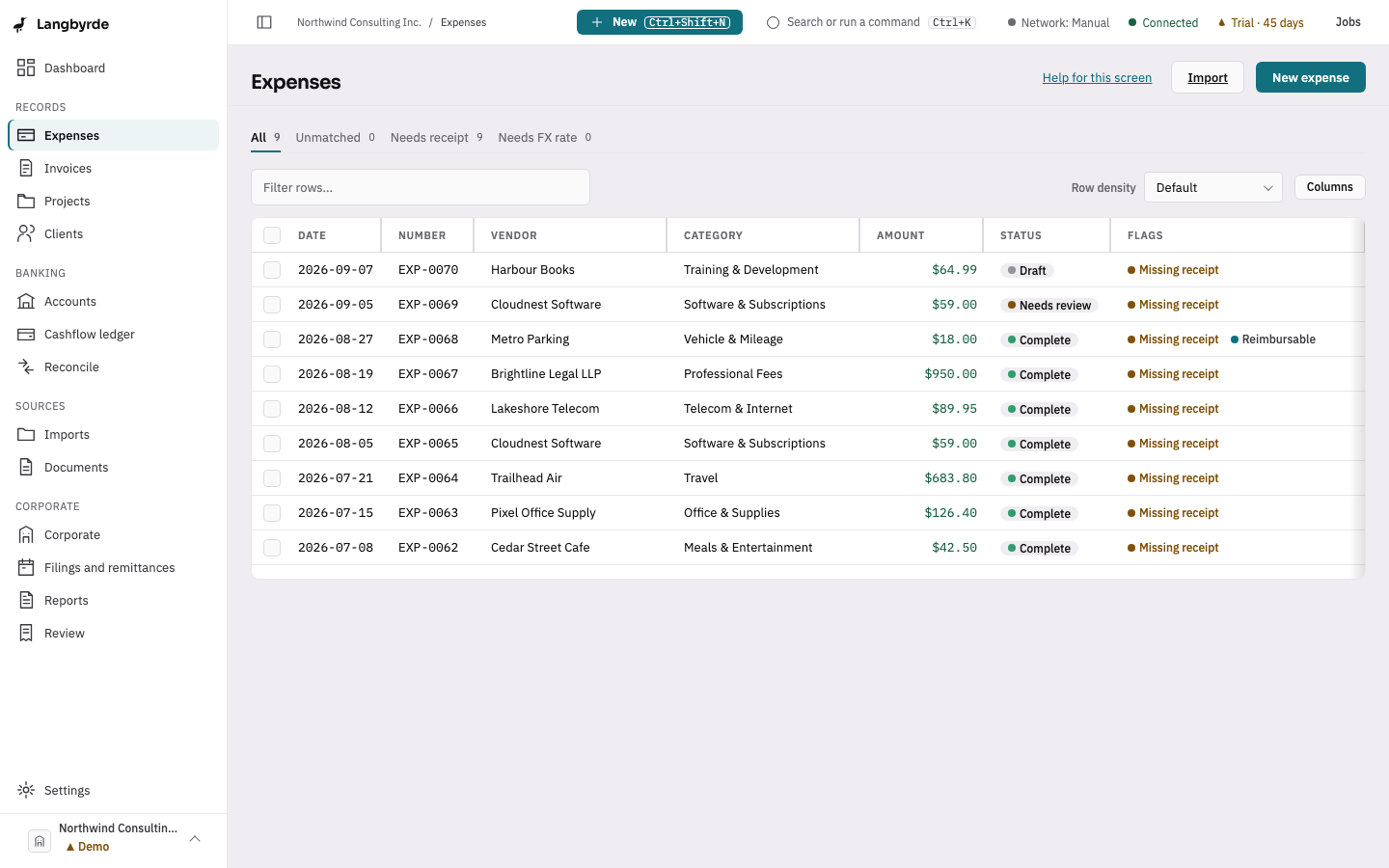
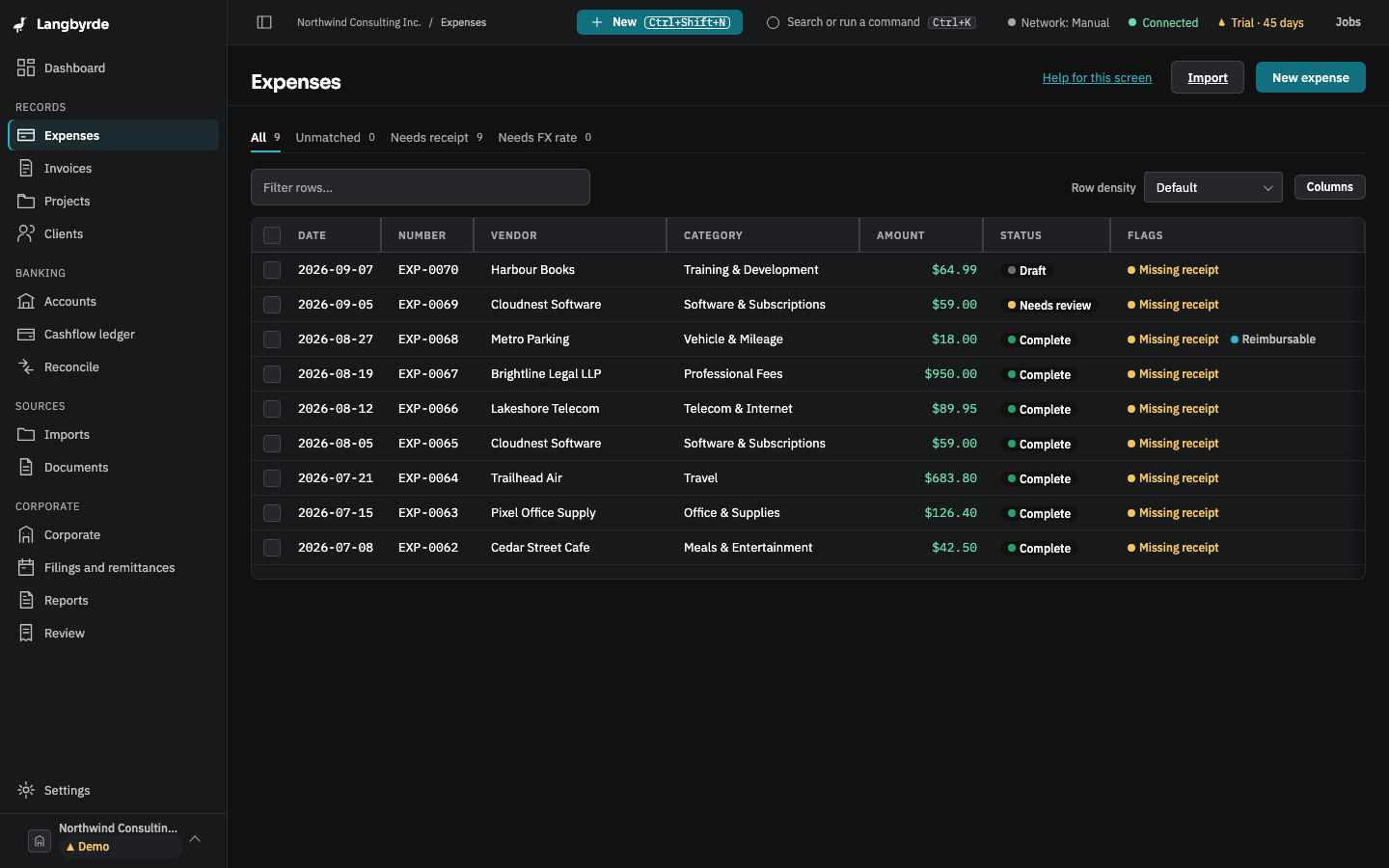
Record an expense
- From any screen, press
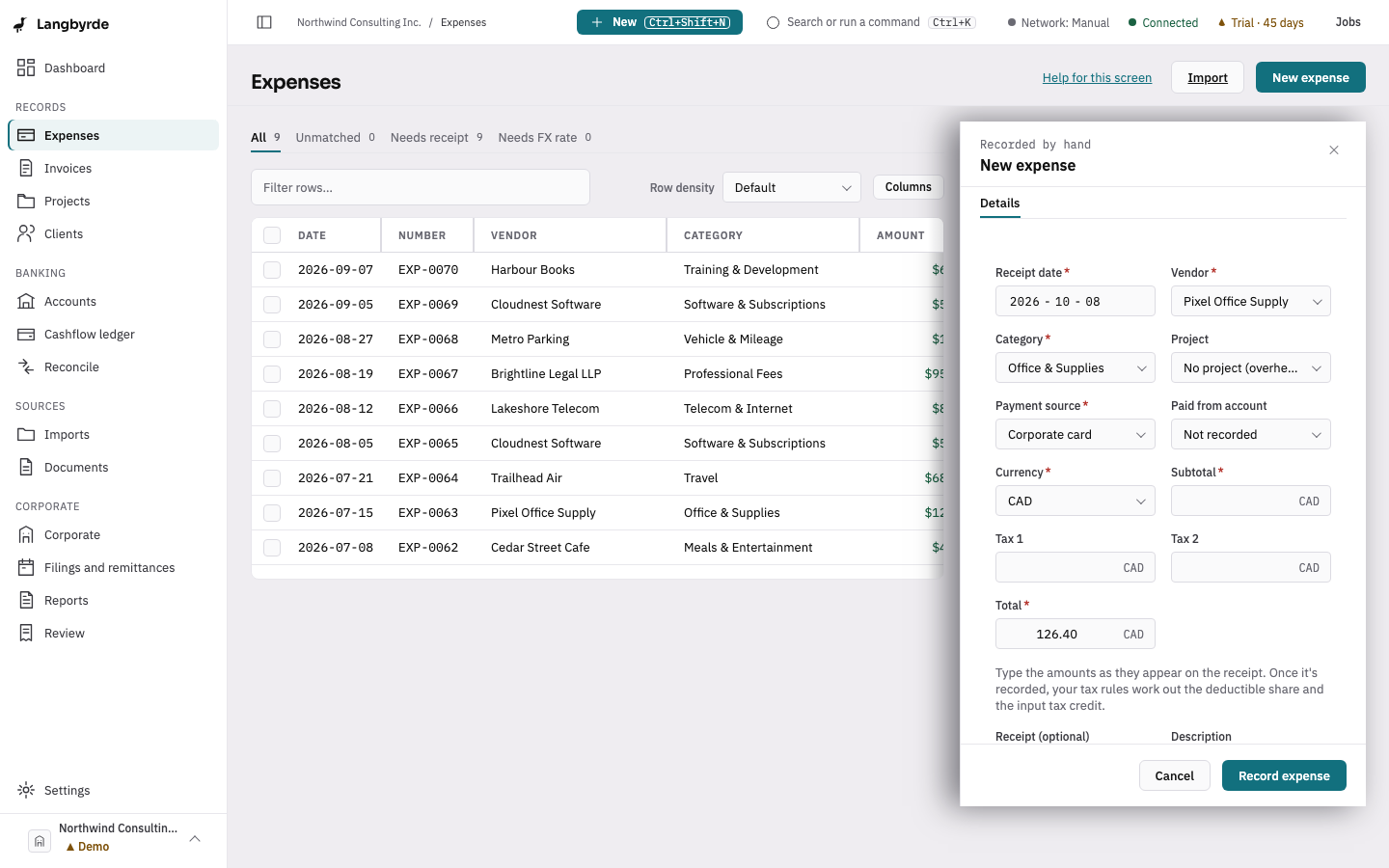
Ctrl+Shift+E(⌘⇧Eon a Mac), or choose New in the top bar, then Expense. On the Expenses screen, New expense does the same. The New expense drawer opens on the right. - Check the Receipt date. It starts on today's date.
- Type the Vendor as the receipt spells it and pick it from the list. For a vendor you have never paid, choose Create vendor "…". A vendor you have paid before fills in its usual Category and Payment source for you.
- Check the Category and, if the cost belongs to one, choose a Project.
- Check the Payment source and, for a corporate card or account, the Paid from account. Both start on what you chose last time on this computer.
- Check the Currency. It starts on your company's reporting currency.
- Type the Subtotal, Tax 1, Tax 2 and Total exactly as the receipt shows them.
- If the receipt file is already in your Company Folder, pick it under Receipt (optional).
- Choose Record expense.
Langbyrde checks that the total equals the subtotal plus the taxes before it saves anything. The expense then opens so you can add notes or documents, and a message at the bottom of the window gives its number.
Once recorded, the expense's Deductible and Input tax credit percentages appear, worked out by your company's tax rules; see What the disclaimers mean.
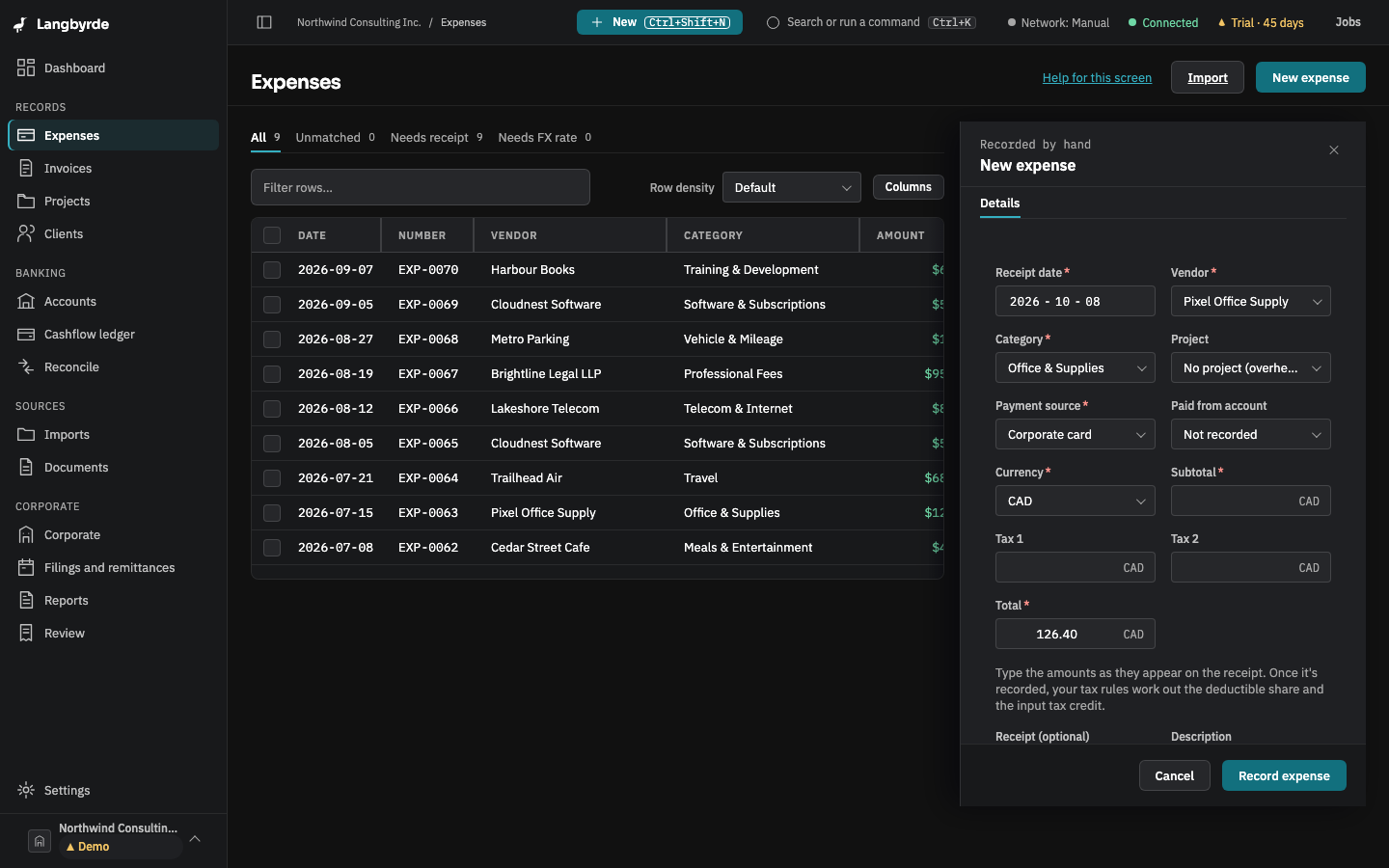
What Langbyrde remembers for you
- Per vendor: the category, tax code and payment source of the last expense recorded for it. You can change these defaults on the Vendors screen.
- Per computer: the payment source and paid-from account you used last for this company. They are kept on this computer only, never in the company's books.
Add receipts
- Choose New in the top bar, then Expenses from receipts. (From the Imports screen, Manage a folder of receipts goes to the same place.) Receipt intake opens.
- Drop the files on it or choose Choose files. PDF, JPG, PNG, HEIC and EML files are accepted, and each one is filed in your Company Folder.
- Record the expense for each receipt (see Record an expense) and pick the receipt under Receipt (optional), typing the amounts as the receipt shows them.
In this version Langbyrde does not read the vendor, date or amounts off a receipt by itself, and it does not suggest which statement line a receipt belongs to: you attach each receipt to its expense. The Queue on Receipt intake fills only once that reading is built, and Watch folder does not pick up files yet.
A category or value Langbyrde suggests shows as a suggestion; nothing changes until you choose Accept, and Dismiss turns it down. See What the disclaimers mean.
Where expenses come from
- A receipt is attached to an expense you record, as above.
- An imported bank or card statement brings its lines in; see Importing a statement. A line is matched to its expense when you reconcile.
- A cash purchase, or anything else with no receipt file, is recorded by hand.
When an expense reaches your books
An expense marked Complete or Needs review is recorded in your books straight away. A Draft is not; it stays out of your books until you mark it Needs review or Complete.
Splitting and reimbursable expenses
One receipt covering more than one category can be split under Splits, one line per category, adding up exactly to the subtotal. An expense paid out of your own pocket can be ticked Paid out of pocket (reimbursable) and later settled by Bank transfer or through the shareholder loan.
Expenses in a closed period
Once a period is closed, an expense dated inside it keeps its amounts, dates and category. Only notes, links, comments and documents can still change; see Closing a period.