Appearance
How large the text and controls are on this computer. The size applies to every company and is never stored in a company's books or sent anywhere.
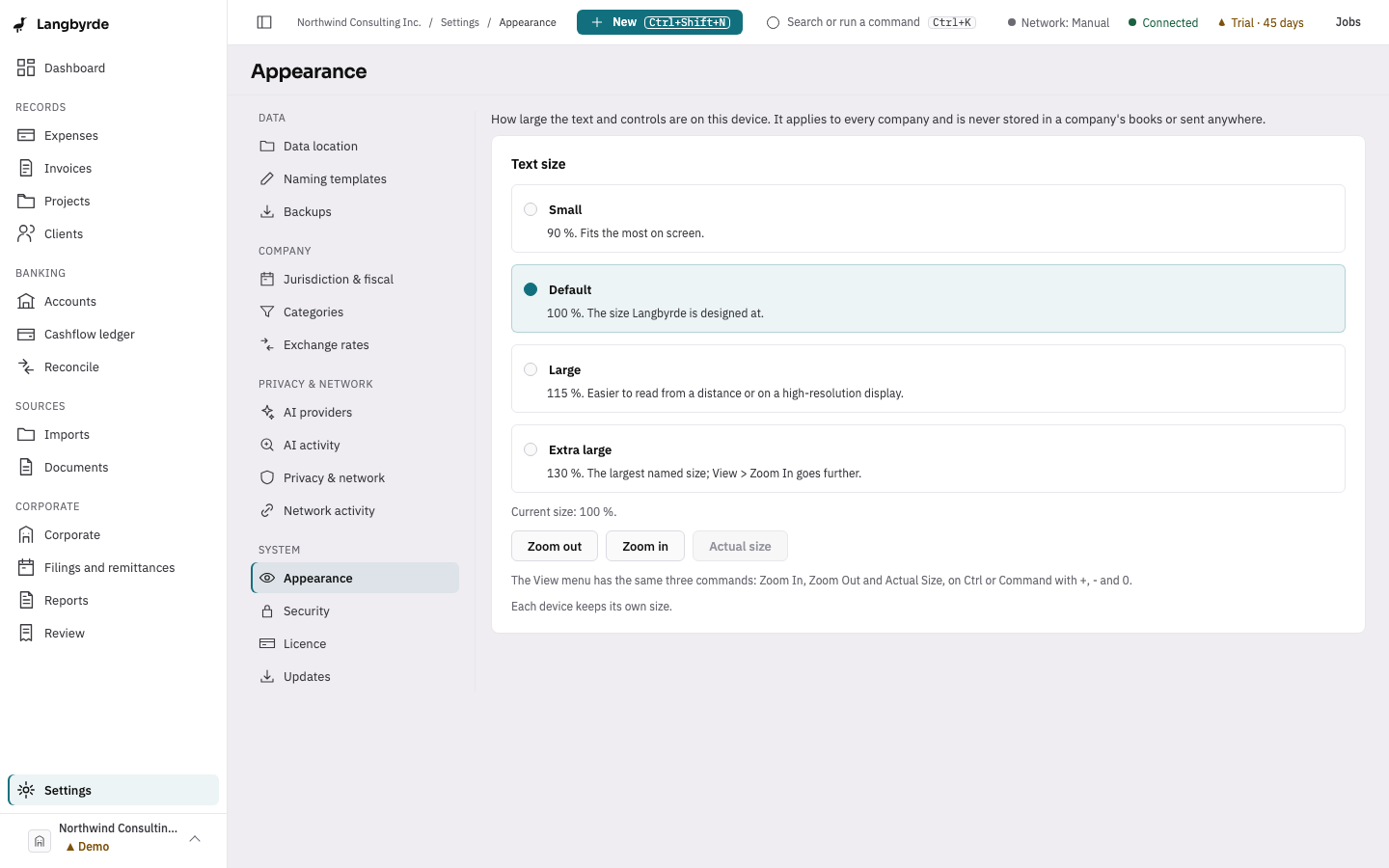
Make text bigger or smaller
- Choose Settings at the bottom of the rail, then Appearance under System.
- Under Text size, choose one:
- Small — 90 %. Fits the most on screen.
- Default — 100 %. The size Langbyrde is designed at.
- Large — 115 %. Easier to read from a distance or on a high-resolution display.
- Extra large — 130 %.
The change applies at once. Current size says the size in use.
Zoom in steps
Zoom in, Zoom out and Actual size move one step at a time through 80, 90, 100, 115, 130, 150, 175 and 200 %. The same three commands are on the keyboard, from any screen:
Ctrland+(⌘and+on a Mac) zooms in.Ctrland-(⌘and-) zooms out.Ctrl+0(⌘0) goes back to 100 %.
In the desktop app they are also in the View menu as Zoom In, Zoom Out and Actual Size.
At larger sizes
Screens reflow rather than cut amounts short: tiles move onto more rows, and in a narrow window the rail shrinks to icons until you open it again with the button at the top left. Each computer keeps its own size.
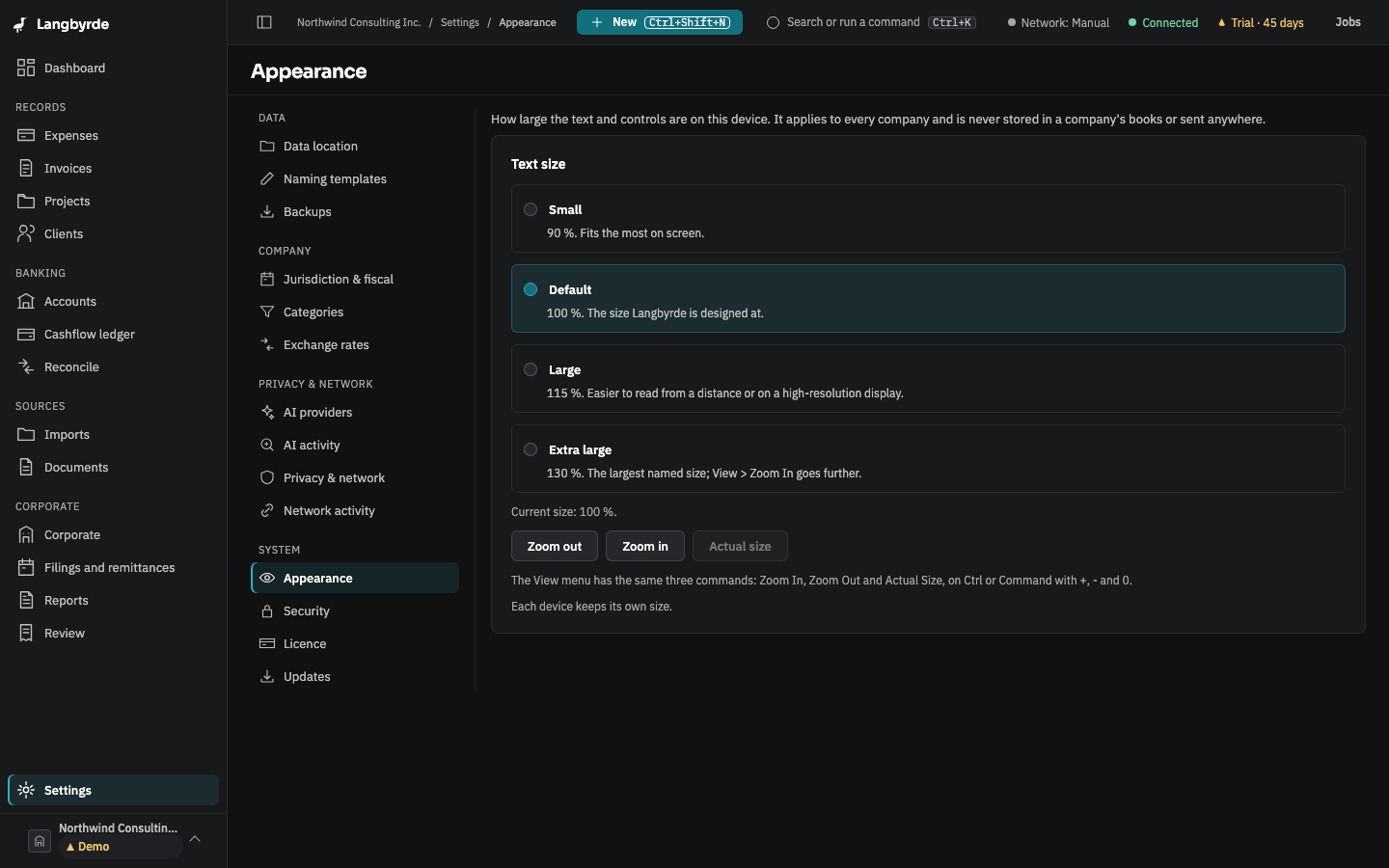
There is no light or dark theme setting: Langbyrde follows your computer's own setting.