The scenario planner
The scenario planner lets you try out a plan before you commit to it: invoices you expect to send, expenses you expect to pay, what you pay yourself, and how much to set aside for tax. It shows how that plan would move the company's cash, tax and shareholder loan over the coming months.
Nothing here is recorded. The planner never creates an invoice, an expense or a journal entry; your books change only when you record the real thing.
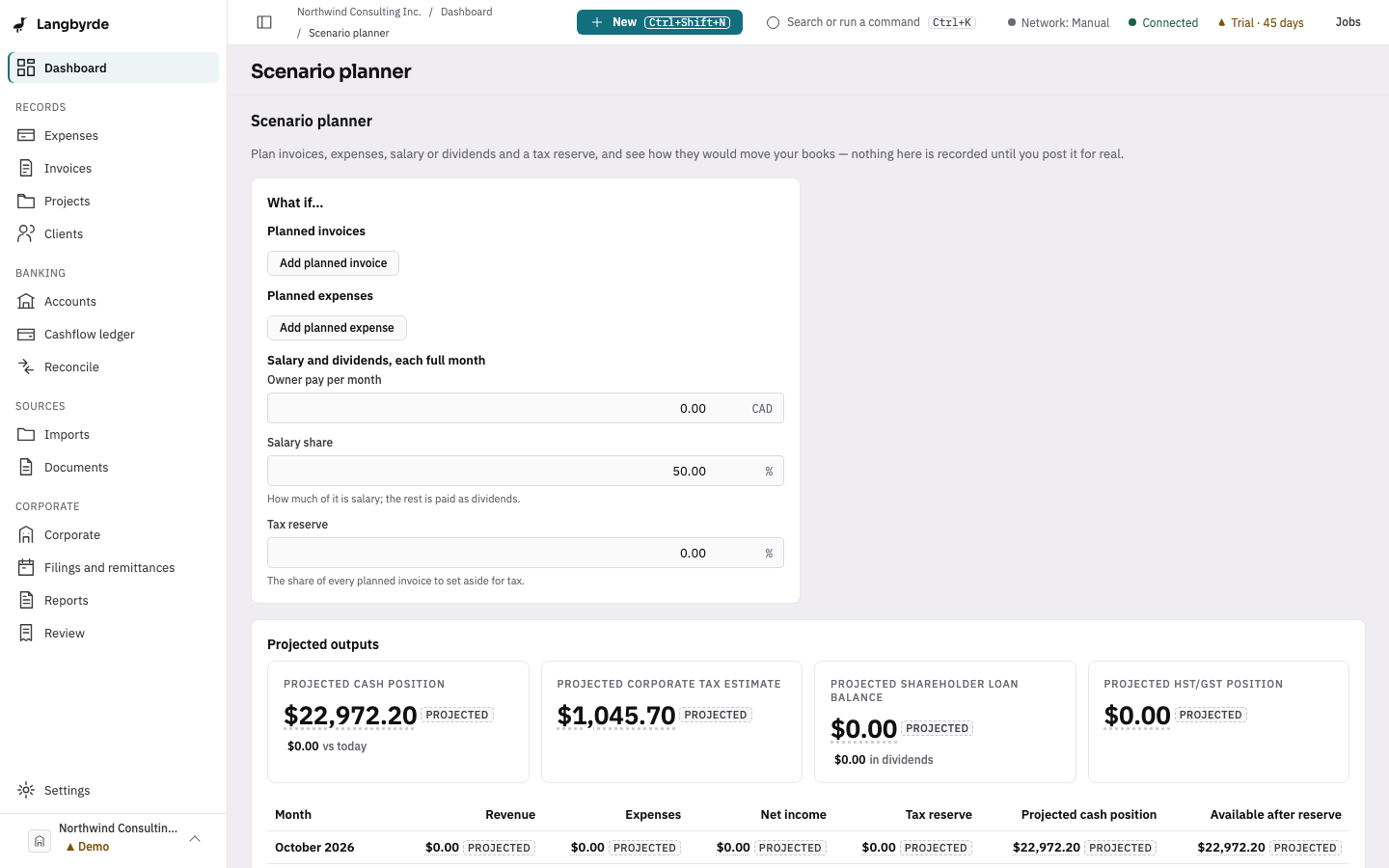
Open the scenario planner
Open the dashboard, then choose Scenario planner in its header.
Describe the plan
The What if… section holds your plan. The figures update a moment after you stop typing; there is no button to press.
- Planned invoices and Planned expenses — choose Add planned invoice or Add planned expense for each one, then fill in Expected on, Amount and, if you like, Note (optional). Remove takes a line out. A line counts only once it has both a date and an amount above zero.
- Salary and dividends, each full month — Owner pay per month is what you plan to pay yourself each month, and Salary share is how much of it is salary; the rest is paid as dividends.
- Tax reserve — the share of every planned invoice to set aside for tax.
Amounts are in the company's reporting currency.
Read the projection
Projected outputs shows what the plan would lead to. Every figure is worked out by Langbyrde and carries the Projected marker.
- Projected cash position, with the change from today.
- Projected corporate tax estimate — see the section of the same name further down the screen.
- Projected shareholder loan balance, with the planned dividends that reduce it.
- Projected HST/GST position for the filing period that is open.
When a figure cannot be worked out, its tile shows a dash instead. This happens, for example, when an exchange rate is missing, when the fiscal year is not set up yet, or when no sales-tax filing period is open.
Below the tiles, a table shows each month's revenue, expenses, net income, tax reserve, projected cash position and the cash available after the reserve. Over the horizon adds up the plan across all the months shown.
The Projected corporate tax estimate section compares So far this fiscal year with With this plan, and shows the Net income after estimated tax.
What the figures do and do not mean
The projection starts from what is already recorded in the company file and adds only what you typed in. It is a planning aid, not a forecast of what will happen and not tax advice. The screen shows the matching disclaimers beside the figures — see Tax estimate, Shareholder loan and, when today's cash includes an amount converted from another currency, Currency conversion.
Save and reuse a scenario
Type a name in Scenario name and choose Save scenario to keep the plan for later. Saving always adds a new scenario; it never replaces one you saved before.
Saved scenarios lists your saved plans, newest first. Load puts a saved plan back into the inputs. Delete removes it from the list straight away, without asking first.
When the app is in read-only mode, you can still build a plan, see its projection and load a saved scenario, but Save scenario and Delete are turned off.