Imports
An import brings a bank or card statement into the company file as a batch of lines. Nothing is kept until you review the batch and commit it. See Importing a statement for the steps.
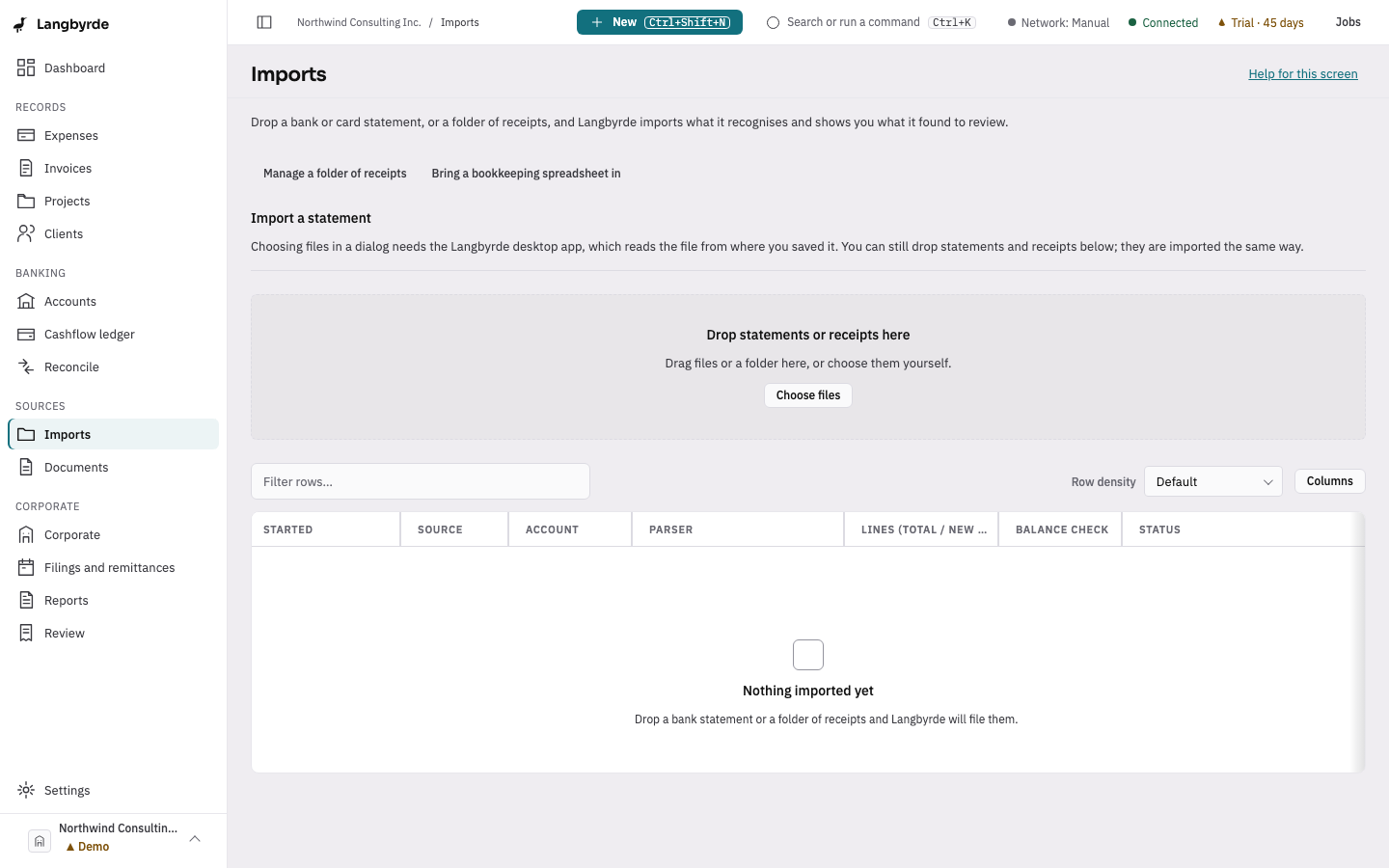
What is on the Imports screen
- Import a statement — choose the Account, then Start import to pick a statement file. Picking a file needs the desktop app; dropping one works everywhere.
- Manage a folder of receipts — opens Receipt intake; see Add receipts.
- Bring a bookkeeping spreadsheet in — moves an existing Excel bookkeeping file into Langbyrde.
- Drop statements or receipts here — files you drop on it, or anywhere on the window, are imported: statements into the account Langbyrde can tell (or the one you choose), receipts into receipt intake. Each file says how it went.
- The list of batches, with each one's Account, Parser, line counts, Balance check and Status.
Follow a batch
A new batch starts as Parsed while Langbyrde reads it, then its status cell says what to do next: Review N lines opens Review import, where you check it and choose Commit batch; Continue import picks up a batch that stopped; View lines shows a committed one. A Failed batch has Retry. A committed batch can be reverted from its review.
Before you start
Add the bank or card account first, under Accounts, so Langbyrde knows which account the statement belongs to. The opening and closing balances on the statement must agree with the lines in between; the review says Balances when they do.