Importing past invoices
Updated
Past invoices brings in the invoices your company issued to its clients before you started with Langbyrde. They are your own invoices, not receipts: money owed to you, or money a client already paid. Each one keeps the number printed on it, so your accountant can follow it from the old system to this one.
Nothing becomes an invoice in your books until you review it and choose to import it. Until then everything you do on this screen is kept with the import only.
Add the invoices
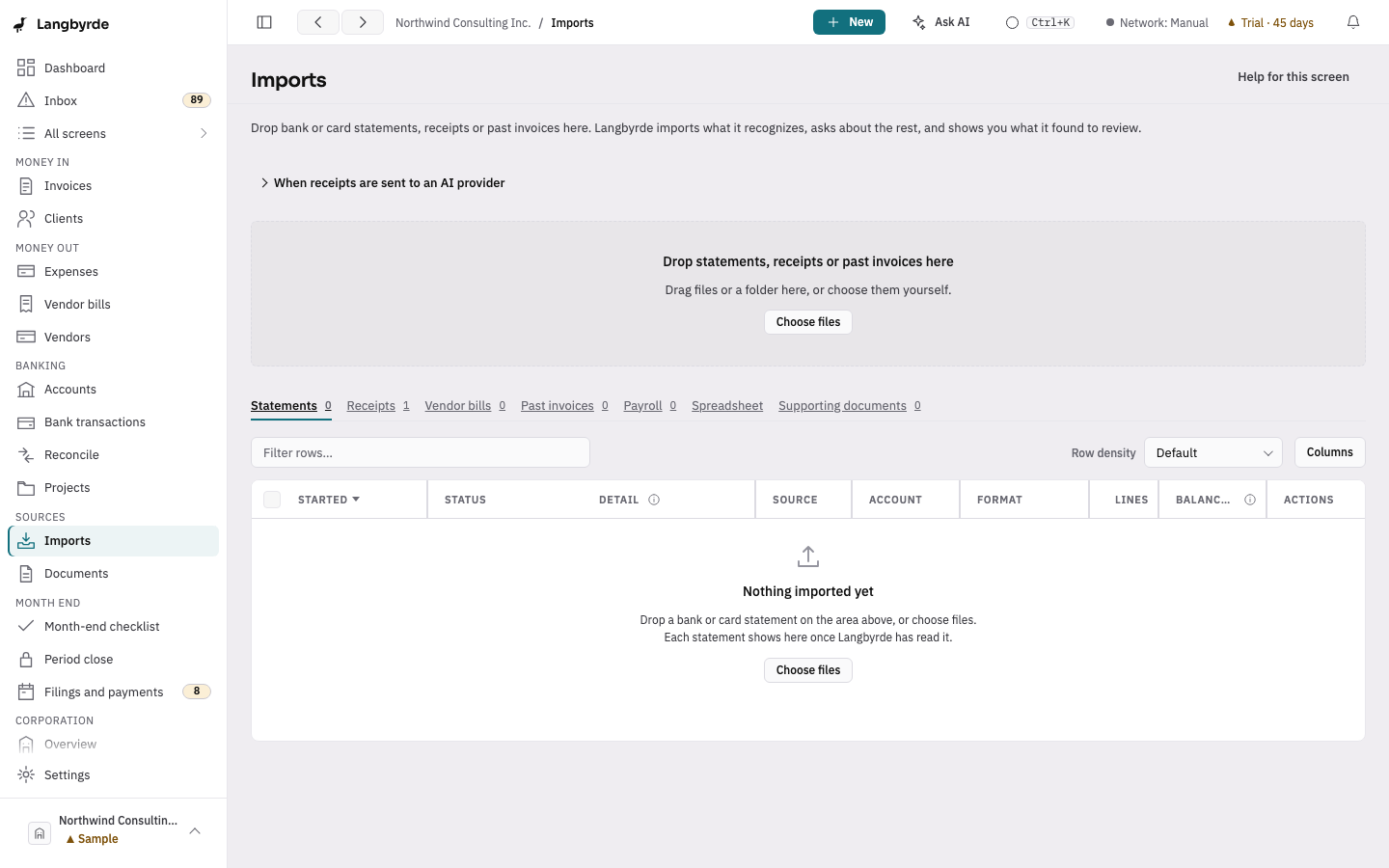
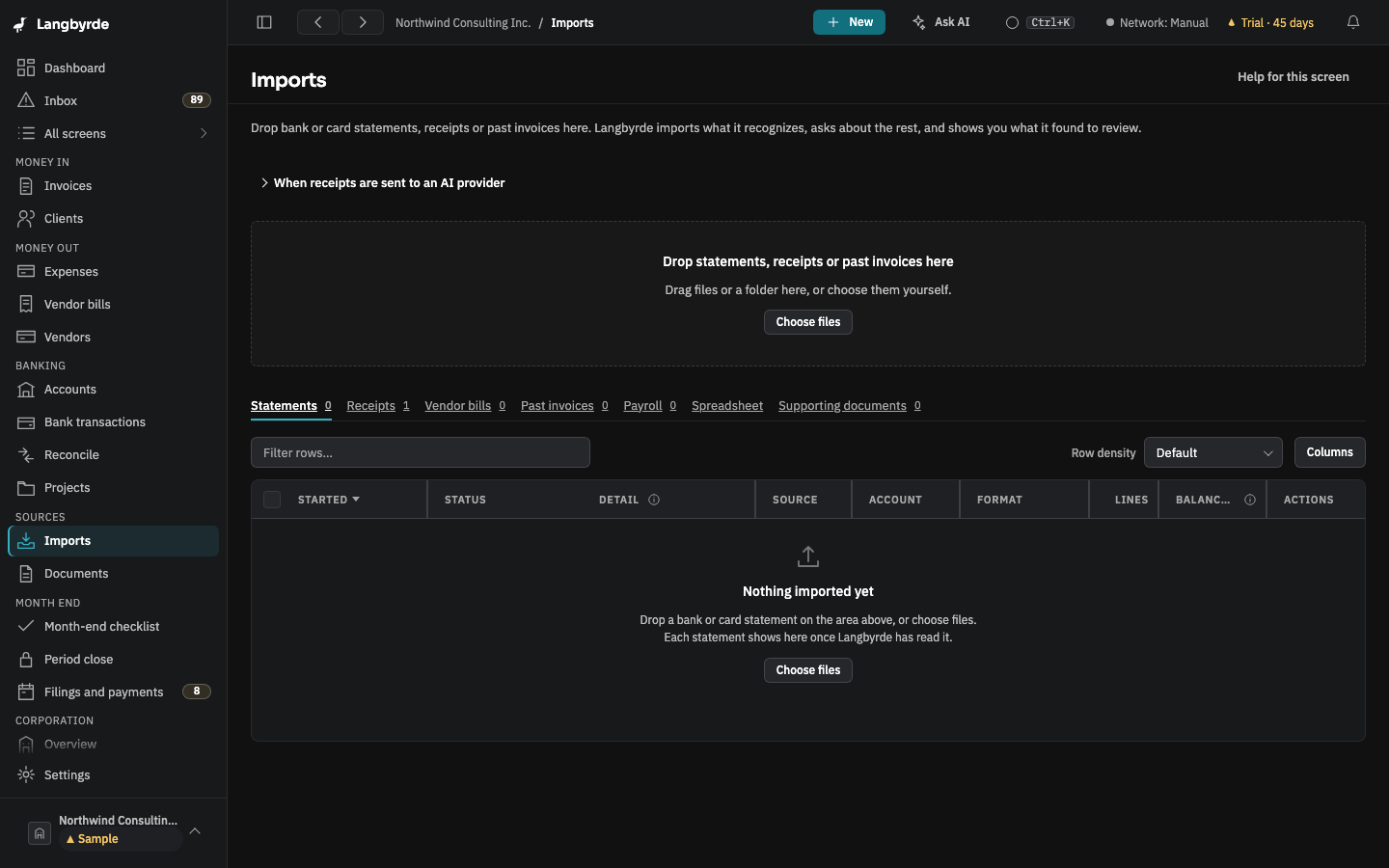
- Open Imports from the rail.
- Drop the files on the drop zone, or choose Choose files. A PDF, a CSV or an Excel (
.xlsx) file can be past invoices: one PDF per invoice, or one list of many invoices as a CSV or Excel file. - A PDF that reads like an invoice your company issued is suggested as a Past invoice; files dropped while the Past invoices tab is open take that kind. Otherwise, on the file's row open More actions and choose Mark as a past invoice, or tick several files and choose Mark selected as….
- Choose Read N files as past invoices. Name all the past invoices first, so they are read together as one import.
Langbyrde files a copy of each file under 00_Imported_Invoices/ in your Company Folder and reads it on this computer. The Past invoices tab then lists the import, newest first, with its status and how many invoices were read; Review on its row opens it. The tab keeps itself up to date: the import appears after a drop and its counts change when a reading ends, with nothing to refresh.
A list in a CSV or Excel file asks you once which column is which (invoice number, issue date, due date, client, total, paid status, amount paid, payment date), the way a statement's columns are mapped.
Review each invoice
Review opens one workspace: the original on the left, the values to check on the right, and a strip of every invoice in the import above them. The panel says which invoice of how many you are on.
- Check each value against the original: the number, issue date, due date, client, lines, taxes, total and paid status. What Langbyrde read is a suggestion and can be wrong.
- To copy a value from the original, use From the original file: choose a line of the original's text, then Put into the field. The text is copied exactly as printed; check it before you save. The panel lists which fields came from the original.
- Choose Save changes. Langbyrde checks every field at once and shows what is wrong beside each field it refused, so you can fix them all before saving again.
- Tick I checked every value. The next invoice to check opens.
- To leave an invoice out, choose Skip this invoice. The next one opens. Include again on its row in the list of invoices brings it back. A voided invoice or a credit note is suggested for skipping: it is not imported here.
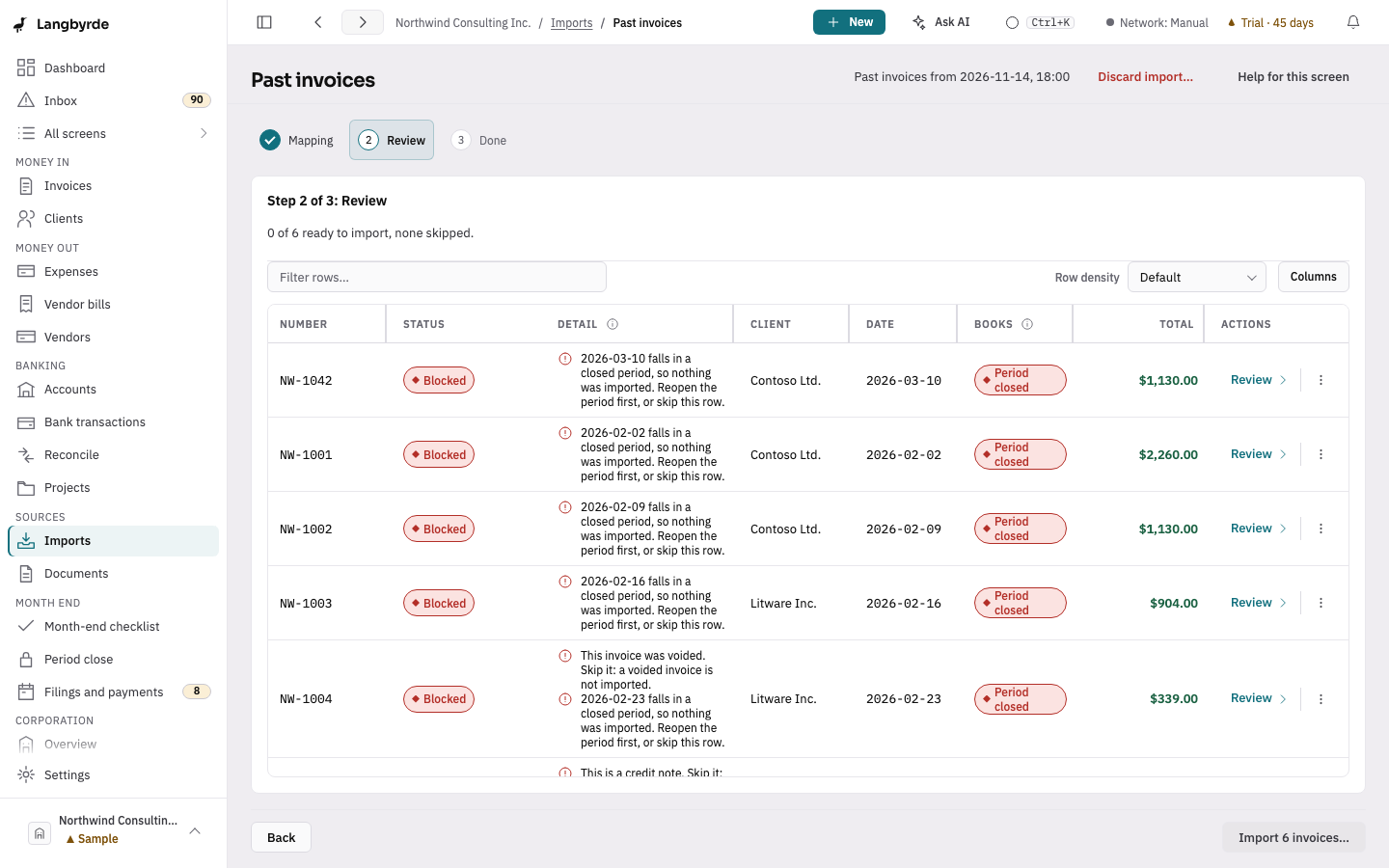
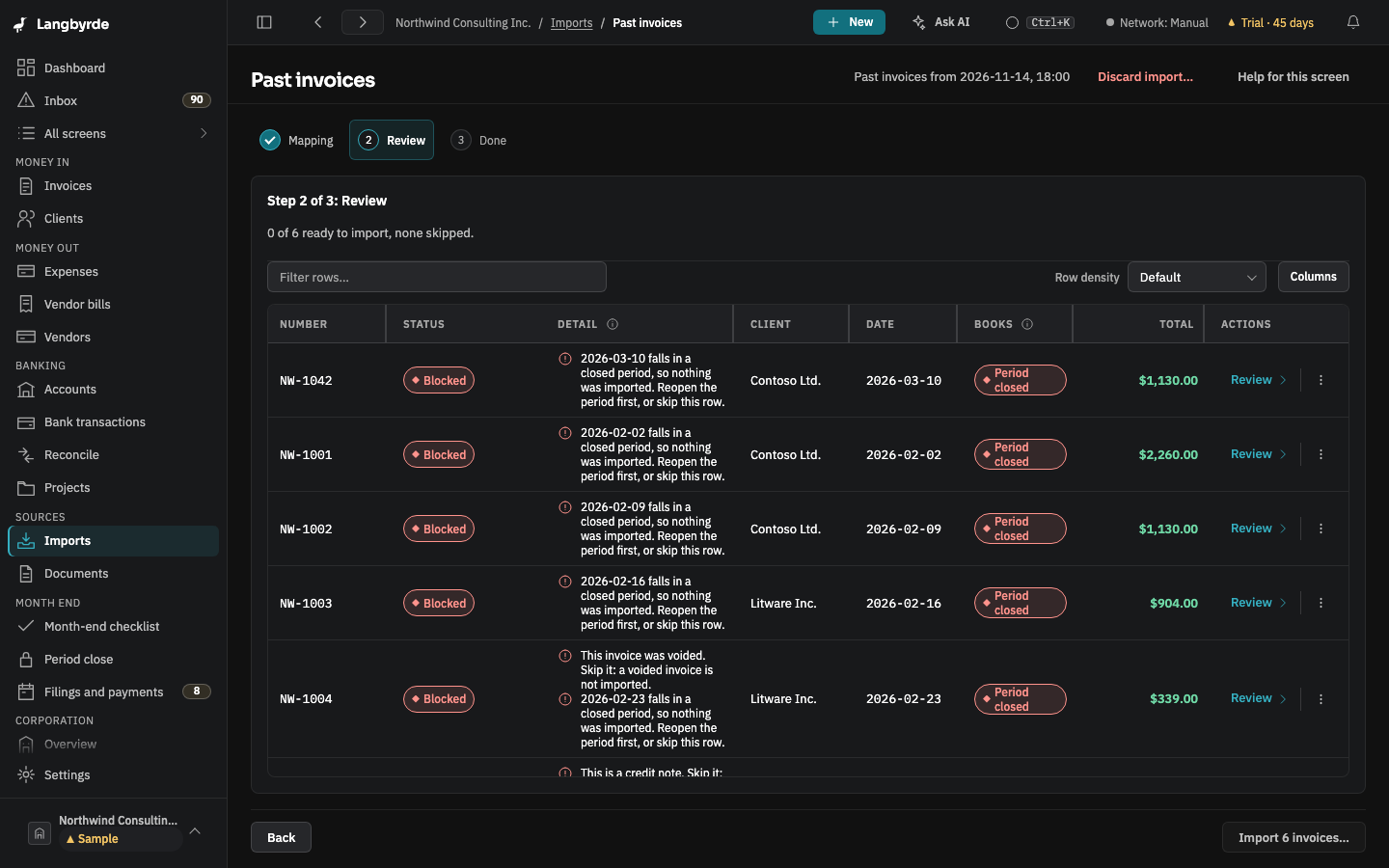
When the last invoice is confirmed or skipped, the panel says so, and the footer counts how many are ready.
Taking values from the original
Beside the form, From the original file lists the text the PDF prints, one line at a time. Choose a line (click it, or use the arrow keys), and:
- Put into a field: choose the field with Fill field: first. The text goes in exactly as printed.
- Add as line item: choose the words of a line (and its amount, when it is printed next to them). It is added to the invoice's lines.
- Put into the quantity, unit price or amount of a line: choose Line item and Part of the line, then the button. Before you press it, the panel says what goes where, for example Put into the quantity of Line 1: Consulting: “4”, as printed. After, it says what it did.
Nothing is worked out from the text: a line's amount is what the invoice bills. Printed invoices round, so when a line's quantity times its unit price differs from its amount only by rounding (up to one cent, or half a cent for each unit of the quantity when that is more; in yen, one yen or half a yen per unit), the invoice can still be imported and says the line was rounded. When the difference is larger, the invoice says so and cannot be imported until you correct the one that is wrong. A unit price with more decimals than the currency allows (for example 2.505 dollars) is shown too, because it cannot be kept as printed. Check each value, then save.
Zoom the original
The original opens whole (Fit page) and the zoom control says what that is, for example Fit page 54%: 100% is the invoice at its printed size, and you can zoom in to 800%. Use Zoom in, Zoom out, Fit width and Fit page above it, or the keys: + and - zoom, 0 goes to 100%, W fits the width, P fits the page, R turns the page, and the left and right arrows move between pages (or, when the page is wider than its frame, move across it). Pressing the figure goes to 100%. A page larger than its frame can also be dragged, or moved with the wheel.
The due date when the invoice printed none
An invoice with no due date on it gets one marked Assumed: its issue date plus the client's payment terms. For a client you already have, those are the client's own terms (30 days unless you set others on the client). For a client the import will create, it is 30 days. The field says how many days it used.
The assumed date is never treated as printed: type the real date when you have it, and it replaces the assumed one. Only a date nobody printed or typed is ever assumed. A missing due date never stops you from saving.
The payment on your bank account
Once an invoice has a currency, a total and an issue date, Langbyrde looks among your imported bank lines for the payment. Under Payment on your bank account it lists the lines whose amount matches the total, alone or together with other invoices of the same import, up to a year after the invoice's dates. Each suggestion shows how many days after the invoice it was posted, the account and its last four digits, the date, the amount and the balance after it. A line far from the invoice date says check that this is the invoice's payment, and one transfer that would also pay other invoices of this import says Also pays with their numbers.
- Choosing a line fills in the payment date with that line's day and marks the invoice Paid. Choose another line and the date moves with it. The other suggestions are hidden; Change shows them again.
- No payment match puts the paid status, amount and payment date back to what they were before any line was chosen.
- Choosing a line saves the open invoice at once, because Langbyrde works out the paid date itself. This is still only the import's own review: nothing reaches your invoices until you import.
- When you import, the chosen line is matched to the invoice and the invoice is recorded as paid, in place of the paid status read from the invoice.
If no line matches, the invoice can still be imported without a payment match.
New clients created by an import
Each invoice is filed under a client, decided in this order:
- The client you choose in the review's Client field.
- Otherwise, an existing client with the same name as the one read from the invoice. The names must be the same apart from capital letters and spaces at the start or end: "Fernhill Dental Group" matches "fernhill dental group ", but not "Fernhill Dental". A client you have deleted is not matched.
- Otherwise, a new client with the name read from the invoice, shown as A new client with New client's name. When no name was read, the review says No client was read and the invoice cannot be imported until you choose a client or type the name of the one to create.
What happens to a new client:
- Nothing is created during the review. The client is added to your client list only when you import, together with the invoices.
- One client per name per import. Several invoices naming the same new client (with the same spelling, ignoring capitals) create one client, and the review shows the others as (new, same as on another invoice). Two spellings create two clients: choose the same new client on each invoice to avoid that.
- What it starts with: the name, your company's country, the currency of the first invoice that names it, and a new client number. Its payment terms are the standard 30 days.
- Tax treatment: for a client abroad whose services are exported, choose zero-rated under Tax treatment for the new client. The first invoice naming the client decides it.
- Address, email and other details are not read into the client. Add them on the Clients screen afterwards.
A printed invoice number is kept once per client: an import that would give one client the same number twice, or a number already in your books for that client, is refused and names the invoice.
Import the confirmed invoices
Choose Import N invoices… at the bottom of the review, then confirm with Import N invoices. Skipped invoices are left out, and each imported invoice keeps its own number and original file: Langbyrde does not issue or send them again. Every invoice is checked first (confirmed, totals, client, number, closed periods, exchange rate); if one is refused, nothing is imported and the message names it. An invoice dated in a closed period cannot be imported: reopen the period or skip it. Your corrections and confirmations are kept, so you can fix the problem and import again.
If an import stops
If an import of past invoices fails, or you leave before importing, add the same files again: Langbyrde reads them again and uses the copy it already filed, so nothing is filed twice. A file whose invoices you already imported is not read again; the list says so.
Every value read from an invoice is a suggestion until you confirm it; see What the disclaimers mean.