Technical health
Updated
What this computer and this copy of Langbyrde have available, in one list, so that when something is not working you can see why, or send the list to support. The list itself only reads: nothing is changed and nothing is sent anywhere. Further down, the page also holds the crash-report setting, the recent errors and the diagnostics bundle.
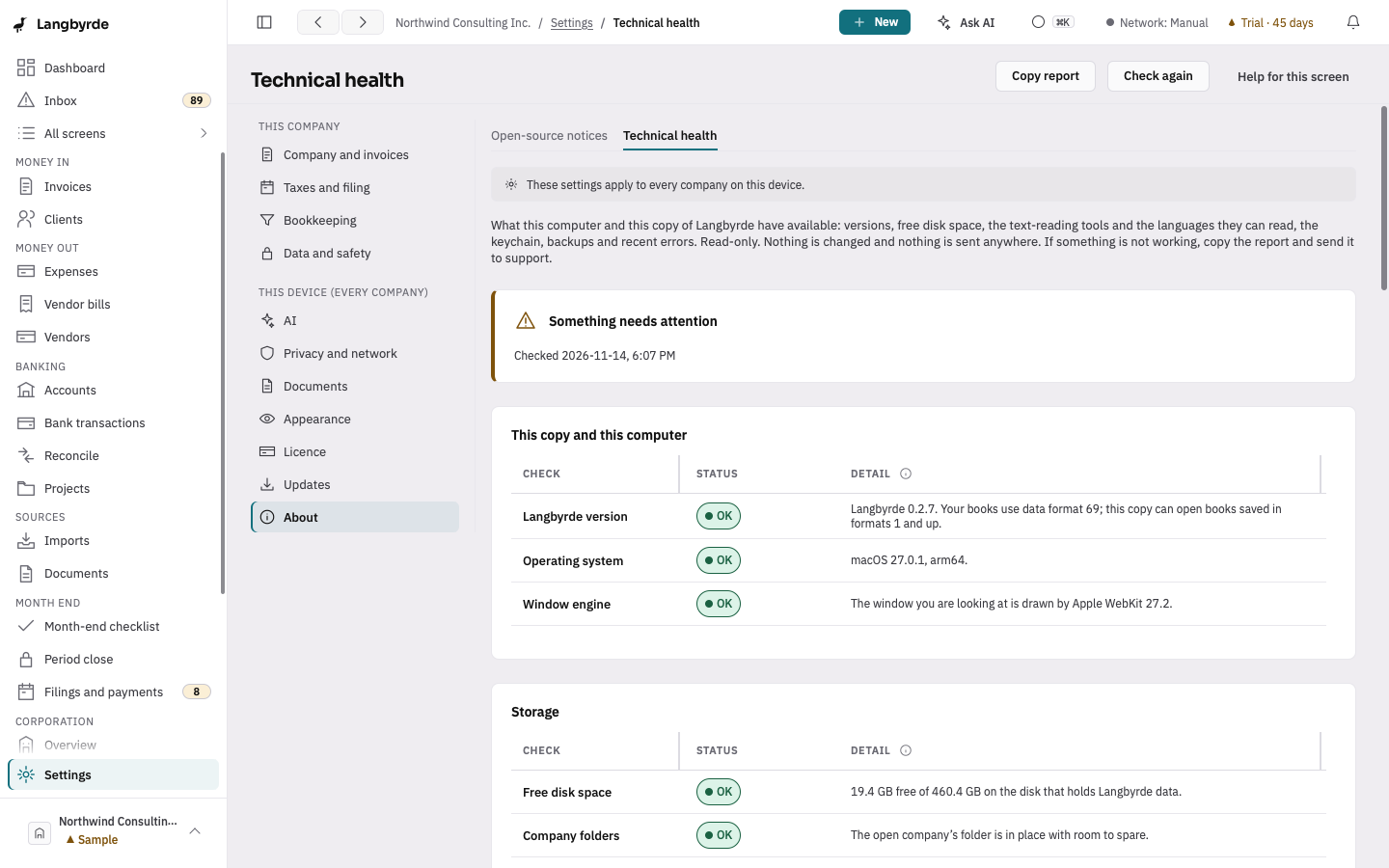
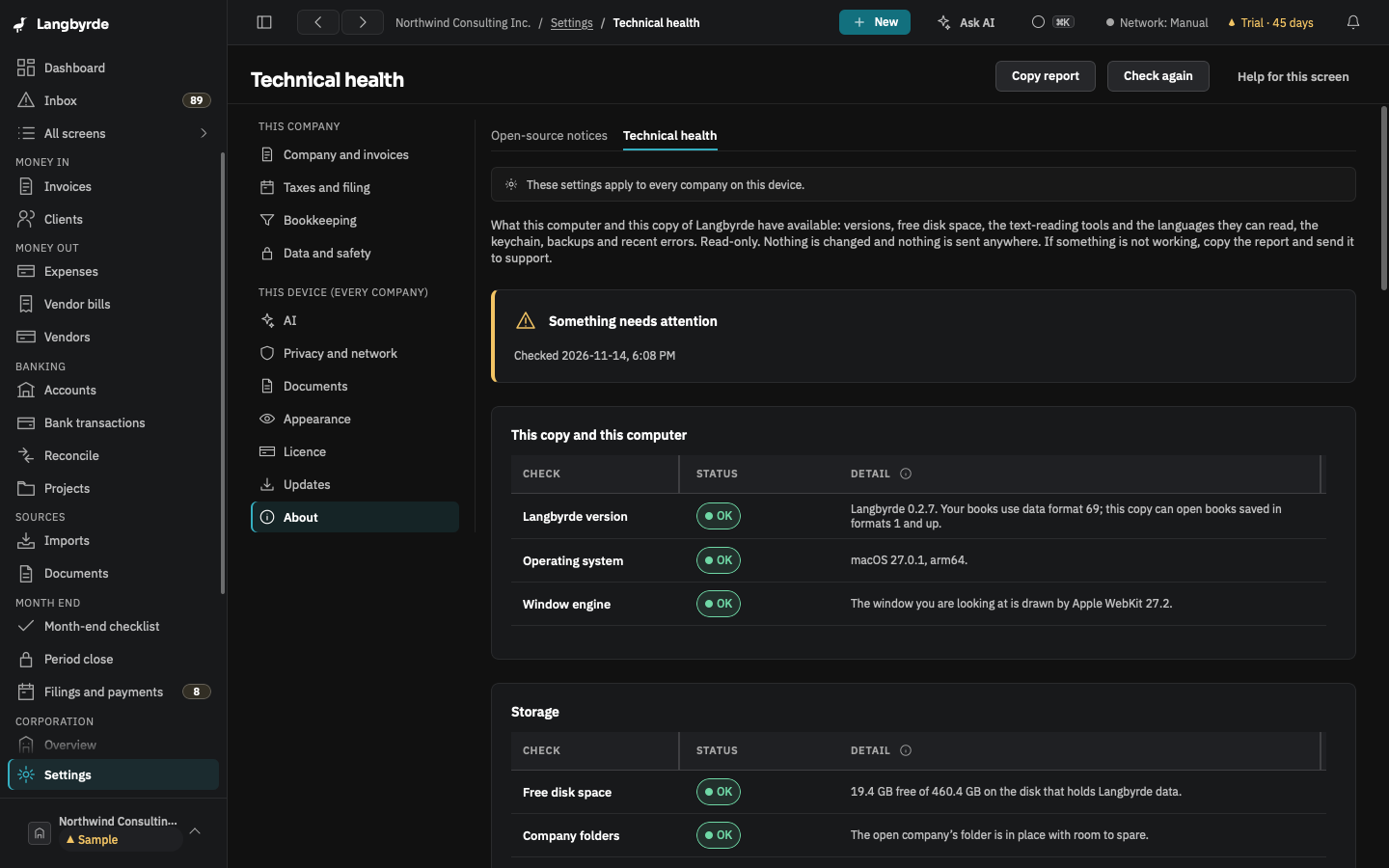
Open Technical health
Choose Settings at the bottom of the rail, then About under This device (every company), and its Technical health tab. You can also press Ctrl+K (Cmd+K on a Mac) and type "technical health".
Read the list
Each line has an icon, a name, a status in words and a sentence about what it means. A line that needs something from you also says What to do.
- OK — works as intended on this computer.
- Needs attention — works, but something is worth a look, or a feature is reduced. For example, no text-reading language is installed, or the newest backup is more than a week old.
- Problem — something that matters is broken or missing, such as a company folder that cannot be found or a disk that is nearly full.
- Could not check — Langbyrde tried and could not tell. It is never shown as OK.
- Not applicable — the check does not apply to this computer. The Windows text reader on a Mac, or any per-company line while no company is open, reads this way.
The banner at the top shows the worst line. Not applicable lines do not count towards it.
What is listed
- This copy and this computer — the Langbyrde version, the version of the data format your books use and the oldest it can open, the operating system and processor, and the engine that draws the window (WebView2 on Windows, WebKit on a Mac).
- Storage — free space on the disk that holds Langbyrde's data, and whether each open company's folder is where it should be and has room.
- Reading receipts — whether the text reader built into your computer is present (Apple Vision on a Mac, Windows text reading on Windows) and which languages it can read right now. Photos and scans of receipts are read in English or French when one of them is listed. If none is installed, receipts can still be read from a PDF's own text, by hand, or with AI if you turn it on.
- Security — whether Langbyrde can reach your computer's keychain (where the app lock and company keys are kept), whether an app lock is set, and how each open company is encrypted.
- Network and licence — the network profile, the update channel and the licence mode.
- Backups and errors — how old the oldest company backup is, the result of the last check after an update, and how many errors are among the latest log lines.
Check again
Check again runs every check once more and announces how many things need attention. If it cannot reach Langbyrde, the earlier list stays and the page says so.
Copy the report
Copy report puts the list on your clipboard as plain text to paste into a message to support. The report has no passwords, keys, tokens, account numbers, licence keys or file locations; a home-folder location, if one ever appears, is shortened to ~. It names the companies that are open (for the folder and encryption lines), the same as the diagnostics bundle further down this page.
Crash reports and errors
- Crash reports: Offer to send crash reports decides whether Langbyrde may offer to send a report when it crashes. It is off unless you turn it on, and it applies to every company on this computer. You always see the report first, and nothing is sent unless you press Send report.
- Recent errors lists the errors in the latest lines of the app's log. Clear list and Dismiss only hide them here; no log file is deleted. Send as crash report… shows exactly what would be sent, lets you add a description, and sends one report only when you confirm. In the Offline profile it offers Switch to Manual and send instead.
- Sent reports lists the crash reports kept on this computer; View shows exactly what was sent.
- Export diagnostics bundle saves one file where you choose, to send to support. It holds the app and system versions, the update history, the last 200 lines of the app's log, the data layout versions and the app's health. The log lines are redacted, and it contains no passwords, keys, account numbers or licence tokens. Nothing is sent anywhere; you choose whether to share the file. The export needs the desktop app.
What this page does not do
It does not repair anything. It contacts a server only when you choose Send report for a crash report, and that address is listed on Network activity. To fix a line, follow its What to do; the settings it points to are each on their own page, such as Backups, Security, Licence and Updates.