Vendors
A vendor is anyone the company pays. Langbyrde adds a vendor for you the first time an expense or a statement line names one, so there is no button to create one by hand. The Vendors screen is where you tidy them up: give each one defaults, teach it the other spellings your bank uses, and merge two vendors that turn out to be the same payee.
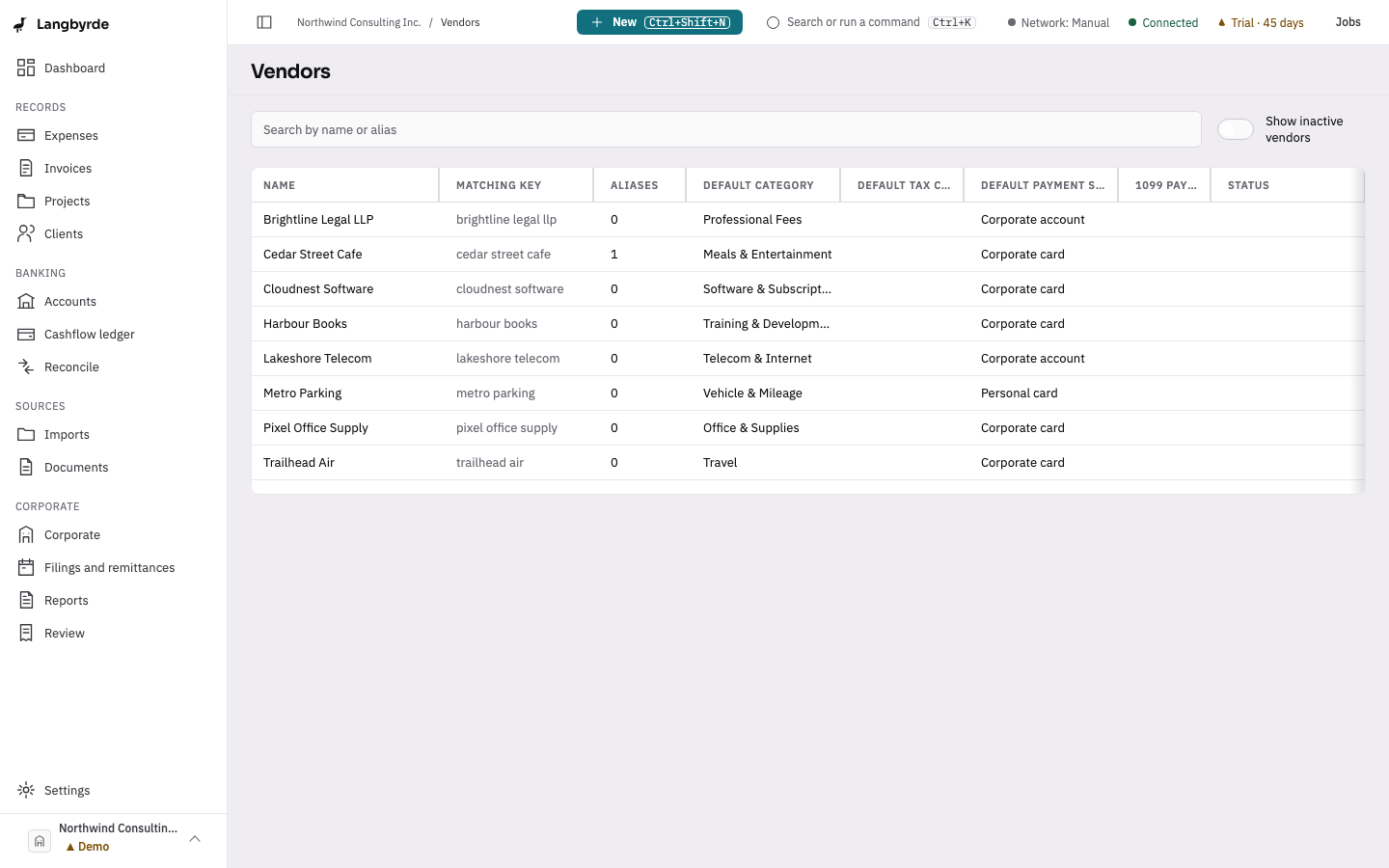

Open the Vendors screen
Press Ctrl+K (⌘K on a Mac) and choose Vendors in the command palette. A company must be open. Searching for a vendor's name in the command palette also opens it here.
Find a vendor
Search vendors matches a vendor's name or any of its aliases. Inactive vendors stay hidden until you turn on Show inactive vendors.
The list shows each vendor's name, its matching key (the name tidied up the way Langbyrde compares names), how many aliases it has, its default category, tax code and payment source, and whether it is a 1099 payee. A Possible duplicate badge means another vendor has the same name or alias once tidied up. It is only a hint; nothing is merged unless you do it.
Edit a vendor
Select a vendor to open its details. You can change its Name, Default category, Default tax code, Default payment source, 1099 payee, Notes and whether it is Active. Choose Save to keep the changes or Cancel to drop them.
When a vendor has a default category, Langbyrde suggests that category for the vendor's new expenses first, before any other suggestion.
Turning off Active hides a vendor from the list without removing it. Vendors cannot be deleted.
Aliases
An alias is another way a vendor's name is written, such as the way it appears on a bank statement. When a new expense or statement line names a vendor, Langbyrde matches it to an existing vendor by its name or one of its aliases before creating a new one.
Under Aliases, type a spelling in New alias and choose Add alias. Remove takes one off the list. Alias changes are kept only when you choose Save.
Merge two vendors
When two vendors are really the same payee, open the one you want to get rid of and choose Merge into another vendor…. If the vendor is marked as a possible duplicate, the other vendor is already filled in.
In Merge into, choose the vendor to keep. Langbyrde then shows how many expenses and bank transaction lines will move to it, and which aliases it will have afterwards: the merged vendor's name and aliases are added to them. Choose Merge vendors to go ahead, or Cancel.
A merge cannot be undone. The vendor you merged away is removed, and the vendor you kept keeps its own name and defaults. A merge that would change a record in a closed period is refused.
Read-only mode
In read-only mode you can still find and read vendors, but you cannot save changes or merge them.