Issuing an invoice
An invoice starts as a draft you can change freely. Issuing it gives it a permanent number and fixes what it bills. Payments and credit notes are then recorded against it.
Build an invoice
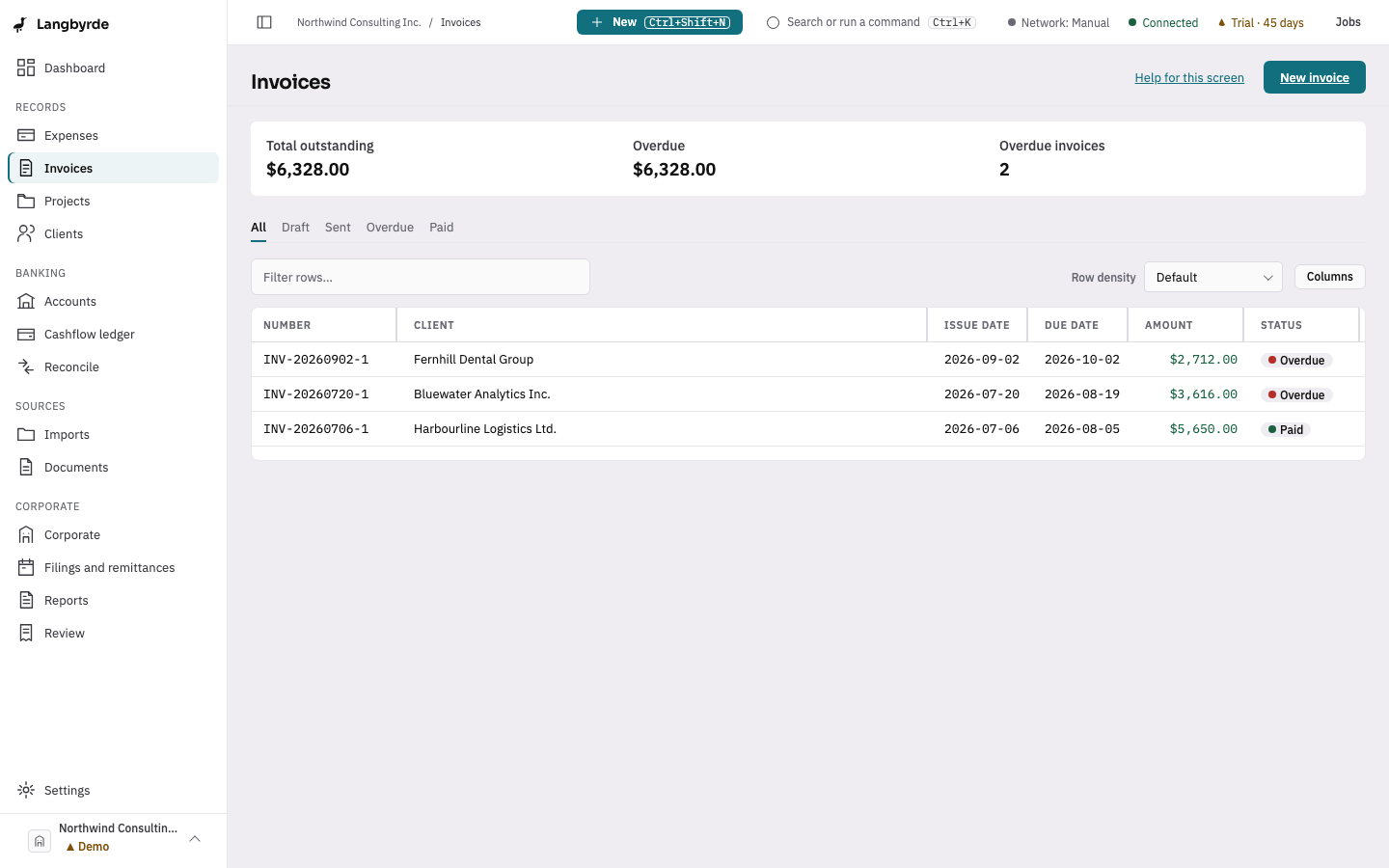
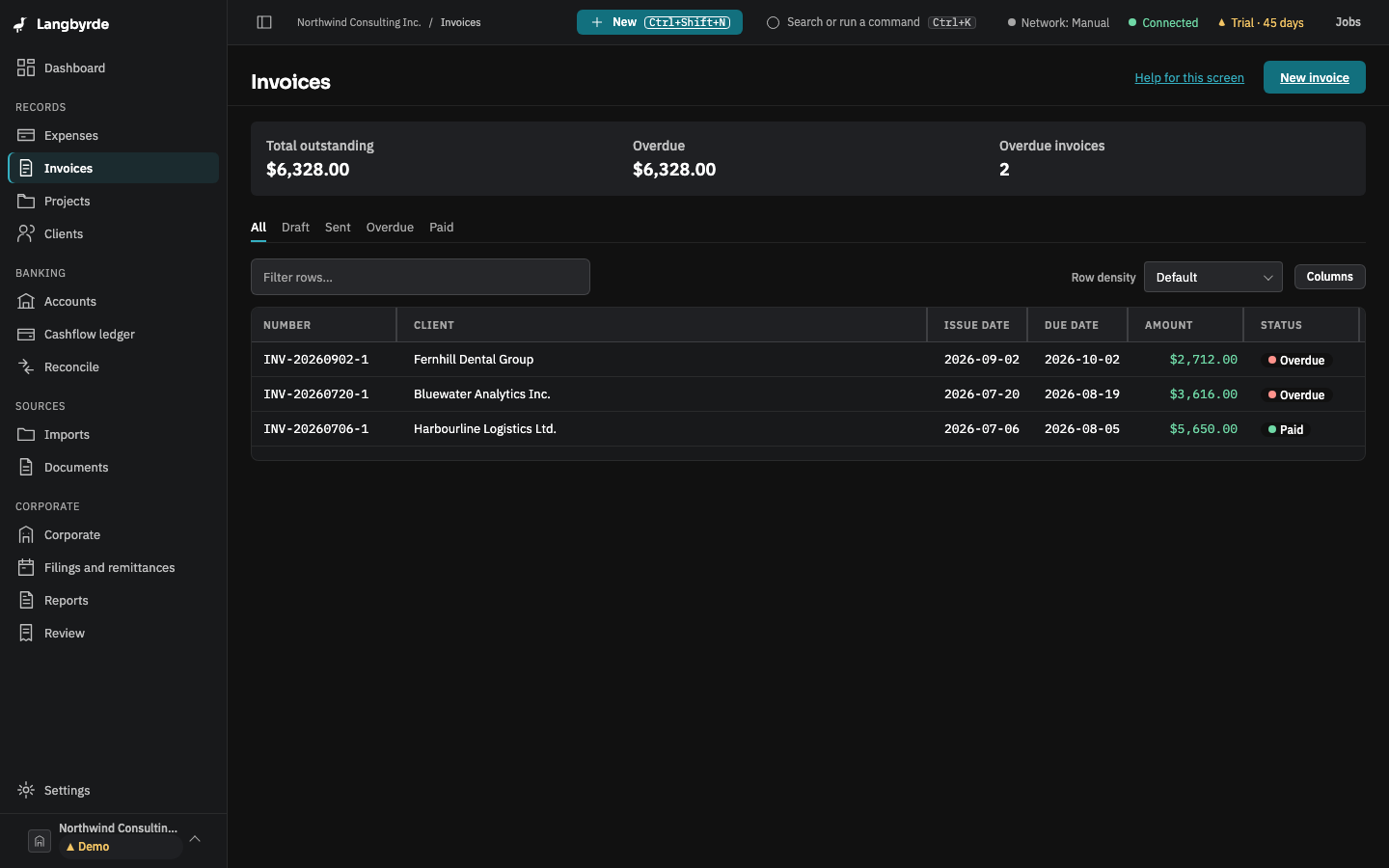
- From any screen, choose New in the top bar, then Invoice. On the Invoices screen, New invoice at the top right does the same.
- Choose the Client. Choosing the client creates the draft and opens it; there is no second form.
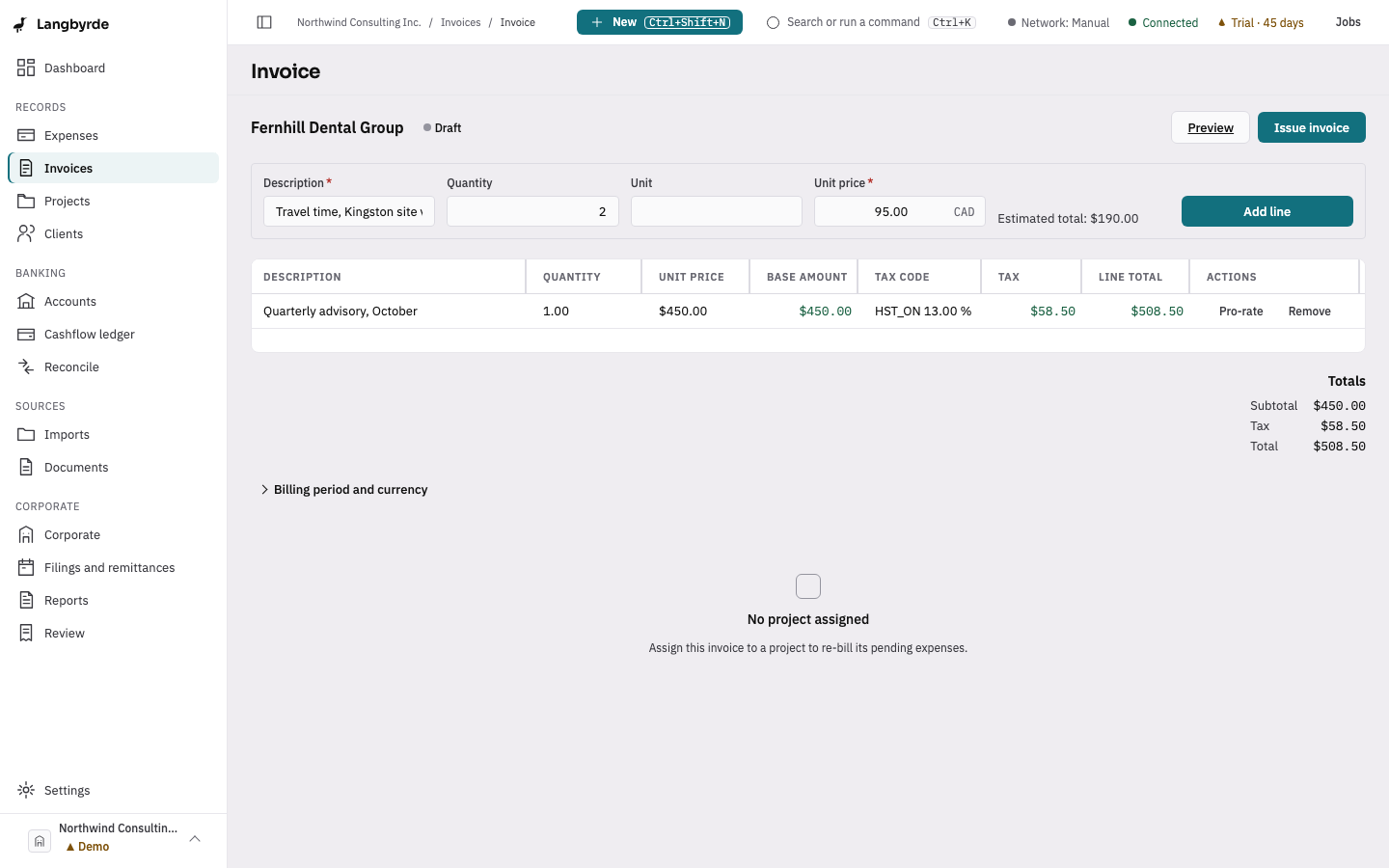
- In the line form, type the Description, the Quantity (it starts at 1), the Unit if you use one, and the Unit price.
- Press
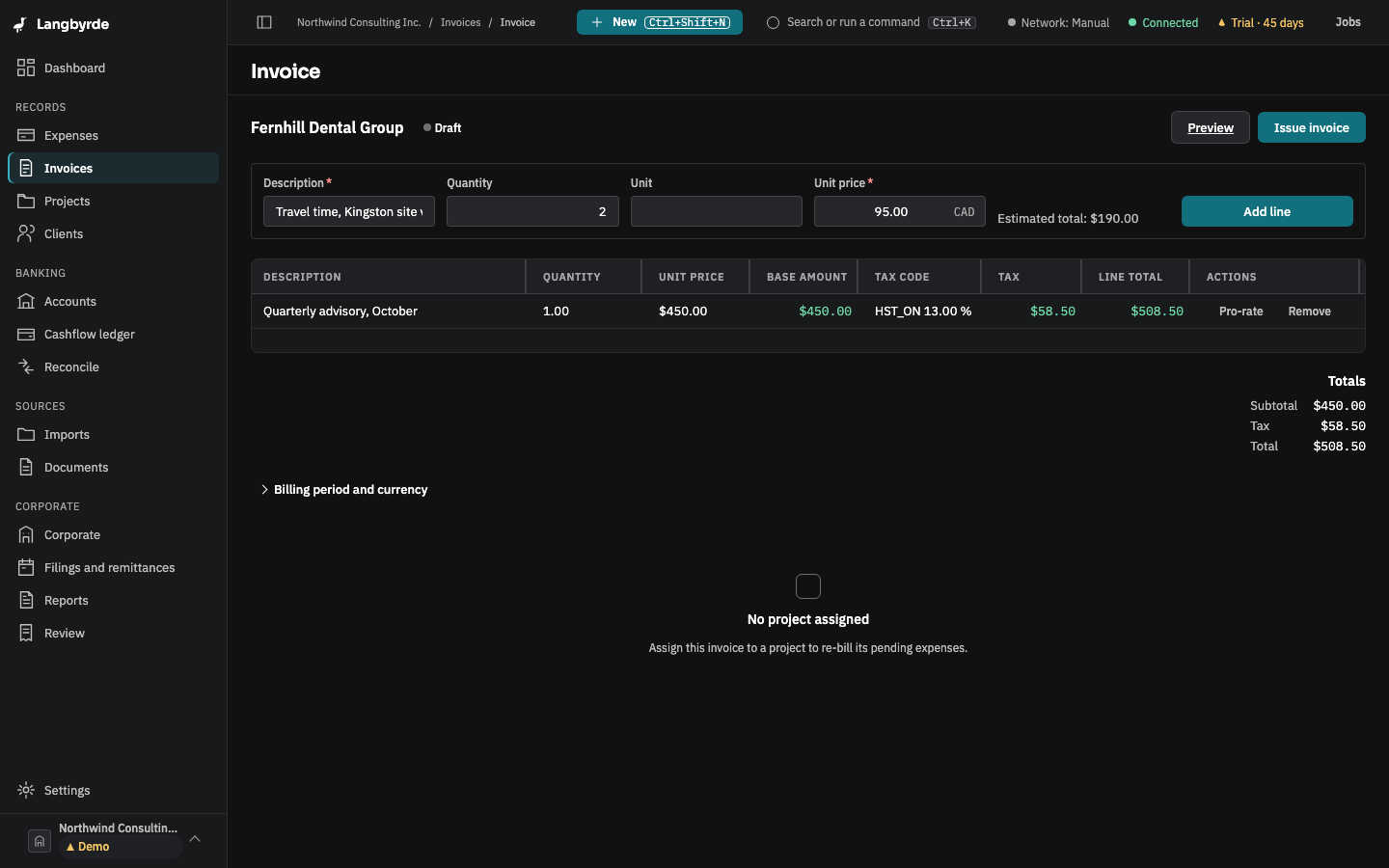
Enter, or choose Add line. The line appears in the table with its tax already worked out, and Totals shows the subtotal, the tax and the total. - Add more lines the same way. Remove takes a line off; Pro-rate bills part of a period.
The currency follows the client's default. To change it, or to add the period the invoice covers, open Billing period and currency below the lines and choose Save.
If the invoice belongs to a project, its pending expenses are listed under Pending expenses, and Add selected to invoice bills them again to the client.
Tax on an invoice
You never type the tax. As each line is added, Langbyrde applies the company's tax rules to it, based on the client's location and what you are supplying (services, goods or digital products). What you are supplying starts on the choice you made for this client's last invoice, or on Services for a first invoice. Check the Tax code, Tax rate and Tax on each line. The figures come from the company's tax rules; see What the disclaimers mean. If the company has no tax rules installed, check Jurisdiction & fiscal.
Issue the invoice
- Choose Issue invoice at the top of the draft.
- The Issue invoice dialog shows the Next number, today's Issue date and the tax already applied under What is being supplied. To bill a different kind of supply, pick it; the tax is applied again at once.
- Choose Confirm issue.
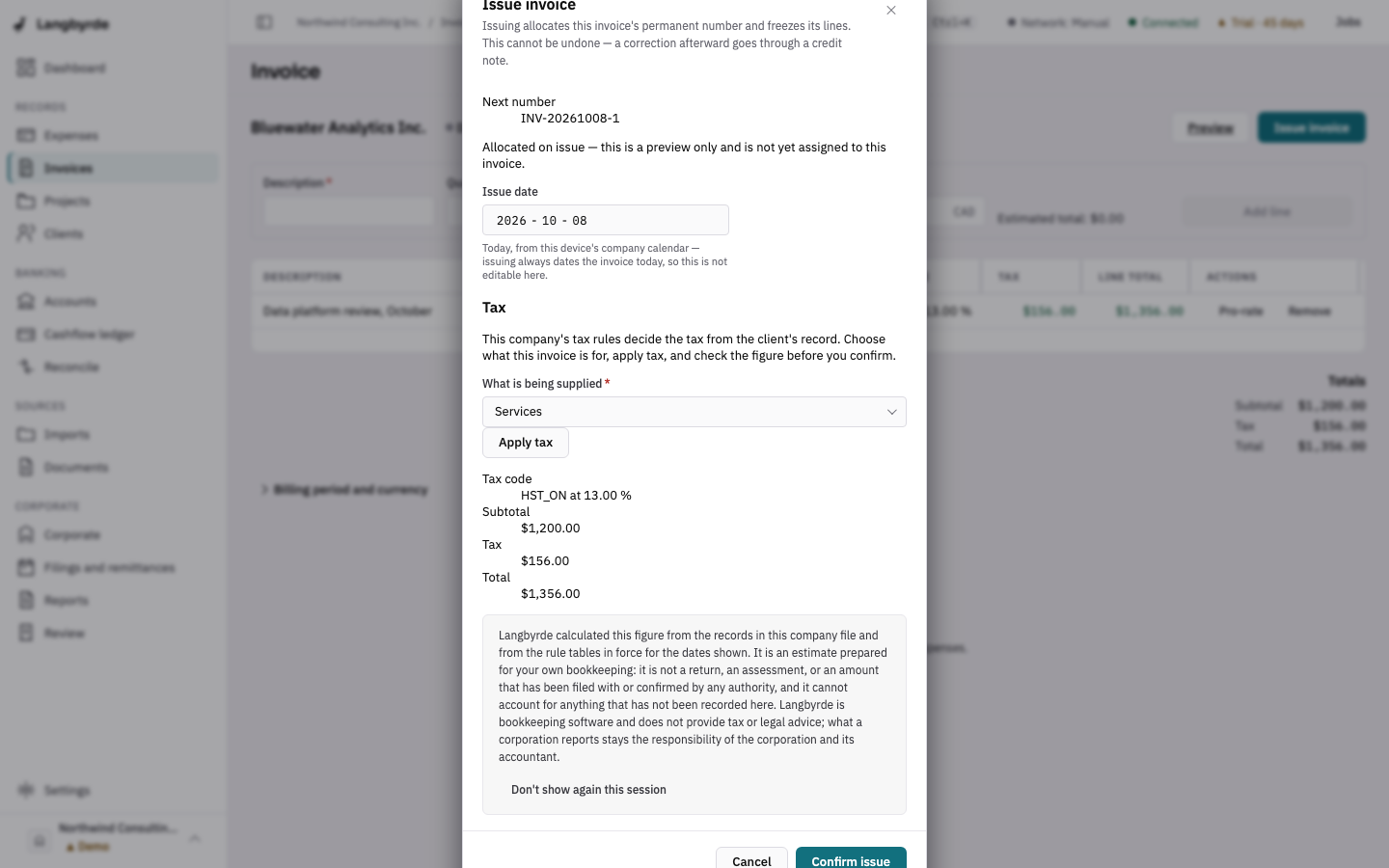
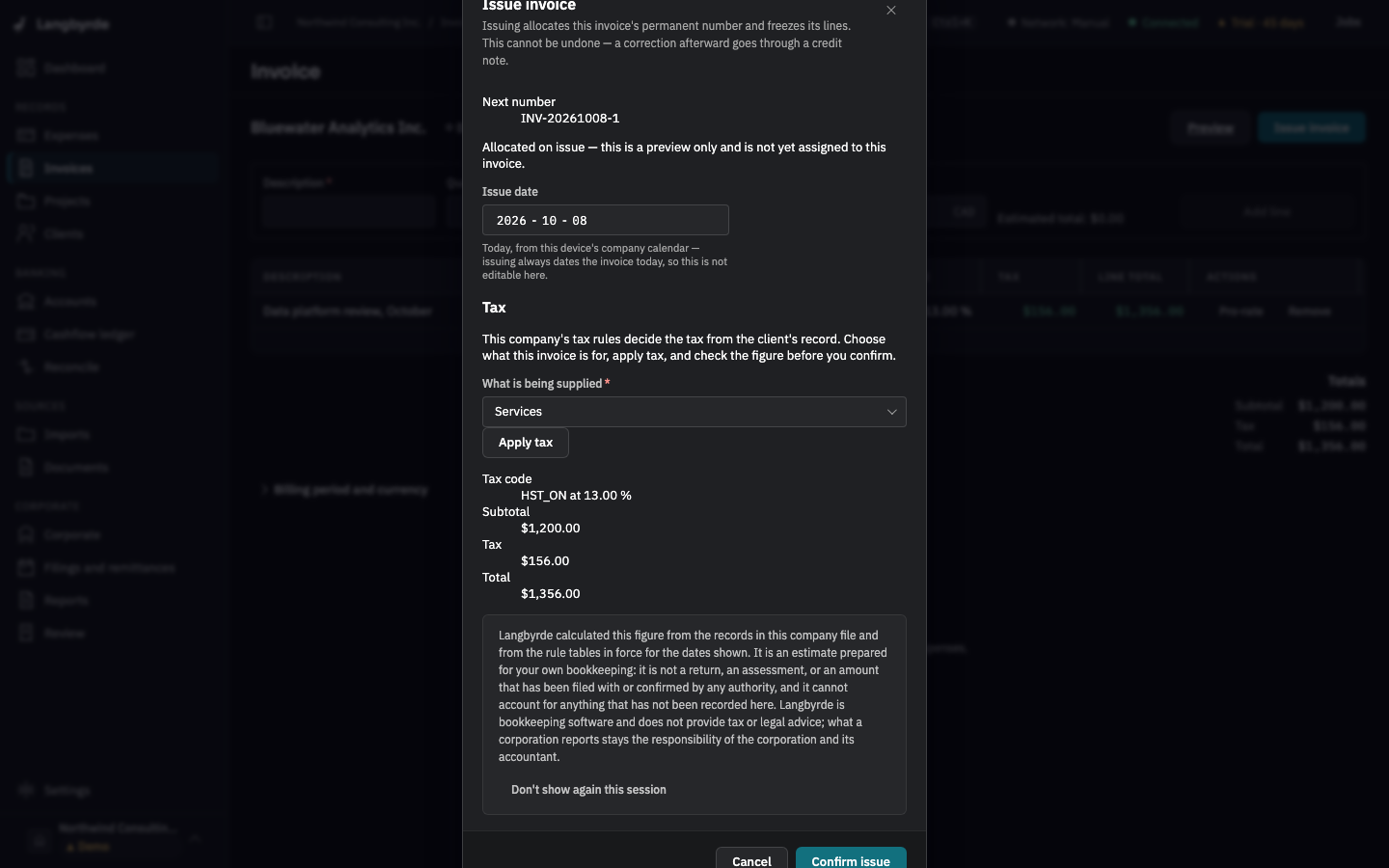
Issuing cannot be undone: the invoice's number and billed details are fixed, and only notes, links, comments and documents stay editable. A correction goes through a credit note. After issuing, the invoice's preview opens.
Send the invoice
Langbyrde does not send invoices for you. On the preview, under Invoice PDF, choose Save as… or Print, send it the way you usually do, then choose Mark sent. Show in folder and Copy path find the PDF in your Company Folder.
Record a payment
- Open the invoice from the invoice list. For an overdue one, Overdue — invoices on the dashboard opens AR aging, where each invoice number opens it.
- Choose Record payment.
- Amount received is already filled in with what is still owed. Change it for a partial payment, and add the Payment date, any Bank fee and the Method.
- Choose Record payment.
Issue a credit note
To reduce or cancel an issued invoice, open it and choose Issue credit note. Type the Amount, the Tax to reverse and a Reason, then choose Issue credit note.
What is still owed
The invoice list's header shows Total outstanding, the Overdue amount and the number of overdue invoices, the same figures the dashboard's AR outstanding card uses. Invoices in another currency are converted at the company's exchange rate for today; see What the disclaimers mean.