Filings and payments
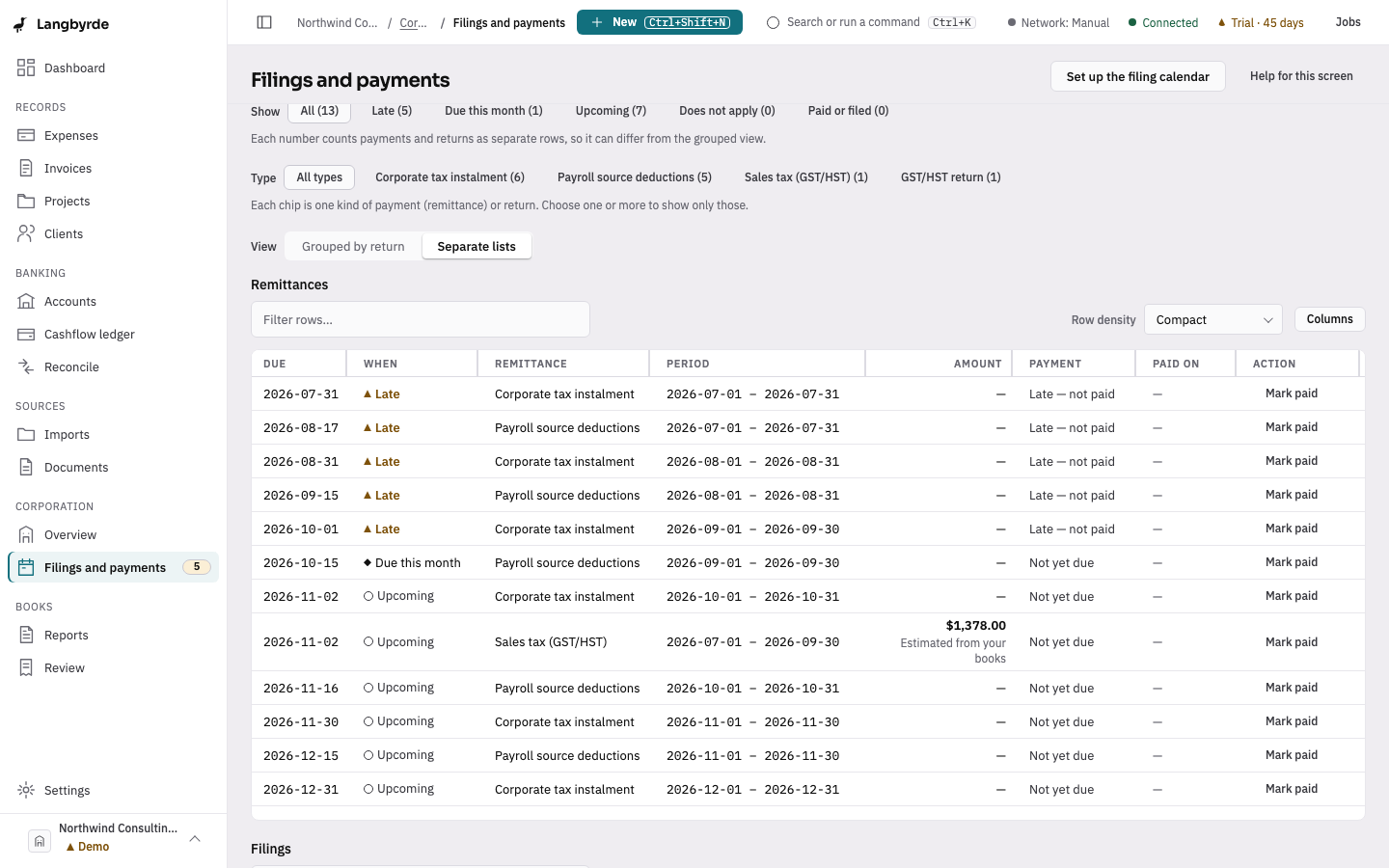
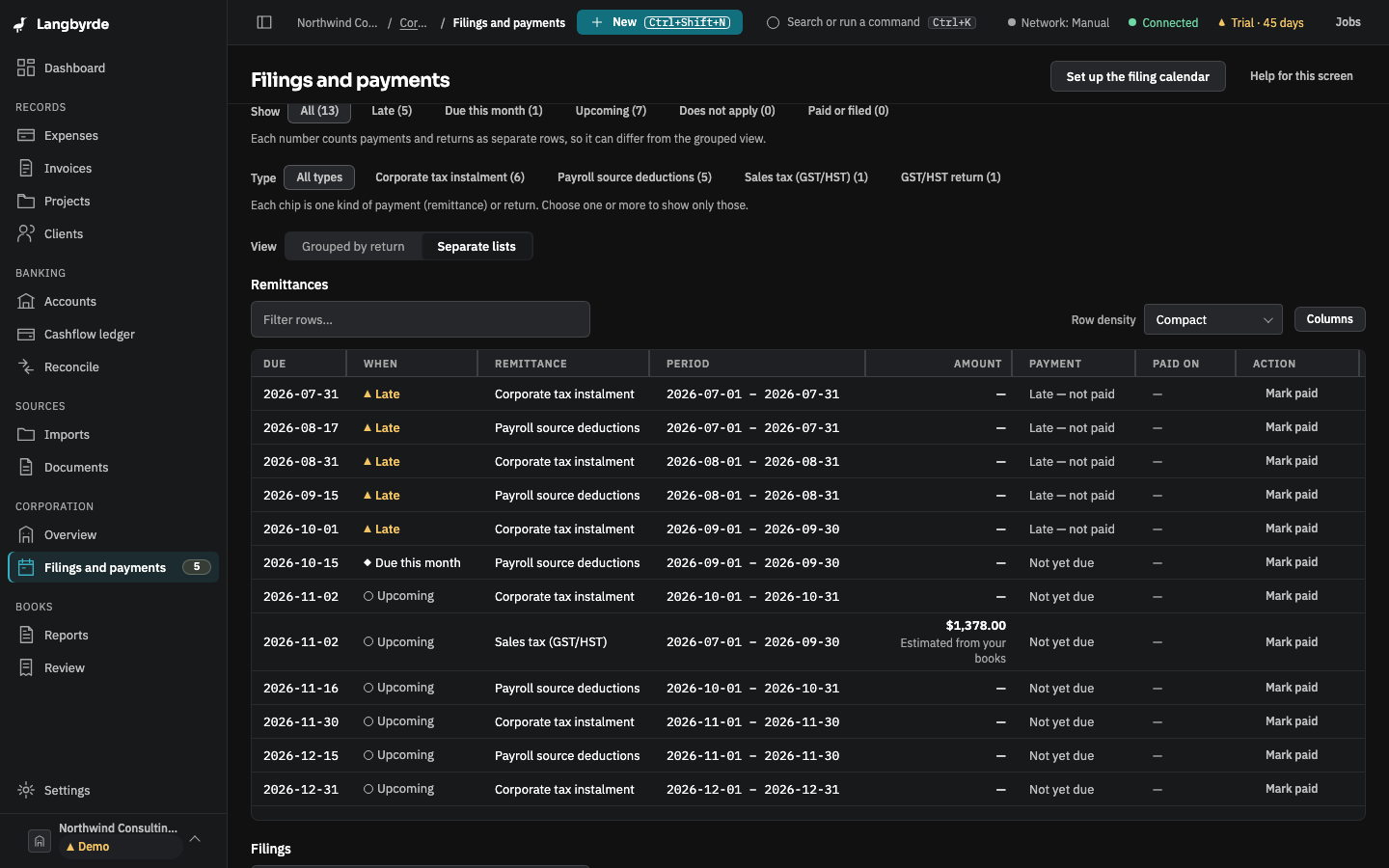
Open Filings and payments from the rail, choose a row under Due next on the Corporate overview, or choose an Overdue — remittance or Overdue — filings line on the dashboard, which opens the screen already showing what is late. The screen lists what the company has to file or pay, by due date, with a calendar of due dates at the top.
On this screen
- Choose Late under Show to see what is behind.
- On a row, choose Mark paid or Mark filed and enter the date.
- If the lists are empty, choose Set up the filing calendar and pick dates.
Narrow the list
- Show narrows the list by when something is due: All, Late, Due this month, Upcoming, Does not apply or Paid or filed, each with a count.
- Type narrows it by kind. Each chip is one kind of payment (a remittance) or return, such as Payroll source deductions or GST/HST return. Choose one or more; All types clears them.
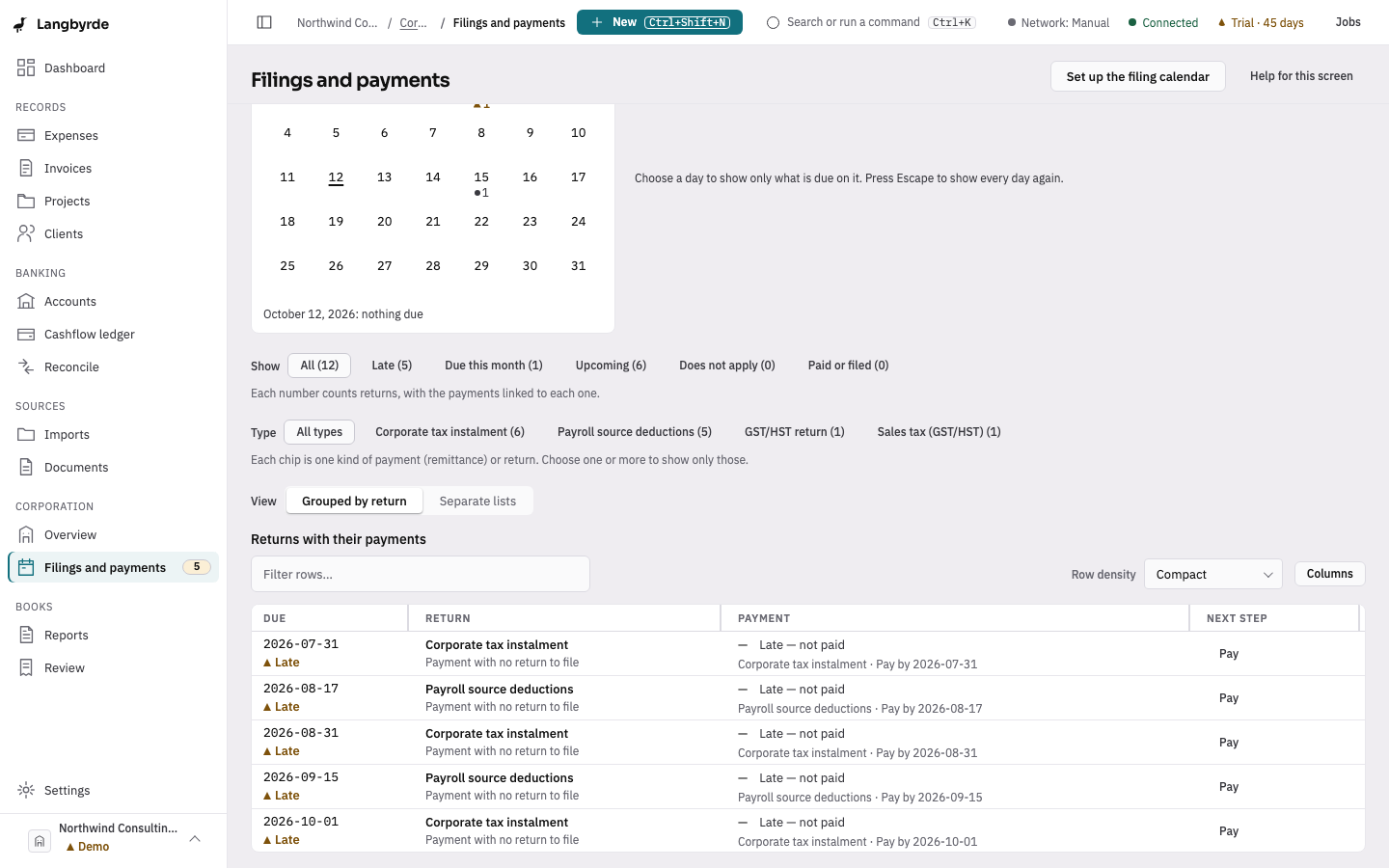
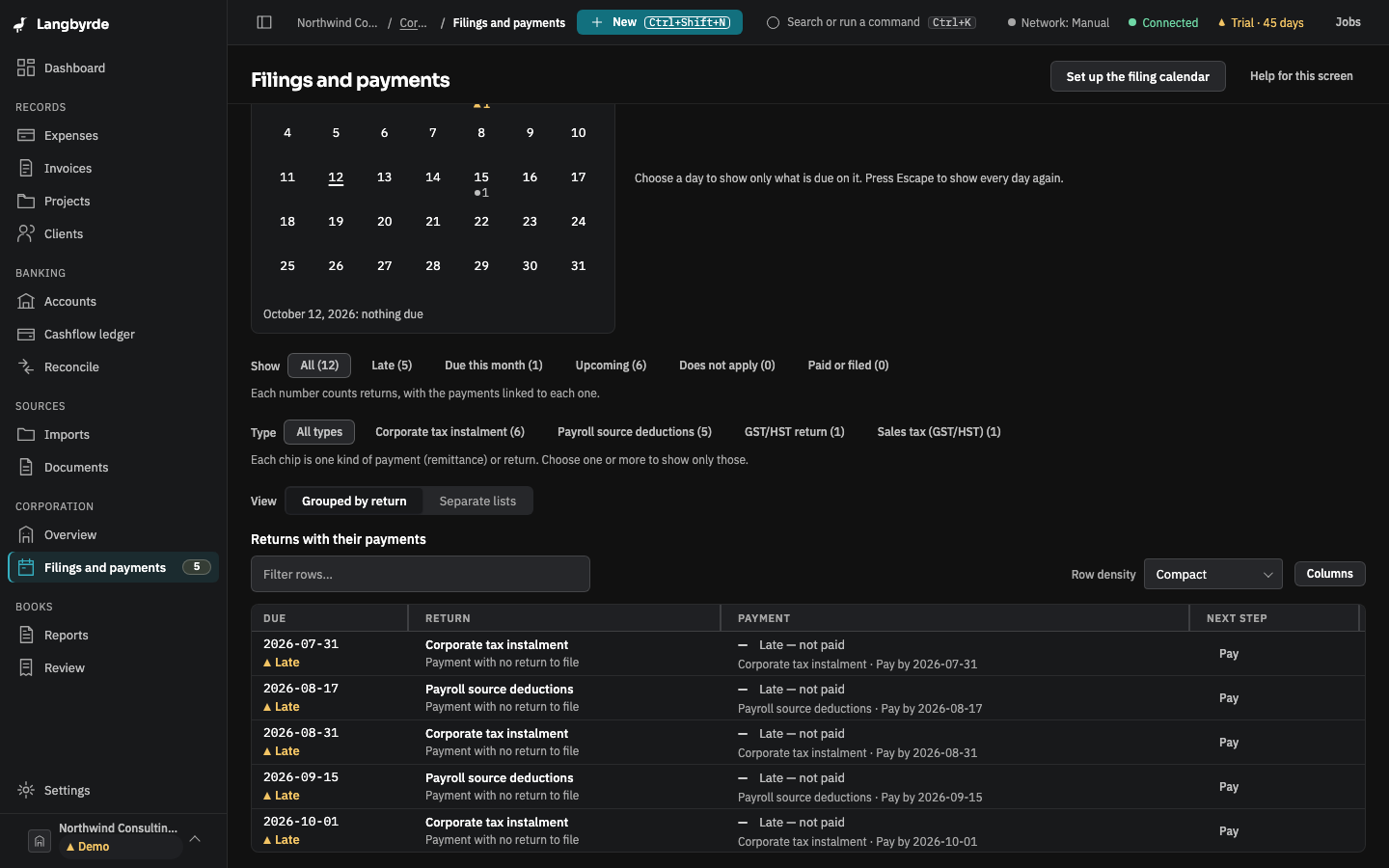
- Choose a day on the calendar to show only what is due that day. Press Escape to show every day again.
- View chooses how the list is laid out. Separate lists shows payments and returns in two tables. Grouped by return shows each return with the payments linked to it, and the next step for each: File, Pay, File and pay or Done.
What the screen shows
- Remittances are payments. Each row shows its due date, period and Amount. The amount is the one the books show: the net tax on the sales-tax return, or the remittance totals of the payroll runs for that period. A dash means nothing in the books gives an amount yet. A payment is Not yet due, Owing, Paid or Late — not paid.
- Filings are returns and forms. Each row shows its status: To prepare, In preparation, Filed, Late — not filed or Does not apply.
In Separate lists, a payment and a form are never mixed in one table, so a line that says Paid is money and a line that says Filed is a form.
Mark a payment paid or a return filed
To record that you paid a remittance, choose Mark paid on its row, enter the Paid on date and choose Mark paid. To record a return you filed, choose Mark filed, enter the Filed on date and the form, and choose Mark filed. Langbyrde only keeps track; it does not file or pay anything for you.
A filing that does not apply to the company shows Does not apply. If it does apply after all, choose Mark applicable on its row.
Set up the calendar
A new company's calendar is empty until you set it up. Choose Set up the filing calendar, pick the first and last due dates, and choose Set up calendar. Langbyrde does not file anything; it only lays out the dates. The Corporate overview and the dashboard checklist offer the same action. Your jurisdiction pack decides which returns and remittances fall due in that range and when; anything already on the calendar is left as it is.
Due dates and amounts come from the jurisdiction pack and the company's books; see What the disclaimers mean and Payroll and remittances.