Corporate
Open Corporate from the rail to reach the corporation's own records, beyond the day-to-day books. Filings and remittances also has its own row in the rail, just under Corporate.
The corporate sections
- Payroll — pay runs by pay date, with each employee's deductions.
- Employees — who is on payroll, with SIN, legal name and address masked until revealed.
- Filings and remittances — returns and remittances by due date, to mark filed or paid.
- Health spending account — claims and administrator statements.
- Mileage log — business trips kept for reimbursement.
- Shareholder loan — money moving between the company and its owner.
- Corporate records — the minute-book checklist, the share register and the cap table.
- Memos — decisions written down, linked to the records they concern.
- Period close — see Closing a period.
- Archive — see Archive.
Each section keeps its own figures and its own disclaimers where a figure is computed; the hub itself only names the sections.
Filings and remittances
Open Filings and remittances from the rail, or choose an Overdue — remittance or Overdue — filings line on the dashboard. The screen lists what the company has to file or pay, by due date, with a calendar of due dates at the top.
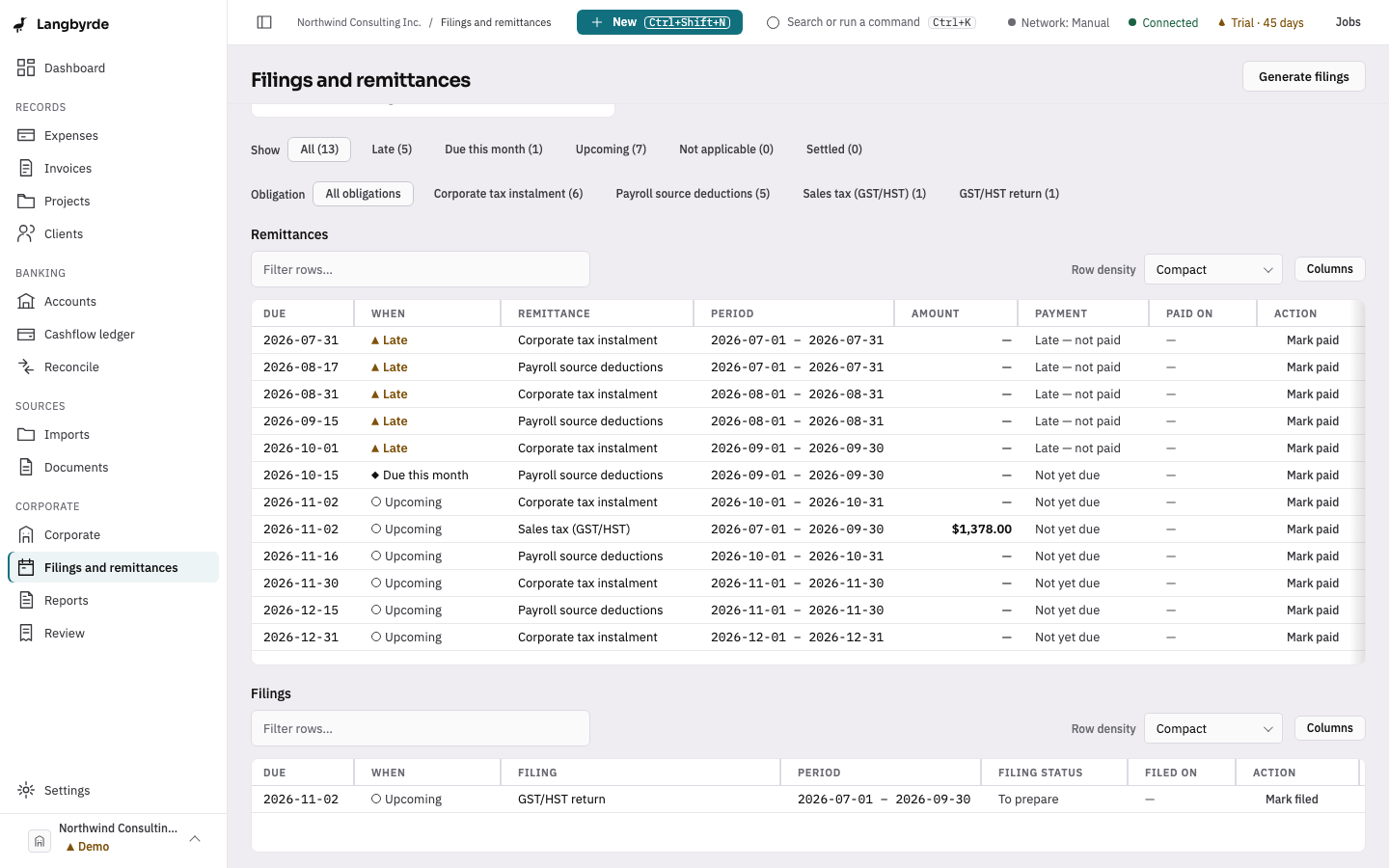
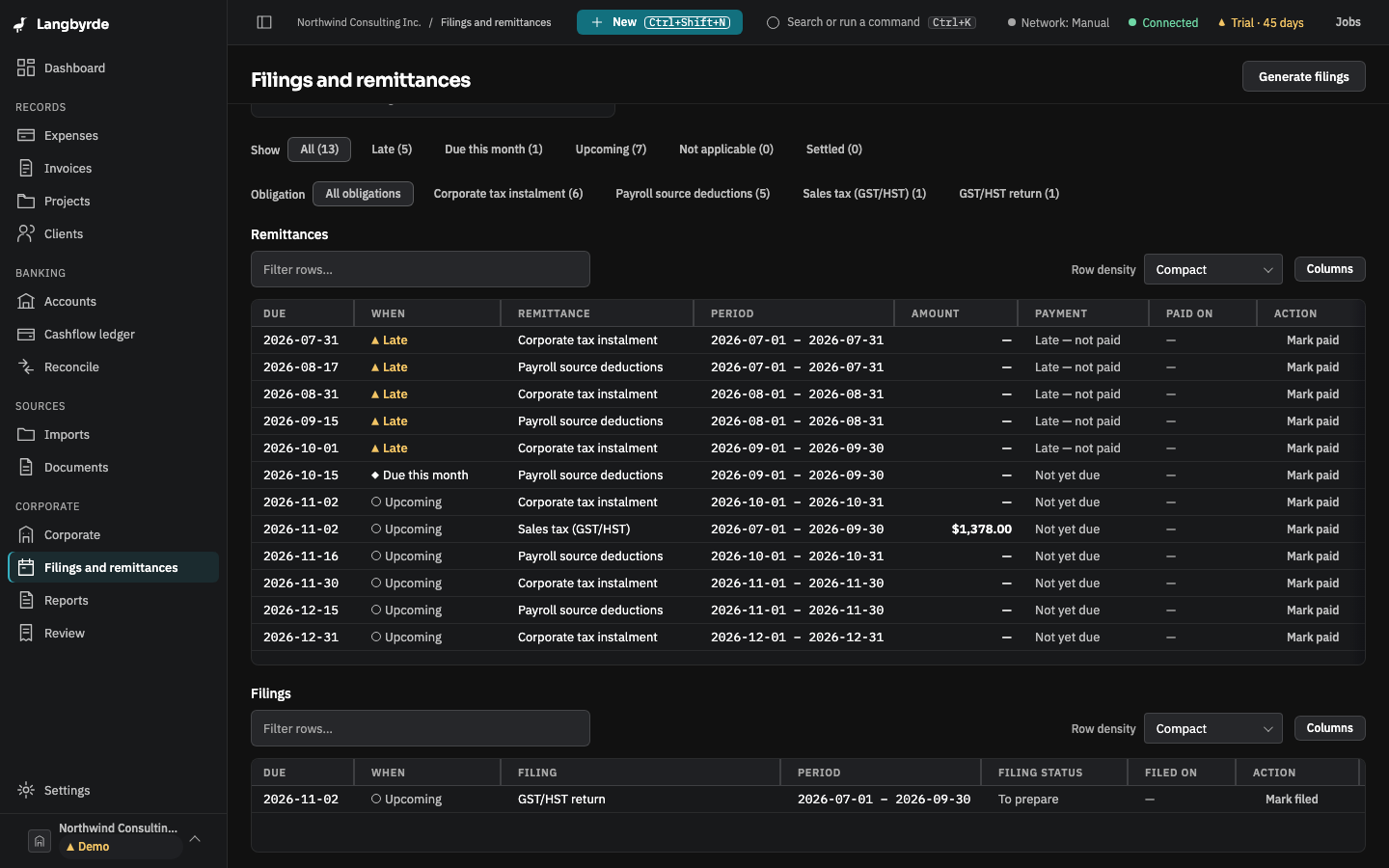
- Show narrows the list: All, Late, Due this month, Upcoming, Not applicable or Settled, each with a count.
- Remittances shows each payment's due date, period and Amount. The amount is the one the books show: the net tax on the sales-tax return, or the remittance totals of the payroll runs for that period. A dash means nothing in the books gives an amount yet.
- Filings shows each return with its status, such as To prepare, Filed or Not filed, past due.
To record that you paid a remittance, choose Mark paid on its row, enter the Paid on date and choose Mark paid. To record a return you filed, choose Mark filed, enter the Filed on date and the form, and choose Mark filed. Langbyrde only keeps track; it does not file or pay anything for you.
Due dates and amounts come from the jurisdiction pack and the company's books; see What the disclaimers mean and Payroll and remittances.
Payroll
Open Corporate, then Payroll, or choose New in the top bar and then Payroll run.
- Choose Record a run.
- Enter the Pay date, the pay period and the Payroll provider.
- For each employee, choose the Employee and enter the Gross pay, Net pay and each deduction. Add a deduction and Add another employee add rows.
- Choose Save as draft.
Payroll runs are recorded from your payroll provider's register; Langbyrde does not run payroll. The figures carry the payroll disclaimer; see What the disclaimers mean.
Shareholder loan
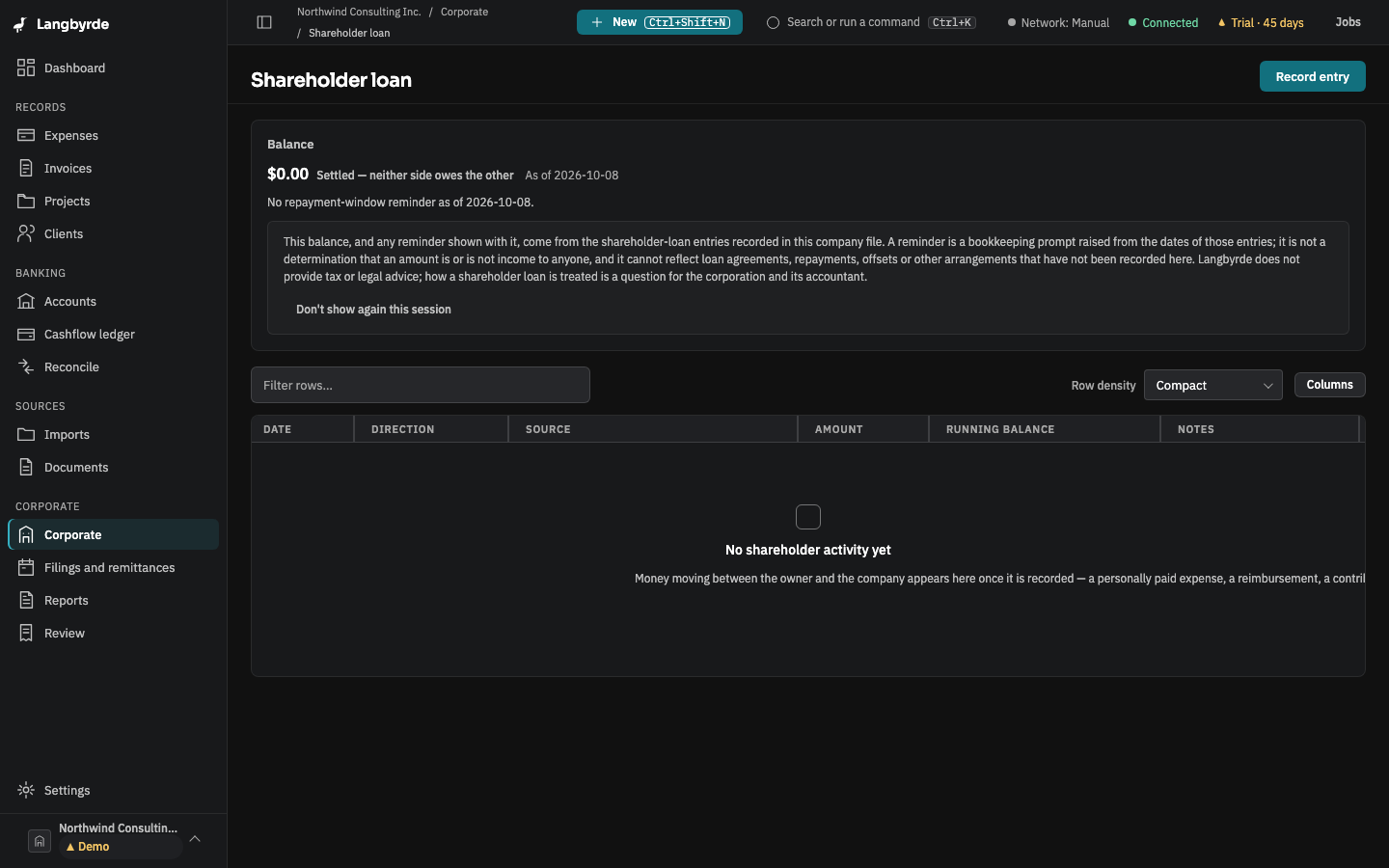
Open Corporate, then Shareholder loan, or choose Open shareholder loan on the dashboard. The screen shows the balance, any repayment-window reminder and every entry with a running balance.
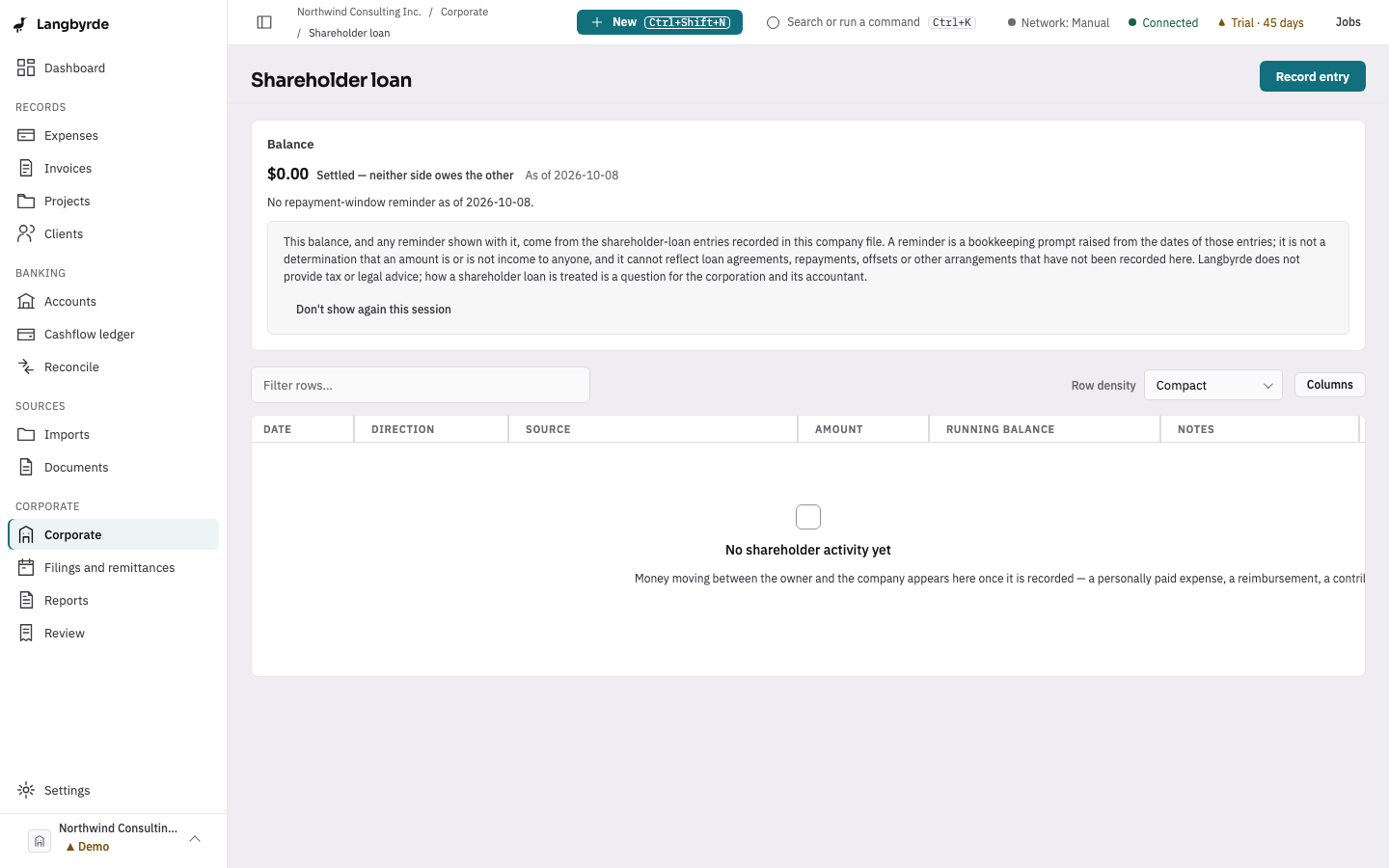
- Choose Record entry.
- Choose the Direction: Owner to company or Company to owner.
- Enter the Amount, the Date and any Notes.
- Choose Record entry.
An expense paid out of your own pocket can also be settled through the shareholder loan. The balance and reminder are bookkeeping figures, not advice; see What the disclaimers mean.