Try the sample company
Updated
The sample company, Northwind Consulting Inc., is a made-up Ontario consulting company with a few months of records: bank and card accounts, statements, expenses with receipts, clients and invoices. Use it to look around before you enter anything of your own. Nothing you do in it touches your own books, and its figures are sample data, not advice.
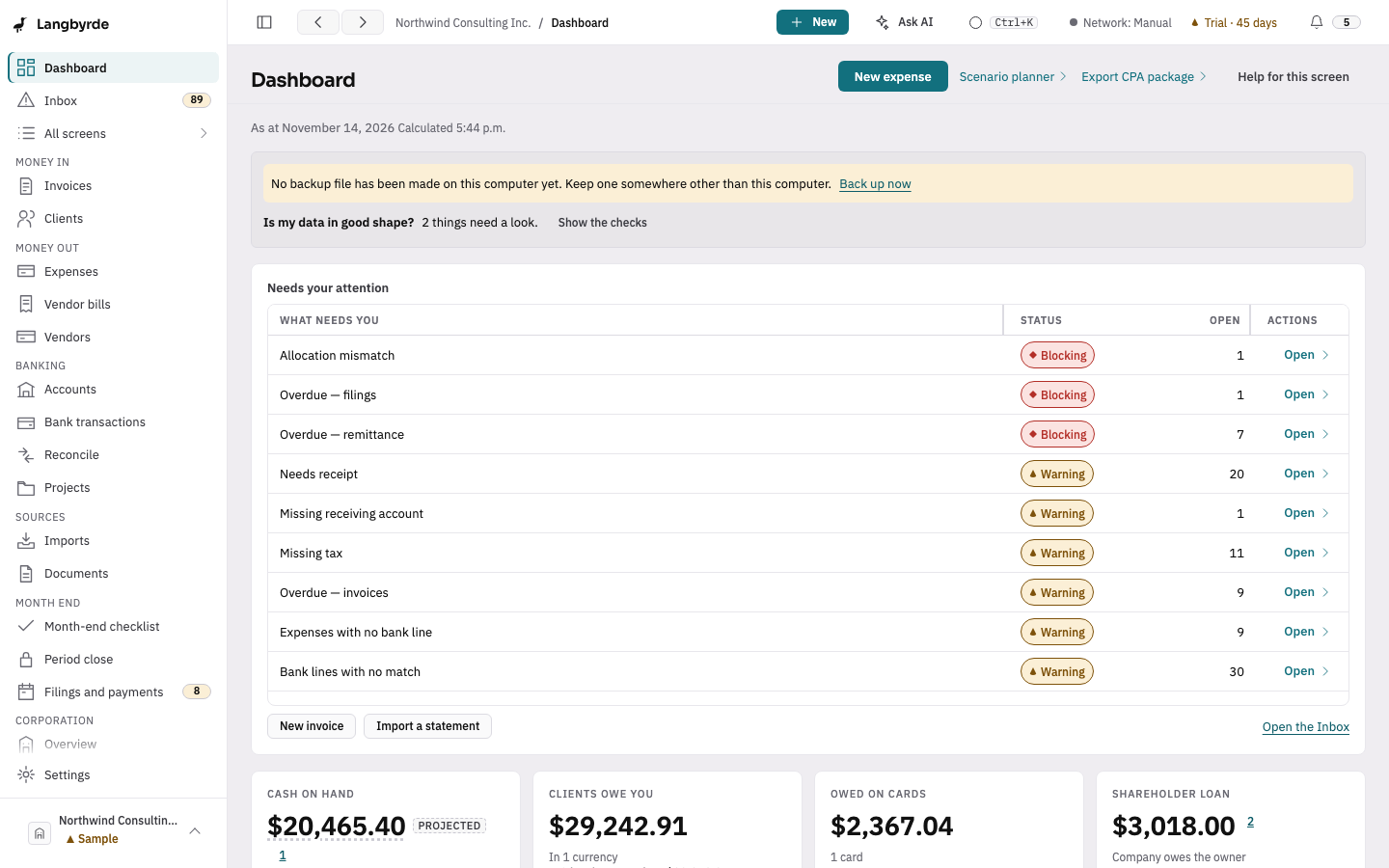
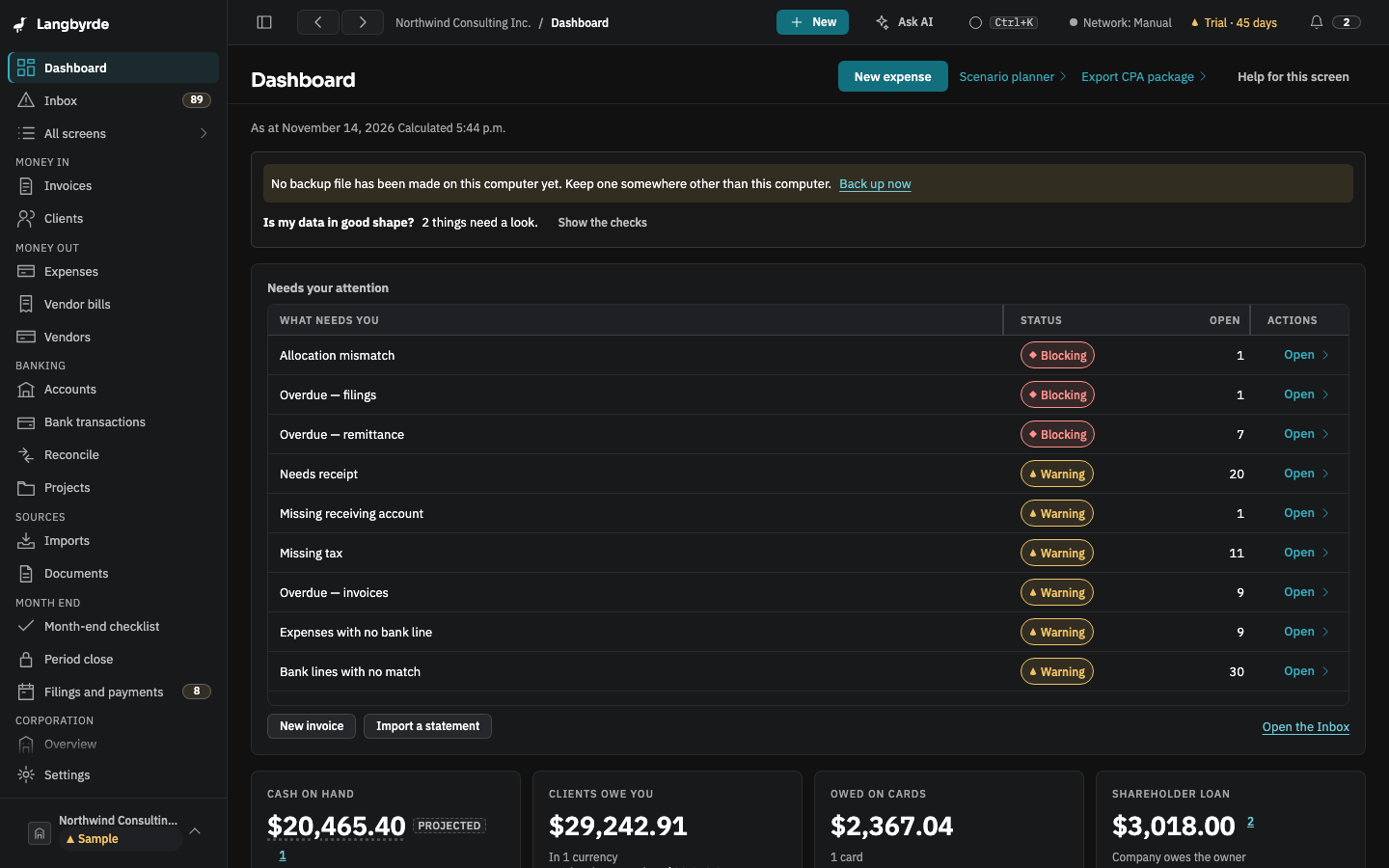
Open it
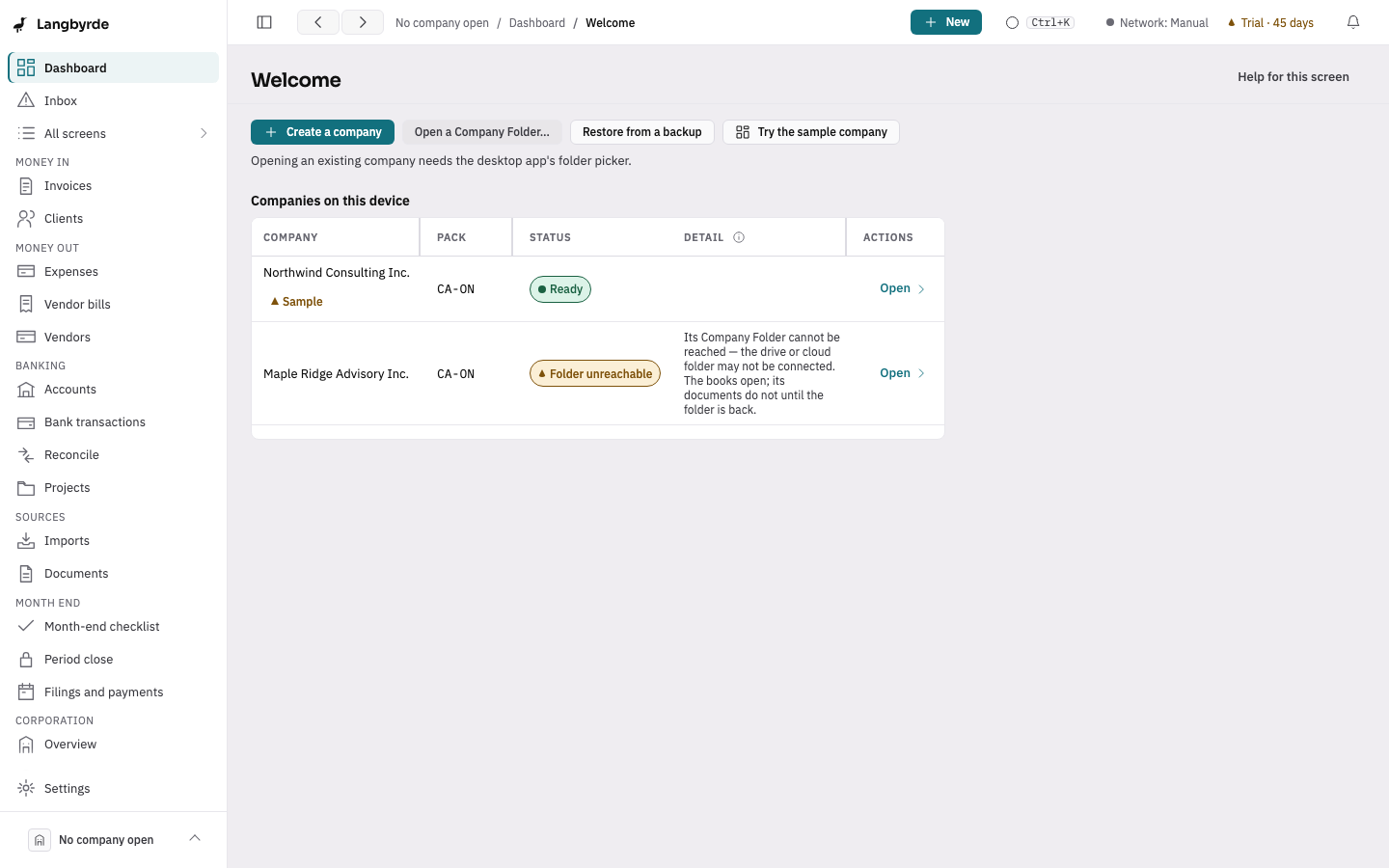
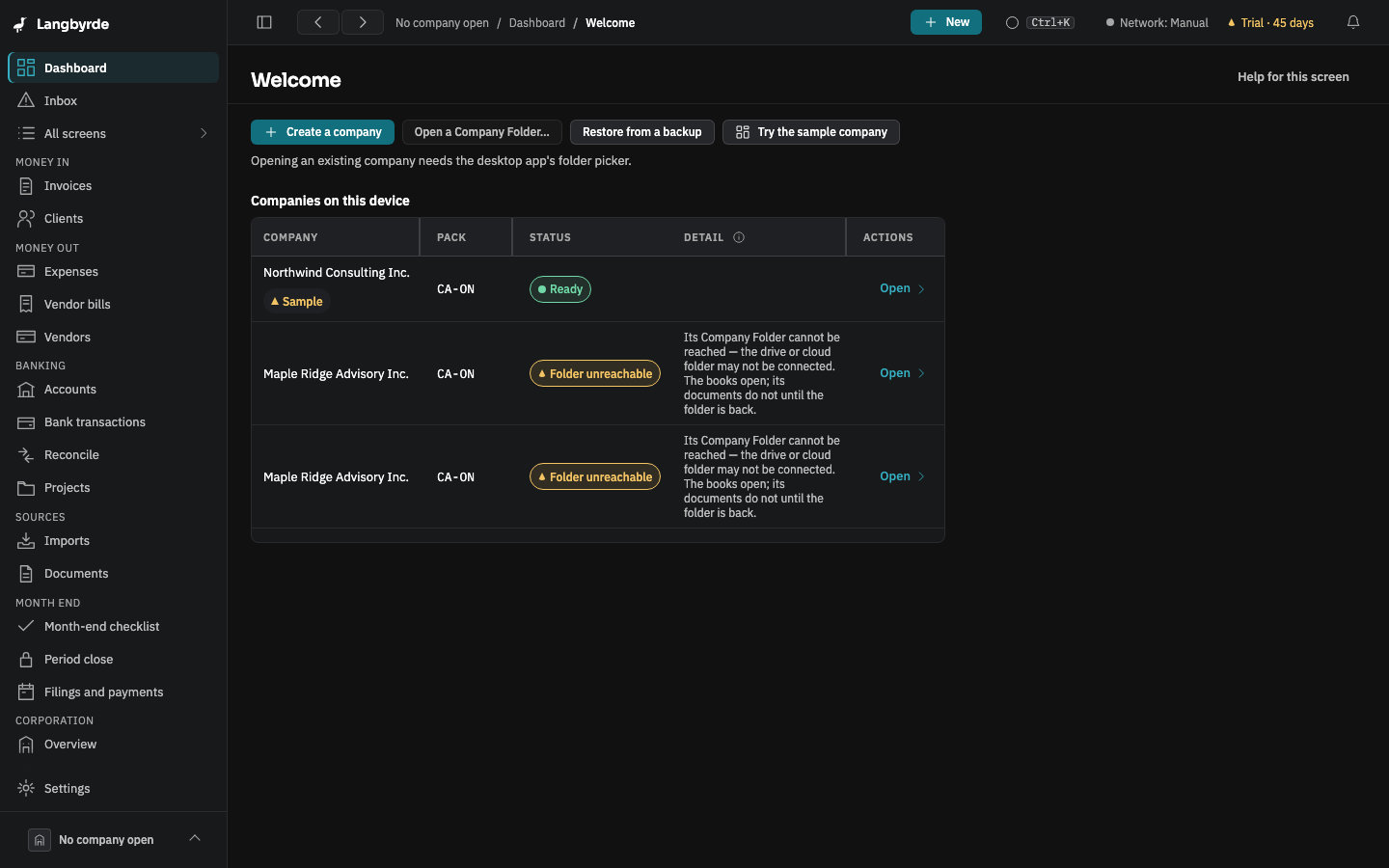
- On the Welcome screen, choose Try the sample company. The setup screen opens with Try with sample data chosen; choose Start with sample data.
- When the sample company is the only company on this computer, Langbyrde opens it straight away when it starts. Once you have a real company, Langbyrde opens that one at start instead; the sample company stays one choice away in the company switcher.
- From another company, open the company switcher at the bottom of the rail and choose the sample company.
The sample company is tagged Sample in the company switcher at the bottom of the rail and in the Welcome list, so you always know which company you are in.
The six-step tour
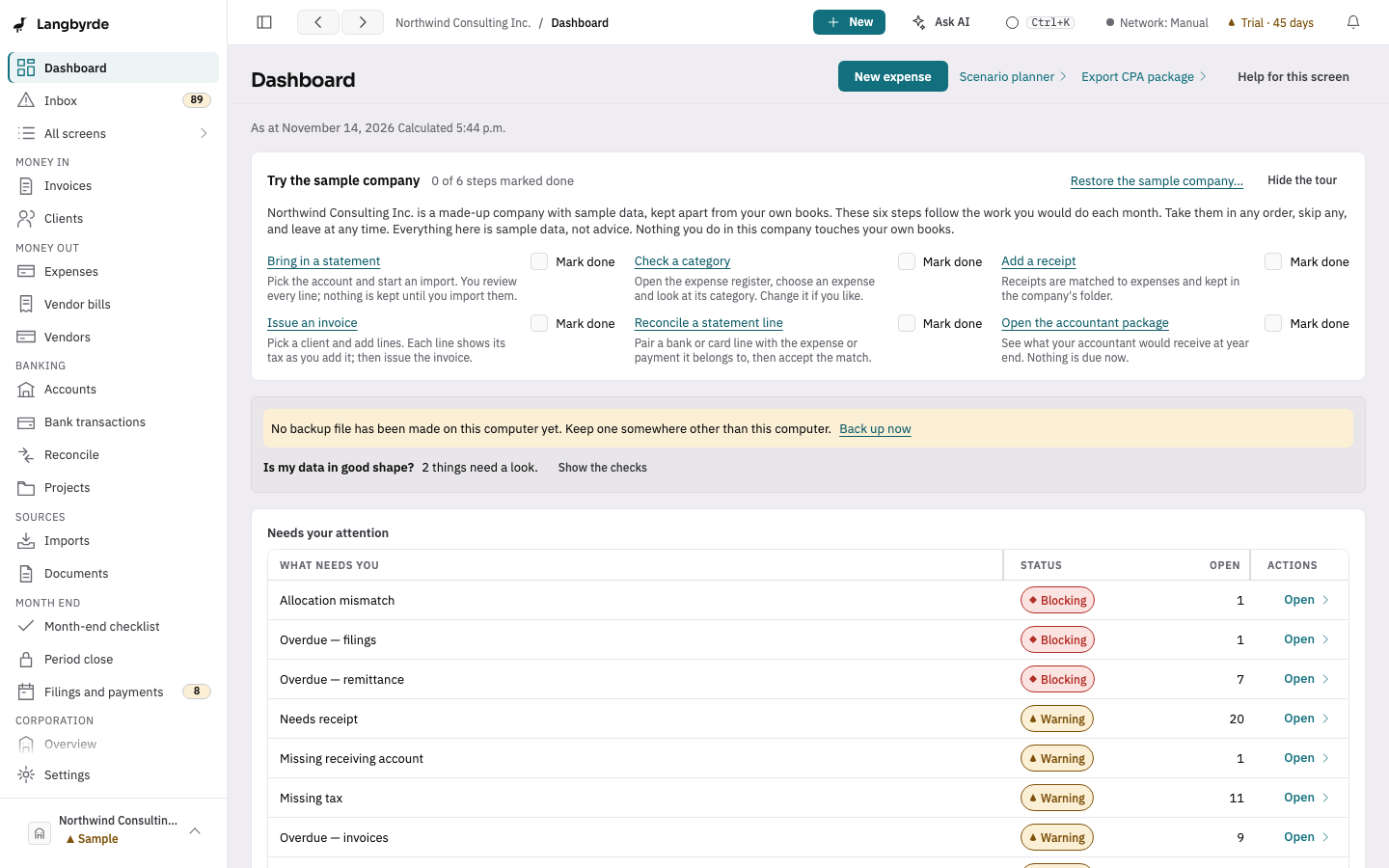
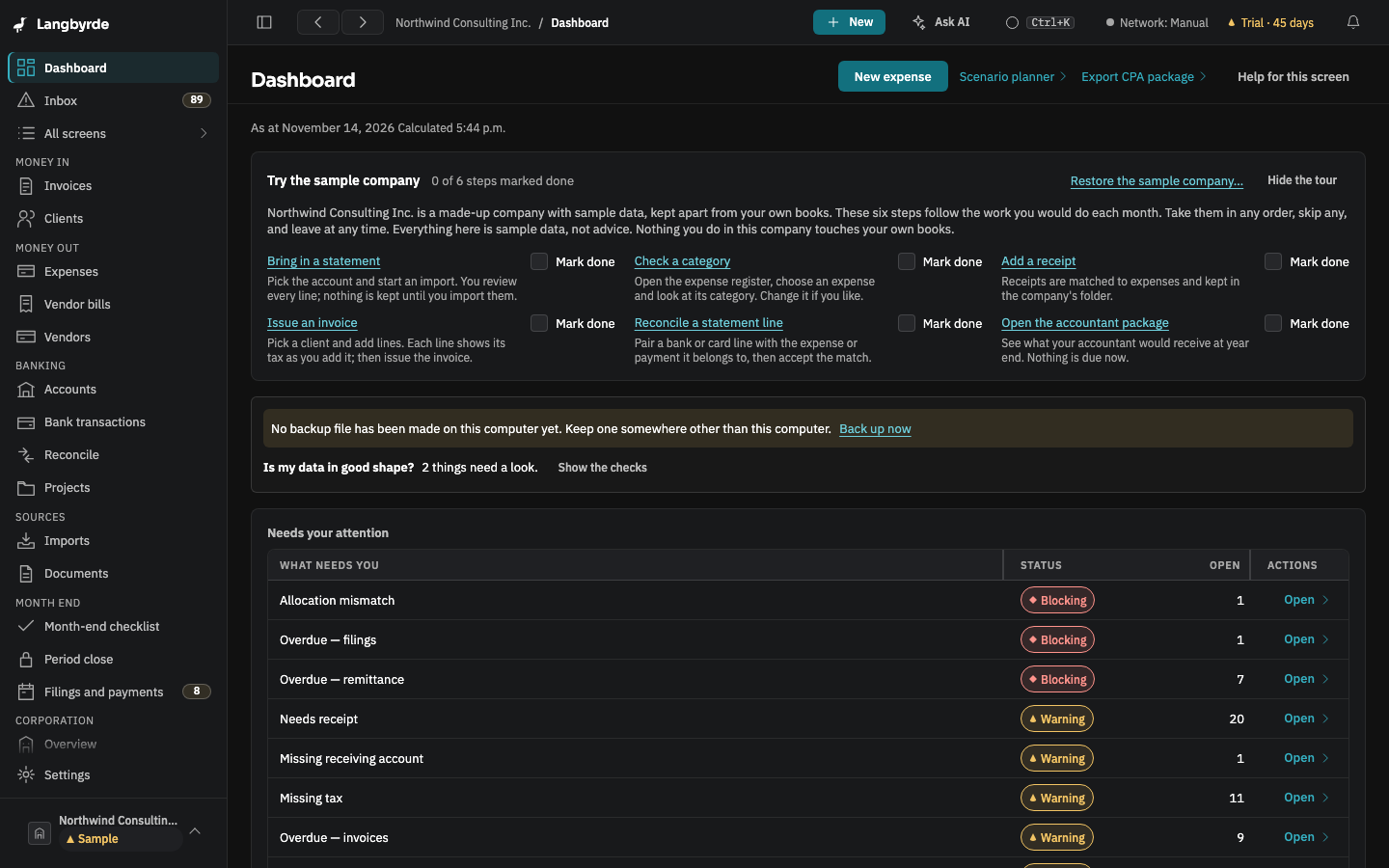
The sample company's dashboard starts with Try the sample company: six steps that follow the work you would do each month. Take them in any order, skip any, and leave at any time:
- Bring in a statement — pick the account and start an import; nothing is kept until you import the lines.
- Check a category — open an expense and look at its category.
- Add a receipt — receipts are matched to expenses and kept in the company's folder.
- Issue an invoice — pick a client, add lines, and see the tax on each line.
- Reconcile a statement line — pair a bank line with its expense or payment and accept the match.
- Open the accountant package — see what your accountant would receive at year end.
Mark done ticks a step; the panel counts how many are done. Hide the tour puts it away. To bring it back, open Help and choose Resume the sample company tour: the steps you marked are kept.
Start the sample again
Everything you change in the sample company can be wiped:
- Choose Settings, then Data location, or Restore the sample company… on the tour.
- Choose Restore sample company… and read what is erased and what is kept.
- Choose Restore sample company.
Every record you added or changed in the sample, and every document you uploaded into it, is erased. Your own companies and folders are not touched. This cannot be undone. If the sample company cannot be reopened at all, Langbyrde creates a new one and keeps the old file.
The sample accountant package
The Langbyrde website has a sample of the package your accountant receives at year end, made from the sample company: the README, the workbook, the report PDFs, the receipts and the fingerprint list, each page marked SAMPLE. It shows what a package holds before you build one of your own; see Exporting a CPA package.
The figures in the sample are made up. Like every figure in Langbyrde, they are estimates for you and your accountant to check; see What the disclaimers mean.