Importing a statement
An import brings a bank or card statement into the company file as a batch of lines. Nothing is kept until you review the batch and commit it.
Before you start
- Add the bank or card account first, under Accounts, so Langbyrde knows which account the statement belongs to.
- Download the statement from your bank as a CSV, OFX, QFX or QIF file, or as the PDF your bank provides where Langbyrde has a reader for it (some RBC, Scotiabank and Wise statements today).
Start an import
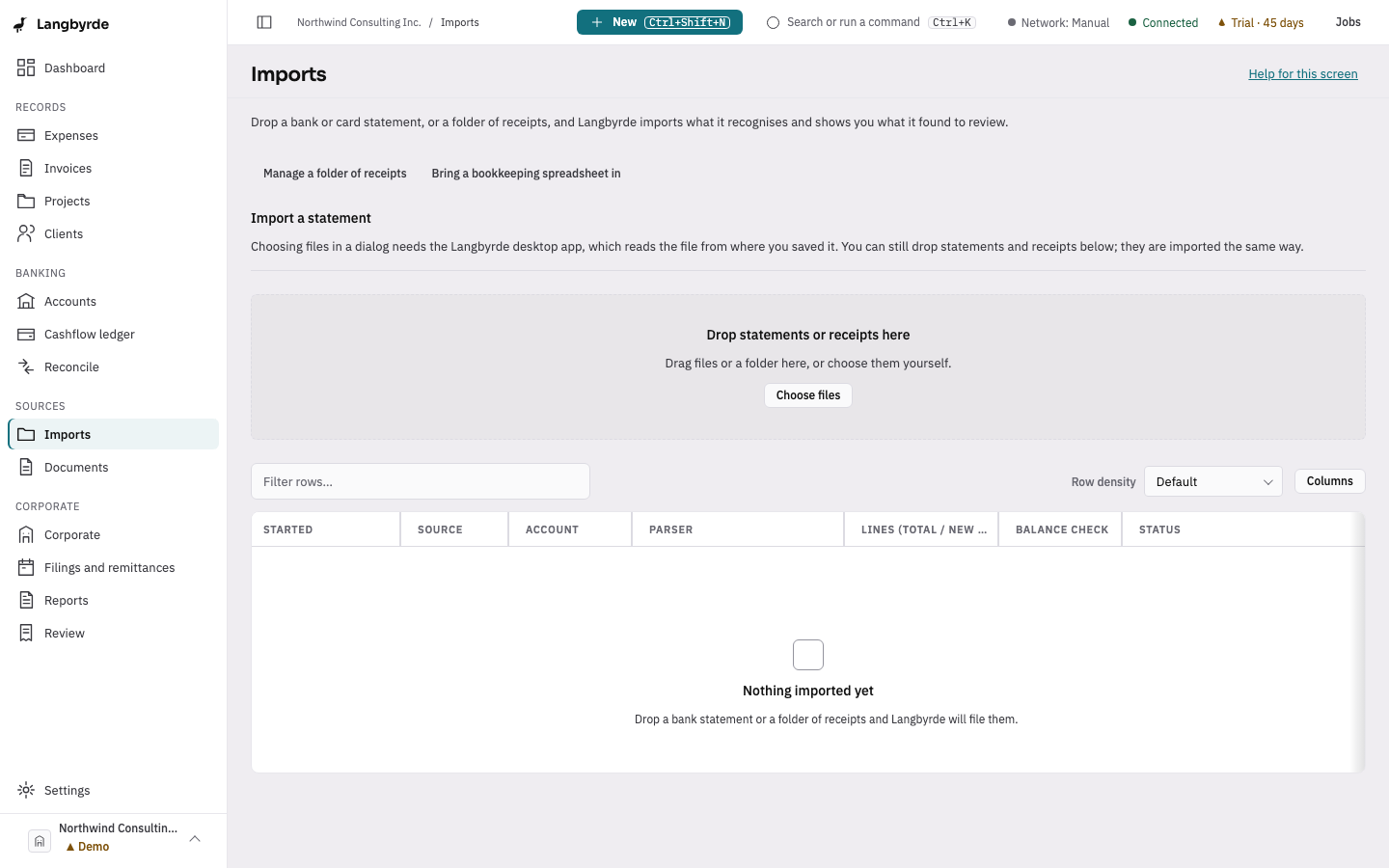
Drag the file in. Drag one or more statement files onto the Langbyrde window, from any screen. The Imports screen opens and imports each file it recognises. If the company has more than one account and Langbyrde cannot tell which one a statement belongs to, it asks: choose the account under Account for these statements, then choose Import 1 statement. Langbyrde remembers the account on this computer for next time. Each file then says how it went: imported, already imported, refused or not recognised. A PDF dragged in is read as a receipt, so import a PDF statement with Start import in the desktop app.
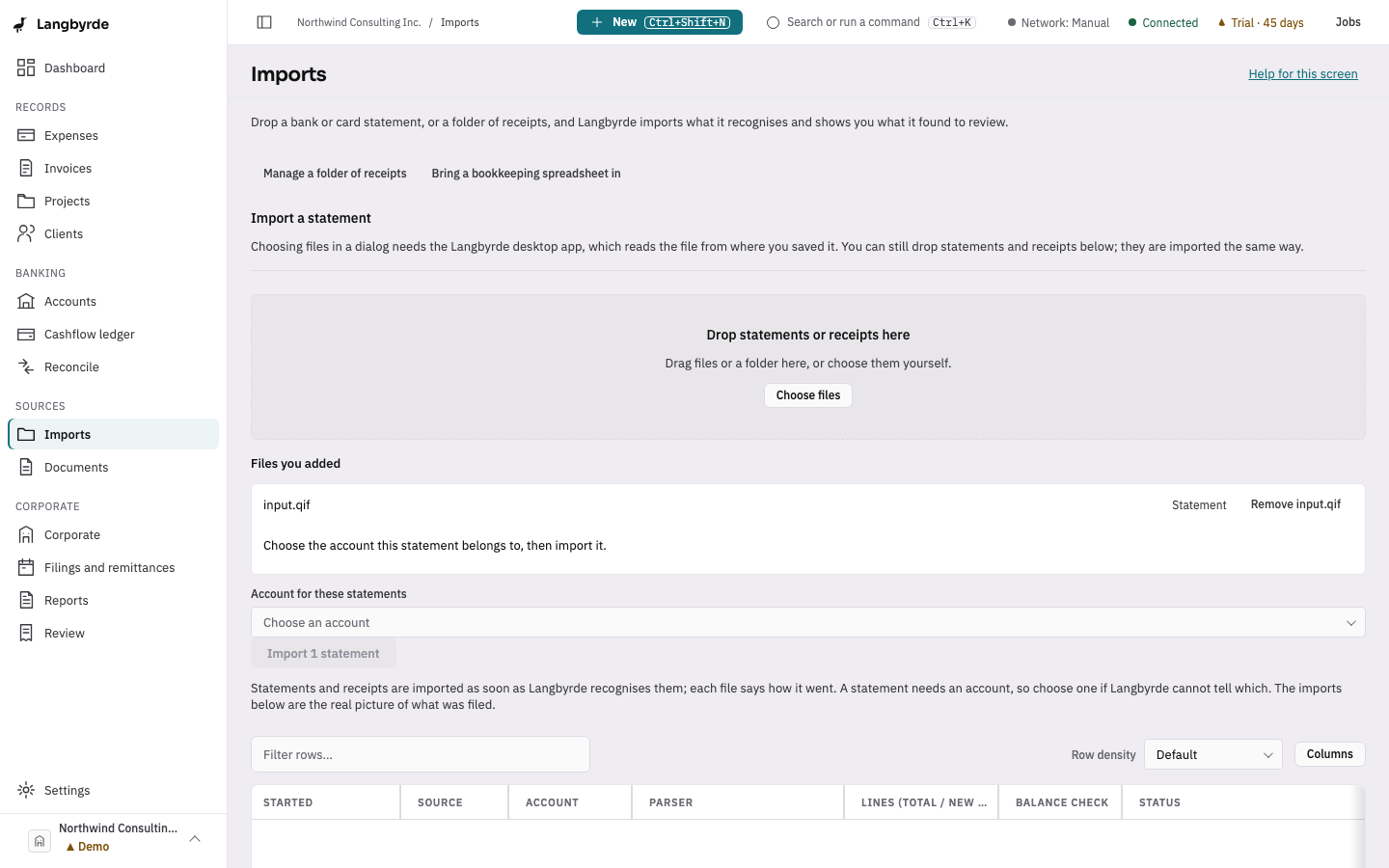
Or pick the file. In the desktop app, choose New in the top bar, then Import a statement (or open Imports from the rail), choose the Account under Import a statement, choose Start import and pick the file.
Then follow the batch in the list below:
- It starts as Parsed while Langbyrde reads the file ("Reading the file…"), works out its layout and sets aside lines it has seen before.
- When it is ready, its status cell offers Review N lines. Choose it to open Review import.
- If a batch stopped before it was ready, its status cell offers Continue import.
If Langbyrde does not recognise the file
When it cannot tell what the file is, the batch's Parser cell says Langbyrde could not tell what this file is — choose the format by hand.
- Pick the Statement format.
- Tick Remember this format for the account next time if this account always sends the same layout.
- Choose Confirm.
For a CSV file with an unfamiliar layout, choose Map columns and say which column is the date, the description and the amount.
Review the batch
Review import shows every line Langbyrde read, marked New, Duplicate or Suspicious. Lines that look like ones already in the company file are flagged as duplicates, so the same statement imported twice does not count twice.
- Check the balance banner at the top. Balances means the statement's opening balance plus the lines equals its closing balance.
- Choose Exclude on any line you do not want, or select several and choose Exclude selected.
- Choose Commit batch. The lines are kept.
If you committed by mistake, Revert takes the batch back out.
If the balances do not agree
Does not balance means the lines between the opening and closing balances do not add up to the difference. Check that you downloaded the whole statement period, then import it again.
What happens next
Committed lines show up in the Cashflow ledger, and the dashboard counts them under Unmatched bank lines until you reconcile them against your expenses, invoices and transfers.