Working with several companies
Updated
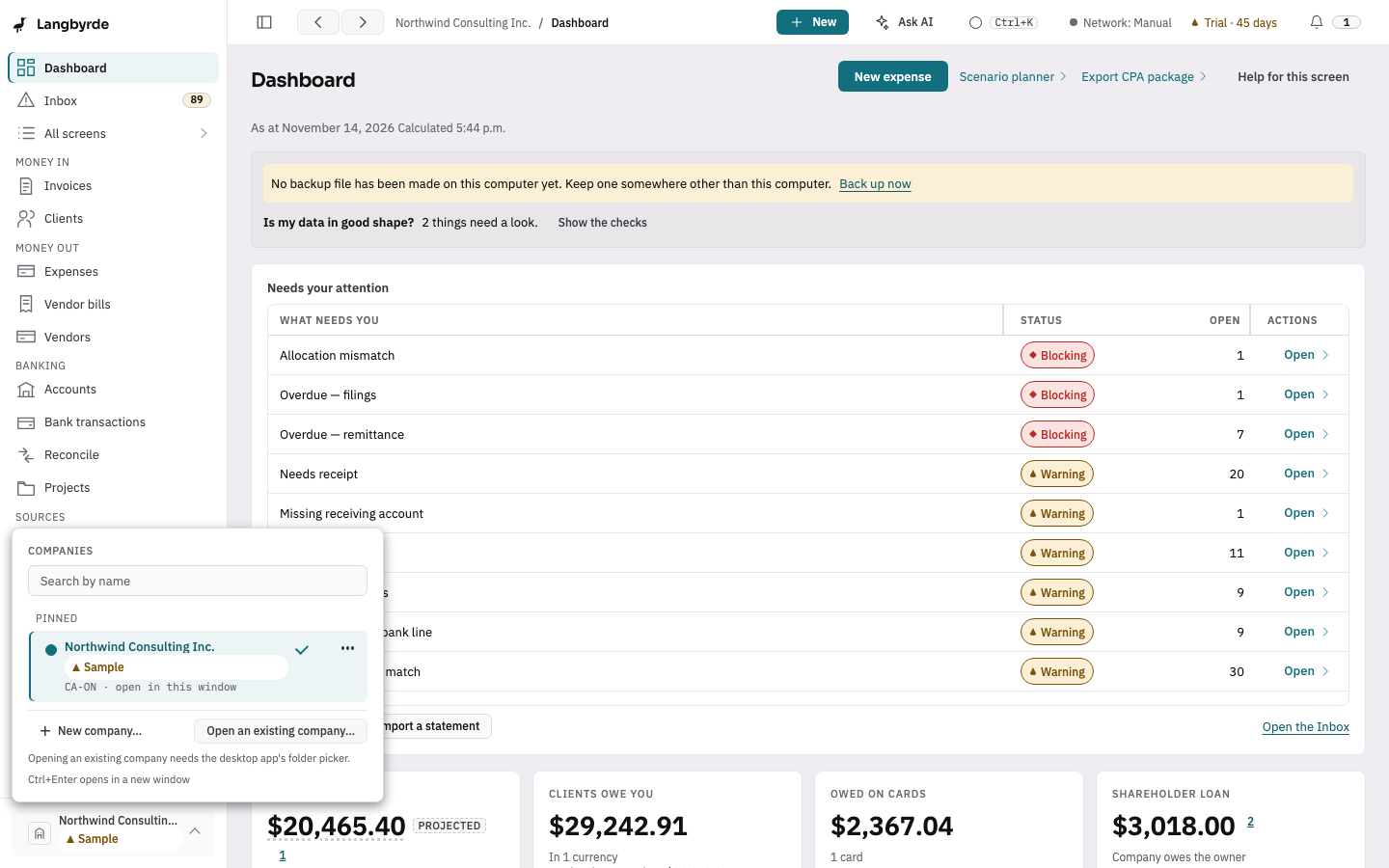
Langbyrde keeps each company in its own file, with its own Company Folder, settings and backups. This walkthrough adds a second company, moves between the two and keeps them apart, using the company switcher at the bottom of the rail.
Before you start
- One company is already open.
- You have the second company's name, its fiscal year and a folder for its documents ready. Each company needs a Company Folder of its own; see Setting up a new company.
1. Add the second company (company switcher)
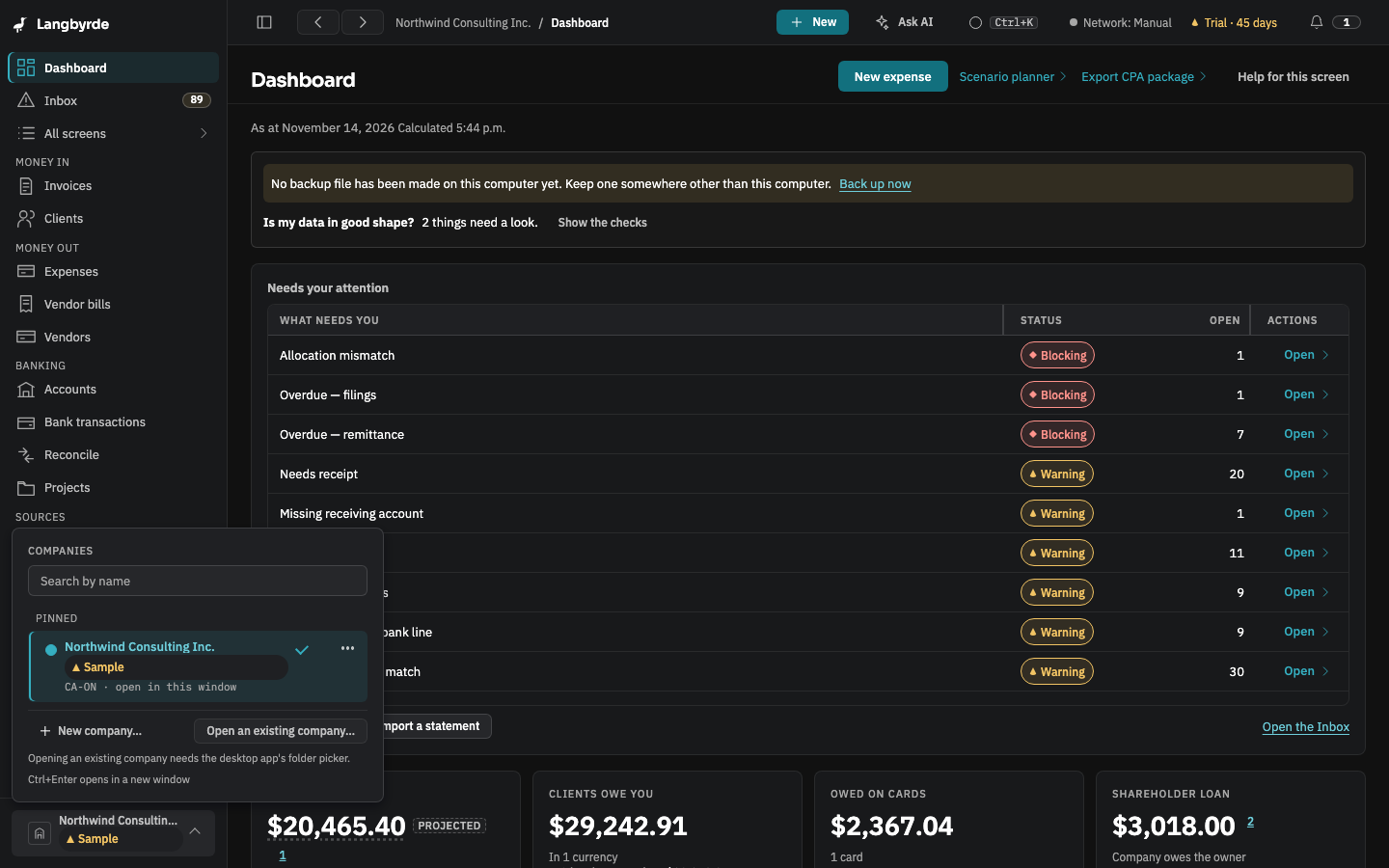
- Choose the company's name at the bottom of the rail. The switcher opens.
- Choose New company…. Setup opens, in three steps.
- Name the company, choose its folder, pick its jurisdiction and fiscal year, and save its recovery kit.
What you should see: the new company opens on its dashboard, with its own Finish setting up list. The first company is unchanged.
If it does not match: a company whose files are already on this computer, such as one you used before, is added with Open an existing company… instead; choose its folder.
2. Move between them (company switcher)
- Choose the company's name at the bottom of the rail.
- Search by name narrows the list. Choose the company to open it.
What you should see: the other company opens in the same window, on its dashboard. The top bar and the switcher name the company you are in, so you always know whose books you are changing.
If it does not match: a company with a problem says so on its row: for example that its database is not where it was, that its Company Folder cannot be reached (the books still open; its documents do not until the folder is back), or that this computer holds no usable keys for it. See When something goes wrong.
3. Keep them apart
- Each company has its own books, Company Folder, backups and recovery kit, and the screens you pin in the rail are kept for each company on this computer. A record you change in one company never reaches the other.
- To keep a company you use often at the top of the list, open its row's More actions and choose Pin to the top.
- The sample company, tagged Sample, is kept apart from your own companies; see Try the sample company.
- To take a company off this computer's list, choose Remove from list… in its More actions. Nothing is deleted: its books and its Company Folder stay on disk, and Open an existing company… brings it back.