Data location
Where this company's documents live, where Langbyrde keeps its own files, and how to erase a company from this computer.
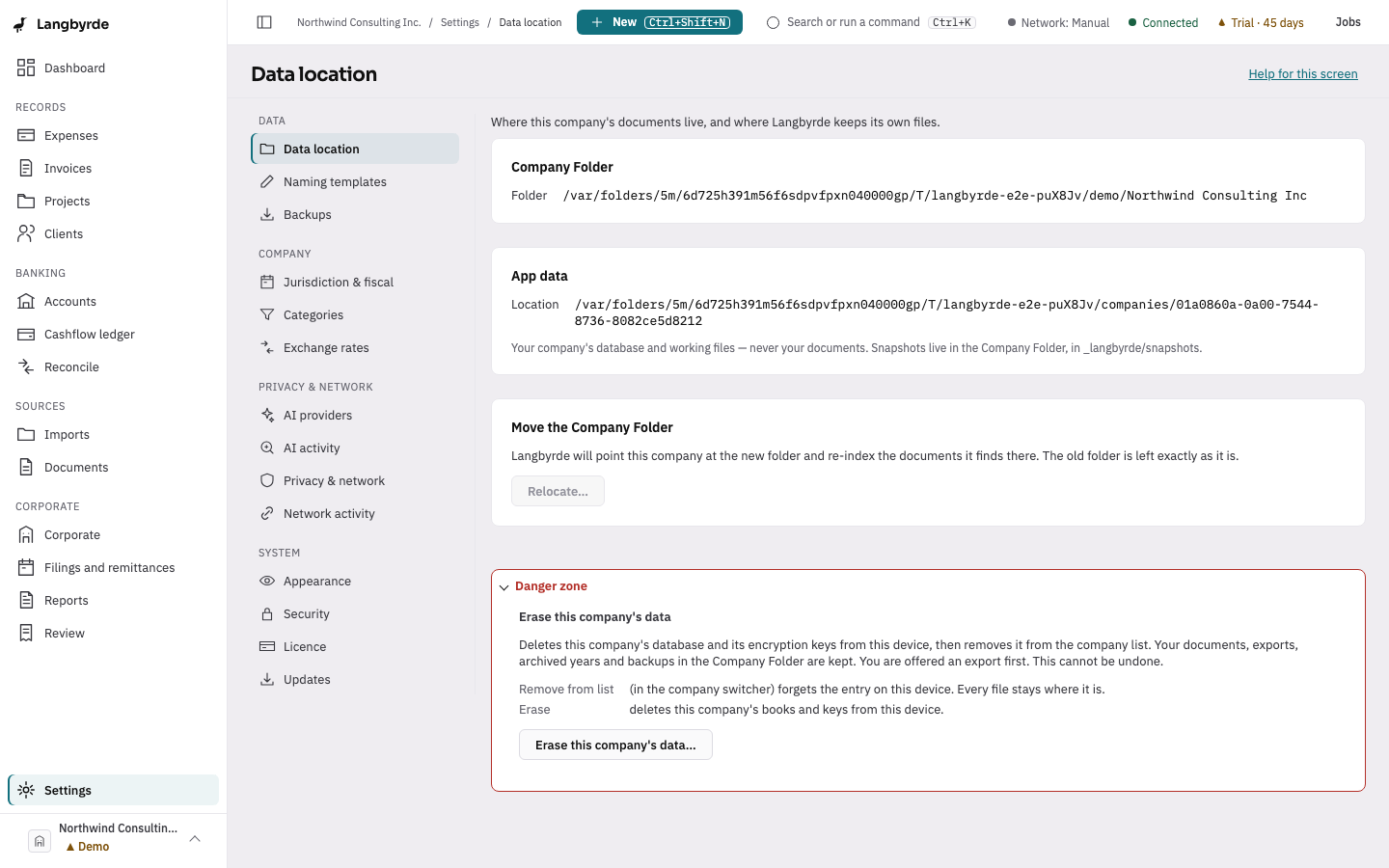
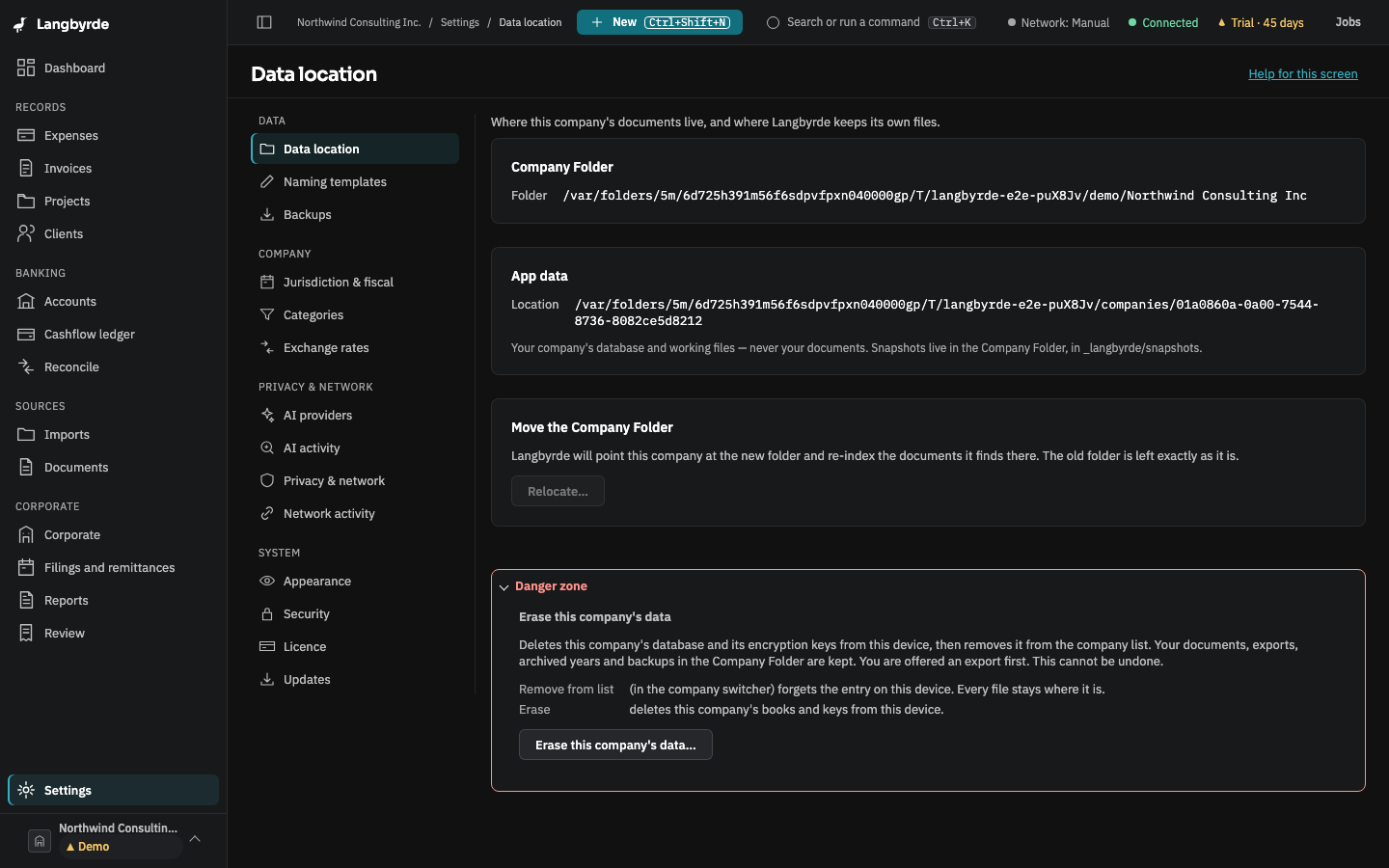
Open Data location
With a company open, choose Settings at the bottom of the rail, then Data location under Data. The page shows the Company Folder's path, with a note when a cloud service such as OneDrive or iCloud keeps it in sync, and the path of Langbyrde's own app data on this computer.
Relocate… points the company at its folder after you have moved the folder yourself. It does not move or change any file. Relocating works in read-only mode too.
Erase a company from this computer
Erasing removes one company's books, settings and keys from this computer. It cannot be undone. Your documents in the Company Folder are never touched, and by default the company's snapshots stay in the folder. Restoring the company from one after its keys are erased needs its recovery kit, and that restore is not in this version yet.
Only the company's owner can erase it, and it works the same in read-only mode.
- On Data location, open Danger zone at the bottom of the page.
- Choose Erase this company's data….
- Step 1 of 3 · Export first. Choose Export now to keep a copy first, then Continue; or choose Continue without exporting.
- If an app lock is set, type your Passcode and choose Continue.
- Step 2 of 3 · Confirm. Read what is erased and what is kept. Two boxes are optional and off:
- Also delete the backups in this folder — deletes this company's encrypted snapshots too. They cannot be restored afterwards, even with the recovery kit.
- Also set the bookkeeping folder aside — renames Langbyrde's
_langbyrdefolder inside the Company Folder so a new company can use the same folder. It renames; it never deletes.
- Type the company's name exactly, and tick I understand this cannot be undone.
- Press and hold Hold to erase for three seconds (or hold
SpaceorEnter). - Step 3 of 3. When it says Erased. The app is ready for a new company., it is done.
If Langbyrde is closed in the middle of an erase, it finishes the erase the next time it starts. Archived years and exports in the Company Folder are always kept.
On a computer where you only want to take the company off the list, without erasing anything, use Remove from list… in the company switcher instead.