When something goes wrong
Common problems and what to do about them. Nothing on this page deletes anything; if you are unsure, take a snapshot first under Settings › Backups.
A statement is stuck in review
Each batch's status cell says what to do next.
- Review N lines — the batch is ready: choose it, check the lines, then Commit batch.
- Continue import — the batch stopped before it was ready: choose it to carry on.
- Reading the file… for more than a minute — look at the batch's Parser cell. If it says Langbyrde could not tell what the file is, choose the Statement format, tick Remember this format for the account next time if you like, and choose Confirm. A batch with No account needs to be imported again with its account chosen.
- Failed — choose Retry. If that does not help, check that the file is the statement itself (CSV, OFX, QFX, QIF, or a PDF from a bank Langbyrde reads) and import it again.
It says Does not balance. The statement's lines do not add up to the difference between its opening and closing balances. Usually a page or a few days are missing: download the whole statement period again and import that file.
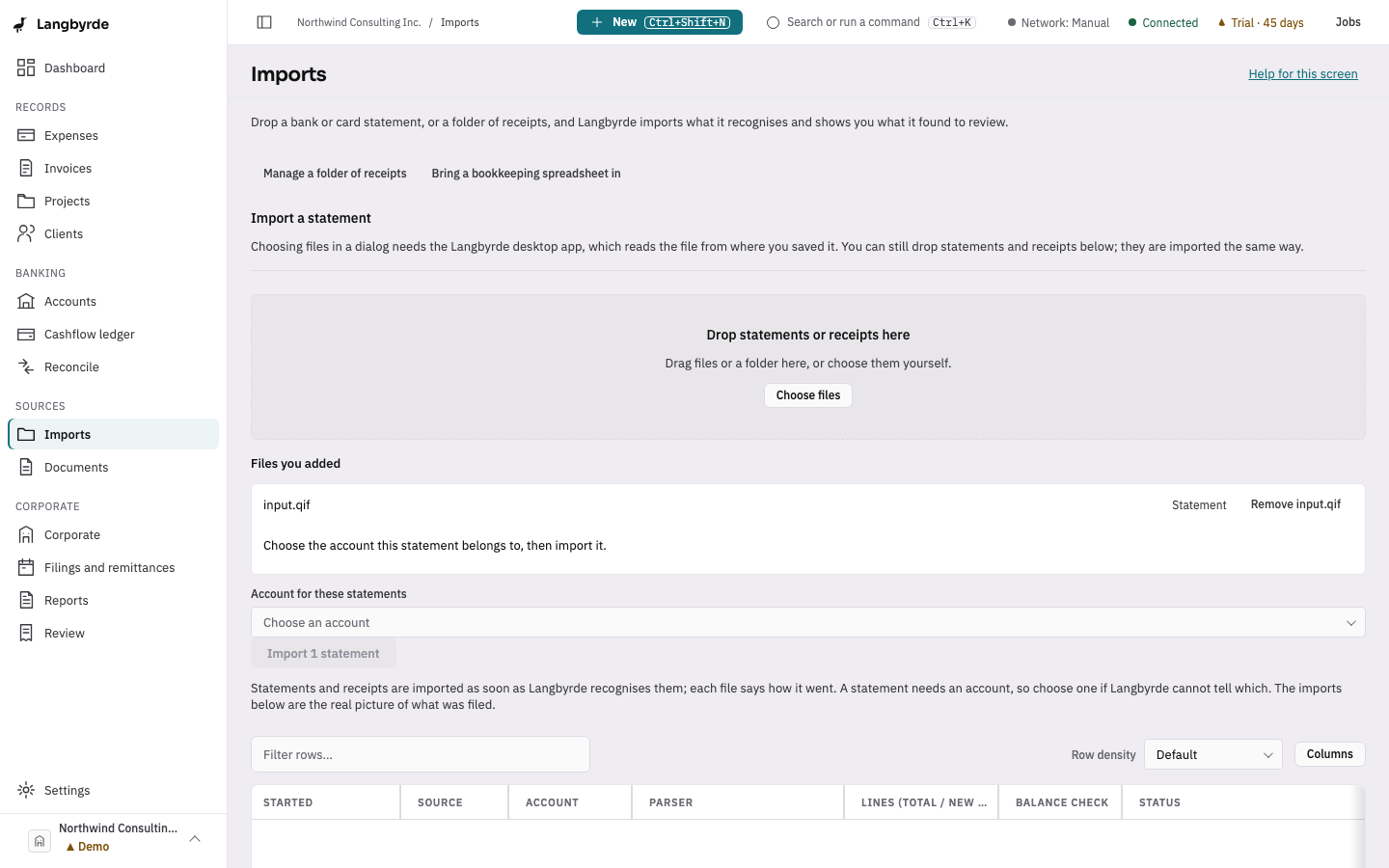
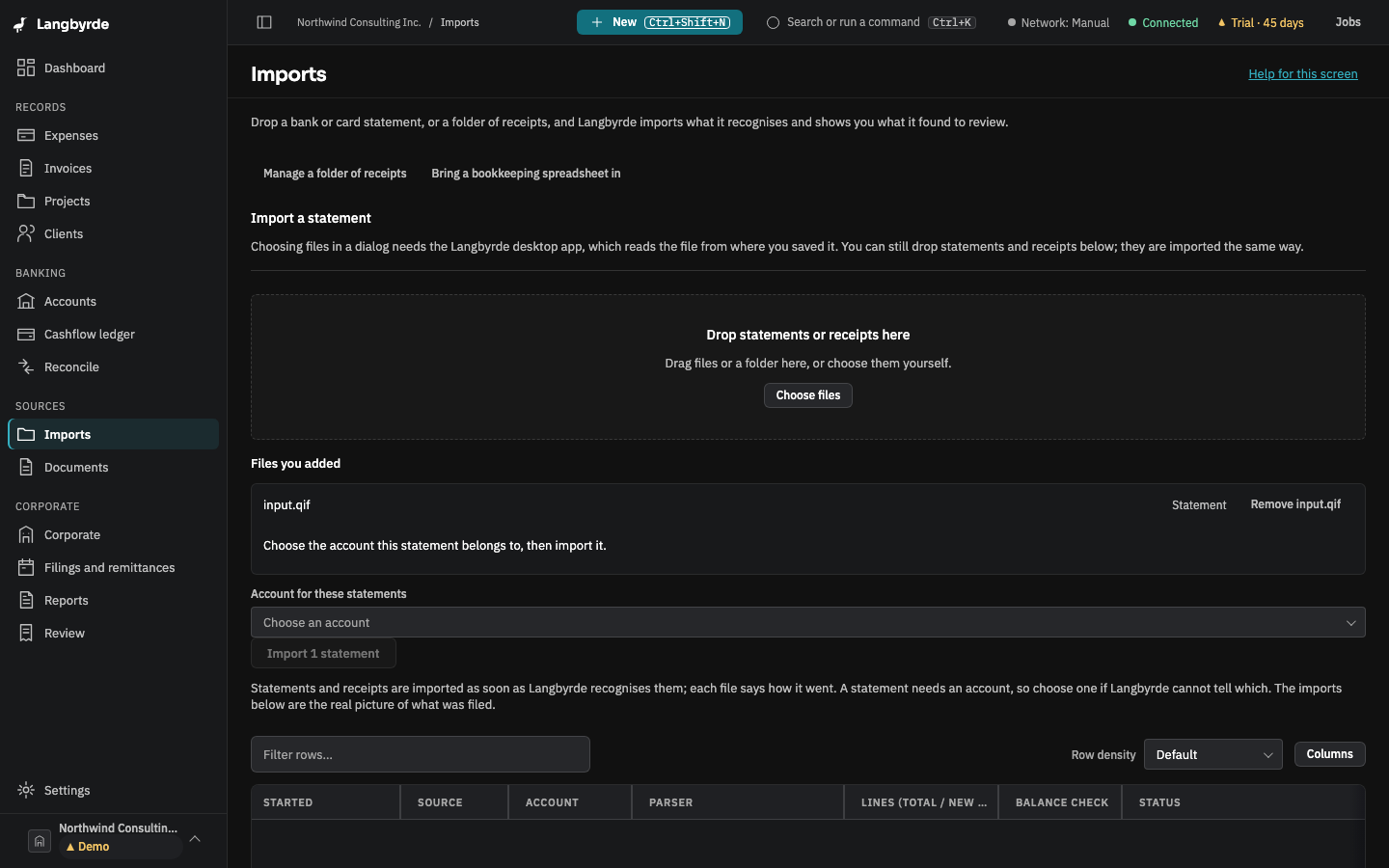
I dropped a file on the window and it is waiting. When the company has more than one account, Langbyrde asks which one the statement belongs to: choose it under Account for these statements and choose Import 1 statement. A PDF dropped on the window is read as a receipt; import a PDF statement with Start import in the desktop app. See Importing a statement.
A company will not open
- "Needs a newer Langbyrde". The company was last opened with a newer version. Install that version or a later one; an older version never changes a newer company file.
- The folder was moved or renamed. Open the company switcher at the bottom of the rail; a company with a problem offers Locate folder…. Point it at the folder's new place. Nothing in the folder is changed.
- It was opened on another computer that is gone. Use Open an existing company… on the Welcome screen and pick the Company Folder. If the company's sensitive details are encrypted, this computer cannot read them yet: opening them on a new computer with the recovery kit is not in this version. Keep the kit; that step will need it.
- The app is locked. Type your passcode, or choose I forgot my passcode and use your recovery kit; see Security.
- An update's self-check found a problem. The company still opens for reading and exporting. See the next section.
I rolled back an update, or want to
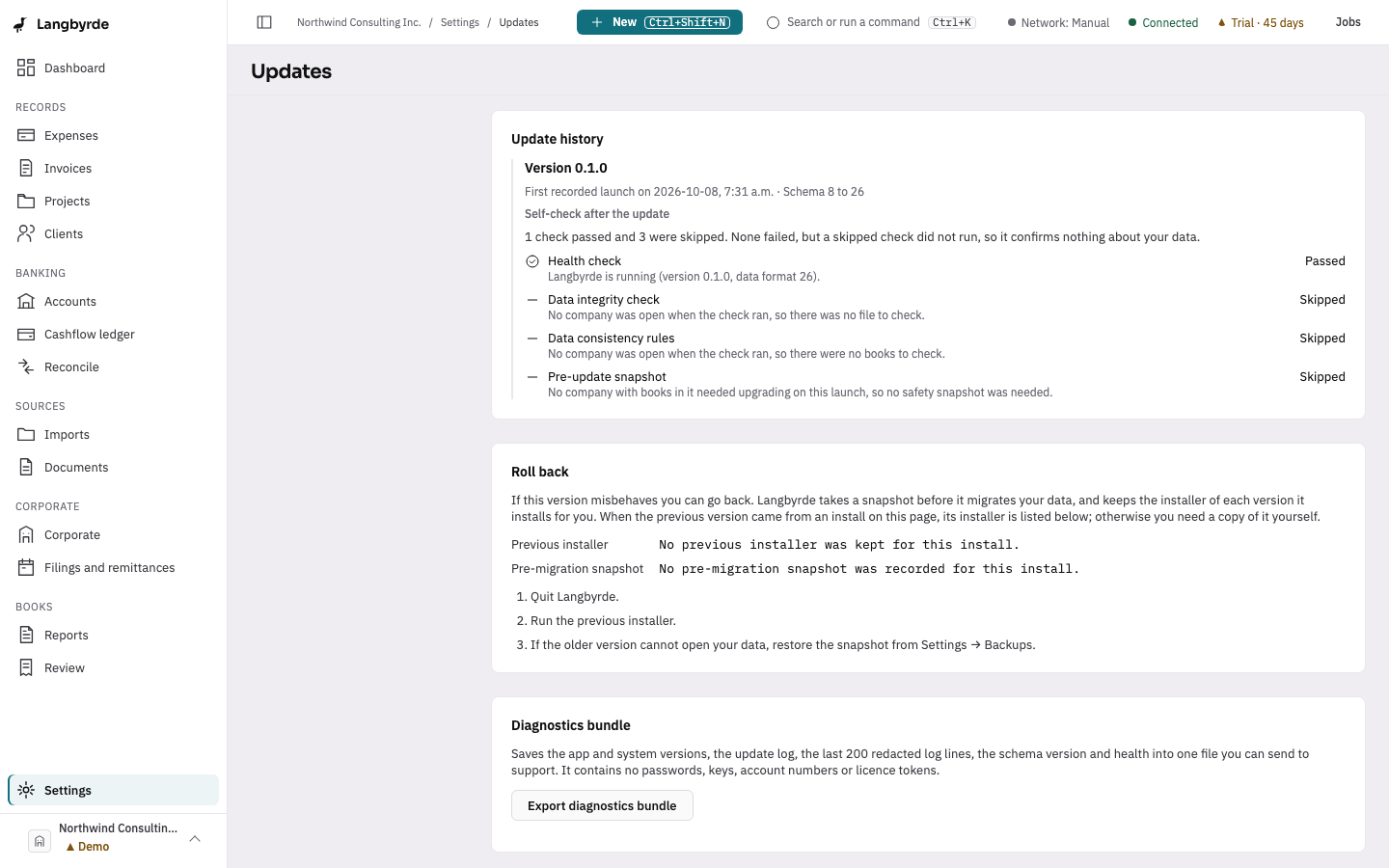
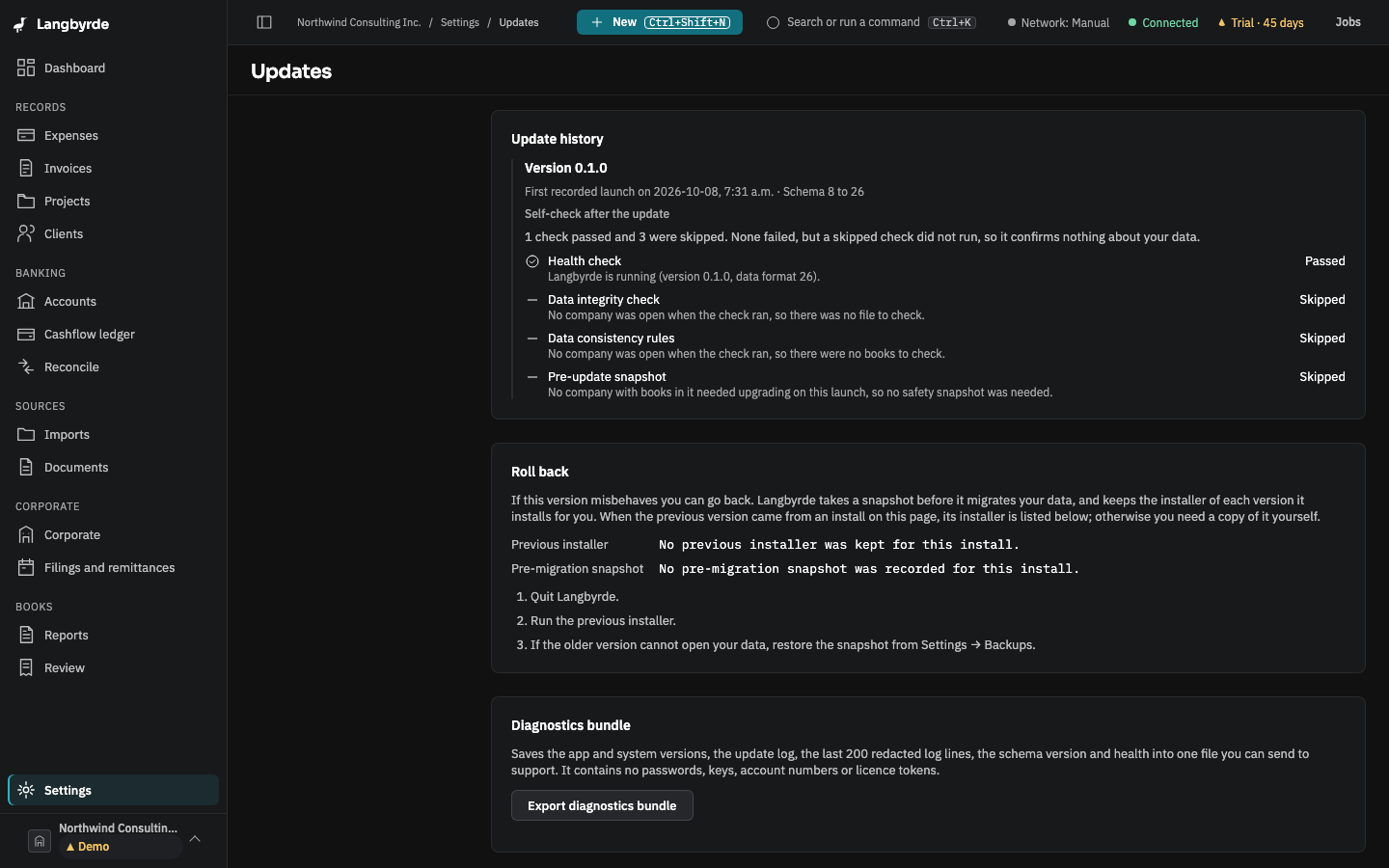
Open Settings › Updates and read Roll back:
- If it says No pre-migration snapshot was recorded, the update did not change your data: quit Langbyrde and run the previous installer. Nothing needs restoring.
- If it lists a Pre-migration snapshot, the previous version cannot open your data. Do not run an older installer: it refuses the newer data and changes nothing. Instead, on this version, restore the Before an update snapshot under Settings › Backups. Entries made since the update are replaced, and kept in a Before a restore snapshot.
If you already ran an older installer and it says the company needs a newer Langbyrde, install the newer version again: your data is intact.
 See Backups and restore.
The text is too small, or too big
- Press
Ctrland+(⌘and+on a Mac) to make it bigger,Ctrland-to make it smaller, andCtrl+0to go back to 100 %. - Or choose Settings › Appearance and pick Large (115 %) or Extra large (130 %).
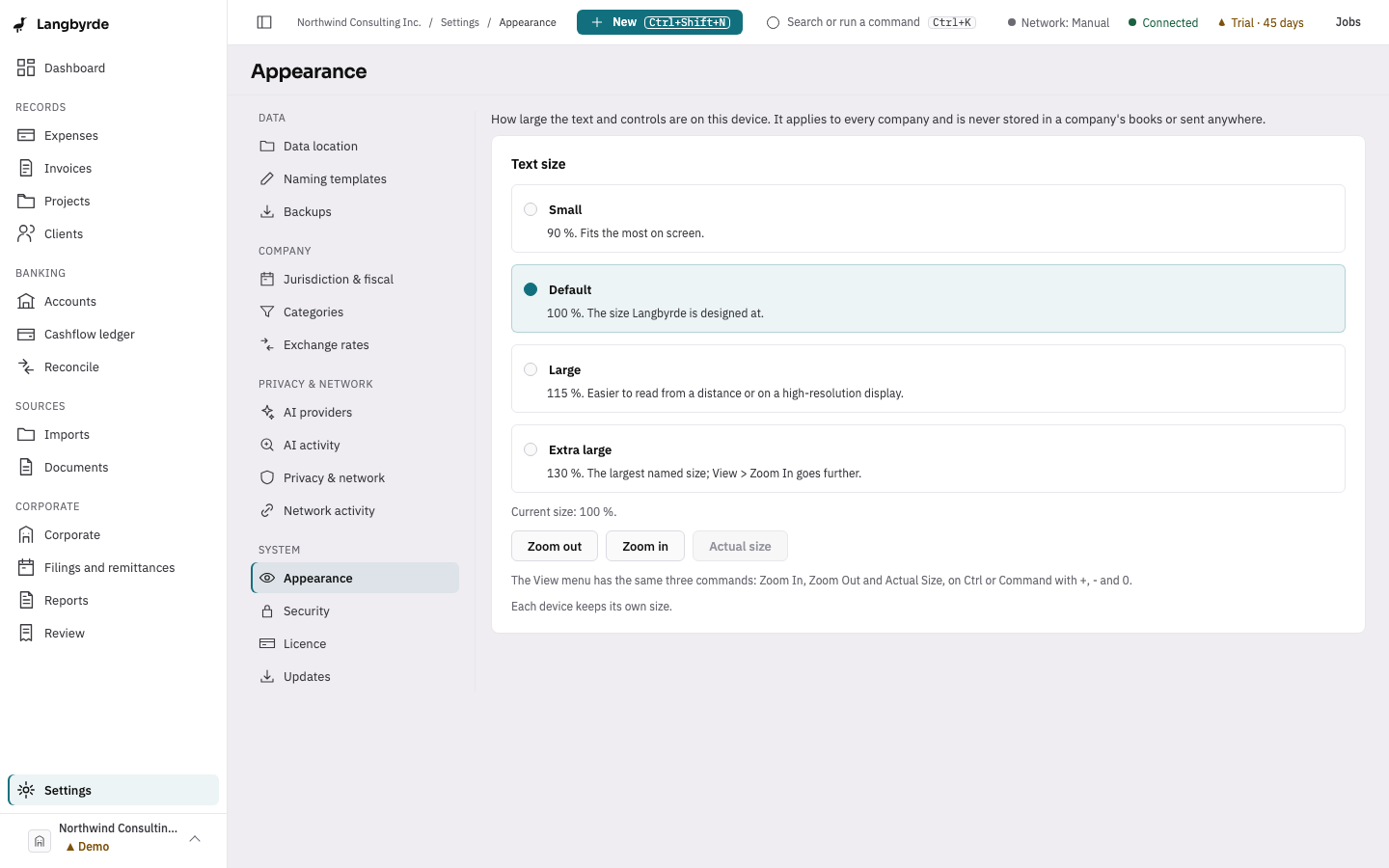
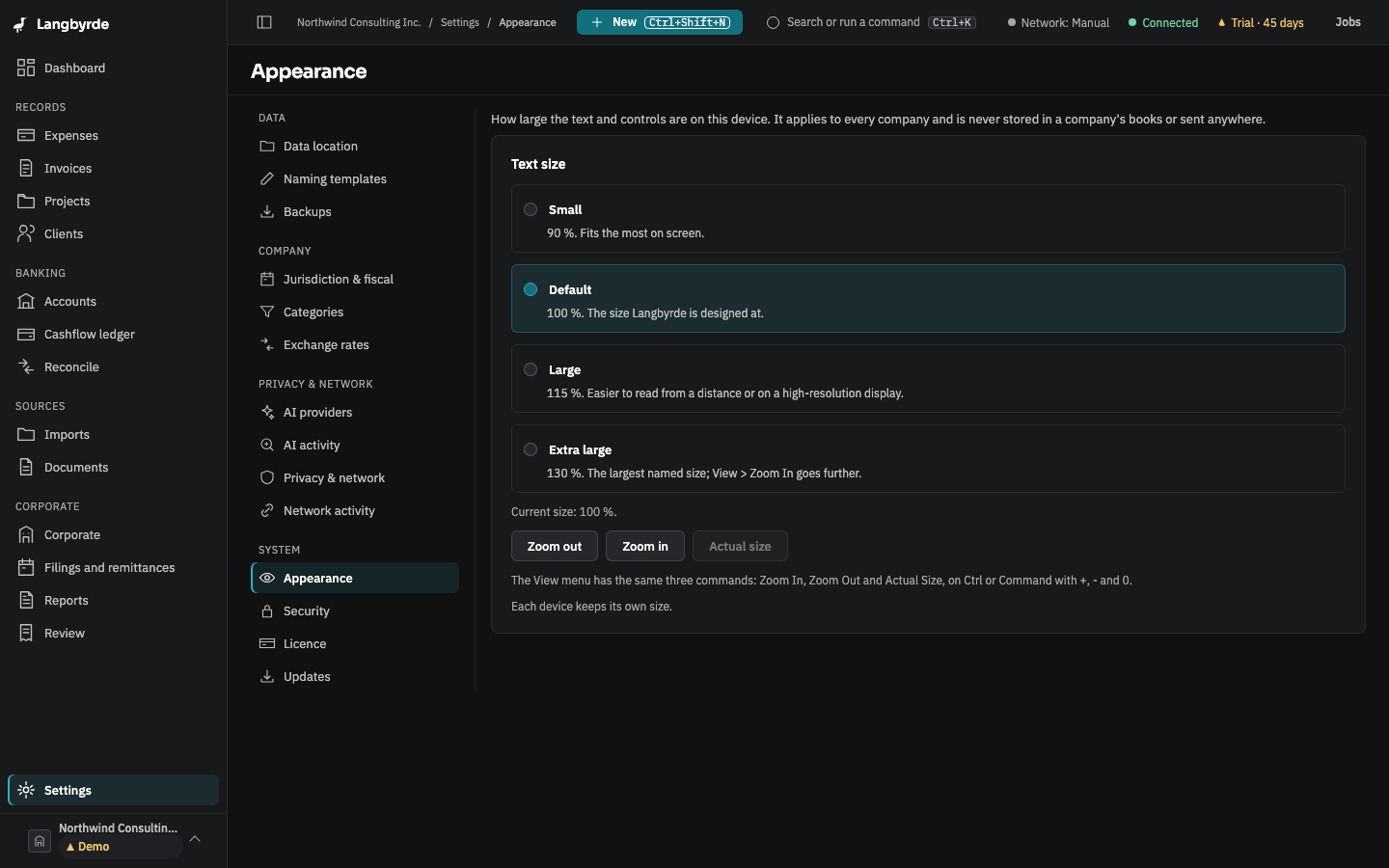
The size is kept on this computer. At larger sizes the rail shrinks to icons in a narrow window; choose the button at the top left of the window to open it again. See Appearance.
I cannot find a screen
The rail lists the main areas. Everything else is one search away: press Ctrl+K (⌘K) and type its name, for example Vendors, Transfers, Statement sign-off or Period close.
The New menu or a button is greyed out
The licence is probably in read-only mode: the trial of 45 days has ended without a licence on this computer. Reading, exporting, printing and backups still work. See Licence and read-only mode. Some actions also need a company open, or need you to be the company's owner.
Something else
Settings › Updates › Export diagnostics bundle saves a file you can send to support. It holds no passwords, keys, account numbers or licence tokens, and nothing is sent unless you send it yourself.