Reading receipts on this computer
When you add a receipt, Langbyrde reads it on your computer. It needs no internet connection and no AI provider. What it reads is a proposal: you check it, and nothing becomes an expense until you accept it.
What happens when you add a receipt
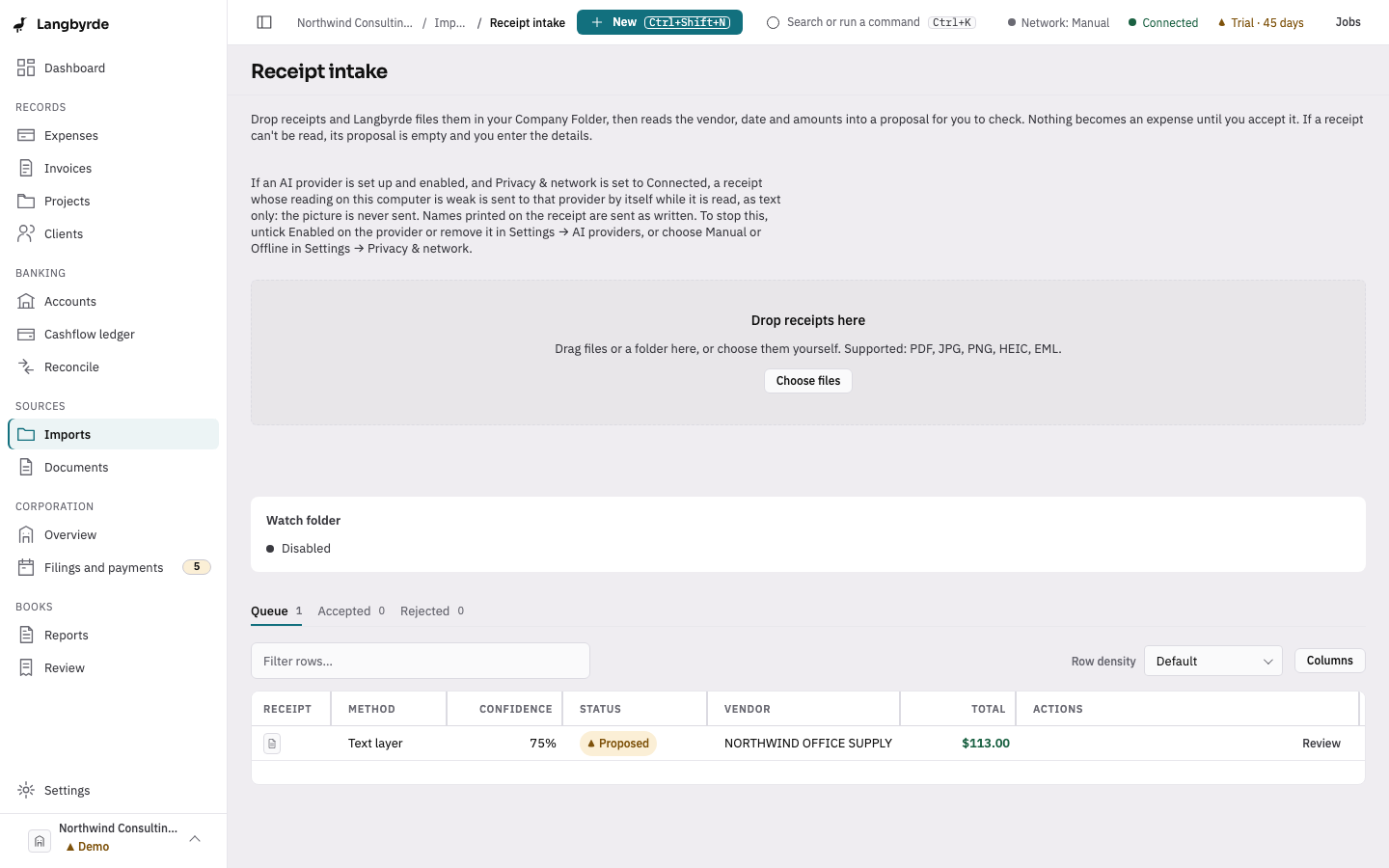
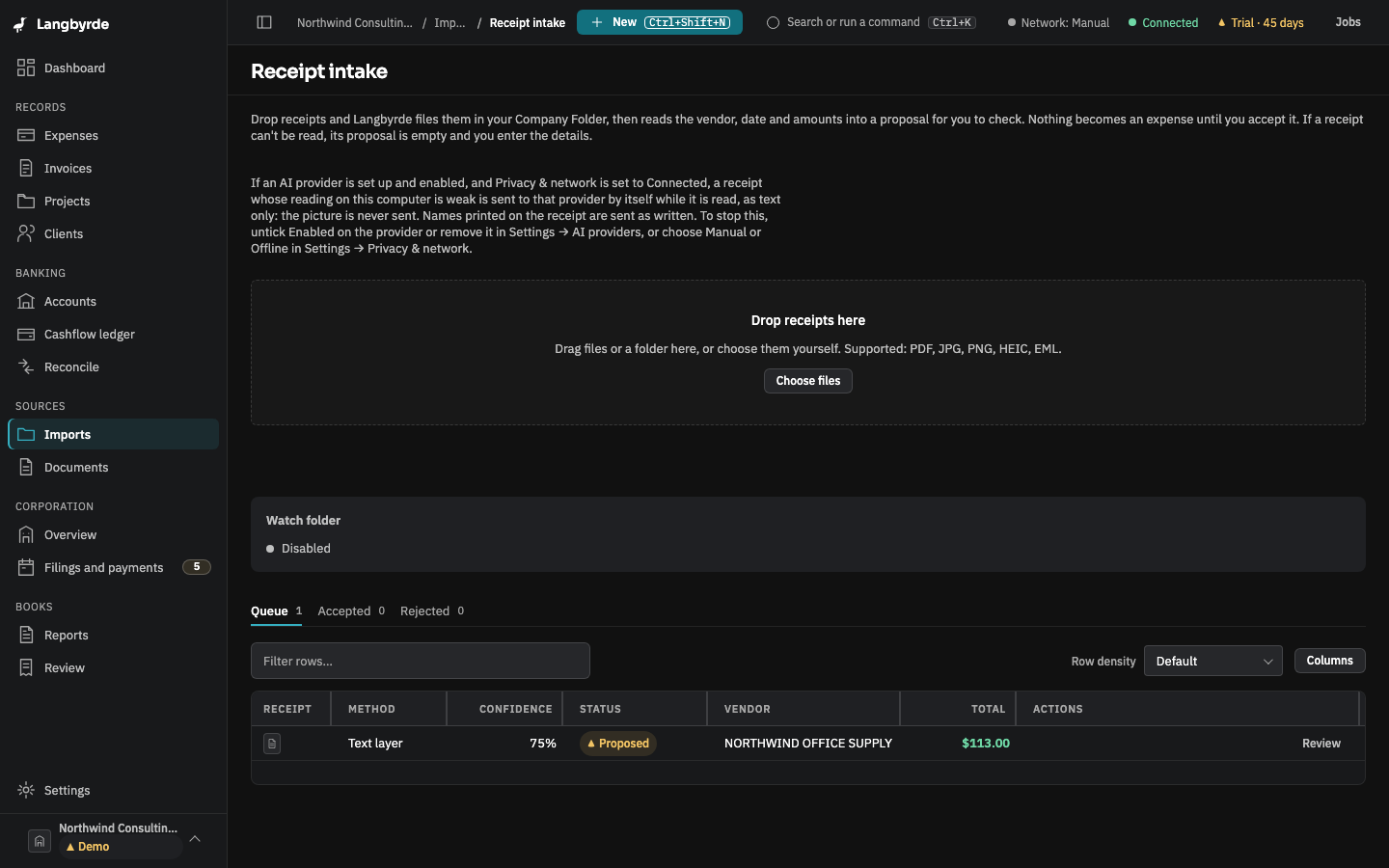
- Choose New in the top bar, then Expenses from receipts. Receipt intake opens.
- Drop the files on it or choose Choose files. PDF, JPG, PNG, HEIC and EML files are accepted.
- Each new file is filed in your Company Folder. A file you have already added is not filed twice.
- Langbyrde reads each new file in the background, on this computer. While it works, the screen says Reading the receipts you dropped…
- The file appears in the Queue with what was read: the vendor, the total, how it was read (Method) and how sure the reading is (Confidence).
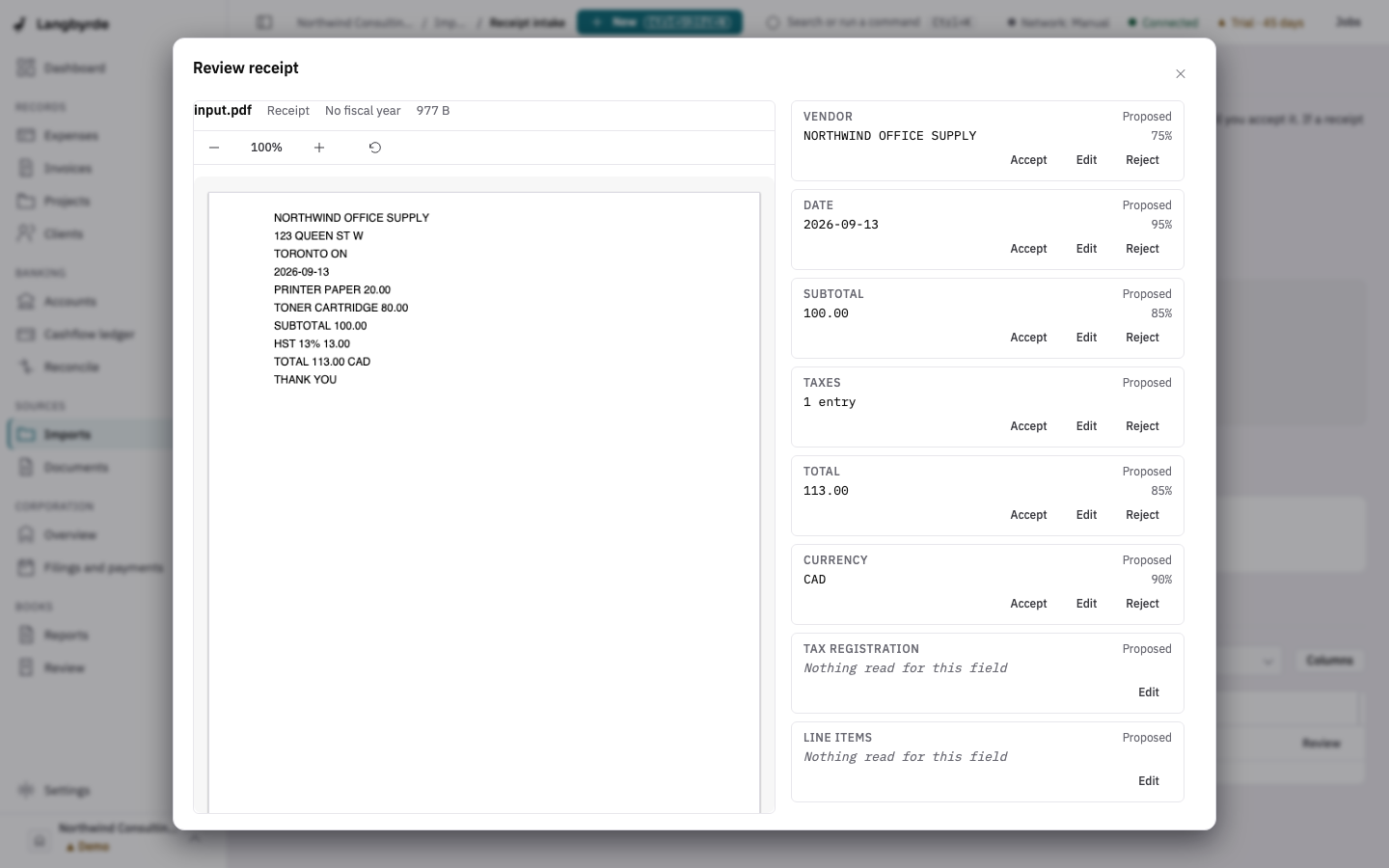
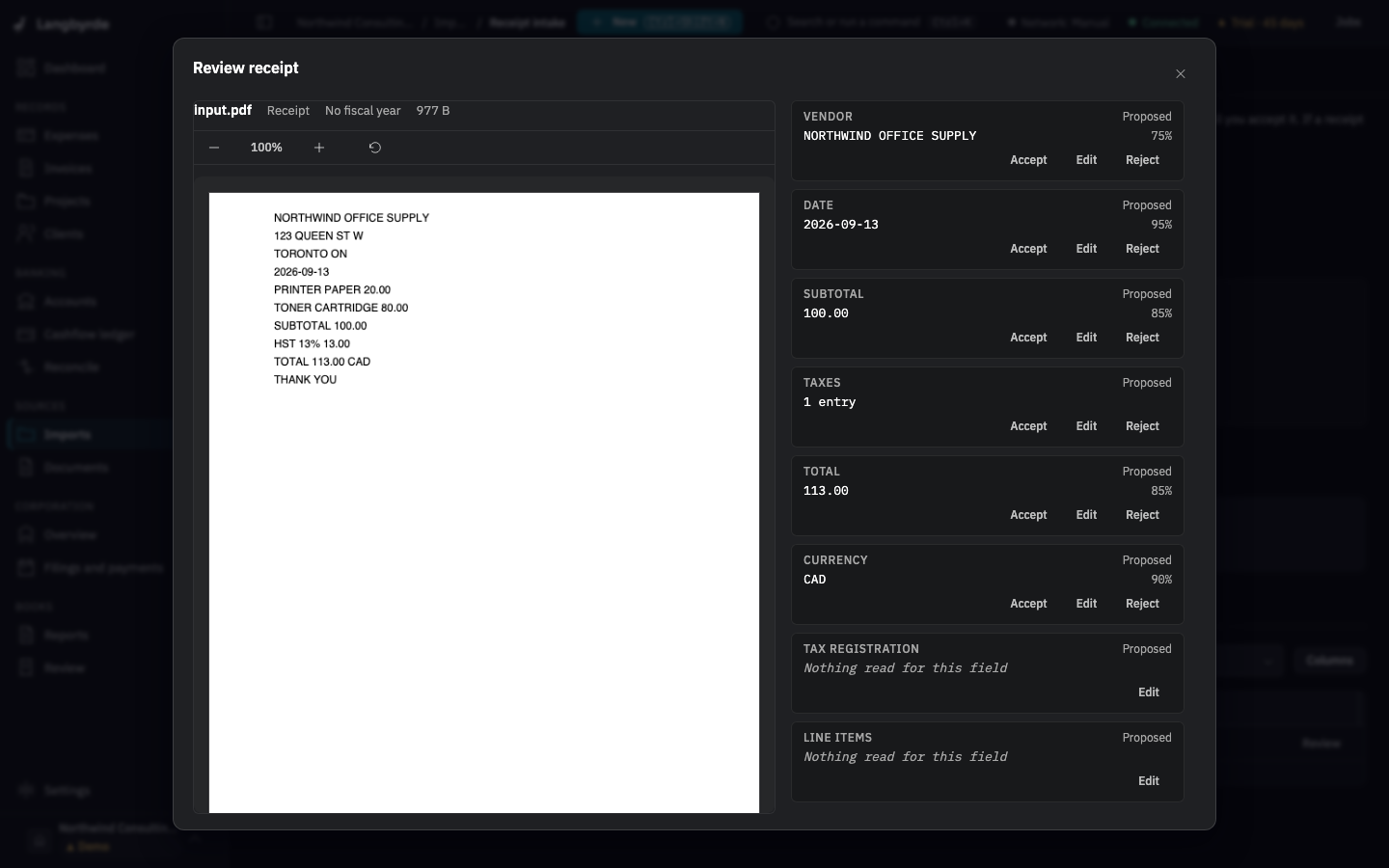
- Choose Review. Check each field against the receipt beside it and choose Accept, Edit or Reject. Then choose a Category and Paid with, and choose Accept extraction.
Langbyrde then creates a draft expense with those values for you to finish. See Recording an expense.
How the text is read
- A PDF with text in it, such as an invoice a supplier e-mailed you, is read from its own text. This is exact, and it works on a Mac and on Windows.
- A photo (JPG, PNG or HEIC) is read by text recognition on this computer. A HEIC photo from a phone is converted on this computer first.
- On a Mac, the text recognition is the one built into macOS. Langbyrde reaches it through a small helper that comes with the app.
- On Windows, the text recognition is the one built into Windows. It has been checked on one Windows computer so far. It needs the text-recognition part of a language you use in Windows; most English installations have it. Without it, the queue says No picture reader on this computer. Some JPG photos, often ones saved from a web page, cannot be read on Windows yet; save the photo again as a PNG and add that copy.
- A PDF made only of pictures, such as a scan saved as a PDF, usually cannot be read yet: the part that turns its pages into pictures is not included with Langbyrde. Add a photo of the receipt, or save the scan as a JPG or PNG, instead.
- An EML file (a saved e-mail) is filed, and its attachments are filed and read. The text of the e-mail itself is not read.
The review panel says how a receipt was read, for example Read on this computer, using on-device OCR or using the document's own text layer.
What the pattern rules pick out
Once there is text, a set of fixed rules picks out the fields. The same text always gives the same reading.
- Vendor: the first line of words at the top of the receipt. Lines that are mostly numbers, addresses, web addresses, store numbers and banners such as "Customer copy" are skipped.
- Date: the date printed on the receipt. A date such as 2026-03-14, or one with the month spelled out, is read with confidence. A date such as 03/04/2026, which could be read either way, is read month first and marked for checking.
- Subtotal and Total: the figures beside those words. With no line labelled total, the card or debit line is taken instead, and failing that the largest figure, each marked for checking. A total that the card line does not agree with, such as after a tip, is marked too.
- Taxes: each tax line as printed, such as GST, HST, PST, QST, TPS, TVQ or VAT, with its rate when one is printed.
- Currency: a printed code such as CAD or USD, or a symbol that names only one currency.
- Tax registration: the supplier's GST/HST or Quebec registration number when it is printed.
The rules never calculate. They do not add a subtotal and a tax to make a total, and they do not correct a receipt that does not add up. A difference is left for you to see. Line items are not picked out by the rules.
How sure the reading is
Each field has its own confidence. A field marked Low-confidence suggestion: check it is the one to look at first. The receipt's overall confidence, shown in the queue, is the lowest of its vendor, date and total. A field the rules could not find shows Nothing read for this field; nothing is guessed to fill it.
When nothing could be read
A receipt with nothing read still appears in the queue, with every field empty and a note under What happened:
- No picture reader on this computer. The photo needs text recognition, and this computer has none Langbyrde can use.
- The file could not be opened. It may be damaged, an unsupported kind, or too large.
- The reader failed on this file. Text recognition stopped, or did not answer in time.
- Text was read but nothing matched. No vendor, date or amount could be picked out.
- No text found. The receipt may be blank, blurry or too dark.
- This PDF has no text. The PDF is made of pictures and there is nothing on this computer to read them.
In each case, type the details yourself in the review, or add a clearer copy. You do not need an AI provider to fix any of these.
What works offline and with no AI provider
Everything on this page. Filing, reading and the pattern rules all happen on this computer, in every network setting, including Offline. With no AI provider enabled, nothing about the receipt leaves your computer.
If you have connected your own AI provider, the network setting is Connected, and a reading is weak, Langbyrde may send that provider the text that was read, by itself and without a separate click, after replacing the numbers and contact details it recognises. Names of people printed on the receipt are sent as written. It never sends the picture. If the provider fails to answer, the receipt keeps the reading made on this computer and the review says AI help was unavailable. See AI providers: what they do and what is sent.
What it does not do yet
- Watch folder does not pick up files yet. Drop the files on Receipt intake.
- The New expense drawer does not read a receipt. Drop the receipt on Receipt intake and accept its reading instead.
- There is no way to read a receipt again. To try again, add a clearer copy.
- The picture of a receipt is never sent to an AI provider in this version.
Tips for a good photo
- Lay the receipt flat and take the photo straight on, not at an angle.
- Use good, even light, with no shadow or glare across the print.
- Keep the whole receipt in the picture, from the shop's name to the total.
- Hold still, so the print is sharp. One receipt per photo.
- A faded receipt reads badly. Photograph it soon after the purchase.
- When the supplier offers a PDF invoice, use it: its own text is read exactly.
Every value read from a receipt is a suggestion until you accept it; see What the disclaimers mean.