Reconciling
Reconciling pairs each imported statement line with the record it belongs to: an expense, an invoice payment, a payroll run or a transfer between your own accounts. When every line is paired, the books and the bank agree.
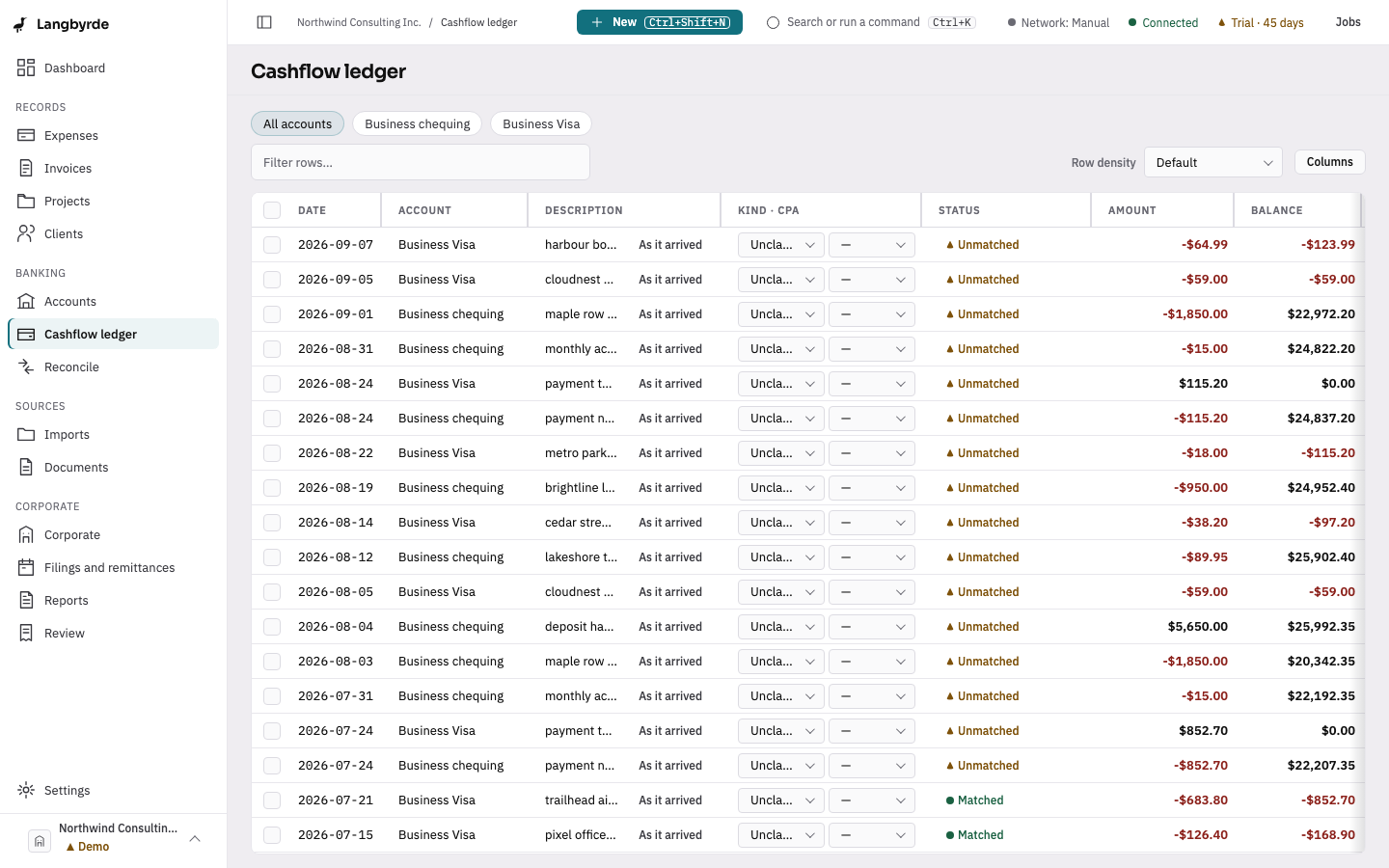
There are two ways to do it: accept many suggestions at once on the Cashflow ledger, then work through what is left one line at a time on Reconcile.
Accept several suggestions at once
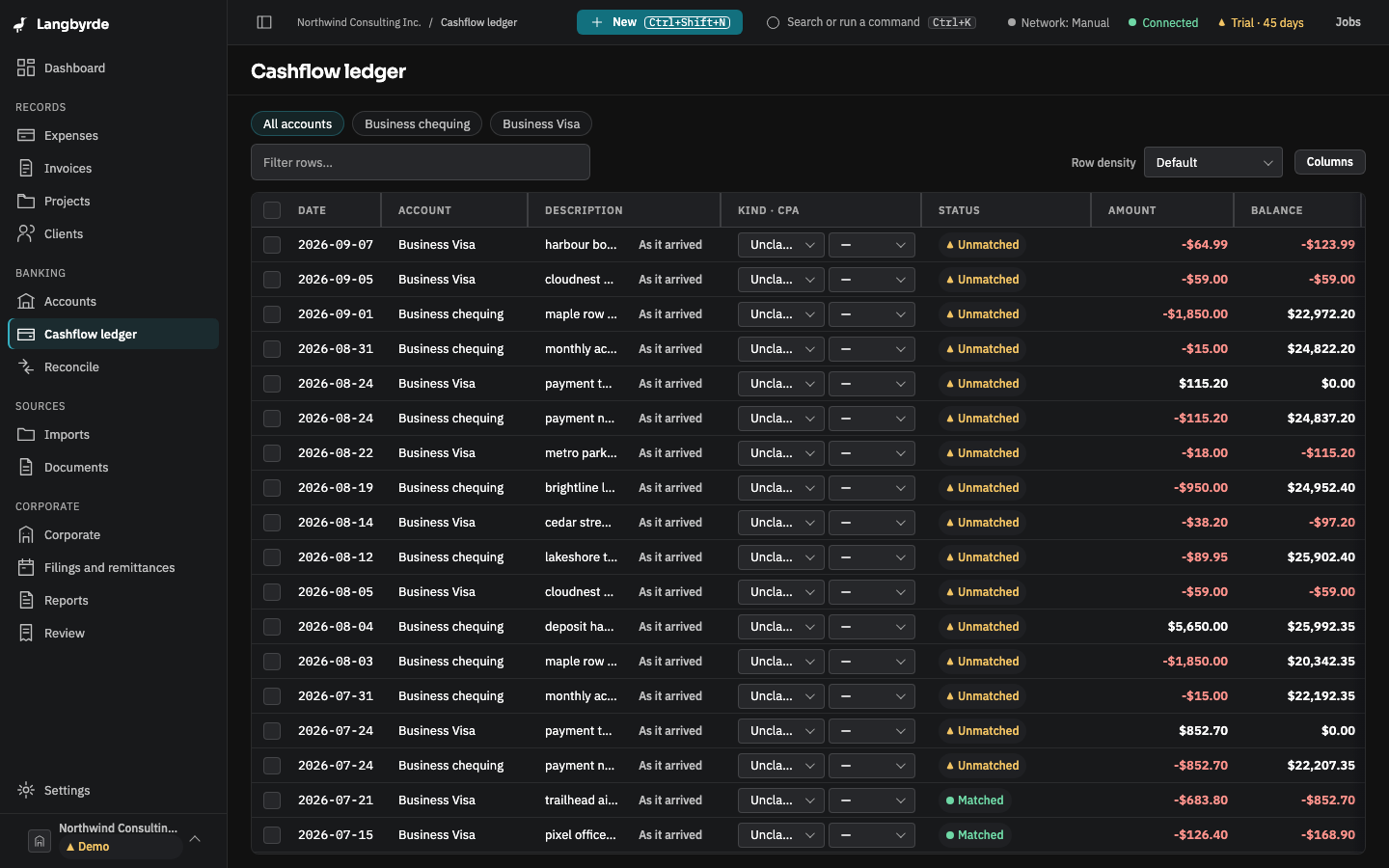
- Open Cashflow ledger from the rail, under Banking.
- Tick the lines you want, or tick the box in the header to select every line shown.
- Choose Accept N suggestions… in the bar that appears. Only the selected lines that have exactly one suggested match count.
- Accept these suggestions lists each line with the record it would be matched to, the amount and how confident the match is. Lines that need their own review are named and left alone.
- Choose Accept N suggestions. A message says how many were accepted.
Each match is a suggestion until you accept it; see What the disclaimers mean.
Open the reconcile workspace
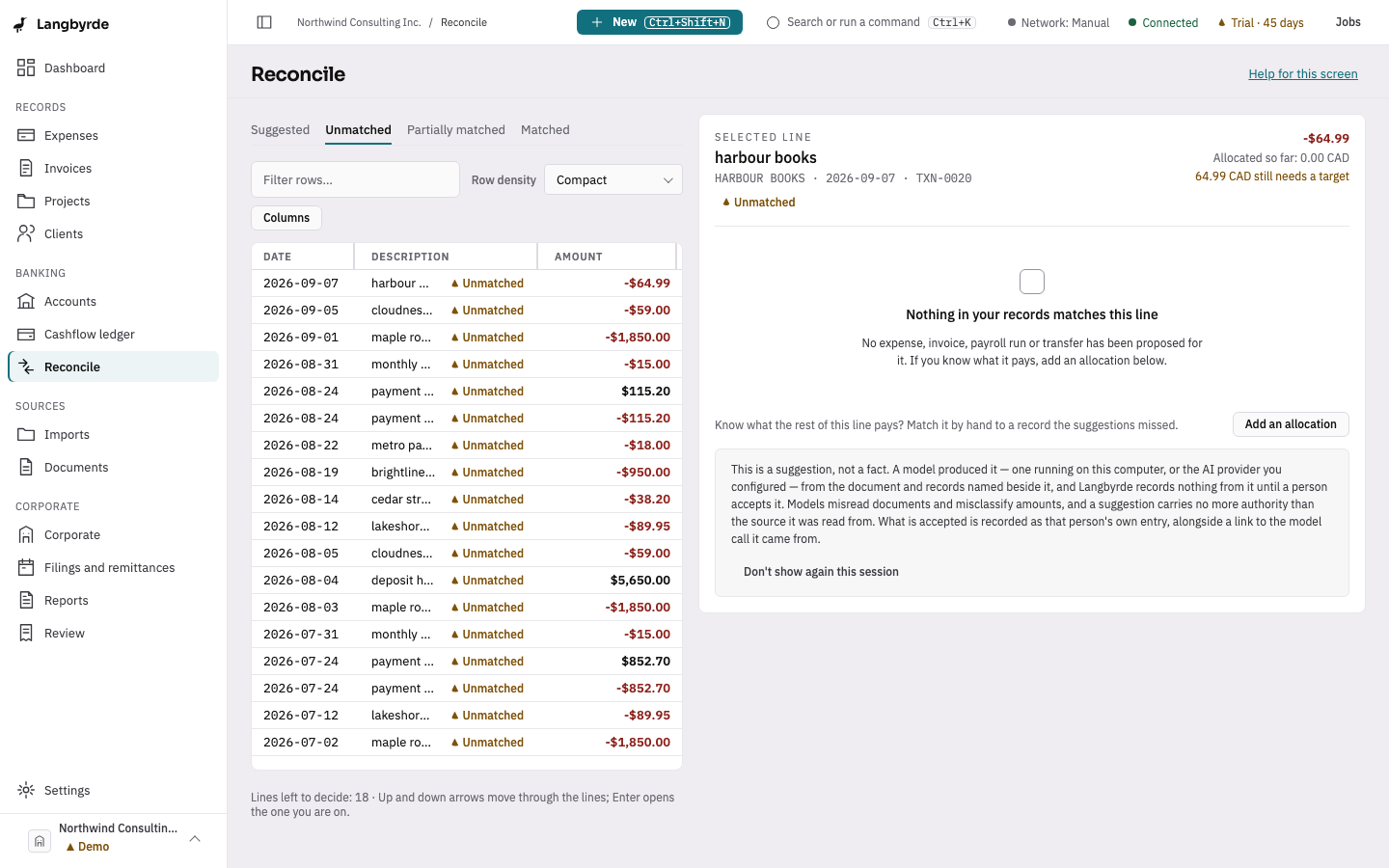
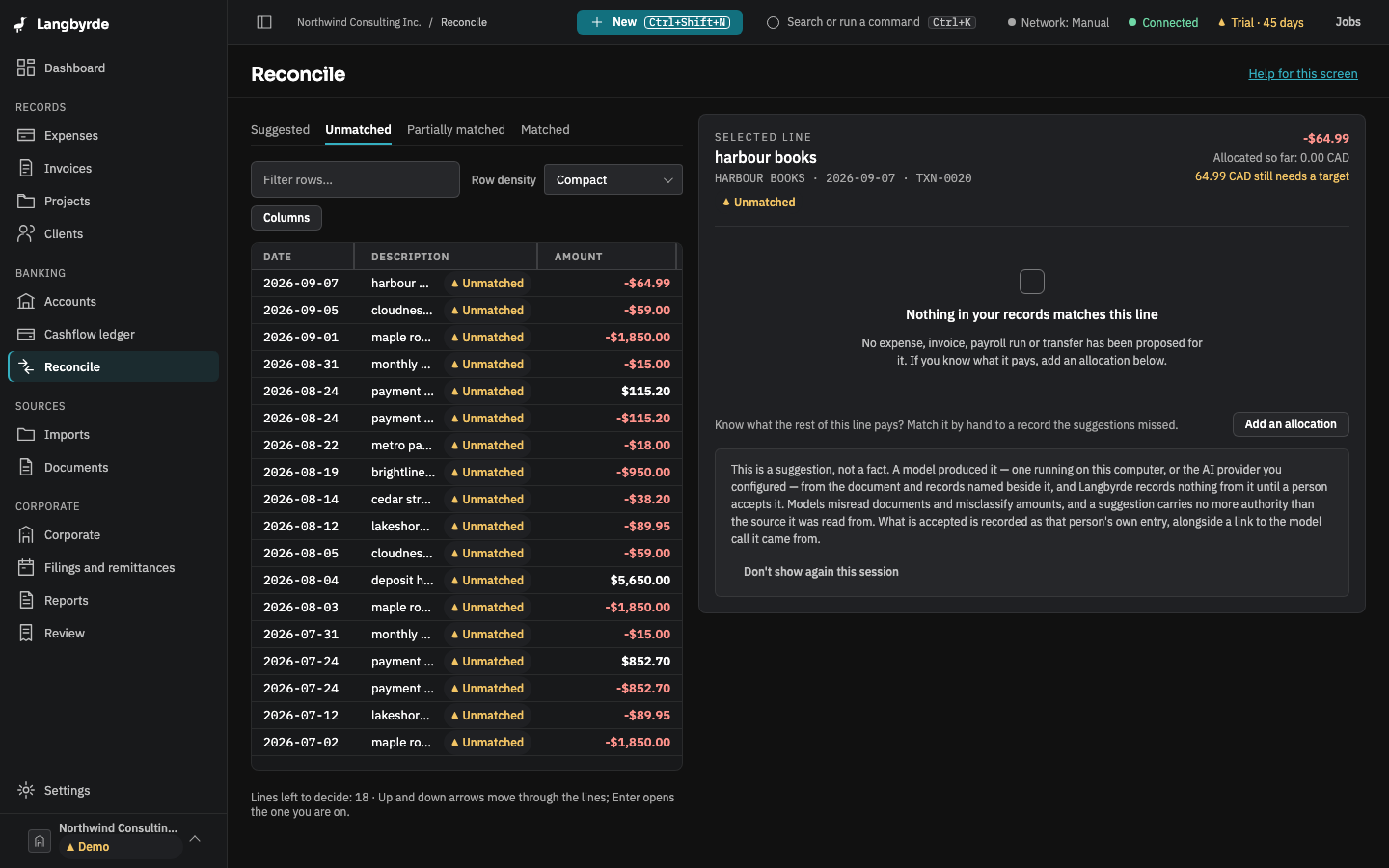
Open Reconcile from the rail, under Banking, or choose Unmatched bank lines on the dashboard. The tabs are Suggested, Unmatched, Partially matched and Matched. The workspace opens on the first tab that has lines in it.
The left side, Statement lines, lists the lines on that tab. The right side, Candidates for the selected line, shows what each line could be matched to.
Matching a line
- Select a line with the up and down arrows or the mouse.
- Read the candidates. Each one says what it is and, for a suggestion, how confident it is.
- Choose Approve match to accept a candidate.
Ctrl+Enter(⌘↵) approves it and moves to the next line. - Choose Reject (
Alt+R) to turn a suggestion down.
Why this match? (Alt+E) shows how a suggestion was found. Unmatch… (Alt+U) undoes an approved match. A candidate is only a proposal: nothing is matched until you approve it.
Splitting a line
One statement line can cover several records, such as one deposit that pays two invoices. Choose Add an allocation for each record in turn; the workspace shows how much of the line still needs a target.
When nothing matches
If no candidate fits, the line may be for something not yet recorded. Record the expense or invoice first, then come back to the line. A move between two of your own accounts is a transfer.
Sign off a statement
When a month's lines are matched, sign the statement off:
- Press
Ctrl+K(⌘Kon a Mac) and choose Statement sign-off. - Choose the account and month. The table compares the statement's closing balance with the books' own balance for the same account and period, and shows the Difference.
- Choose Sign off. If the difference is not zero, type an Explanation first.
A difference that is not zero means something is still unmatched or unrecorded; see What the disclaimers mean. Every statement in a fiscal period must be signed off before that period can be closed.