What Langbyrde does on its own, and what it never does
Updated
Most of what Langbyrde does starts with a button you press. A few things happen without one, so that you have less to type. This page lists them in one place, with the lines Langbyrde never crosses, so nothing in your books surprises you.
It fills things in, you decide
- A receipt you drop is read and filled in as a draft. After a receipt (or a vendor bill you said is already paid) is read, Langbyrde fills in a draft expense: vendor, date, amounts, tax, a suggested category and the invoice number, with the receipt attached. A draft is not in your books. It becomes an expense only when you press Accept. No setting changes that. See Reading receipts on this computer.
- The bank line it would match is only suggested. When exactly one bank or card line fits a read receipt, it is shown as the suggested line. Nothing is matched until you choose Accept with this line.
- The draft's category is the one this vendor's earlier expenses used; for a new vendor, the category the company uses most; failing that, the first one in the list. Change it before you accept.
- A receipt makes one expense, never two. A receipt already held by an expense is not filed again, and a bank line that arrives later is matched to that expense.
- A file's kind is guessed from its name, and marked "(suggested)". A
.csvor.ofxis offered as a statement, a photo or an email as a receipt; a PDF is checked against the statement readers. A file is only a vendor bill, a past invoice or a supporting document because you said so. - Paid or to pay on a vendor bill is a suggestion from the invoice's own words, shown with "(suggested)". Only you decide. See Vendor bills.
- A missing due date on a past invoice is assumed, from the client's payment terms or 30 days, and marked Assumed. Type the real one when you have it. See Importing past invoices.
- A due date left empty on a vendor bill is the vendor's payment terms, or 30 days.
- An account is suggested for each statement in a download with several accounts, from the last four digits of its number. It is never chosen for you. See Supported statement formats.
- Confirm exact receipt matches for me is off unless the company owner turns it on, on the Exact matches screen of Reconcile. Then Langbyrde confirms only exact one-to-one matches between a bank line and an expense, lists each one there, and lets you undo it. It never confirms a draft filled in from a receipt.
Reading takes care of itself
- Receipts are read in the background, on this computer, one after another. The tabs of Imports and their counts update by themselves while a reading runs and when it ends.
- No reading takes more than three minutes. A receipt that is still not read after three minutes ends as a failure you can retry, and the next receipt is read. One bad file never holds up the others.
- A total that does not add up is marked for checking. When the subtotal and taxes do not come to the total, and nothing else printed (a tip, a fee) explains the difference, the amounts are marked for review instead of looking certain. A picture that read badly gets one second try on a sharpened copy; the reading that adds up is kept, and nothing is invented.
- On Windows, text in pictures is read in English (Canada), then French (Canada), whatever order your Windows languages are in. With neither installed, the receipt says so and tells you where to add one.
Screens keep themselves up to date
- Lists and totals follow changes as they happen. When an import finishes, a receipt is read, or something changes in another window, the screen that shows it updates without a Refresh. On Expenses this covers the register, an open expense, vendors and categories. An expense you are editing keeps what you are typing; the change from elsewhere does not overwrite it.
- After the app reconnects or is unlocked, every open screen catches up by itself. If the app lost its connection to itself for a moment, or the app lock was on, each open screen reads what changed in the meantime as soon as it is back. There is nothing to reload.
- Large lists load a page at a time. The expense register, vendors, vendor bills, every tab of Imports, clients, projects, invoices, documents and rename proposals, the bank transactions, Reconcile, the Inbox, the general ledger, the mileage log, stored exchange rates and AI activity show their first rows at once and load more as you scroll. The counts on tabs, sorting and the search or filter box always work over the whole list, not only the rows on screen.
- Pickers search the whole list. Choosing an expense, a client, a project, an invoice or a receipt in a picker searches every one as you type, a page at a time, so a picker is never limited to its first rows.
- While a screen loads, grey placeholder shapes show where its fields and figures will appear, instead of a blank area. They are replaced by the real values; a placeholder is never a figure.
Your files are never deleted
Langbyrde never deletes a file of yours. When something is removed, its file is moved into a folder named bcp right beside where it was, and the move is written down:
- a receipt removed from the queue (Undo brings it back);
- the invoice file unlinked from a vendor bill;
- a backup removed with Remove backup… on Backups;
- the statement file of an import you delete;
- the empty folder of an account whose code you changed, or that you deleted.
Empty a bcp folder yourself when you want the space back. The one exception is Remove old backups… and the automatic clean-up on Backups, which remove backups older than the schedule you saved; the newest backup, every backup taken before an update, the latest one taken before a restore and any backup that fails its check are never removed. See Backups.
Moving a file into its proper folder and name is always proposed first and done only when you accept it in Documents › Rename proposals.
Private details stay private
- A vendor's payment details on a bill are stored encrypted; afterwards only the last four digits are shown, and Reveal shows them for 30 seconds and records that you looked.
- A bank account's number is kept masked once saved; see Accounts.
- Nothing about a receipt leaves your computer unless you set up your own AI provider; see AI providers: what they do and what is sent.
Small things that work for you
- The company you worked in last opens by itself. When Langbyrde starts and the app is not locked, it opens the real company opened most recently on this computer, not the list and not the sample company. Welcome shows only when there is nothing to open or that company cannot be opened. The company switcher in the rail changes company. See Getting started.
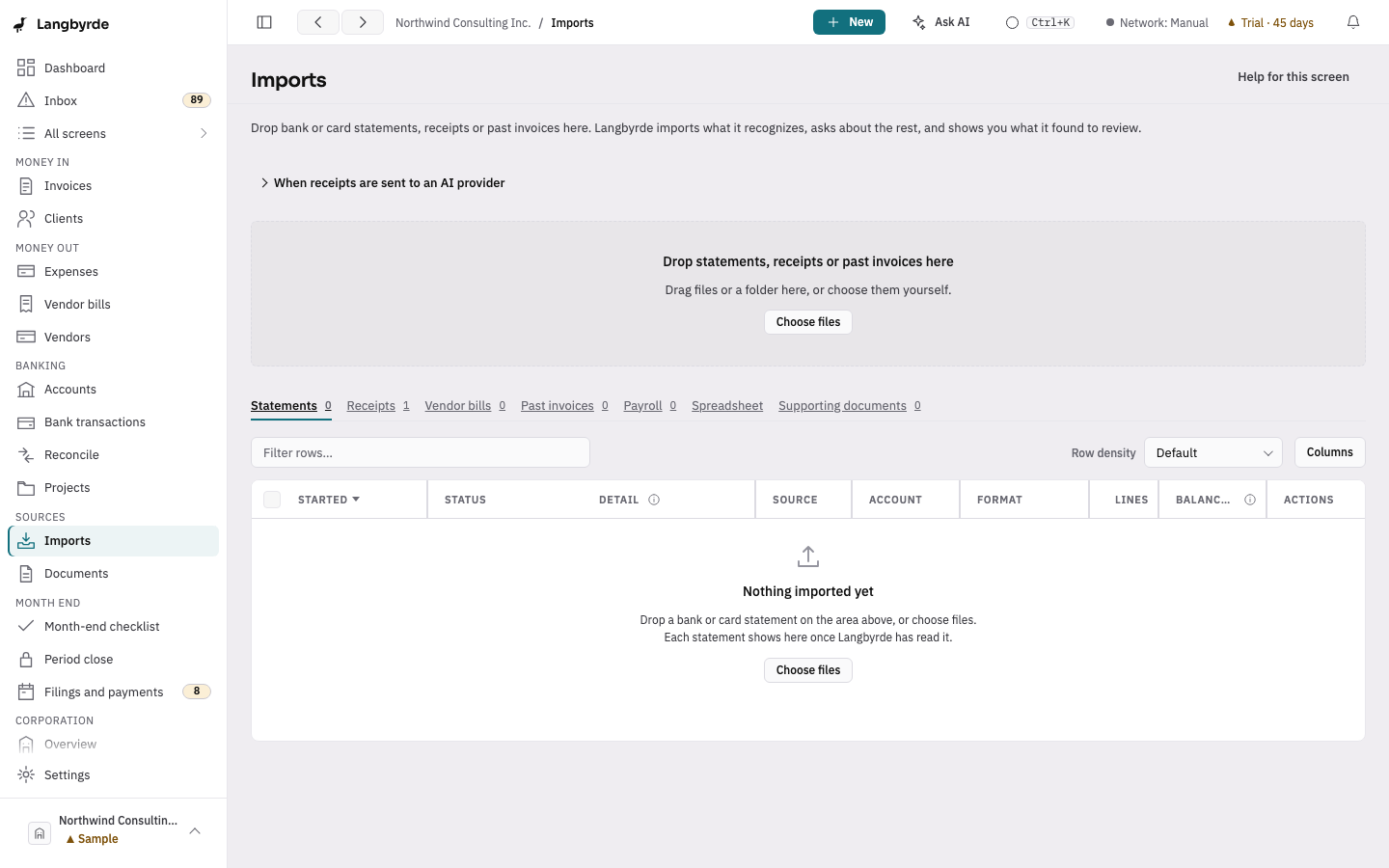
- The tab for what you dropped opens by itself on Imports.
- Buttons that start longer work show they are working: the button's ring turns until the work has started, and stays still if your computer asks for reduced motion.
- Confirmations close by themselves, and nothing is lost. A confirmation closes after 5 seconds (8 with an Undo), but stays while you point at it, and an error stays until you dismiss it. Notifications in the top bar keeps the last 50 in Recent, and shows what is Running, with Cancel where the work can be stopped.
- Sort arrows in a table's column headings show which column the table is sorted by and in which direction.
- Every figure is worked out by Langbyrde from your records, never by the screen. Where a figure mixes currencies, hover over it or move to it with the keyboard to see each currency, its rate and the source of that rate. See The dashboard.
- Nothing runs in the background in the Offline setting: no update check, no exchange-rate download, no AI call. See Privacy and network.
- Updates are never required, and a backup is taken before an update changes your company file. See Updates.