The expense register
The expense register lists every expense in the company file. Expenses come in from receipts and imported statements, and you can record one by hand; see Recording an expense for the steps.
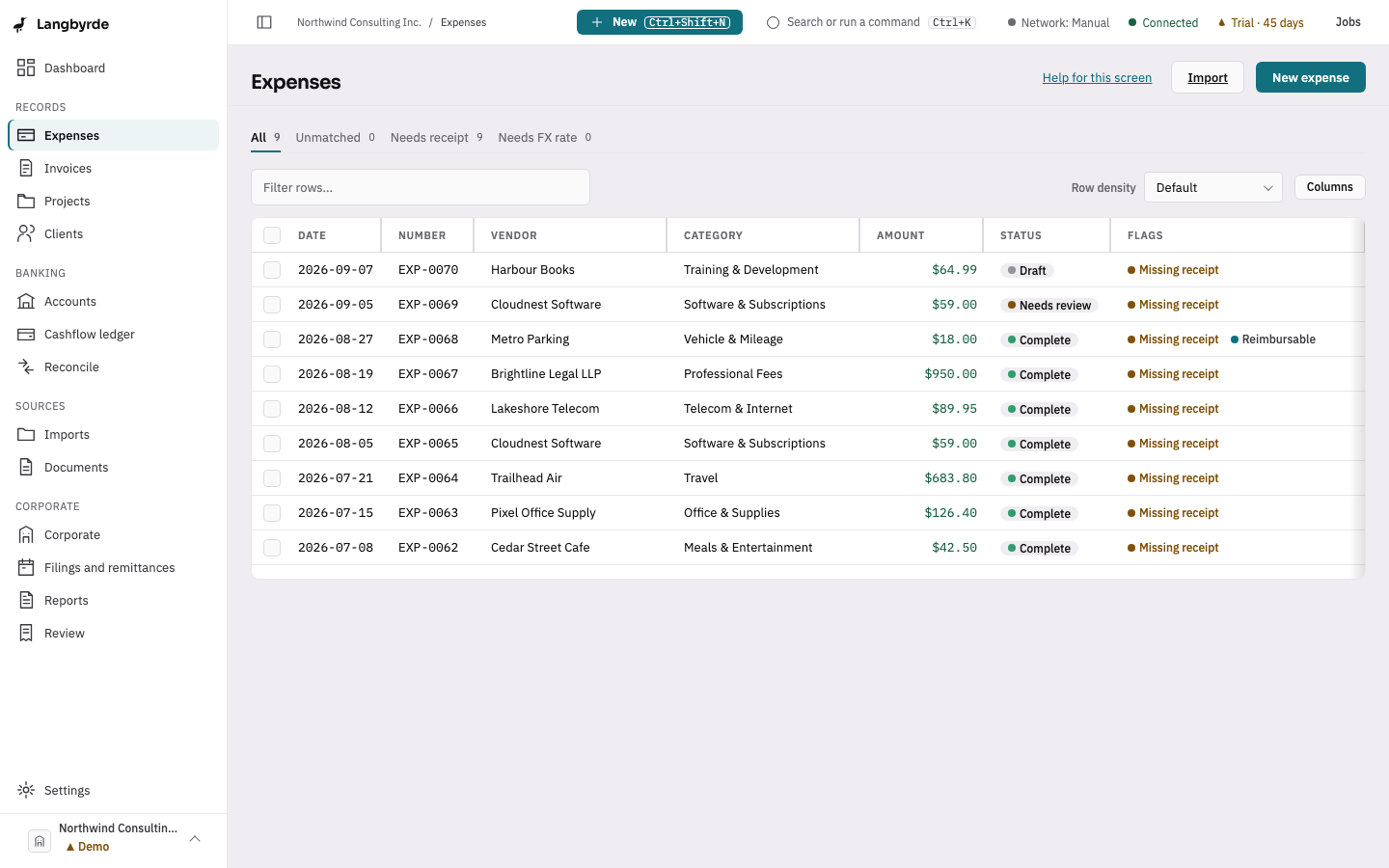
Find an expense
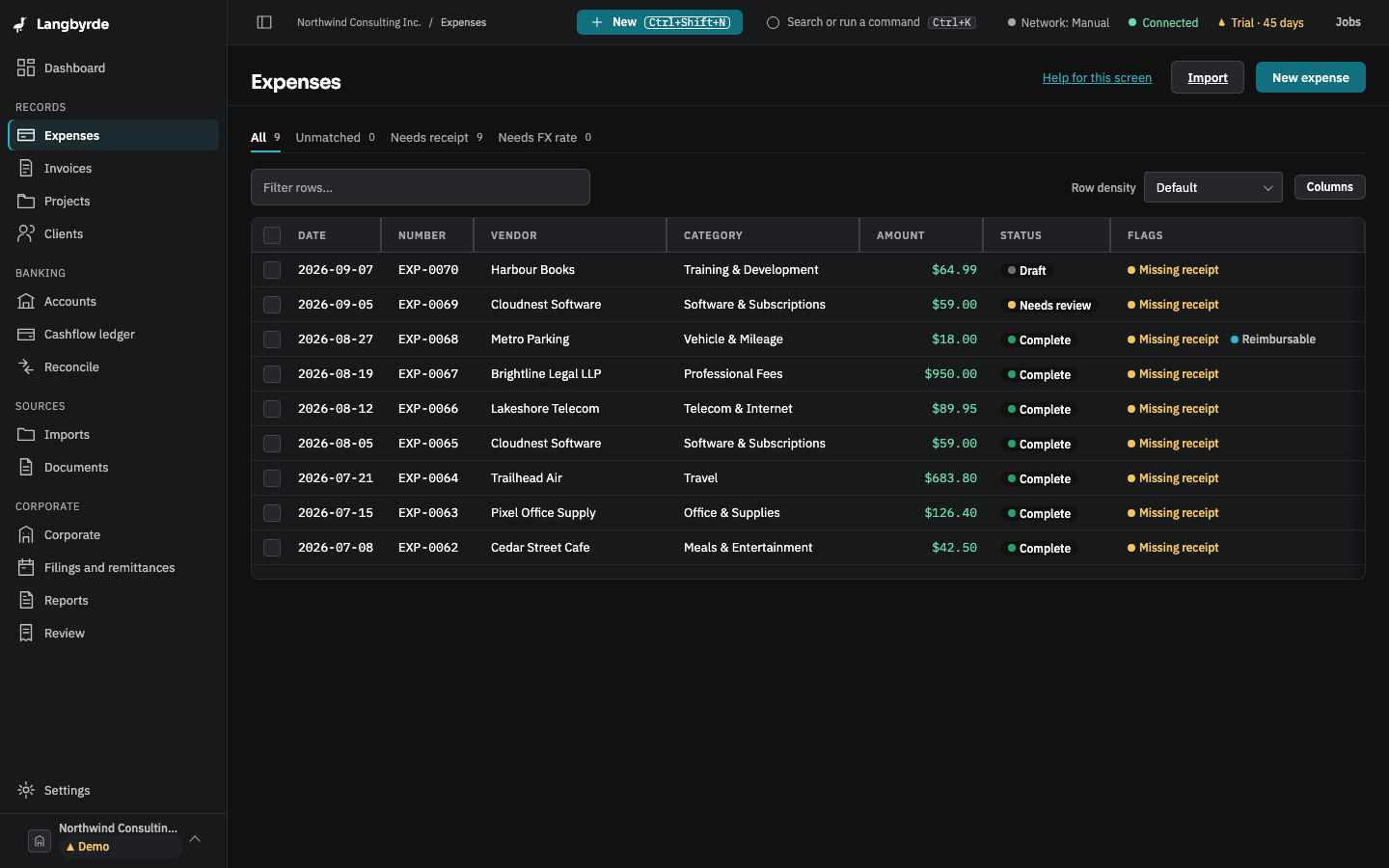
Open Expenses from the rail, under Records. The tabs at the top narrow the list: All, Unmatched, Needs receipt and Needs FX rate. Flags on a row say when it is missing a receipt, is reimbursable, or needs an exchange rate. Filter rows… searches the rows shown. Choose a row to open the expense.
In a narrow window or at a large text size, amounts and dates keep their full width and the text columns give way first.
Record a new expense
Choose New expense at the top right, choose New in the top bar and then Expense, or press Ctrl+Shift+E (⌘⇧E on a Mac) from any screen. See Record an expense.
Change how the table looks
Row density makes rows more compact or more spacious, and Columns shows or hides columns. Langbyrde remembers these choices on this computer.
When an expense reaches your books
An expense marked Complete or Needs review is recorded in your books straight away. A Draft stays out of your books until you mark it Needs review or Complete.
Deductible and input tax credit shares
Once recorded, an expense shows Deductible and Input tax credit percentages worked out by your company's tax rules; see What the disclaimers mean.
Expenses in a closed period
Once a period is closed, an expense dated inside it keeps its amounts, dates and category. Only notes, links, comments and documents can still change.