Walkthrough
From a bank statement to your accountant’s package
One statement, followed from the download to the year-end package, on a made-up company. Every picture is the real app, and every figure is sample data. Nothing here is tax or legal advice.
The steps
Each step says what you do and what Langbyrde shows. Nothing is kept in your books until you confirm it.
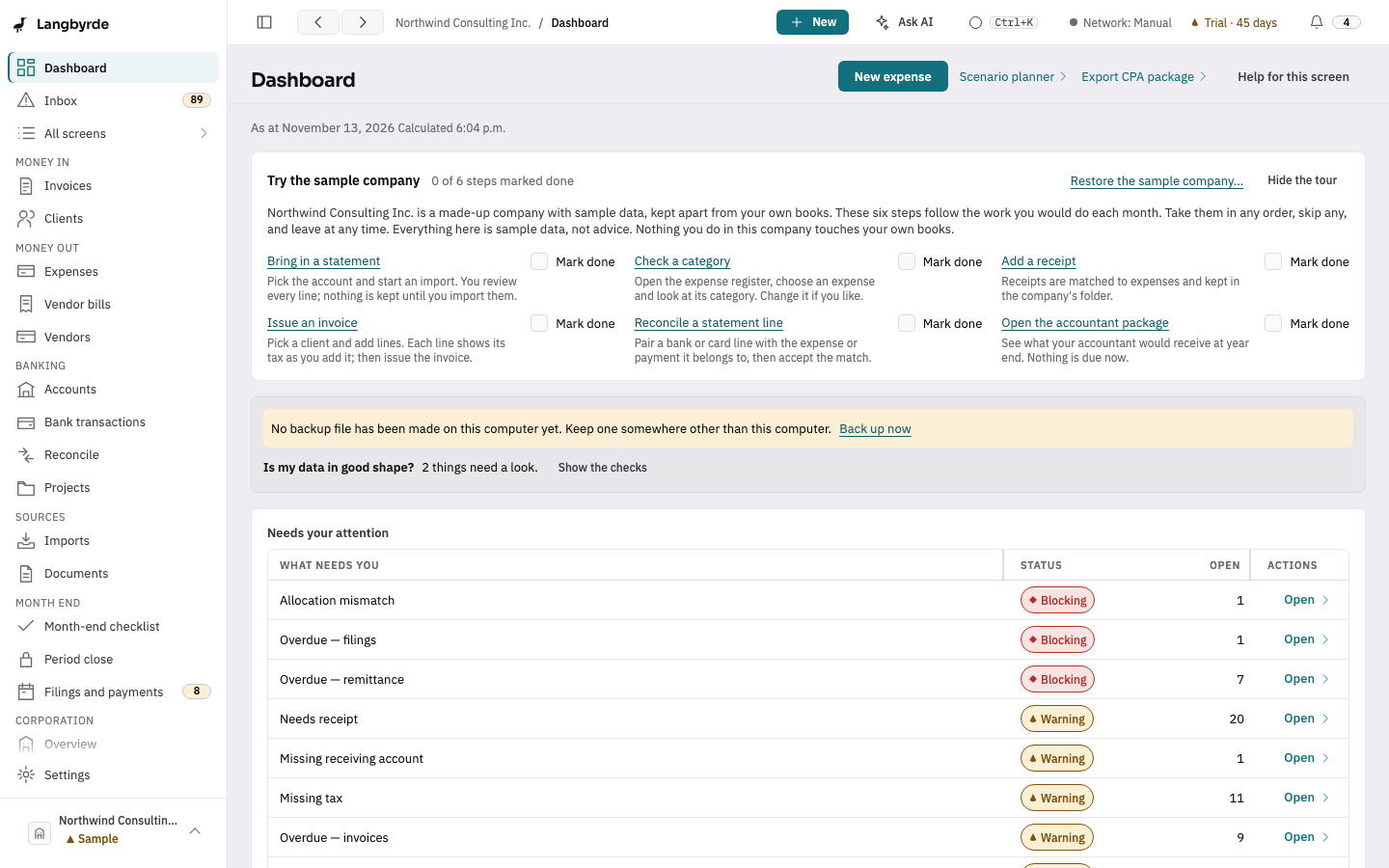
1. Start from the sample company
The sample company is a filled-in company you can look around before entering anything of your own.
2. Choose the statement
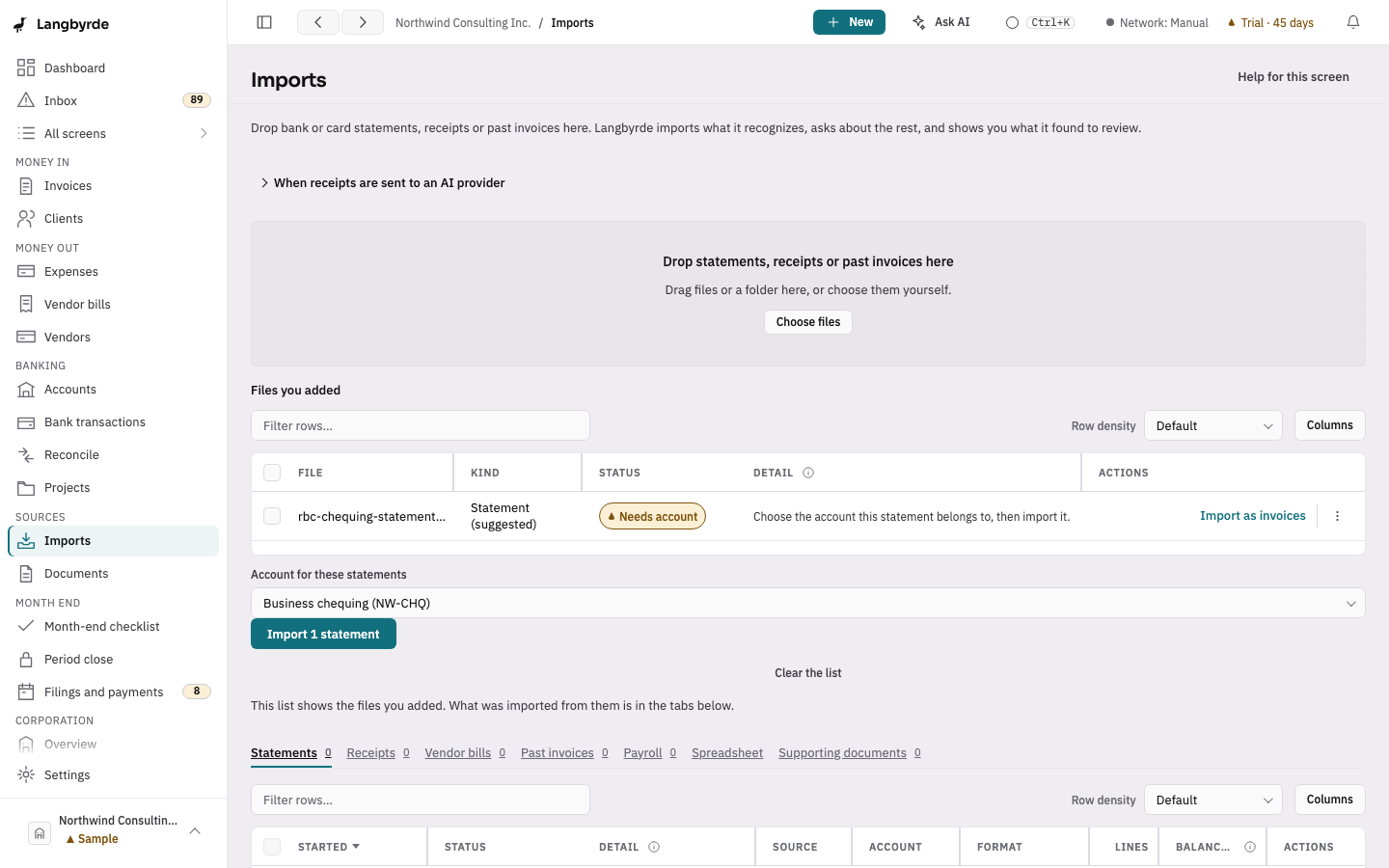
Download the statement from your bank the way you always do. Under Imports, choose the file (or drop it on the window), pick the account it belongs to, and choose Import 1 statement. Nothing is kept in your books until you import its lines in step 4.
3. Check what was read
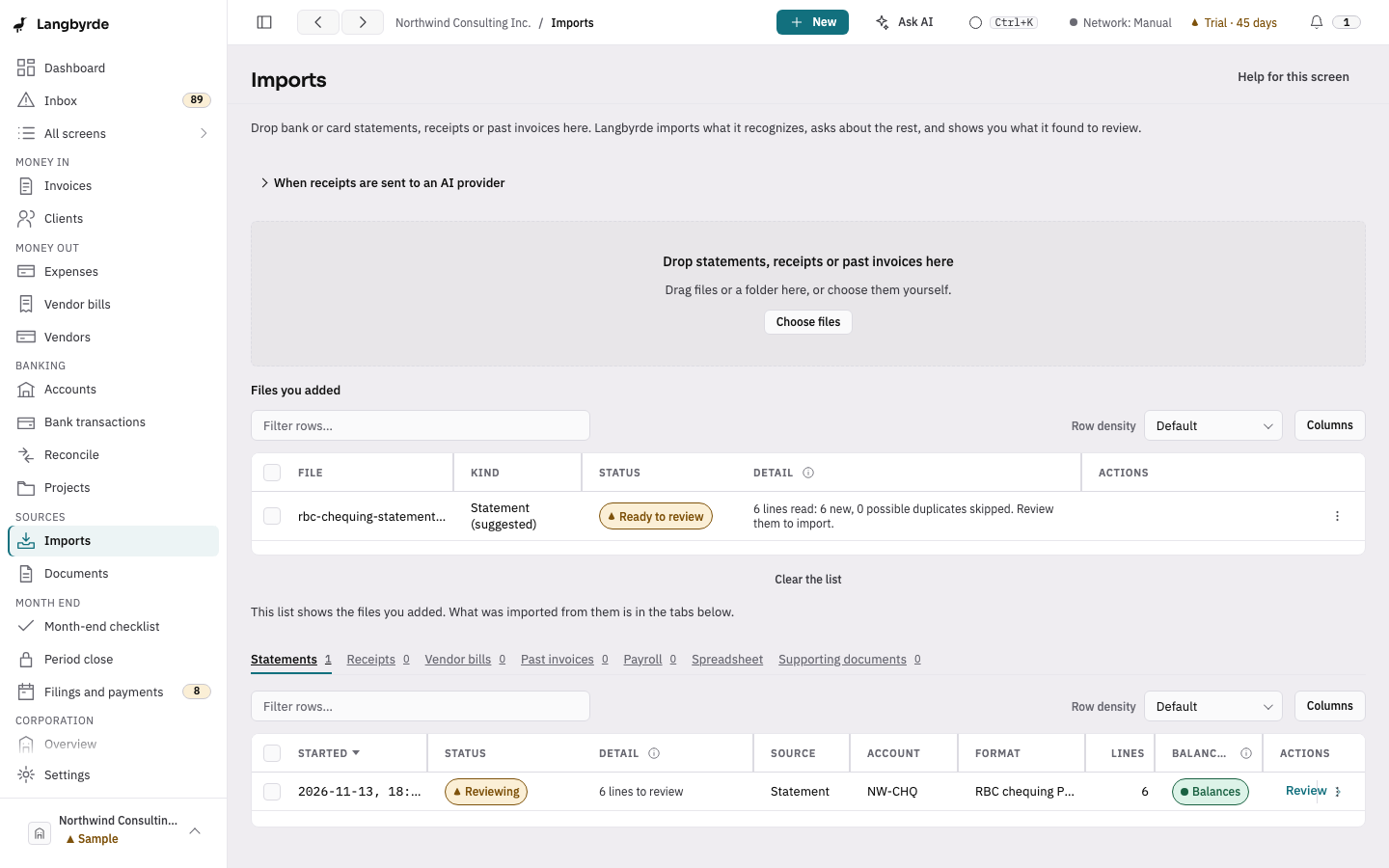
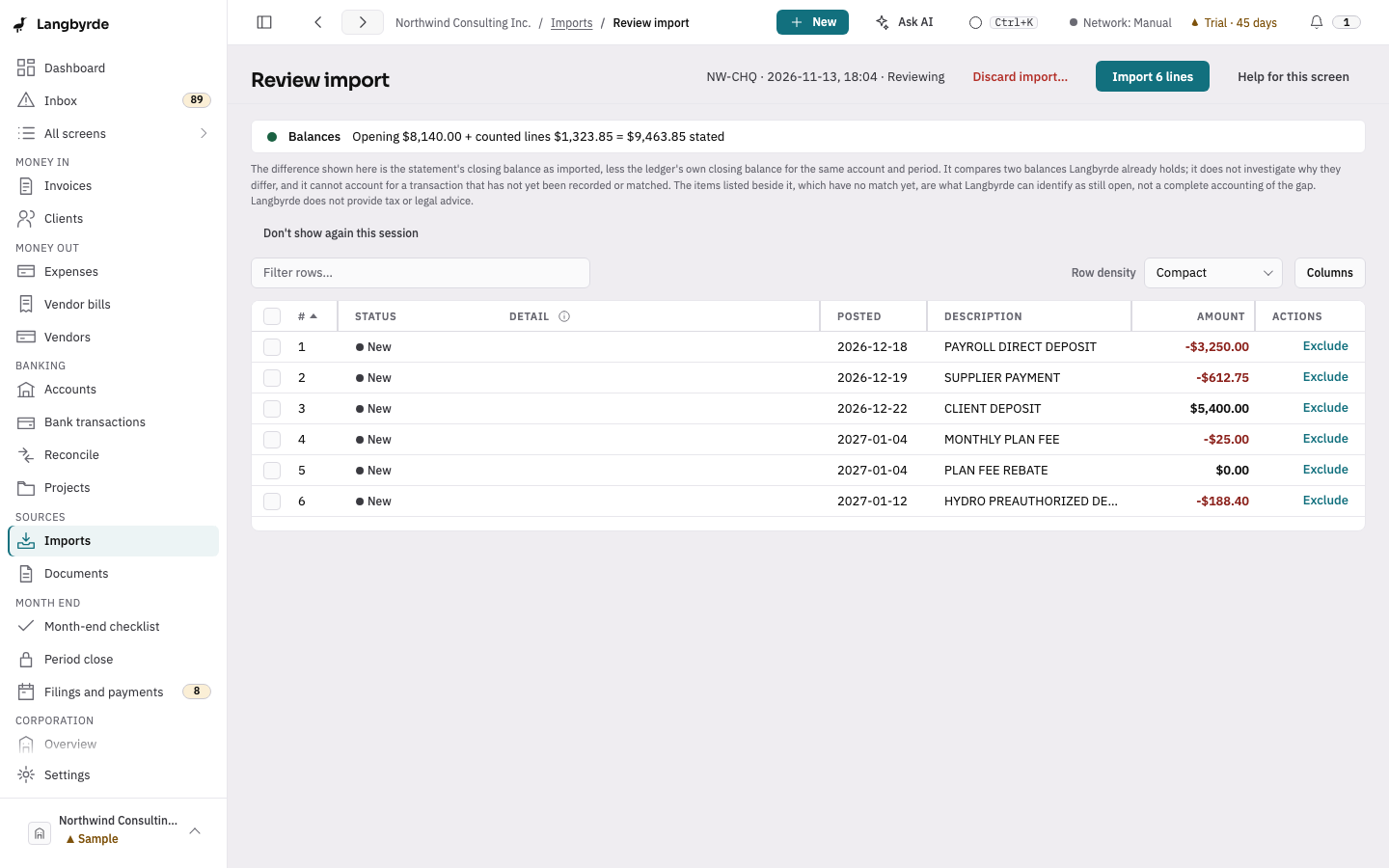
Langbyrde reads the file and says how many lines it found and how many are new. Review opens every line. The banner checks the arithmetic: here the opening balance of 8,140.00 plus the counted lines of 1,323.85 equals the stated closing balance of 9,463.85 (all in Canadian dollars), and it says Balances, so no line was dropped. A line that was imported before is marked and left out, so importing the same statement twice does not count it twice.
4. Import the lines
Import N lines makes the lines part of the books. They appear in the Bank transactions list with their status.
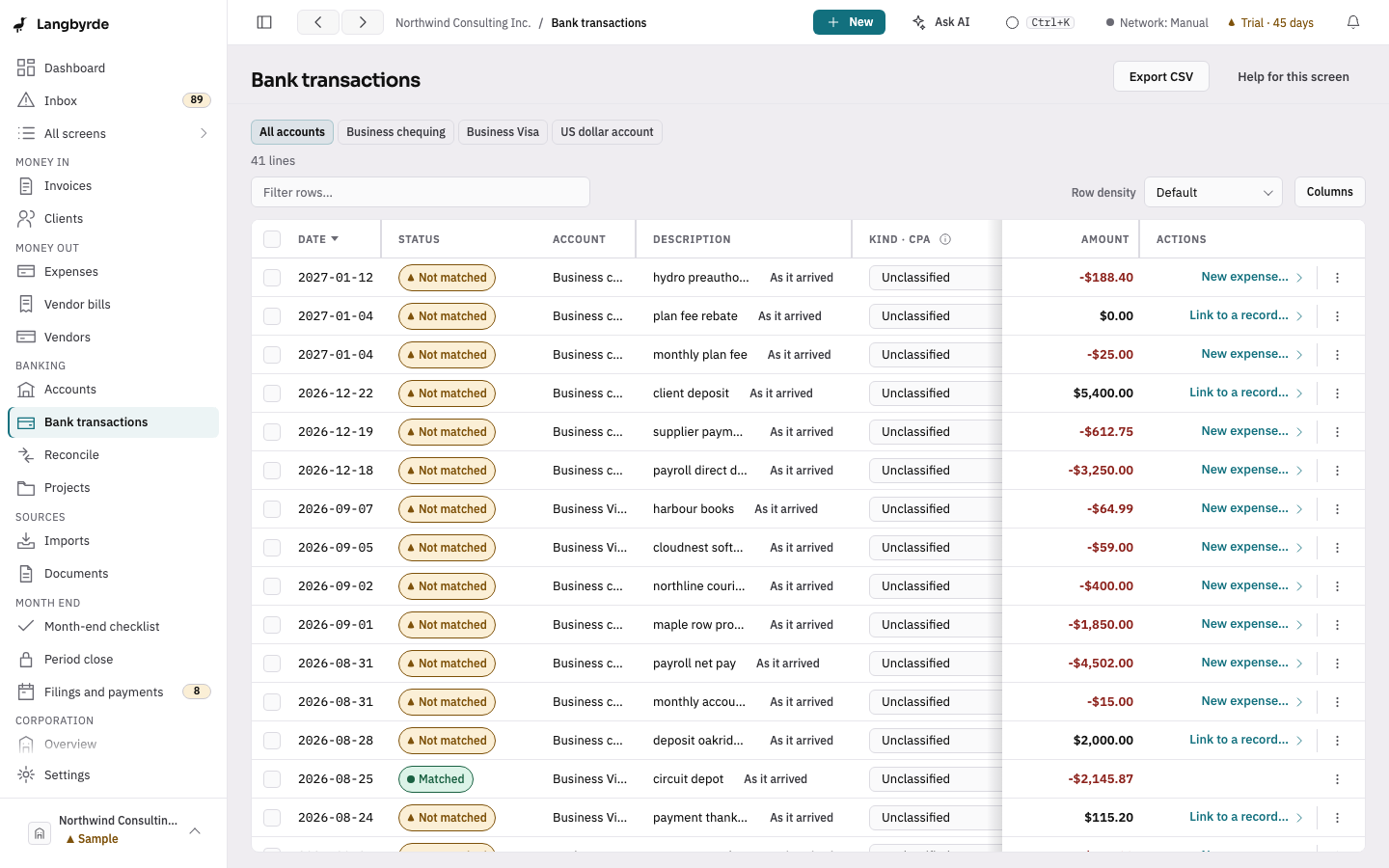
5. Start an expense for a vendor you have paid before
When you start a new expense by hand and pick a vendor you have paid before, Langbyrde fills in that vendor's usual details, such as the category of the last expense recorded for it (here, Office & Supplies). It is a starting value worked out on your computer from your own books, not a decision: change any field before you choose Record expense. A vendor Langbyrde has not seen before gets nothing filled in.
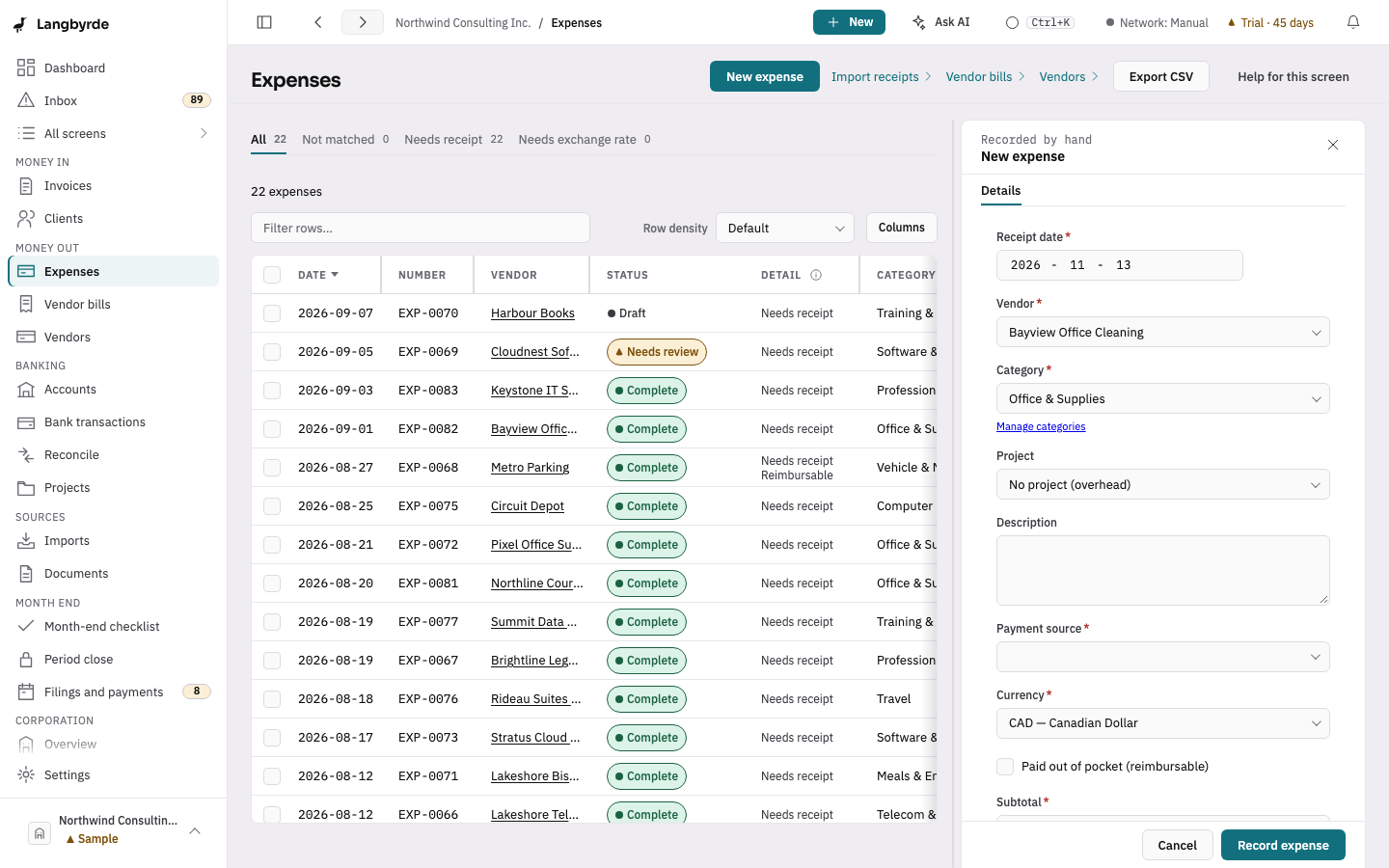
6. Read a receipt
A receipt dropped on the Receipts tab is read on your computer: the vendor, the date and the amounts. The result is a draft marked Proposed; it can be wrong, so you check it and accept it. Nothing is recorded until you do.
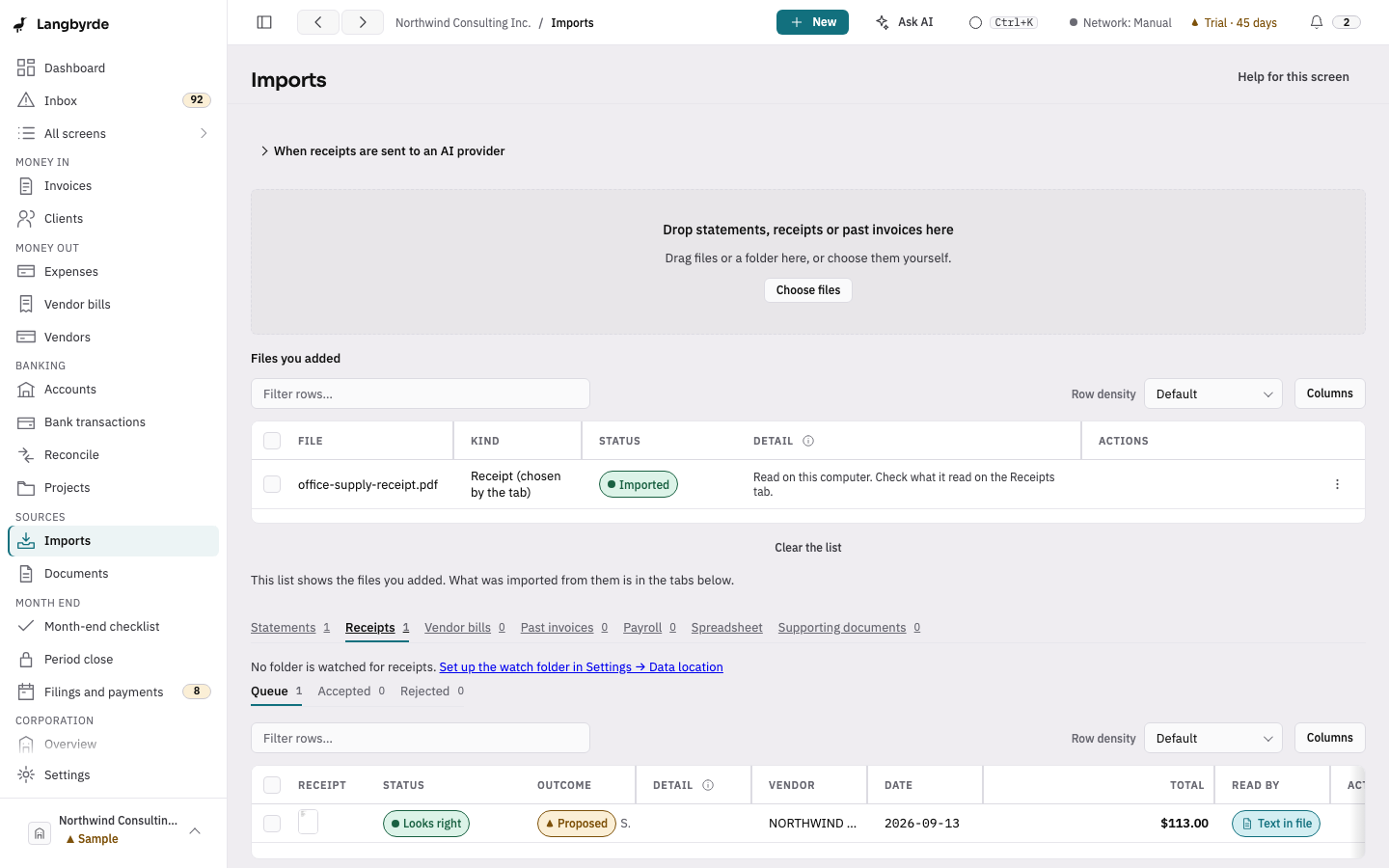
7. Match lines with what you recorded
Reconcile lists the statement lines. After an import, or after you record an expense, Langbyrde looks for the line that paid it with fixed rules on your computer (the same amount, a few days apart) and proposes the pair. It is a proposal: nothing is matched until you choose Accept, and Reject turns it down.
8. Check the period before closing it
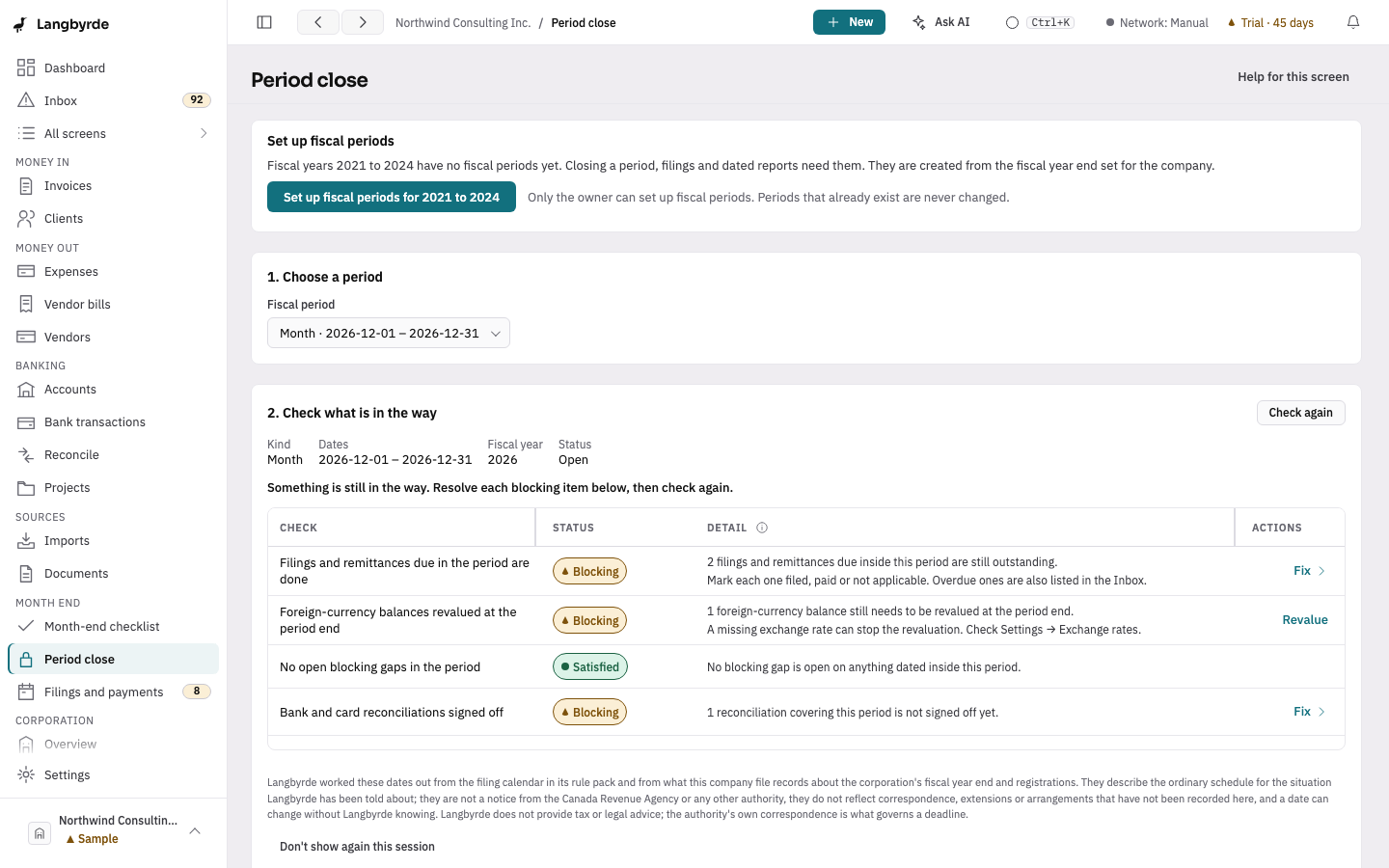
Period close checks a month or a year before it is locked. In the sample company the last open month still shows blocking items, so it cannot be closed yet; each item has a link that goes to the screen that fixes it. A closed period is locked against edits except notes, links, comments and attached documents.
9. Export the accountant package
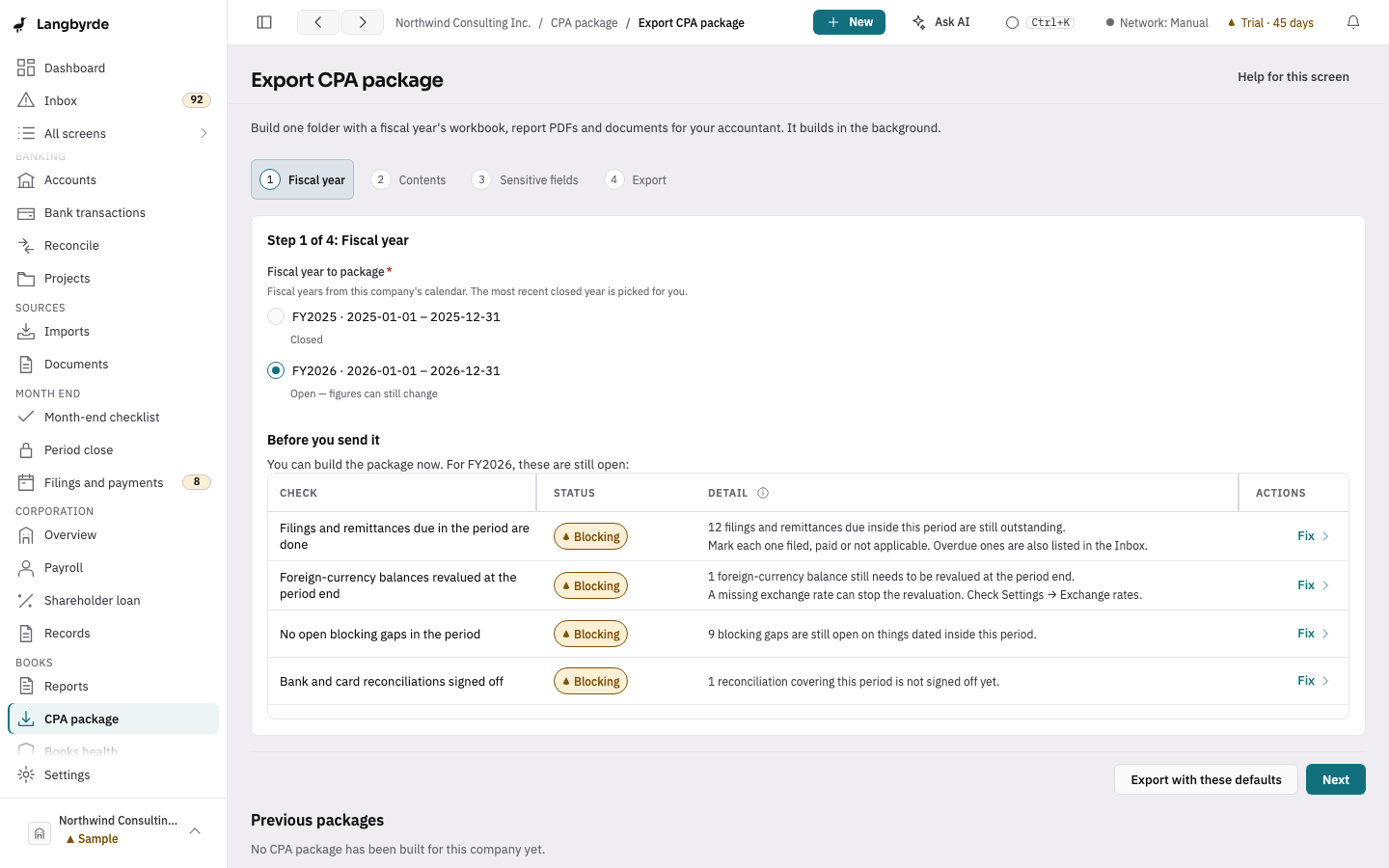
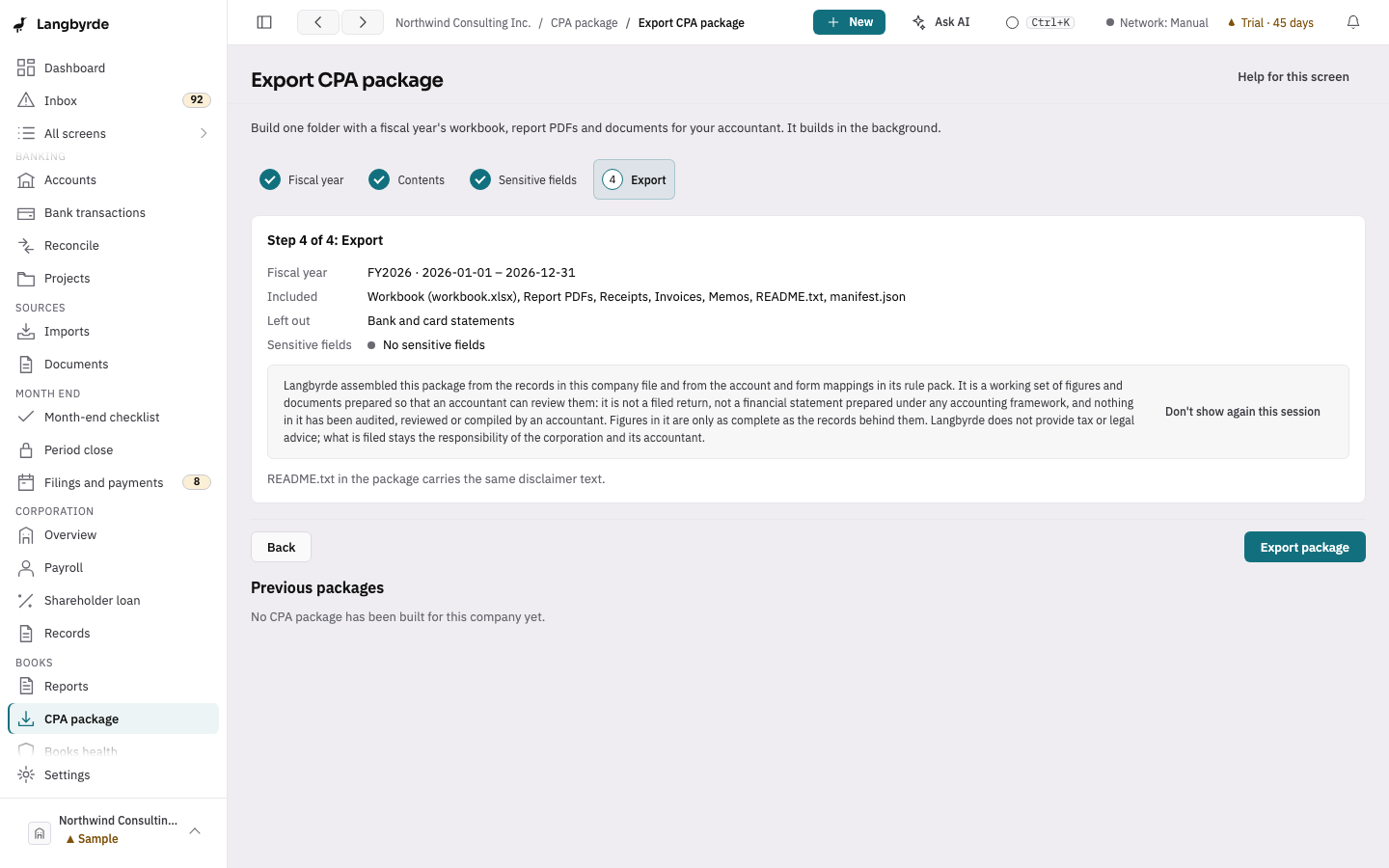
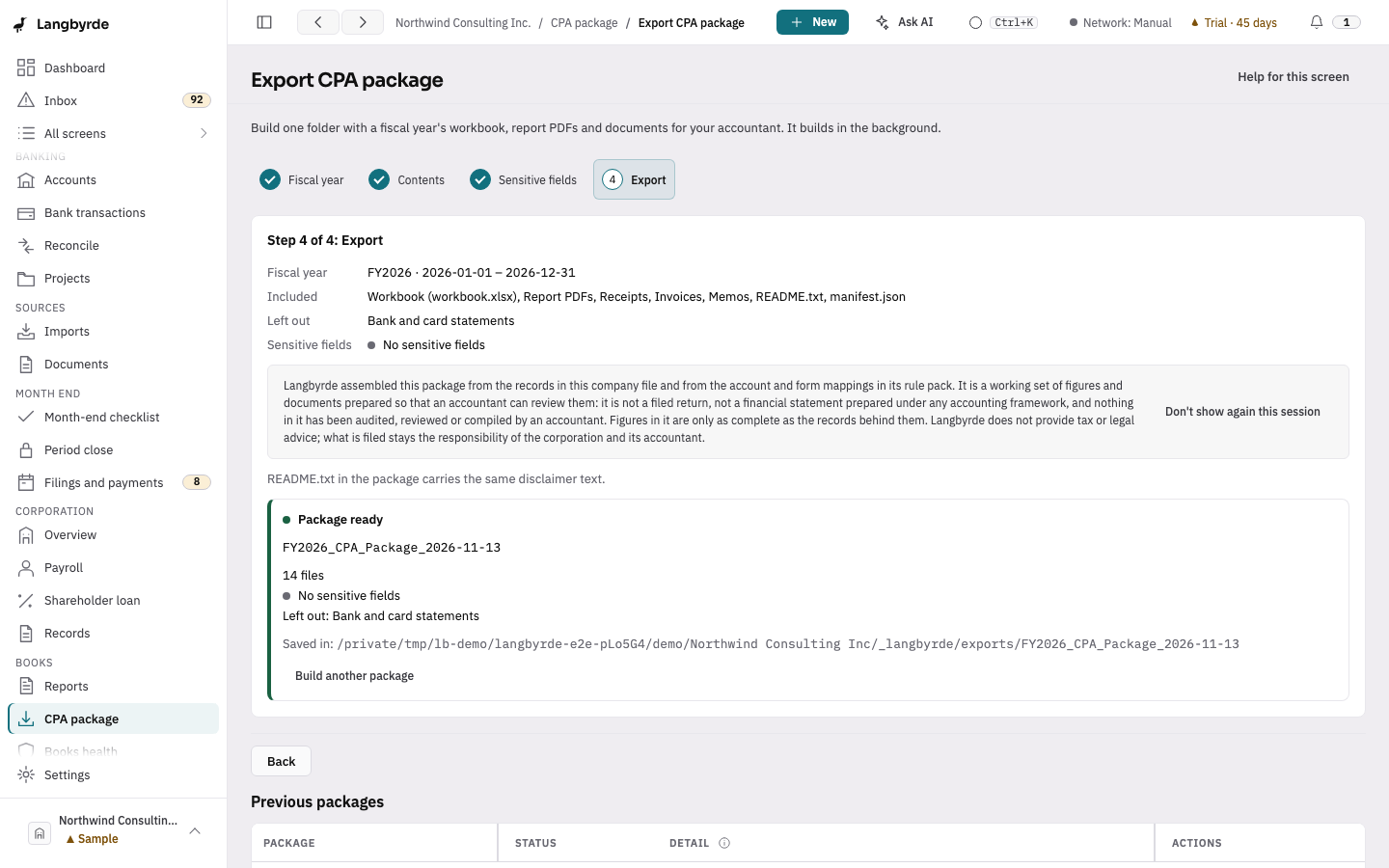
Under Reports, Export CPA package: pick the fiscal year, keep the usual contents, leave Include sensitive fields off, and choose Export package. The result is one folder on your computer: a workbook, the report PDFs, receipts, invoices, memos, a README and a manifest. Bank and card statements are left out unless you ask for them. The disclaimer on the last step is the same text the README carries: the package is a working set of figures for an accountant to review, not a filed return and not reviewed by anyone. You send it to your accountant however you like.
What this walkthrough does not show
- Closing a period: the sample company's last open month has blocking items, so the walk stops at the checklist.
- Accepting a receipt against one bank line, and the switch that lets Langbyrde confirm exact matches itself
- Anything an accountant has said about the package: nobody outside the project has reviewed it.
In the user guide
The same pages are built into the app: press F1.
Then try it on your own books.
Every feature works for 45 days, and the trial includes a ready-made sample company you can explore before you enter anything of your own.
macOS 13 or later, on Apple silicon or Intel · Windows 10 or 11